

Facebook is home to nearly 2 billion monthly active users, so it’s safe to say that having a compelling Facebook Business Page is essential for any company looking to bolster its online presence. It should be easy enough, right? Just slap together a photo and a couple of posts and expect the leads and customers to roll in, right?
Not quite.
If you’re not creating a Facebook Page with a comprehensive strategy to get noticed, Liked, and engaged, the chances of generating leads and customers from it are slim.
To help you out, we created a helpful guide for creating your Facebook Business Page, and we compiled the tips below to ensure your page takes full advantage of everything Facebook marketing offers.
Listen to an audio summary of this post:
How to Design a Facebook Business Page
1. Create your page.
A Facebook Business Page isn’t a user account like your personal page. It’s an asset you manage from a personal Facebook user account as a Page Administrator.
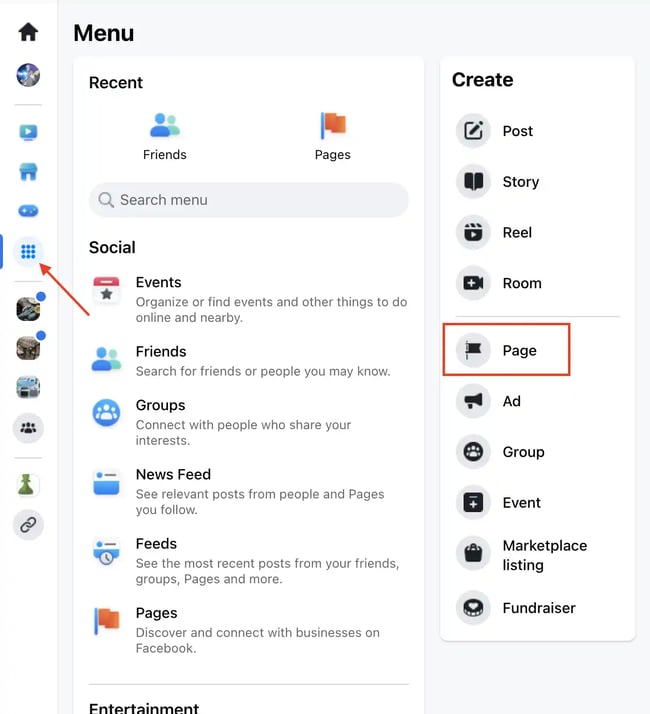
To create a Facebook Business Page, you need to:
- Choose a personal Facebook account from which you’ll create your Facebook Business Page. If you don’t have one, you’ll need to create one.
- You may want to create a new Facebook account with your work email address to keep things separate, but this isn’t required.
- Click the See all button on the left sidebar menu and then select Page from the Create menu that appears on the right.
2. Plug in your details.
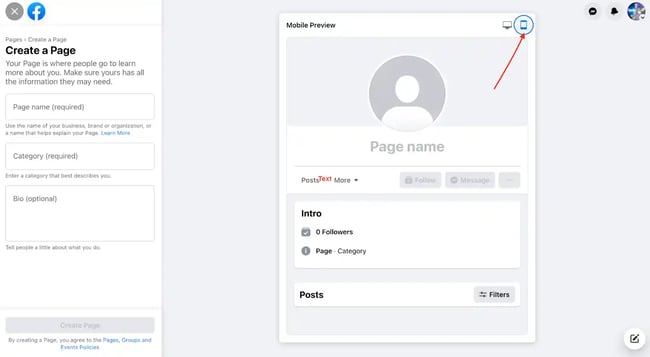
On the next page, enter some basic information about your business.
- Page name: The name of your business.
- Category: The category that best describes your business. Facebook has hundreds of options, so start typing, and it will auto-populate with your business type/industry.
- Bio: Keep it short and sweet. Enter a sentence or two about who you are, what you do, and what you stand for.
Now, it’s time to make it official. Click Create Page. Congrats! You are the proud owner of a Facebook Business Page.
Next, you’ll need to enter some additional information about your business, such as:
- Website
- Phone Number
- Email Address
- Hours
- Location
.png)
The Marketer's Guide to Meta
Transform your Facebook and Instagram presence from overlooked to outstanding.
- Platform Deep-Dives
- Content Creation Secrets
- Paid Advertising Mastery
- Performance Tracking
Download Free
All fields are required.
Pro tip: Check out your page’s mobile view to ensure everything looks correct when accessing your page via phone.
As of 2023, 98.5% of Facebook users access the site via mobile, and 81.8% exclusively use their phones to browse the social media site. So, it’s safe to say that a mobile-conscious approach is warranted.
3. Add your profile pic and cover photo.

Now’s the time to add some style to your page with high-resolution photos that represent your brand.
- Your profile picture should include some iteration of your logo.
- Your cover photo can be more stylized, but consider using a colorful background that is consistent with your brand style guide.
We recommend using the PNG format for profile pictures and cover photos that include text/logos.
Recommended image sizes:
- Profile picture: At least 170px x 170px
- Cover photo: 851px x 315px
4. Add an action button.
An action button is a custom call-to-action (CTA) that appears below your cover photo. You can set it to direct visitors to a landing page, book an appointment, or contact you directly (and more).
A thoughtfully selected action button can help drive conversion from your Facebook Business Page. Check out the video above or the steps below to learn how to add one:
- From your Page, click the button with a dash, then click Add Page Button.
- Select a button from the list of options, then click Next.
- Follow the instructions on the screen and click Save.
5. Put on the finishing touches.
At this point, you’re almost done creating your business page and ready to start churning out engaging posts. However, there are a few final touches we recommend taking advantage of.
Customize your tabs
- To manage tabs, navigate to your page management dashboard and select More > Manage Sections.
- Choose the most relevant tabs to display on your Facebook page, depending on your industry.
- For example, you can choose to hide or show reviews or hide tabs such as “Music,” “Sports,” and “Check-ins,” which may not be necessary for a business page.
Create a custom URL
- A custom URL will make your Facebook page appear much more legitimate. Your customers would rather see facebook.com/yourbusiness than facebook.com/page18376657 when they visit your page.
- Set your custom URL by navigating to General Page Settings and clicking Edit next to Username.
Pin a Post
- Choose a post you want to remain at the top of your page and pin it. It can be an exclusive offer, a new product announcement, or a welcome message to new visitors.
- Pin a post by clicking the pin icon on the post you want to pin.
If you’ve followed the above steps, you’re ready to hit the ground running and cultivate an engaging Facebook Business Page that resonates with your audience and drives sales.
However, the work doesn’t stop there. You need to keep the ball rolling by posting regularly. If you’re unsure where to start, check out our 41 Facebook Post Ideas for Businesses guide.
15 Tips for an Engaging Facebook Business Page
So you’ve got your Facebook Business Page up and running, but what now? We have some tips to help you get the most out of your page. Check out 15 tips for an engaging Facebook Business Page below.
1. Create engaging graphics.
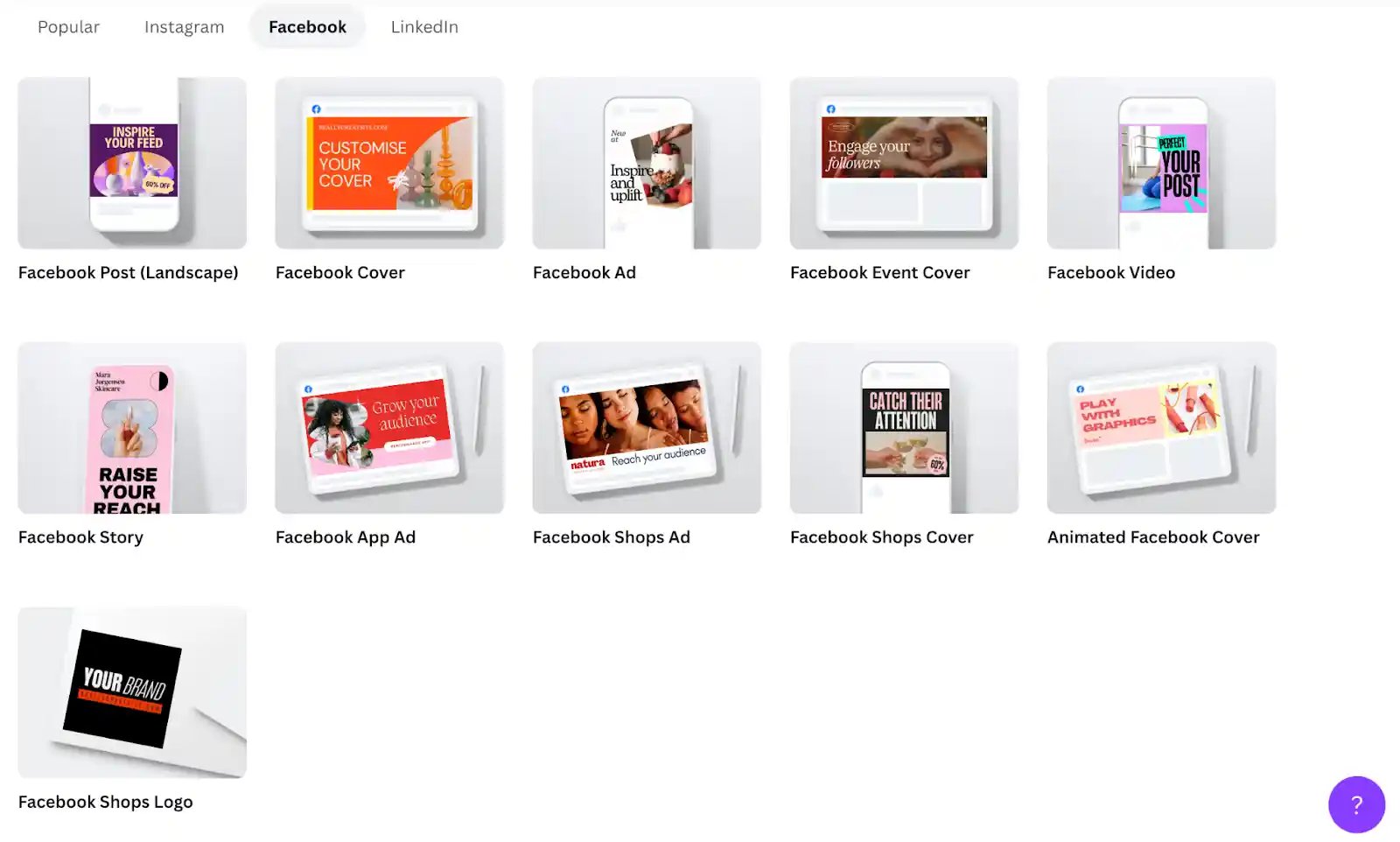
Your business page should be clean, stylish, and consistent with your brand style guide. However, that doesn't mean you need a full-time designer to churn out those assets.
Use tools like Canva to easily create custom graphics for your posts, cover photos, and profile pics using Canva’s templates and free design assets. Canva features templates for every type of social media post you can imagine, so you never have to worry about choosing the correct dimensions.
2. Assign page roles.
It takes a village to manage a Facebook Business Page. That’s what they say, right?
If you work with a team, take advantage of page roles to assign users different access levels to your page so your team can help out without stepping on one another’s toes.
As the page creator, you’ll be the admin, meaning you have full access to everything about your page. As the admin, you can create new admins and users with other access levels. Page roles include:
|
Admin |
Facebook access with full control |
|
Editor |
Facebook access with partial control |
|
Moderator |
Access to Message Replies, Community Activity, Ads, Insights |
|
Advertiser |
Access to Ads and Insights |
|
Analyst |
Access to Insights |
|
Community Manager |
Access to moderate live chats |
3. Integrate your YouTube channel.
People love watching videos on social media, and that includes your customers. If you have a YouTube channel (which we recommend) you can integrate it directly into your Facebook page by following the steps in the video above.
Linking your YouTube to your Facebook page allows you to easily share your YouTube video content with your followers on Facebook for maximal engagement.
4. Post consistently.
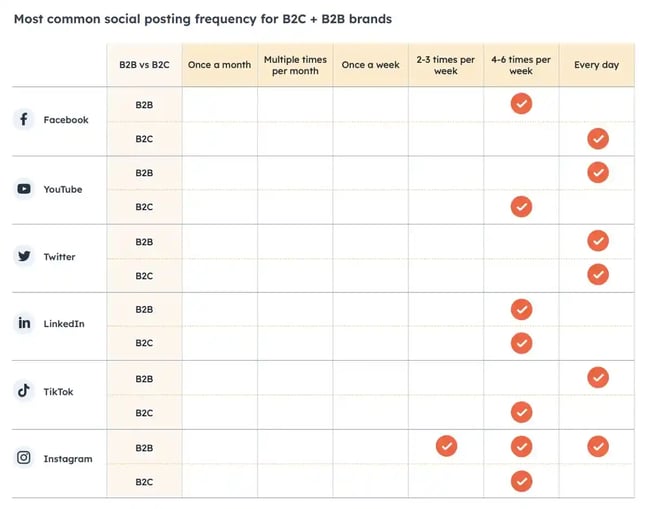
Consistency is key when it comes to posting on Facebook (and social media in general). Make the most of your Facebook page by adhering to a consistent posting schedule.
For B2B brands, we recommend 4-6 times a week, while every day is optimal for B2C brands. Consistently posting will improve your standing in the eyes of Facebook’s algorithm, getting your posts in front of more customers for increased engagement.
5. Promote your page.
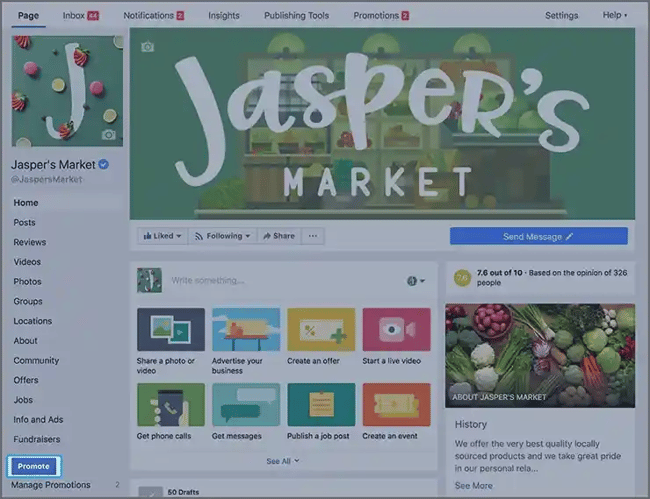
For a few dollars, you can use Facebook’s advertising tools to run ads on the platform promoting your page and get it in front of new eyeballs.
Click the Promote button on your page, and Facebook will guide you in creating an ad that matches your goals.
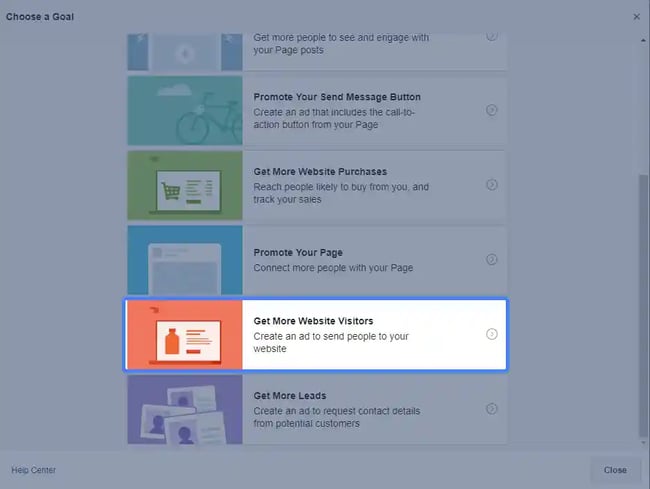
Choose your goal, plug in your assets, and you’re off to the races!
6. Go Live.

You can use Facebook Live to engage with your audience in real time by broadcasting live video directly from your Facebook Business Page. When going live from your page, prioritize building an authentic connection with your audience and bolstering your brand story.
You can run a Q&A session, introduce team members, tour your facilities, or run a live giveaway contest. The sky’s the limit! Get creative and go live with a specific goal to enhance your customer engagement.
7. Experiment with different post formats.
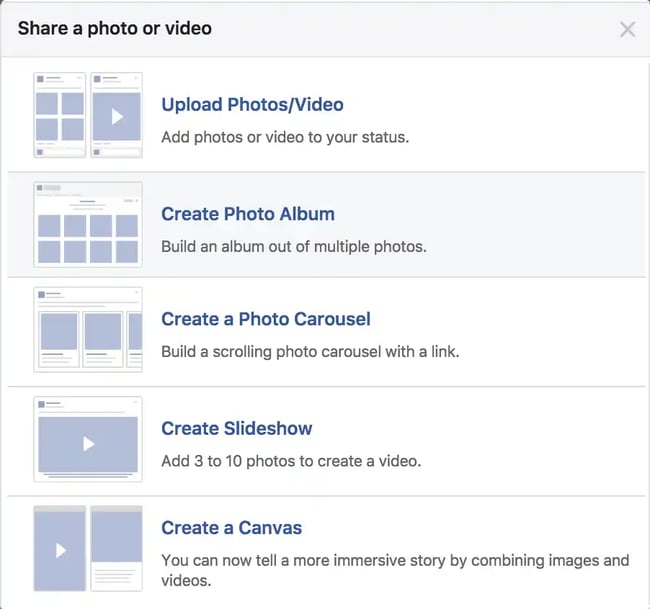
Facebook offers a plethora of post formats beyond just photos and videos. You can share polls, stories, live videos, events, links, and questions.
Video is still the dominant post format, but experiment with all post types and see what resonates most with your audience. Facebook will reward you for thoroughly using all its tools by serving your posts to more people.
The Marketer's Guide to Meta
Transform your Facebook and Instagram presence from overlooked to outstanding.
- Platform Deep-Dives
- Content Creation Secrets
- Paid Advertising Mastery
- Performance Tracking
Download Free
All fields are required.
8. Collaborate with influencers.
Influencer marketing is an essential part of today’s social media landscape.
Of Gen Z and Millennials, 72% follow influencers on social media, so collaborating with word-of-mouth mavens is a safe bet for driving traffic to your Facebook page by introducing your company to a new audience.
When working with influencers, the key is to create relatable content and integrate branding subtly in order to foster an authentic connection with people interacting with your brand.
9. Post when your customers are online.
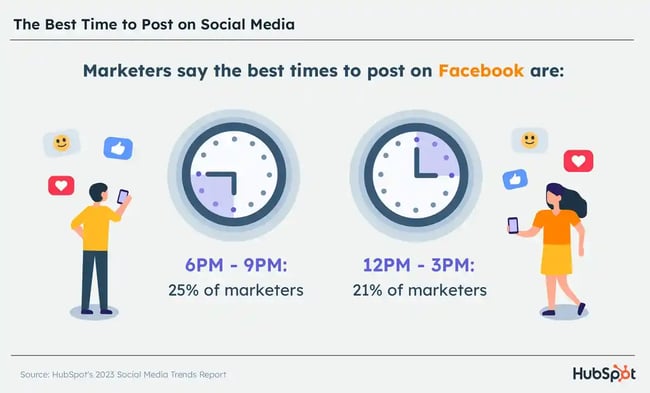
We know that posting consistently is important, but the time of day you post is also essential. On average, the best times to post on Facebook across industries are in the evening and mid-to-late afternoon, specifically between 6-9 p.m. and 12-3 p.m.
You want to avoid times when customers are less likely to be online, such as early morning and late night hours.
That being said, you should view your Facebook Page Insights to learn valuable information about how people engage with your page.
Using this data, you can make informed decisions on when to post based on when your customers are typically online and engaged with your page.
10. Optimize your videos to play without sound.
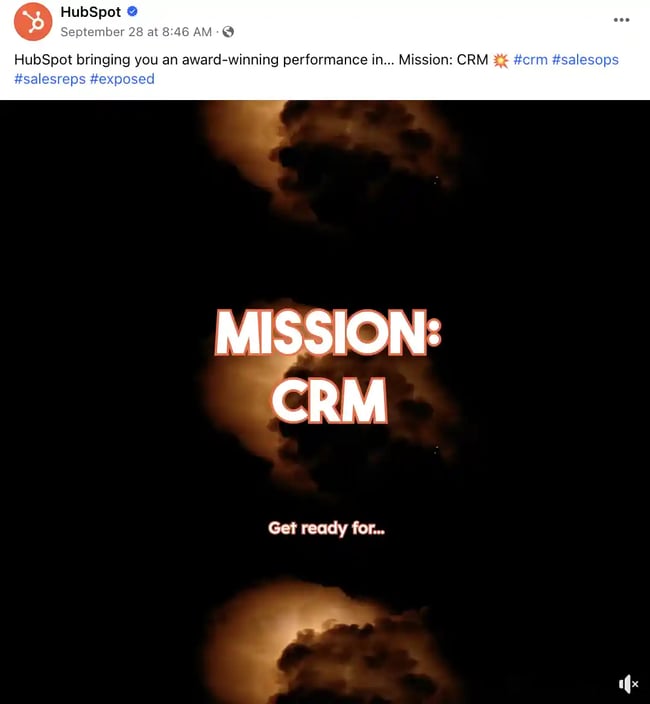
When was the last time you were browsing Facebook and clicked on a video to expand it and hear the audio? Probably not recently, and definitely not when you’re in a public space like the train or waiting in line for lunch.
86% of Facebook videos are viewed without sound, so when creating video content for your page, optimize it for silent playback by using text, subtitles, and strong, descriptive visuals that get the point of your content across without relying on audio.
Check out our guide on optimizing silent videos on Facebook.
11. Incorporate user-generated content.
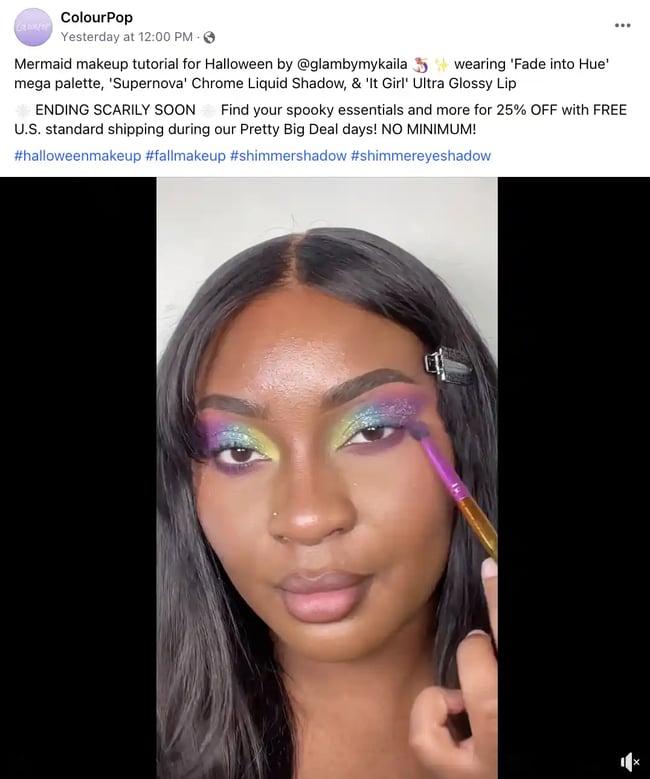
When someone tags your page or product in a post, you can send them a request to feature their content on your page. This is referred to as User-Generated Content (UGC).
UGC helps foster a sense of authenticity and social proof. Showing customers that other people are enjoying your business makes them want to enjoy it too.
You don’t just have to sit around and wait for people to post about your product, though. Try incentivizing your customers to generate UGC by offering discounts or running a giveaway, for example.
12. Engage with your audience.
If you want your customers to engage with your Facebook page, encourage them to do so by engaging with them right back. When your customers leave comments on your posts, be sure to reply from your business account and be as friendly and helpful as possible.
Maybe you show gratitude and thank customers for enjoying your product or offer technical support from the comments. In any case, engaging with your customers is key is fostering a sense of loyalty and community on your Facebook Business Page.
13. Analyze Page Insights.
Facebook Insights is an analytics dashboard where you can track user behavior and post performance on your Facebook Business Page.
Take advantage of this dashboard to measure your success and determine areas of your page that need some TLC. If you consistently leverage the data in Page Insights, you can create better content and generate more revenue for your brand.
14. Connect your Instagram.
Only 0.1% of Instagram users are unique to the platform, meaning most Instagram users are on Facebook as well.
If you have an Instagram for your business, we recommend connecting it to your Facebook Business Page so you can crosspost your pics and stories from IG directly to Facebook. Doing so ensures consistent content across your platforms and gives your audience more opportunities to connect with you.
15. Share content related to your industry.

Your Facebook Business Page isn’t just a place to talk about how amazing your product or service is. Give customers a reason to consistently check on your page by sharing relevant articles, amplifying content from other brands, and starting discussions on events related to your industry.
Make sure the content you share comes from a trusted source, and encourage engagement by asking your customers what they think.
Kickoff Your Facebook Business Page Today
With these steps and tips in hand, you’re well on your way to creating a successful, engaging Facebook Business Page for your brand.
Once you have the foundation laid, don’t forget to keep up with consistent posts and respond to follower comments. Increase your customer engagement today with a compelling presence on Facebook.
The Marketer's Guide to Meta
Transform your Facebook and Instagram presence from overlooked to outstanding.
- Platform Deep-Dives
- Content Creation Secrets
- Paid Advertising Mastery
- Performance Tracking
Download Free
All fields are required.
Facebook Business Pages