.png?width=112&height=112&name=Image%20Hackathon%20%E2%80%93%20Vertical%20(12).png)

I’m a content marketer. And don't get me wrong, I love the creative part. I can write an ebook from start to finish, no problem. But making it look polished and professional? That’s where free ebook templates save me every time.
Over the years, I’ve relied on templates to turn my drafts into beautiful, brand-worthy assets quickly. Whether it’s a lead magnet, a campaign guide, or a downloadable resource, ebook templates help me deliver high-quality content without needing to start from scratch.

Here’s why I keep coming back to them and how they can help you, too.
Table of Contents
.png)
Free Ebook Templates
Free templates and designs to help you create an ebook.
- 12 unique ebook designs.
- Create on InDesign, PowerPoint, and Slides.
- 50 free icons for designs.
Download Free
All fields are required.
Benefits of Free Ebook Templates
I don’t use templates for every ebook. If I’m working with an in-house designer, we’ll usually build something custom. But when I’m flying solo, especially with a smaller client or a tight deadline, templates are a huge help.
They give me a clean starting point when I don’t have time to fuss over fonts and layout. I can just focus on the writing, plug in my content, and ship something that looks great.
Here’s what’s made them genuinely helpful in my own process:
- They save time. I’ve used templates to turn around ebooks in a single afternoon when timelines were tight and the content was ready to go.
- They help me stay consistent. Whether I’m following strict brand guidelines or just trying to match a client’s style, templates make it way easier to keep things cohesive.
- They give me room to experiment. I’ll often test different layouts depending on the topic (i.e. playful for a campaign, more buttoned-up for a report.)
- They let me focus on the writing. I’m not distracted by fonts or formatting. I can just drop in the content and make sure the message is strong.
Once you customize the colors and fonts, these templates can work for almost anything — from lead magnets and how-to guides to internal resources and beyond. Let’s take a closer look at the different styles you can choose from and how each one can support your content goals.
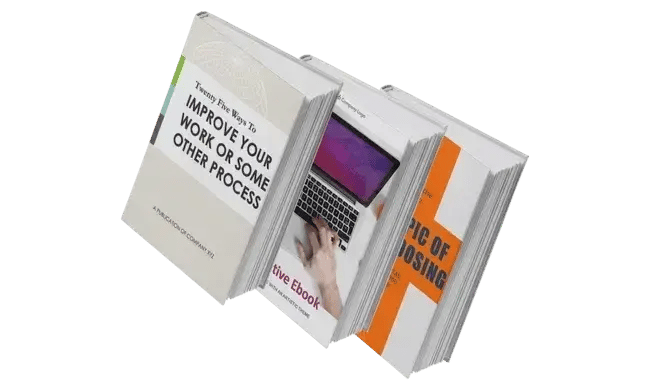

Free Ebook Templates
I’ve worked with all kinds of ebook formats from fully custom builds with a design team, to scrappy slide decks, and even the occasional Notion doc turned PDF. But when I need something quick and polished, I always come back to templates like these.
They’re flexible enough to match different brands and use cases, and they come with the key building blocks already baked in: a table of contents, clean chapter layouts, space for visuals, and a clear call-to-action page.
Plus, they’re available in InDesign, PowerPoint, and Google Docs — which makes it easy to adapt based on the client or the tools I already have open.
Here’s a closer look at some of the templates you’ll find inside:
1. Process Improvement Theme

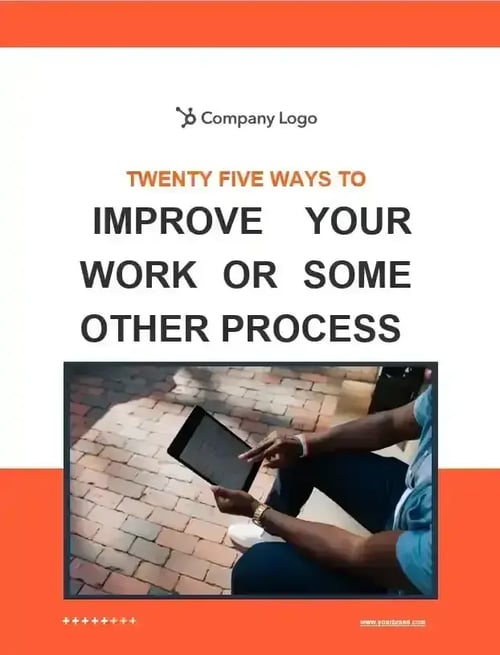
When I’m building an ebook that walks readers through a process, especially something technical or step-heavy, structure is always my first priority. I’ve seen what happens when it’s missing: dense paragraphs, no visual breaks, and a reader who checks out halfway through. That’s a risk I’ve learned to avoid by figuring out what needs to be explained and how to break it down into manageable, scannable pieces before I ever drop in the first line of text.
That’s why I gravitate toward templates like this one. It helps me stay organized from the start, with built-in spots for summaries, highlights, and clearly defined chapters.
I’ve worked on ebooks where the client needed to explain a multi-step process, and the design made or broke the final product. When we kept things modular and easy to scan, readers actually followed the flow and engaged with the content.
What I like: This template supports that kind of clarity. It nudges you to slow down, structure your ideas, and walk the reader through each stage without losing them. It doesn’t try to do too much. The layout stays out of the way so the content can shine, and when you're explaining a complex process, that’s exactly what you need.
The Process Improvement Theme Ebook Template is best for:
- In-depth guides to multi-step processes
- Employee handbooks
- Training manuals
2. Conversational Theme

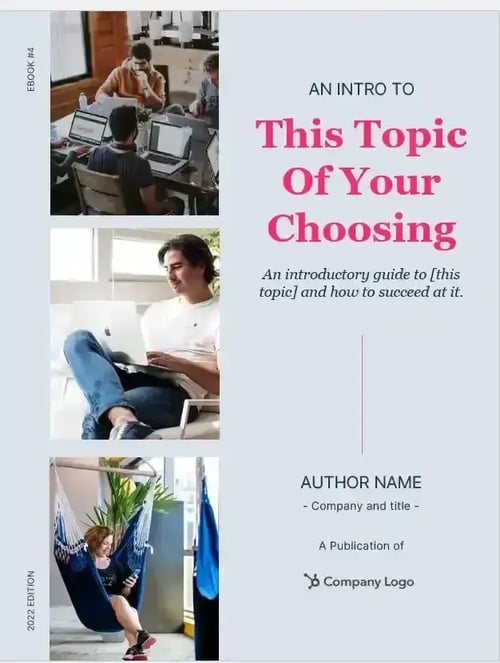
One of the things I’ve learned over time is that tone matters just as much as format, especially in ebooks meant to build trust or nurture relationships.
Whether I’m writing a guide for loyal customers or creating brand storytelling content, I always look for ways to make it feel human and approachable, especially now that AI is in the picture.
This template leans into that. It gives you room to speak directly to your audience, add a short intro about yourself, and sprinkle in expert quotes or testimonials in a way that feels natural.
What I like: I’m always looking for places to build connections in my writing, and this layout supports that goal without getting in the way. There’s space to breathe. Not every page looks the same, which helps keep the content feeling fresh, and the format makes it easy to emphasize the voice behind the words.
The Conversational Theme Ebook Template is best for:
- Social media marketing and campaign guides
- Providing advice or guidance to repeat customers
- Brand storytelling
3. Artistic Theme

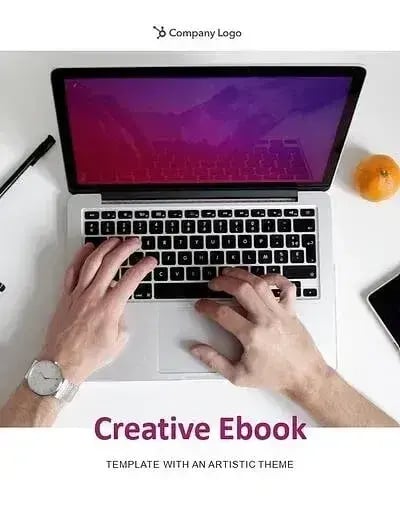
When I'm working on something more visual, like showcasing examples, building out a persona, or presenting a creative concept, I look for a layout that adds interest without making things feel cluttered.
This template strikes that balance. It mixes strong visual structure with room for lighter copy, and it doesn’t rely on overly complex design elements to look polished. I could see this working well for thought leadership or brand-heavy pieces where visuals do just as much storytelling as the words.
What I like: I’ve learned that white space is a powerful design tool, and this template uses it well. The spacing makes longer content feel less overwhelming and keeps the focus on the big ideas.
The Artistic Theme Ebook Template is best for:
- Marketing content
- Target audience personas
- Sales tips and tricks
4. Professional Theme

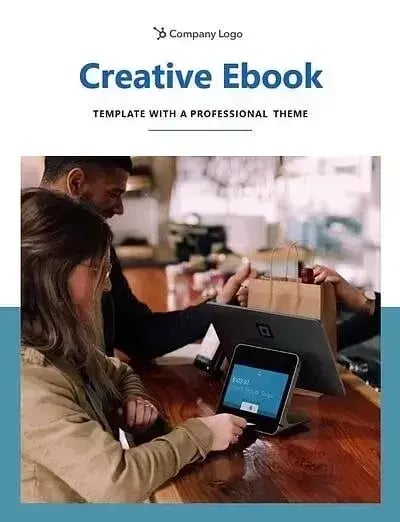
Some ebooks call for a more polished, buttoned-up feel, especially when you‘re speaking to a corporate audience or showcasing something strategic. When that’s the case, I look for layouts that feel structured but not stiff.
This one hits that sweet spot. It offers strong visual hierarchy, with bold fonts and space for imagery that can help you drive a point home without overdoing it. It reminds me of the kinds of layouts I’ve used for showcasing social media strategies or pulling together event playbooks.
What I like: There‘s room for visuals without losing focus. I can drop in charts, examples, or mockups without crowding the page, and that’s a big plus when you’re trying to strike the right tone between inspiring and professional.
The Professional Theme Ebook Template is best for:
- Social media guidelines
- Event planning
- Web design content
5. Honeycomb Theme

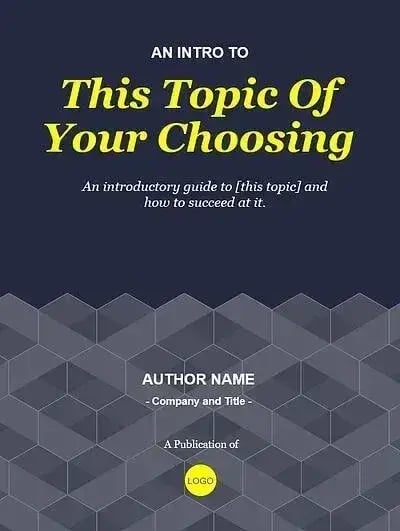
Years ago, I worked on a product ebook where the content was solid, but the text-heavy layout made it feel overcrowded and hard to follow. We had great insights to share, but without a way to break things up visually, it just didn’t land the way we hoped.
Now, when I’m working on something more technical or detailed like that, I always think about how to make the content feel lighter without losing clarity. This layout does exactly that in my opinion. The clean, geometric structure helps organize copy and visuals in a way that’s clear, skimmable, and modern, even if the topic is a bit dry.
What I like: The honeycomb design adds just enough visual interest without overwhelming the content. It's subtle but polished, and it gives the ebook a more modern, elevated feel, which I find especially helpful when the topic leans more technical or instructional.
The Honeycomb Theme Ebook template is best for:
- Product or feature explainers
- Customer service guidelines
- Technology walkthroughs or support resources
6. Triad Theme
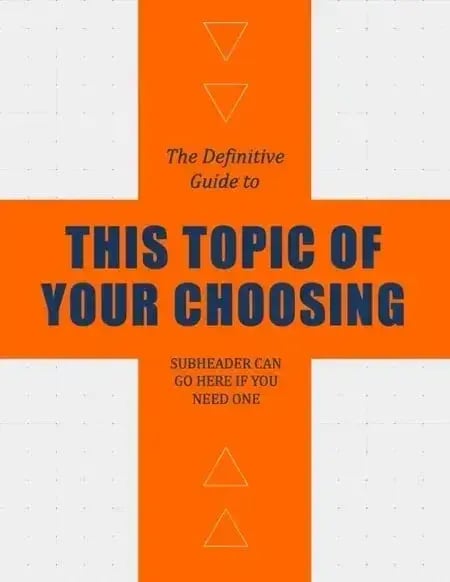

Whenever I’m creating an ebook that needs to be both informative and engaging, like a lead magnet or downloadable workbook, I look for layouts that bring a little more energy to the page.
This one has that built in. The bold geometric shapes guide the eye and give each section a sense of movement, which helps readers stay focused and moving forward. It’s the kind of design that can make even tactical content feel a little more exciting.
What I like: The visual rhythm of this layout is great for pacing. If I’m including exercises, examples, or takeaways, I want the reader to feel like they’re progressing, and this structure helps make that happen.
The Triad Theme Ebook Template is best for:
- Educational workbooks
- Educational presentations
- Training or course materials
Free Ebook Templates
Free templates and designs to help you create an ebook.
- 12 unique ebook designs.
- Create on InDesign, PowerPoint, and Slides.
- 50 free icons for designs.
Download Free
All fields are required.
7. Creative Circle Theme
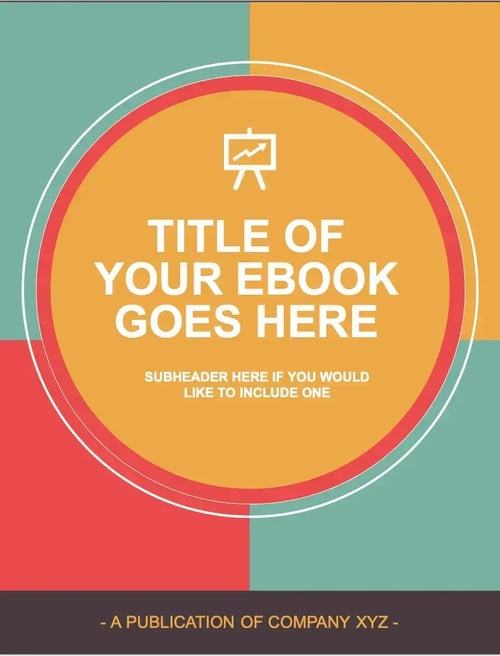

Sometimes I like to get straight to the point, and layouts like this work really well when the goal is clarity. The bold title pages give each section a sense of purpose, and the clean design makes it easy to scan or repurpose content later.
I could see myself using this for something like a “tips and tools” ebook or a thought leadership piece where you want your argument to stand out without relying on too many design bells and whistles.
What I like: The structure is simple but strong, and the bold cover design immediately grabs your attention. It's colorful, fun, and still professional — the kind of layout that draws people in before they’ve read a single word. I also love that it’s easy to tweak to match your brand colors, which makes it feel custom even when you’re starting from a template.
The Creative Circle Template is best for:
- Marketing content
- Manuals
- Brand storytelling
8. Workflow Improvement Theme

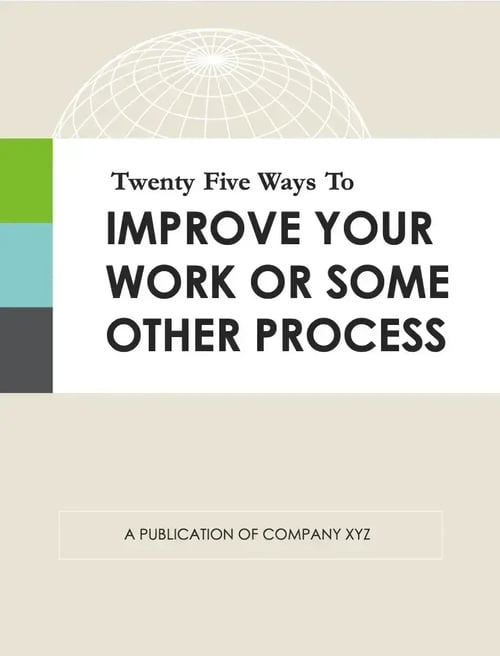
I mentioned earlier how much structure matters when explaining a process, and it’s especially true when you’re mapping out something as detailed as your workflow. I’ve worked on a handful of ebooks like that, and the biggest challenge is always clarity.
This layout helps you lay out your process in a way that feels visual and digestible without getting overly designed. Plus, the eye-catching call to action (CTA) at the end lets readers know exactly what to do next.
What I like: It’s straightforward and clean, which I really appreciate when the goal is to make information easier to follow, not fancier.
The Workflow theme template is best for:
- Explanation of in-depth processes
- Handbooks
- Manuals
9. Brand Development Theme


I’ve worked with startups and growing teams that are still defining their voice, values, or go-to-market story — and building an ebook can be a great way to bring all of that together.
This layout is especially helpful for those moments. It includes space for things like executive intros, brand pillars, or even charts and graphics that communicate your positioning. If I were helping a founder articulate their brand vision or build out a thought leadership piece, this is the kind of structure I’d look for.
What I like: There’s plenty of room to tell a story, but it’s still organized and presentation-ready. That makes it easy to reuse across other formats, like pitch decks, onboarding slides, or strategy docs.
The Business Development theme ebook template is best for:
- Company best practices
- Sales tips and tricks
- Business plans
10. Creative Professional Theme
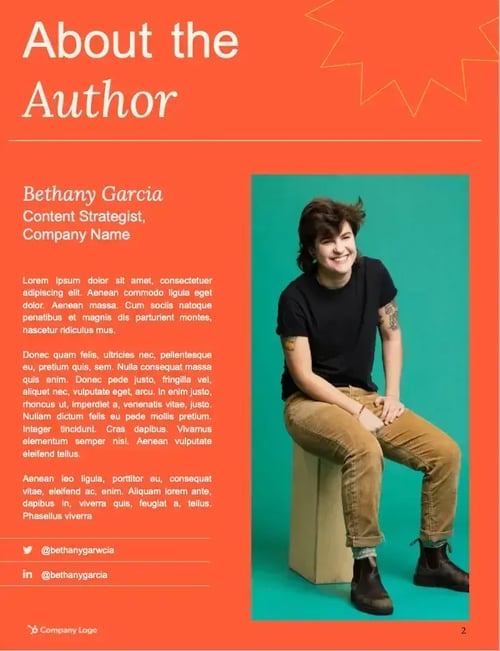

Some of the best ebooks I’ve seen open with a strong personal hook, not just to introduce the topic, but to build credibility. When you’re writing about something you know inside and out, it makes sense to lead with your experience.
This layout gives you room to do that. It opens with space for an author intro or thought-starter, and then moves into clean, flexible pages for building out your ideas. It’s great for pieces where the writer’s voice or perspective is a key part of the message.
What I like: I love a layout that puts the author front and center, especially when you’re writing from experience. This one makes it easy to add context up top, which helps the reader trust you and keep reading.
The Creative Professional theme ebook template is best for:
- Insider secret explainers
- Self-help guides
- Professional development
11. Magazine Theme
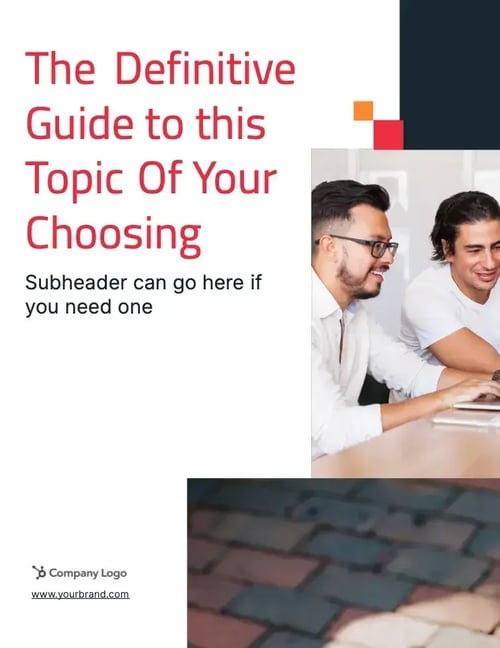

I’m a big fan of ebooks that pull together stories, quotes, and expert perspectives, especially when the topic benefits from multiple points of view. And this template feels like it was made for that kind of content.
It has a more editorial vibe, with columns and structured layouts that feel like they belong in a magazine. If I were creating something like a quarterly trend roundup or a post-event recap, I’d be reaching for this.
What I like: The formatting here makes it really easy to break up interviews, stats, or feature-style content without losing the thread. It gives you room to guide the reader through a narrative, while still making the ebook feel snackable and visual.
The Magazine theme ebook template is best for:
- Short stories
- Conference materials
- Magazines or journal interviews
12. Editorial Theme
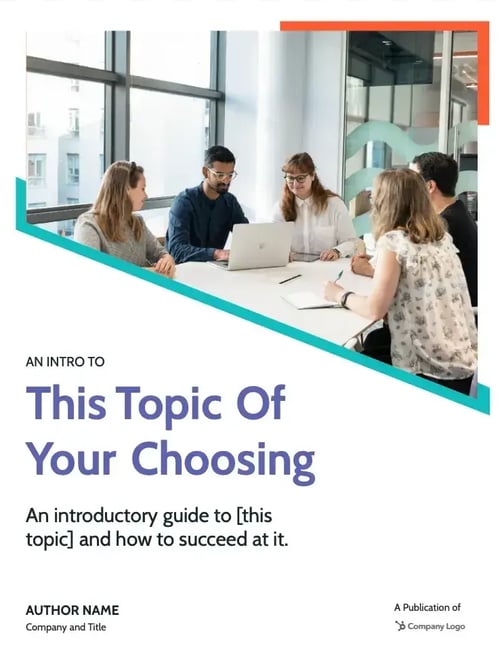

I love a template that gives you room to tell a bigger story, not just the what, but the why behind your content. Whether it's a persuasive argument, a resource roundup, or a deep dive into something your audience really cares about, this layout gives you the space to go there.
It opens with an author or company intro, includes a colorful table of contents, and has plenty of layout options for mixing text, visuals, and pull quotes. It’s the kind of template I’d reach for when the goal is to inform, inspire, and keep the reader scrolling.
What I like: The versatility. You can trim it down or build it out depending on your content, and the consistent visual hierarchy keeps everything organized, even if your ebook runs longer than expected.
The Editorial theme ebook template is best for:
- Persuasive essays
- Resource guides
- Reviews and critiques
Start creating your ebook for free.
Creating a great ebook takes work, but it doesn’t have to be overwhelming. Having the right template means you don’t waste time reinventing the wheel or trying to scrape something together at the last minute.
I keep resources like this bookmarked for the moments when I need to move fast, make something look good, and get it out the door. They’ve helped me hit tight deadlines, clean up half-baked drafts, and turn ideas into something I’d actually want to put my name on.
So whether you're sketching out a new strategy, building a lead gen asset, or just just tired of staring at a blank doc — this is a great place to start.
Editor's note: This post was originally published in January 2021 and has been updated for comprehensiveness.
Free Ebook Templates
Free templates and designs to help you create an ebook.
- 12 unique ebook designs.
- Create on InDesign, PowerPoint, and Slides.
- 50 free icons for designs.
Download Free
All fields are required.
Content Creation




![How to Create an Ebook From Start to Finish [Free Ebook Templates]](https://53.fs1.hubspotusercontent-na1.net/hubfs/53/how-to-create-an-ebook-1-20250128-3015373.webp)
![How to Write a Content Brief [Template + Examples]](https://53.fs1.hubspotusercontent-na1.net/hubfs/53/content-brief-1-20250120-7521165.webp)


![I Discovered 9 Experts Tips for Creating a How-To Guide [+ Examples]](https://53.fs1.hubspotusercontent-na1.net/hubfs/53/Untitled%20design%20(22)-3.jpg)