
On some of the projects mentioned above, I wasn’t just working with limited staffing; I was working with a limited budget. In these cases, access to free graphic design software was a necessity. I won’t spoil anything, but I have my go-to tools already. Because of that, it’s been a while since I’ve tested what else is available on the market.
So I hope you’ll join me on this new exploration — I’m trying out different free graphic design software suites so I can say from experience which I find to be the best. Hopefully, I’ll find free software that works well for me, while also demonstrating how it could fit your needs, too.
Table of Contents
- Why learn graphic design software?
- What is the best free graphic design software?
- How I Tested the Best Free Design Software
- Free Design Software: Features to Look For
- Picking the Right Platform for Graphic Design
- The Best Free Graphic Design Software for Marketers and Beginners
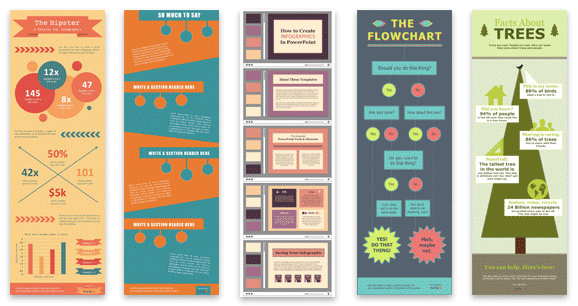
15 Free Infographic Templates
Build better infographics with these free designed templates.
- Color schemes
- Icons & shapes
- Fonts
- Eye-popping themes
Download Free
All fields are required.
Form not available
Why learn graphic design software?
Answer: Visuals are among the top content formats delivering return on investment (ROI) in 2025, according to HubSpot’s State of Marketing Report. The data shows short-form video and images are first and second place, with 21% and 19% of marketers reporting “High ROI,” respectively.
Aside from ROI, I can tell you from experience that most, if not all, marketing channels demand visual content. An ecommerce company specializing in homeware? Pinterest is likely your marketing best friend. Can you circulate your products on Pinterest without an image (i.e., a “Pin”)? Nope, you cannot.
I can also tell you that while some mediums don’t formally require visual content, they sure work better when you include it. We’ll take your standard company blog as an example. Let’s say one of your goals is to use the blog to help your ideal target audience(s) find you via search engines like Google. In that case, you’ll want to join the 21% of marketers who use visual content to boost dwell time as their top SEO marketing strategy.
I also can’t overstate this enough: Yes, compelling text, blog, and social media content can help set your brand apart from the competition. However, the visual appeal of your site is the first thing users see when they follow backlinks or click through search engine results. So it really is important to create webpages that are both aesthetically appealing and contextually relevant.
Beyond needing visual content for marketing platforms like Pinterest or using imagery to improve the SEO on your company blog, well-thought-out visual content simply creates a better experience for your target audience. Images break up large walls of text and condense complex information into easier-to-digest formats. Visuals also showcase the features and value of your products or services at a glance.
Now that I’ve drilled down on the importance of learning graphic design software, here’s what that process means for your business. For larger companies, this often means hiring dedicated graphic designers to develop eye-catching designs. You can then deploy them consistently across web pages, social channels, and various forms of physical advertising.
But what if SMB budgets don’t support this type of spending? This is where free graphic design software can help you succeed.
What is the best free graphic design software?
Can I be honest with you? I really wish I could suggest one graphic design software that would meet everyone’s needs. In reality, it’s just not that simple.
Personally? I love Canva. It’s free. It’s fun. It’s versatile. But my design skills and use cases could differ completely from yours. Then, I could even choose a different tool based on what I need for a specific design outcome. I might use a different tool to generate a color palette for a brand, for example. Or I might stick with Canva and use its color palette generator. It all depends on each use case.
So, yes, the annoying — but honest — answer is that businesses and designers vary, and so do their needs. So I recommend that you start with a bit of research to figure out what you need from design software.
If your research turns up a specific problem — your images aren’t compelling, your text is hard to read, or your color scheme hurts the eyes — you’ll be closer to a solution suited to your unique issue.
Next, while just about any free graphic design software offers the ability to customize the look and feel of your site without breaking the bank, it’s tricky to tell which one will be the most efficient for you. As I alluded to above, two broad factors impact this outcome: your current skill with graphics and your use case.
Does the design software match your abilities?
The best-fit software is the one that has tools that meet your current graphic design ability. If you have no experience with design tools, look for a solution that’s simple, streamlined, and does most of the work behind the scenes. I’d also recommend using a tool that has an intuitive layout and good UX. You don’t want to spend hours getting used to a design tool and navigating a complex layout, while also learning the ropes of graphic design.
If you have a graphic design background or more experience, tools with more robust customization and control may be a better fit.
Does the software suit your potential use case?
If you’re planning to revamp your entire site with new colors, images, logos, and menus, you’ll need an in-depth solution that provides this level of control.
On the other hand, if you’re starting small with minor changes to your color scheme or image quality, a deep level of granular adjustment isn’t necessary and can feel overwhelming.
So which software tool is the best fit for your business’s use case and your skill level? I’m going to help you narrow that down as I test several on the market.
How I Tested the Best Free Design Software
I want to offer you actionable insights, and there are several common design projects that businesses regularly need done. I’ll tackle at least one of them with each design suite to see what works well and what could be better.
Here’s what I’m looking for in terms of project types:
- Logo design.
- Social media post creation.
- Other digital assets, like email footers.
- Physical advertising, like business cards and mailers.
And in terms of features:
- Ease of element manipulation.
- A range of templates.
- The ability to change the image file type and size.
15 Free Infographic Templates
Build better infographics with these free designed templates.
- Color schemes
- Icons & shapes
- Fonts
- Eye-popping themes
Download Free
All fields are required.
Form not available
Free Design Software: Features to Look For
Any graphic design software should have certain features that you will need at some point in your design journey. If the ones I’m investigating don’t have these, I’ll feel like they are behind the times, and we can find something better.
You may end up having to pay for some of these features, but I’m hoping to find a range of tools that can do most, if not all, for free.
Feature 1: Flexibility of File Type and Size
In my experience, if you bring in a vector image, it should be able to leave as any file type. If you bring in a PNG, it should be able to leave as a JPEG.
If you bring in a large image, you should be able to shrink it without losing quality. If you bring in a small image, it might warn you that blowing it up could result in losing image quality.
Feature 2: Templates
The more templates, the better. Saving time by finding something close to what you want and making changes to it can be a huge time saver. They should, of course, also have a way to start from scratch if you’re just not seeing anything like what you’re trying to accomplish.
Feature 3: Social Post Creation
As a social media manager for small businesses, I had to create visual content for multiple platforms. Every platform has different image requirements. And these vary from “you literally cannot post an image outside of these set dimensions,” to “you can post an image outside of these set dimensions, but it probably won’t perform as well.”
I can tell you now, remembering the image dimensions for every social platform you create content for? That’s a hot mess. I would rather have access to specific social media templates and apply my brainpower to creating great content.
Bonus points for an image resize tool: In my experience, quickly being able to resize an image makes it so much easier to repurpose content across different social platforms. That said, having access to templates for all the social platforms works for this purpose, too.
Picking the Right Platform for Graphic Design
Most of the design suites I use on this list are available on multiple platforms — such as PC, Mac, and mobile. I’ve also made sure that every single free graphic design software listed is available in a browser-based format, too. But is there a distinct advantage to selecting one platform over the other?
For beginners, opting for a PC might be your best choice. While Macs remain a powerhouse for graphic design, their user interface (UI) is less intuitive than their PC and mobile counterparts. This presents a learning curve you likely don’t need if you’re just getting started with graphic design.
The honest answer is: It truly depends entirely on your needs.
- For graphic design professionals, Mac-based solutions may be preferable for their focus on function over form.
- Social media marketers who focus their entire line of work on mobile marketing may need to be able to work efficiently on mobile.
- Small business owners like me who need it to be user-friendly and intuitive? I’ll use this old PC until it disintegrates. Fun fact: I started my business on the same PC that I wrote my dissertation. By the end of its 10+ year tenure in my life, when I booted that thing up, it sounded just like I imagined an old car would when starting it for the first time in 50 years.
The Best Free Graphic Design Software for Marketers and Beginners
1. HubSpot Logo Maker
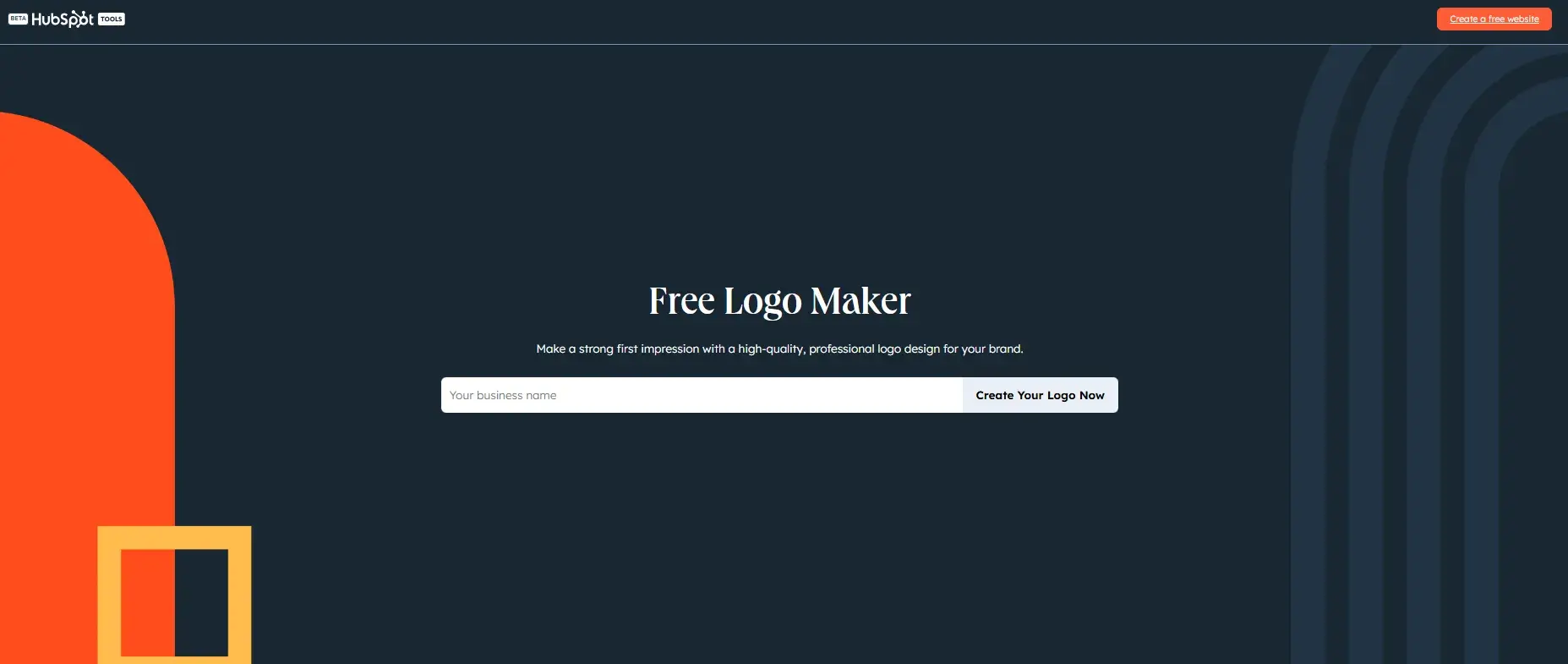
I recently road-tested HubSpot’s free logo maker for my step-by-step guide on how to design a logo. I really enjoyed using the tool, and I think it would be super beneficial to any design beginner reading this piece right now.
HubSpot’s logo maker provides users with an impressive range of professionally designed templates. And like a true marketing best friend for life, the platform also walks you through each stage of the design process.
Testing It Out
To get started, all I had to do was add my business name and input a few more things about my company as prompted by the tool.
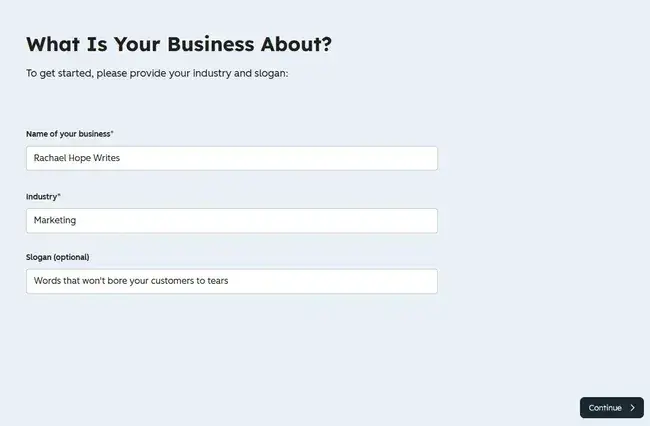
The industry you add to the “What Is Your Business About?” section dictates which business logo marks pop up on the following screen. I like this feature because it’s intuitive and will save people time browsing through logo icons.
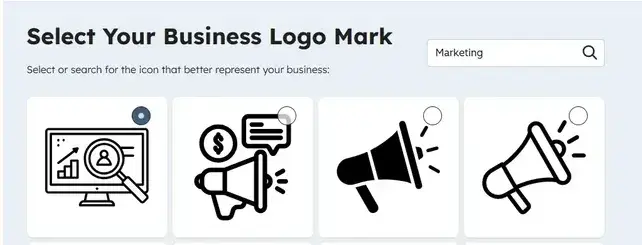
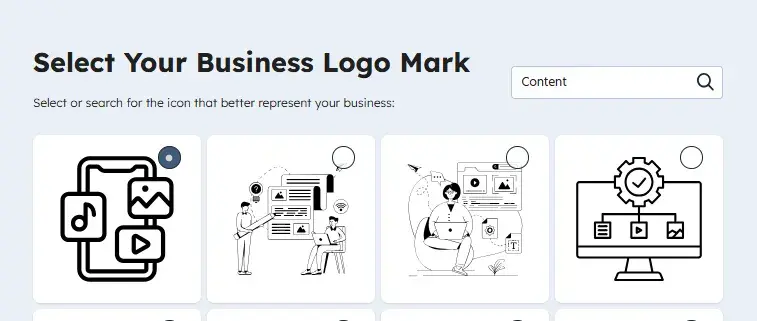
Another cool thing I discovered is that if you don’t like the icon options, you can plug another word into the search bar and see what other options come up. When I first experimented with the tool, I picked one of the megaphones above and regretted that decision. This time around, I used “content” as my search word instead of “marketing,” and it brought up icons that better represent what I do.
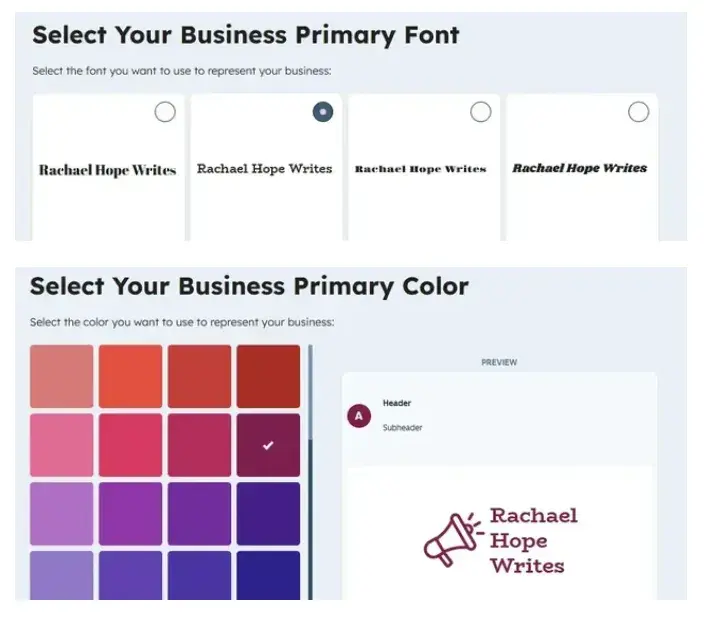
Aside from templated logo marks, HubSpot’s logo maker gives you the option to choose a primary font and color for your business. If you don’t have an existing brand color palette, this will help you preview how different colors pair together. I also like that you can choose from a range of existing fonts as suggested by the tool.
Final Thoughts
All in all, I think this free logo maker is beneficial for design beginners as it holds your hand the entire way through the process. With this guidance, you can focus on choosing how you want your logo to look from preset options. That’s opposed to having to learn about design from scratch.
That said, I think the results will be a little “too out of the box” for design pros. But that’s the great thing about having different tools available on the market — they each cater to different experience levels.
Long story short? If you need a logo in a few simple steps, the HubSpot Logo Maker has enough templates to help you make this happen. HubSpot’s logo maker is also straightforward to use!
2. DesignWizard
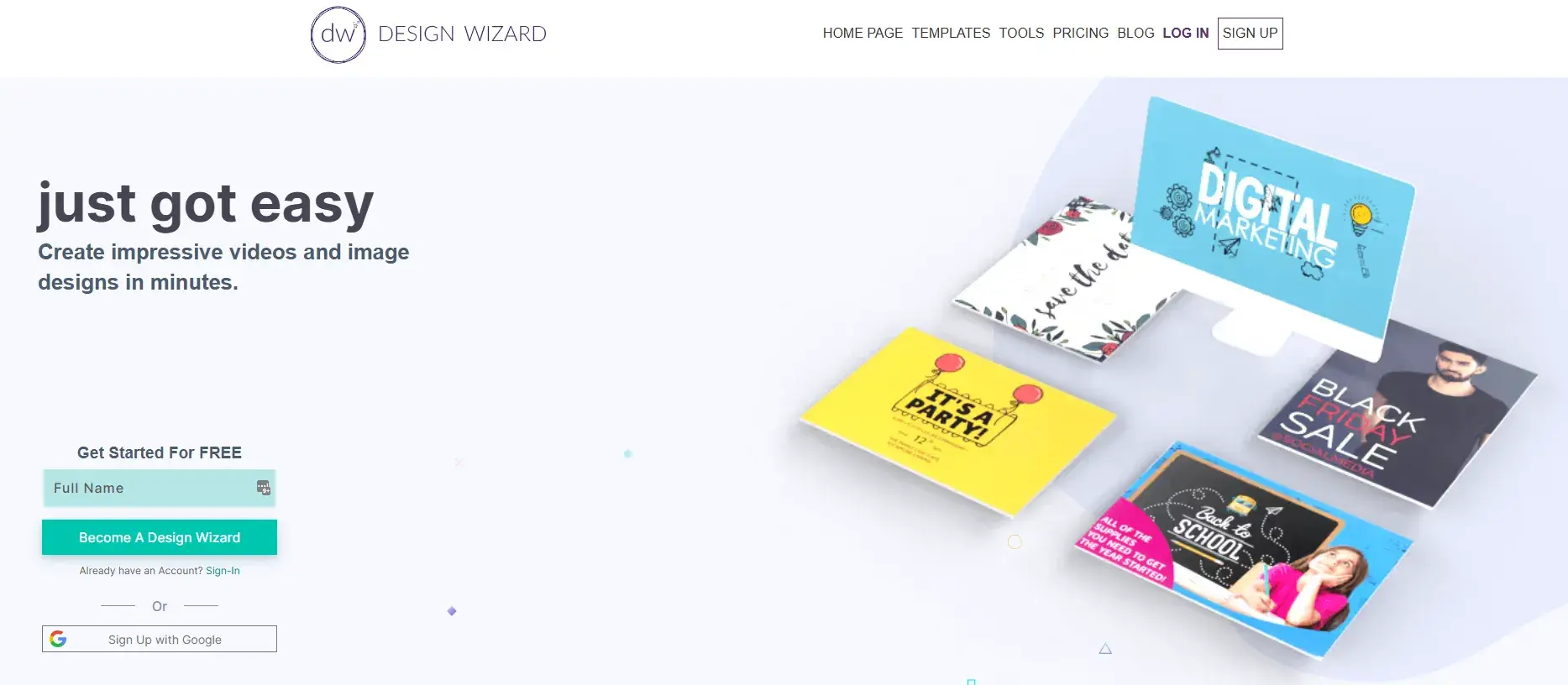
DesignWizard offers an extensive database of images along with a host of free templates (around 15,000), plus a simple, easy-to-use interface. Despite no upfront costs, it’s worth noting that most of the more powerful options in DesignWizard are only available in its for-pay version at $9.99/month.
15 Free Infographic Templates
Build better infographics with these free designed templates.
- Color schemes
- Icons & shapes
- Fonts
- Eye-popping themes
Download Free
All fields are required.
Form not available
Testing It Out
Signing up was super simple, and I didn’t get snagged on email verification to activate the account. The email arrived in seconds, so I also didn’t have to sit spinning my wheels. Nice!
The interface is straightforward, as promised. Three buttons, a search bar, and a slider of project types with an option to start from scratch with an image size of your choosing. The template search bar was top and center, so I did that first.
I tried searching for various social post templates, but the only applicable result was “Instagram Image.” Not great.
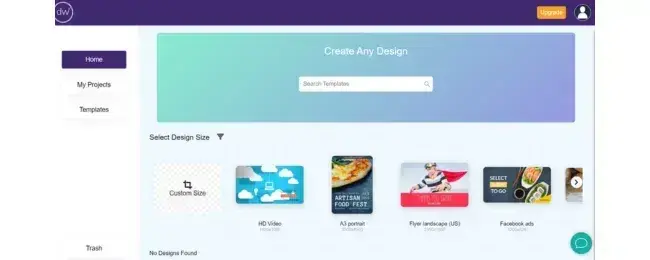
The slider of project types shows that they do have templates for Facebook ads, Twitter posts (this is after the name change to X), LinkedIn posts, etc. That’s a little better.
The poor functionality of the template search bar isn’t a deal breaker. But having to scroll through a slider full of templates for different social media platforms to find what I needed was a little annoying.
The left sidebar has a Template button, so I clicked that, which surfaced more templates. But I still had to do quite a lot of browsing to find what I needed. I personally don’t want to scan through categories like “Book Cover Templates” and “Bookmark Templates” when I need something for social media. I think a more effective search bar would do wonders here to improve user experience.
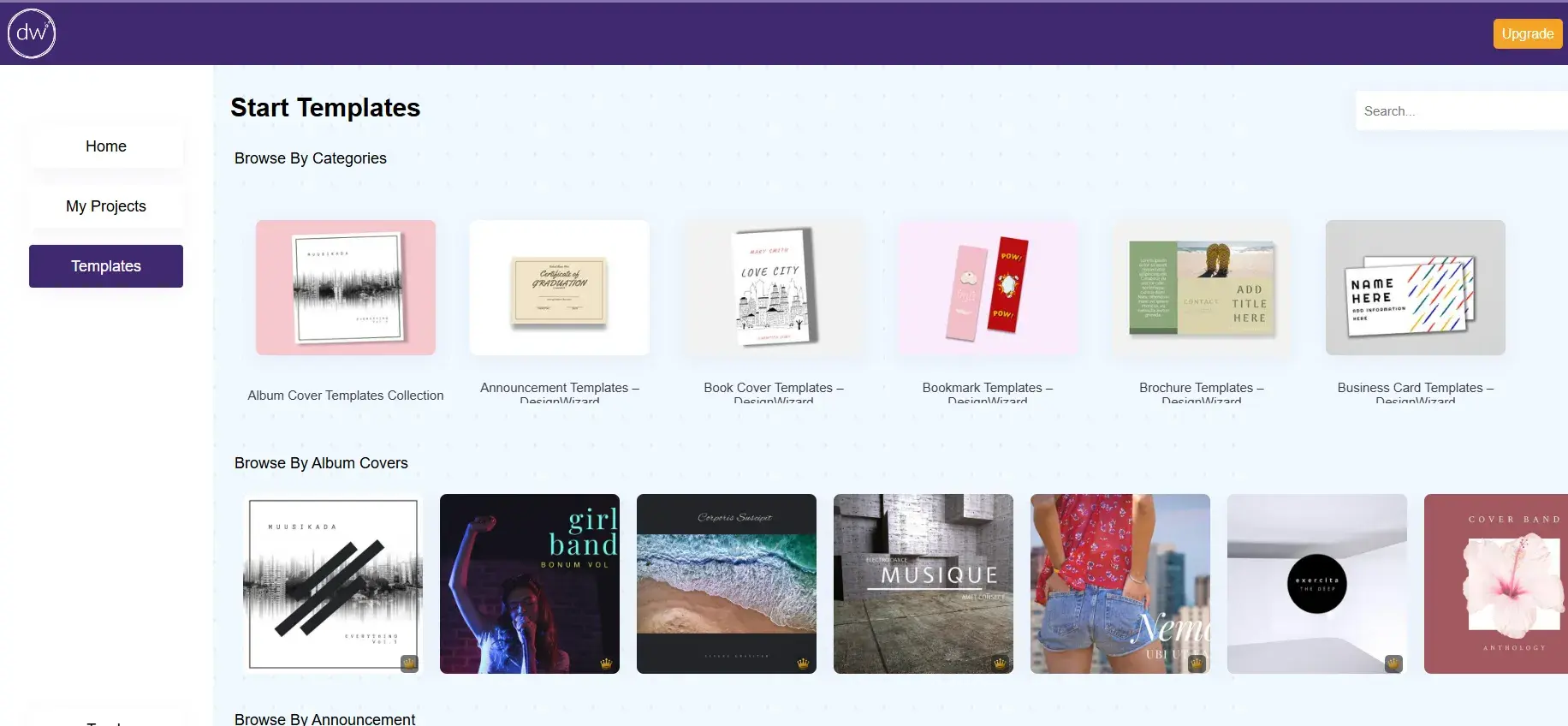
So far, DesignWizard has been impossibly slow (my internet is fine, I checked, I even restarted my PC and my router). When I tried using the search bar on the template page to look for logos, the whole page just crashed. This was after reloading the software after it had crashed quite a few times already. It was painful.
When DesignWizard finally started working again, I was met with one logo template and several other irrelevant ones for HD videos and flyers.
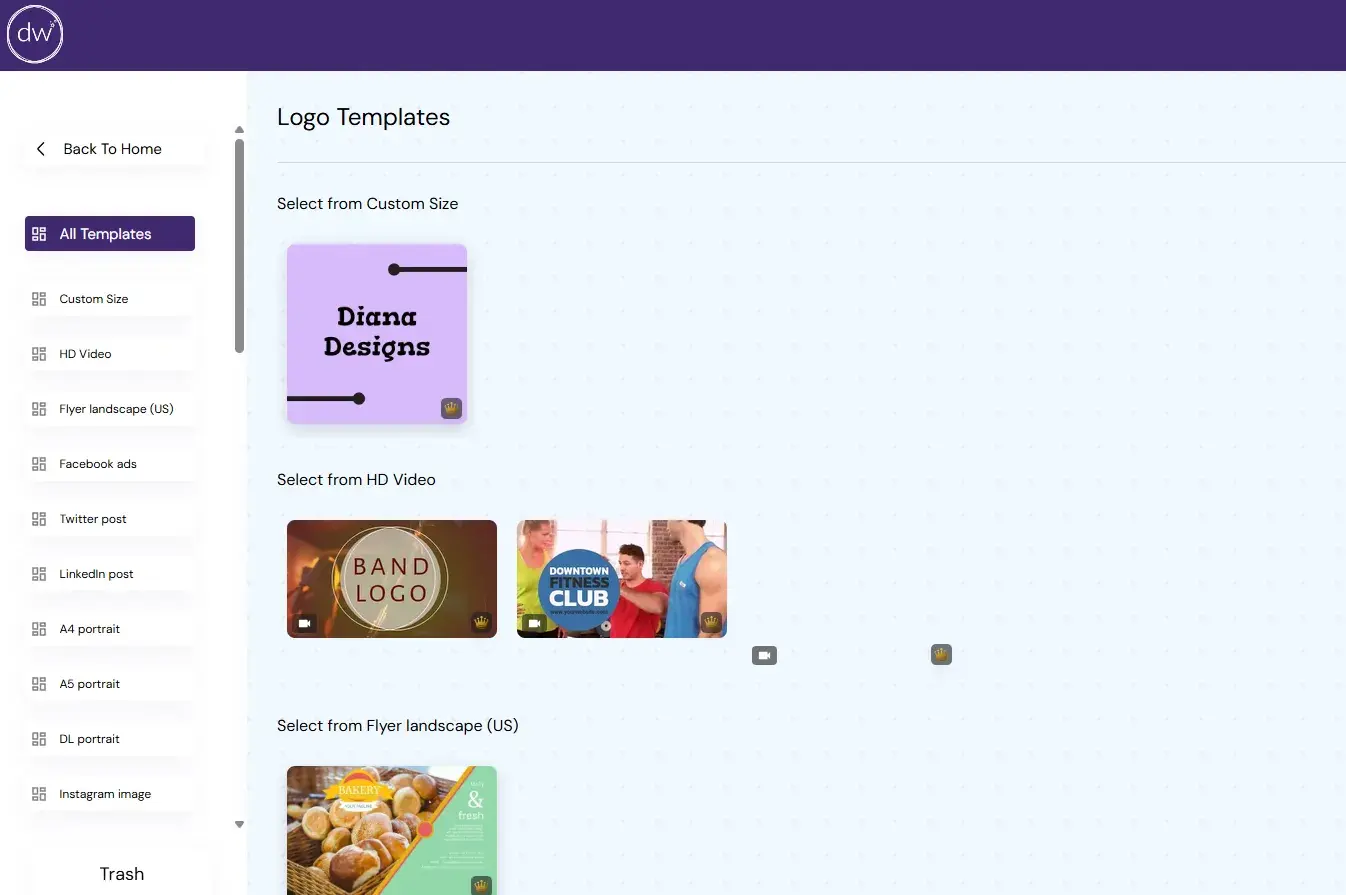
To top it off, all the templates had a little crown in the corner, indicating that I could only access them if I upgraded to the paid version. At this point, I’m wondering if this free version is so painful to use because they want to encourage people to upgrade to a paid plan? But the free version is not making me want to upgrade. I kinda just want to bounce out of this tool.
After all the delay, I decided to pick any free social media design template I could find at speed. Let’s see how DesignWizard’s free LinkedIn post templates stacked up.
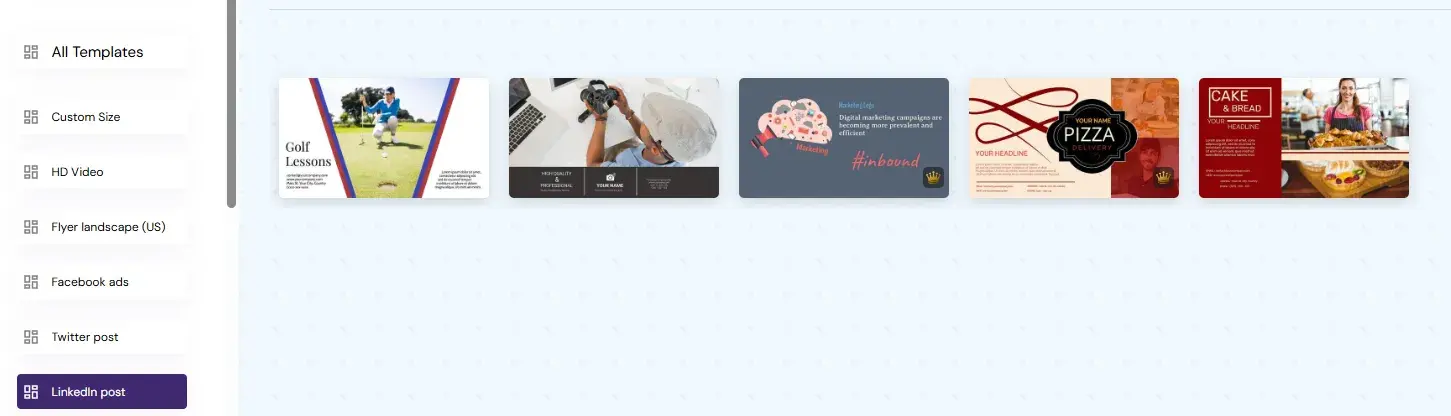
And that’s right… You guessed it, a loading screen. This whole process was, once again, unbearably slow. I grimaced through a quick play with the customizable elements to get an overview of the main features. The first thing I looked for was an image. I clicked on “Elements” and chose “Graphics,” and then searched for “Marketing.”
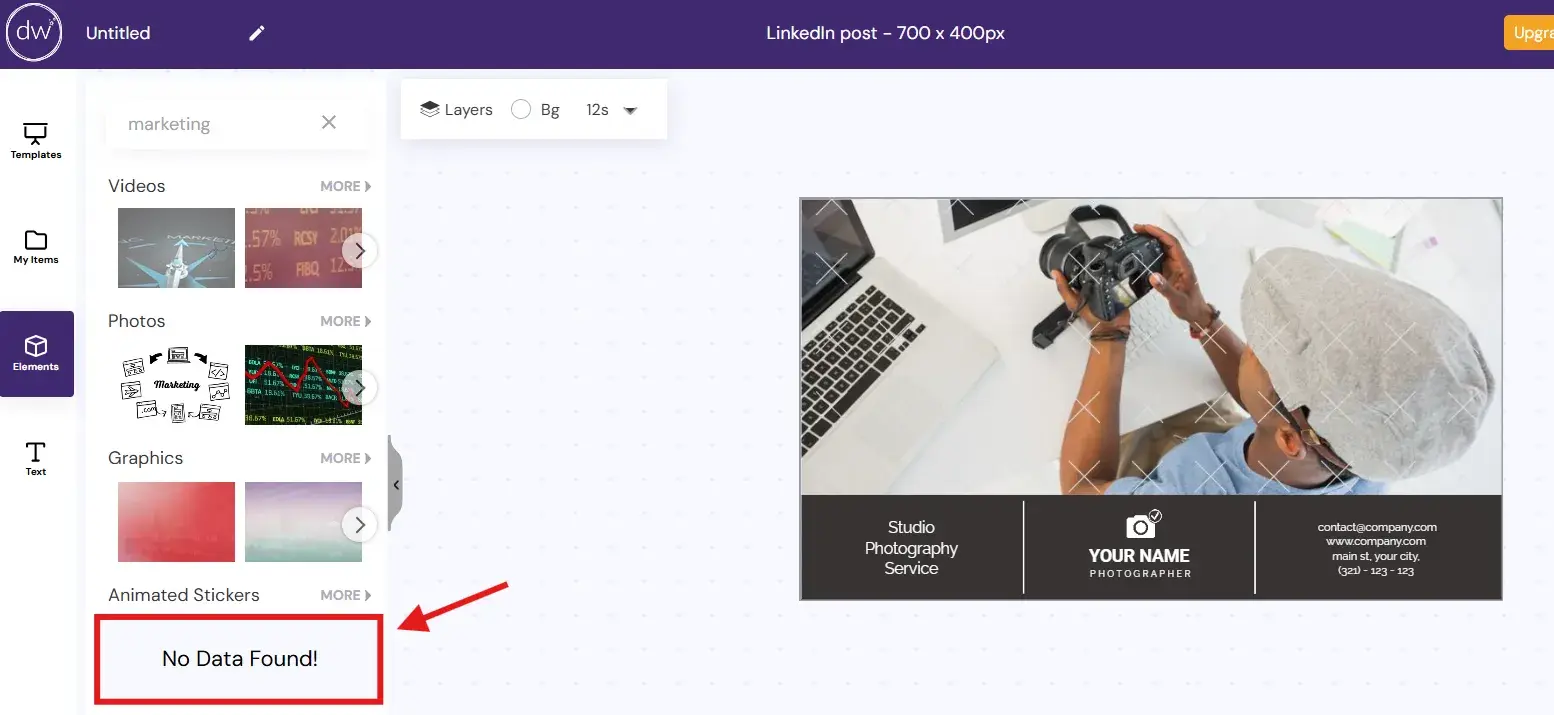
Maybe it’s too broad a term, but “No Data Found” to market a marketing business? I am befuddled. Back to the drawing board, then. I tried “business,” instead, and there were more results.
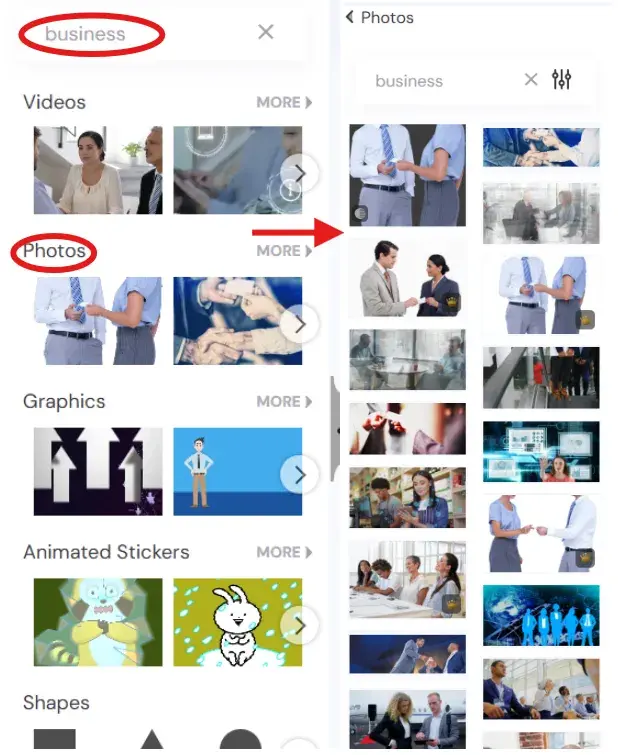
It was, again, painfully slow, but the image was relatively easy to change. I did have to do some manual repositioning (sending the image to the back) and resizing, though, which was a bit annoying. On Canva, for example, it’s much easier to drag and drop a new image to replace an existing one in a template.
As for text, I headed to the top toolbar to change the fonts.
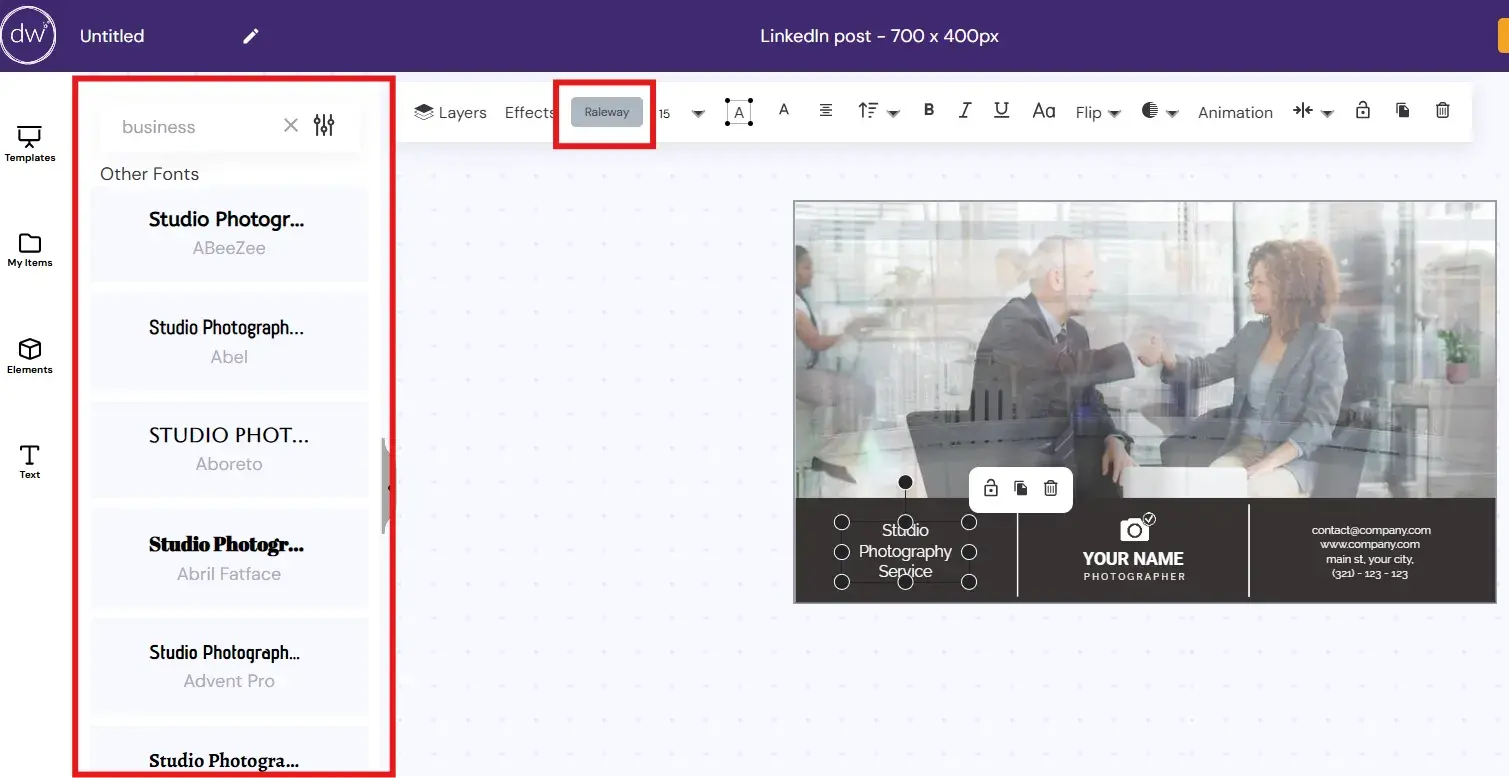
I love that they show the selected word in each font — it’s super easy to visualize your word instead of having to choose each font individually to see how your text looks.
Each element moves as a unit. So, it’s easy to shrink or expand, and there’s a free-floating dot at the top to turn your element, too. It’s kind of slow-moving, which I find a bit frustrating.
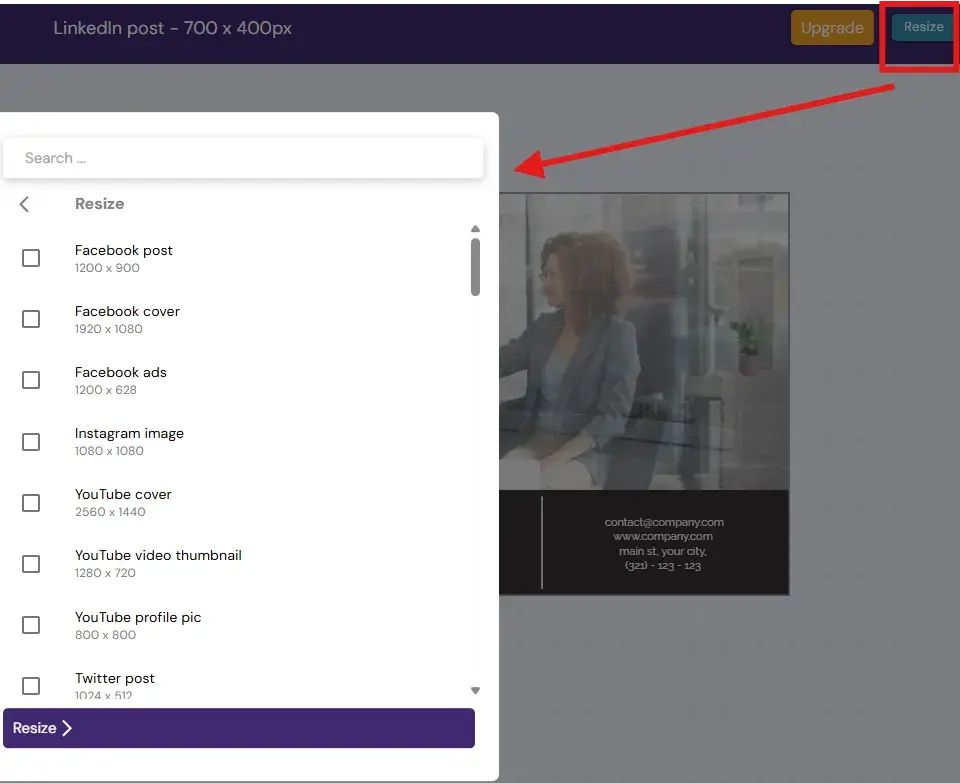
It does offer the flexibility of image resizing. That’s helpful. You can easily change your design to the optimal size for each social platform you choose. But you can only do this after you save your design (the little floppy disk icon on the top right).
You can also hit the “Share” icon (three dots connected by a line) and then choose between PNG, JPEG, and MP4 — the important basics.
Final Thoughts
DesignWizard works best as a design software for beginners because of the existing templates and relatively intuitive layout. While design pros could quickly create custom templates, I think DesignWizard would be a better front-line tool for beginners.
This software is fine for when you need to whip something basic, but it’s not great if you want to make adjustments to existing assets. I’d also be wary of how slow the platform is. It was really frustrating, honestly. Maybe I just caught the platform on a “glitchy” day?
3. Canva
Whether you’re looking to create an ebook, infographic, business card, or email header, Canva has a template to simplify your process.
The free web design tool, developed by non-designers, offers professional, easy-to-customize templates for just about any design need you can think of, like logos, which you can then add to website banners.
Testing It Out
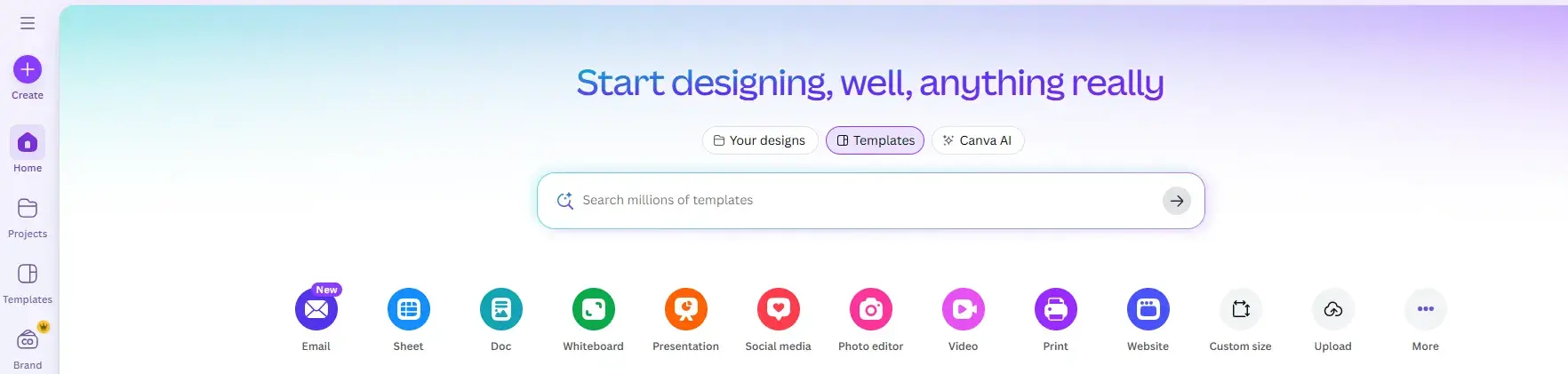
I’m going to show you around some of the preexisting templates in Canva, as I think this is one of the most beneficial things about the tool. To start, head to the home screen and select “Templates.” You can then choose from the different categories available.
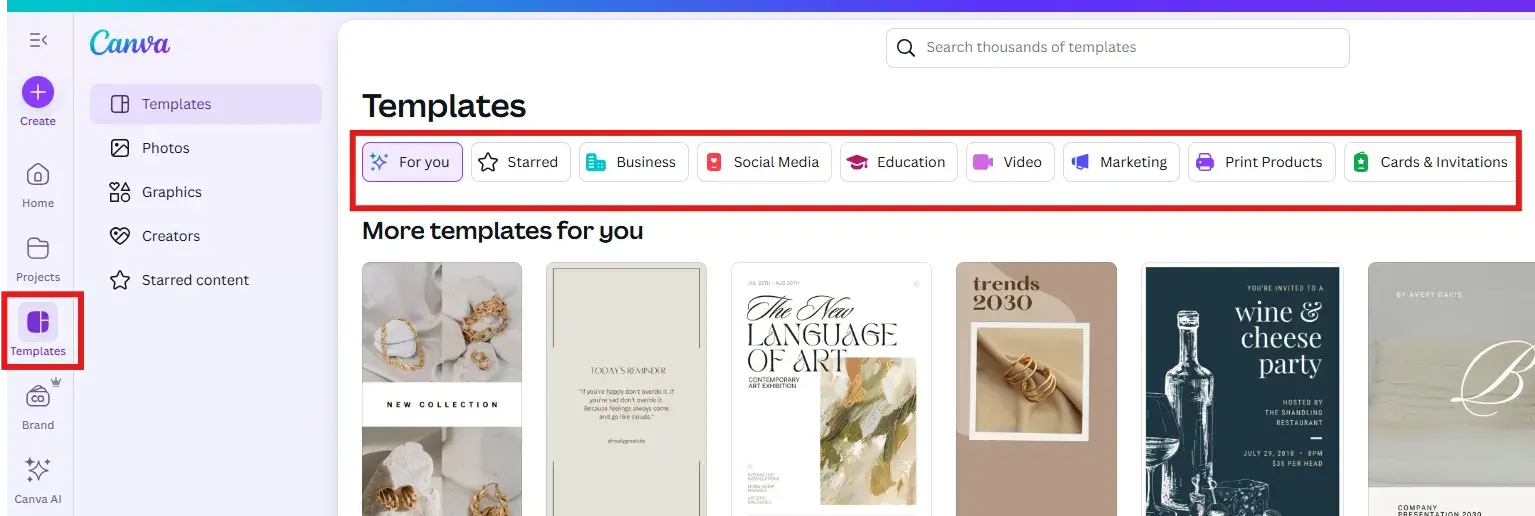
I went with “Marketing” and “Logos.” The fact that a clear “Marketing” category exists is already reassuring to me.
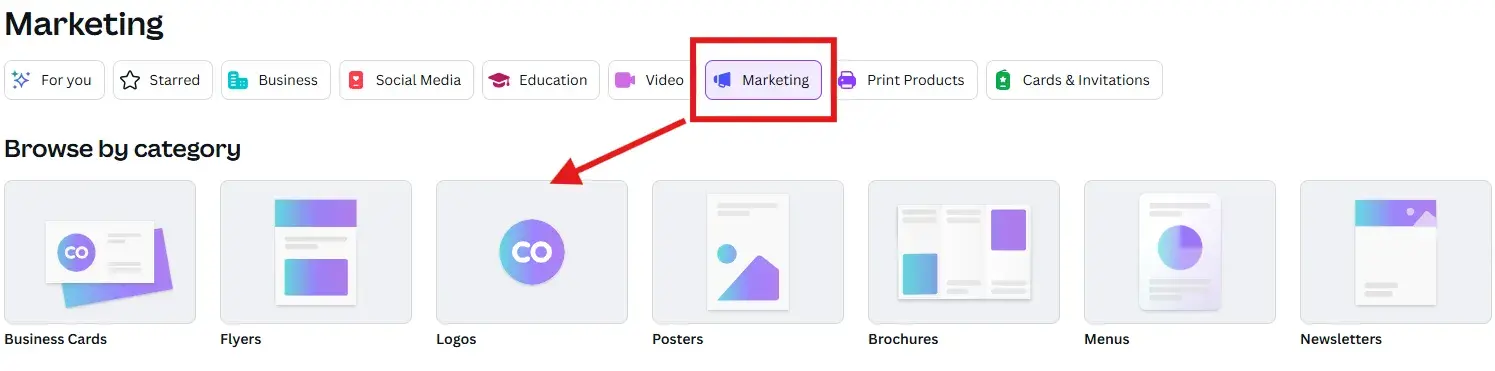
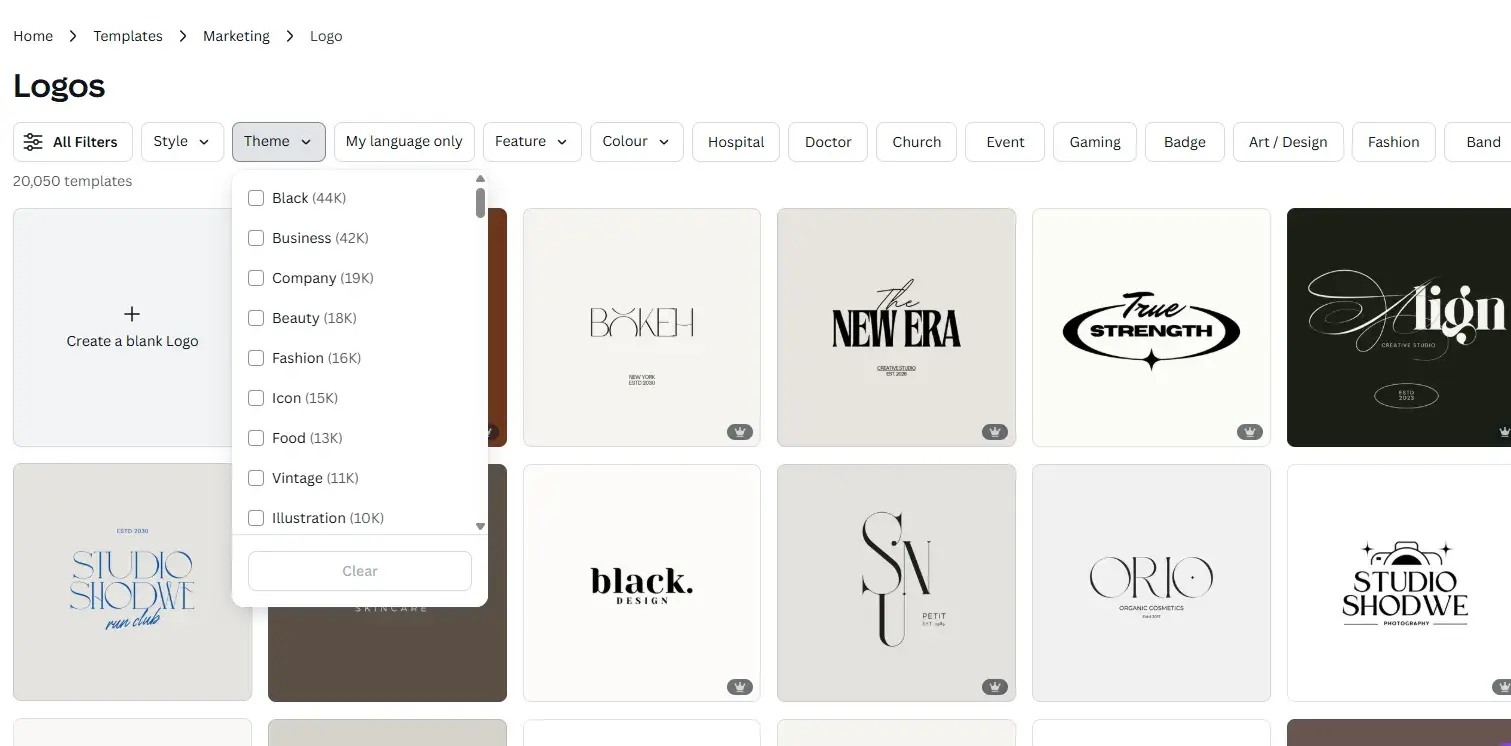
As you can see, there are a ton of logo templates, and you can even filter them by categories like “Style” and “Theme,” and even specific niches, including “Gaming” and “Church.” Note: Watch out for the little crown icon in the bottom right corner. This means the design isn’t on the free plan.
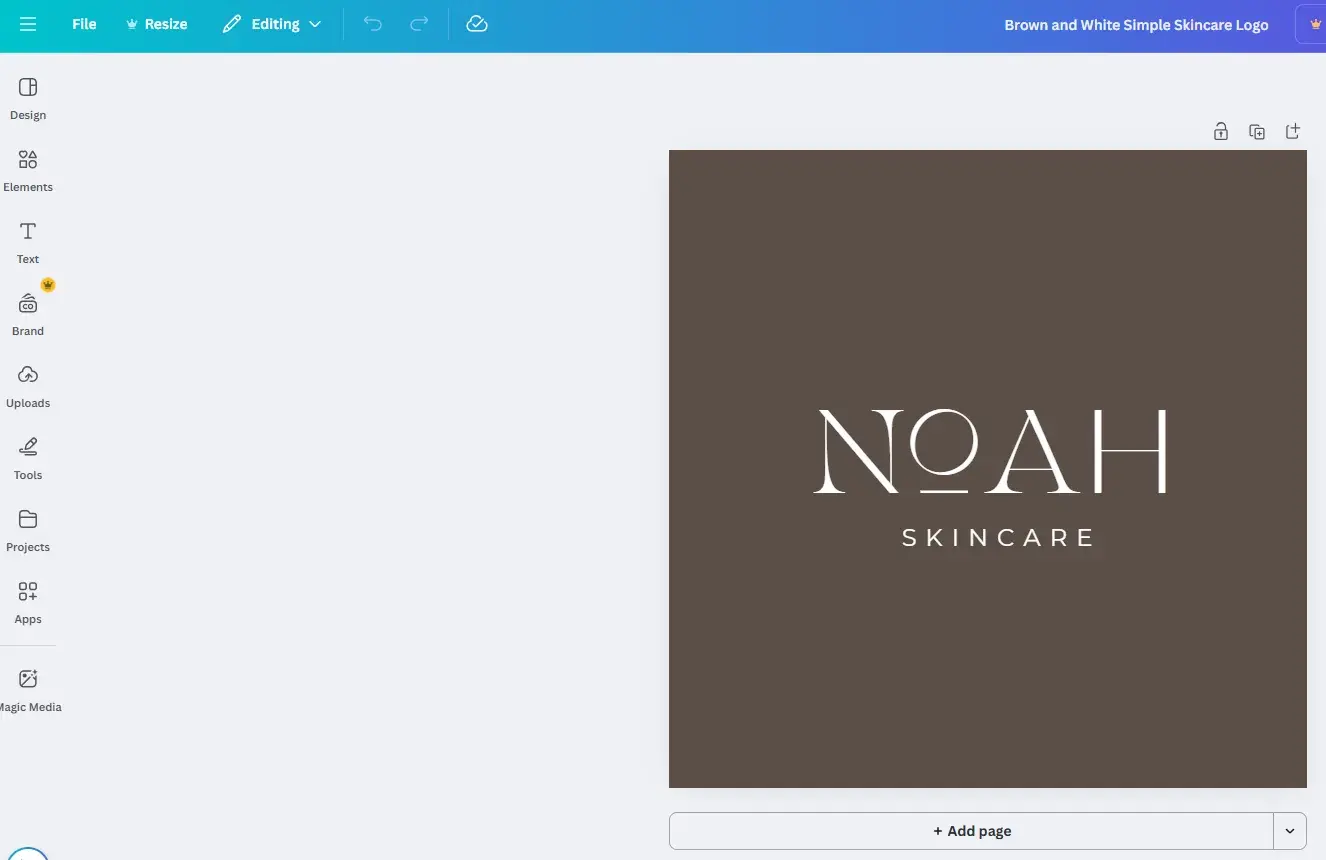
From the options available, I loaded up the “Brown and White Simple Skincare Logo.” Let’s have a look at some of the features I already know that I like, that I’m confident will benefit you.
Font customization: I really love how easy Canva makes it to change the font. You can also customize a font further by changing the size, color, and format.
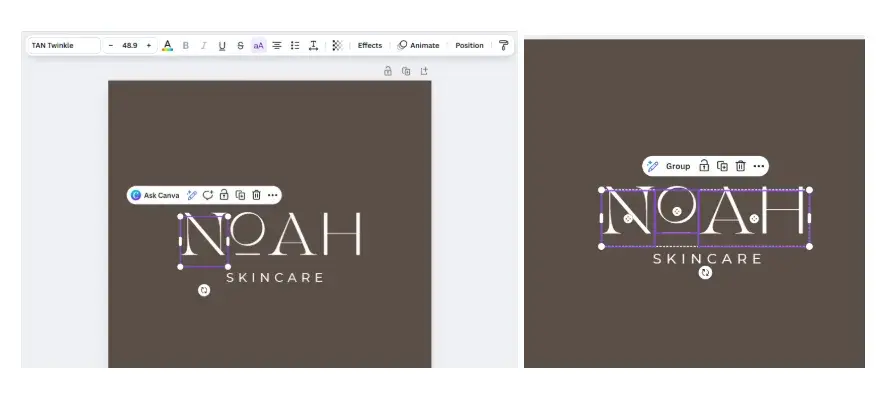
Grouping elements: In this template, each letter in “Noah” is an individual element. But you can “Group” elements together by left-clicking and dragging your cursor over the elements you’d like to group.
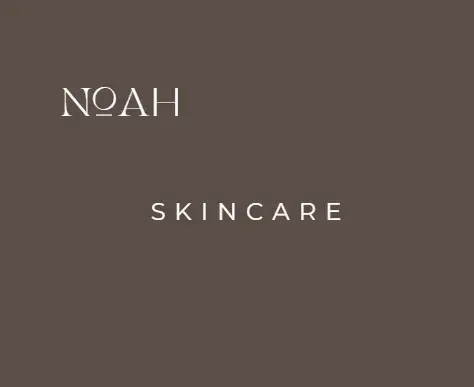
I love this because it means that once I’m happy with individual elements, I can group them and reposition or resize them as one. Because they all move together, I don’t have to worry about realigning each element. That’s a time-consuming process, let me tell you.
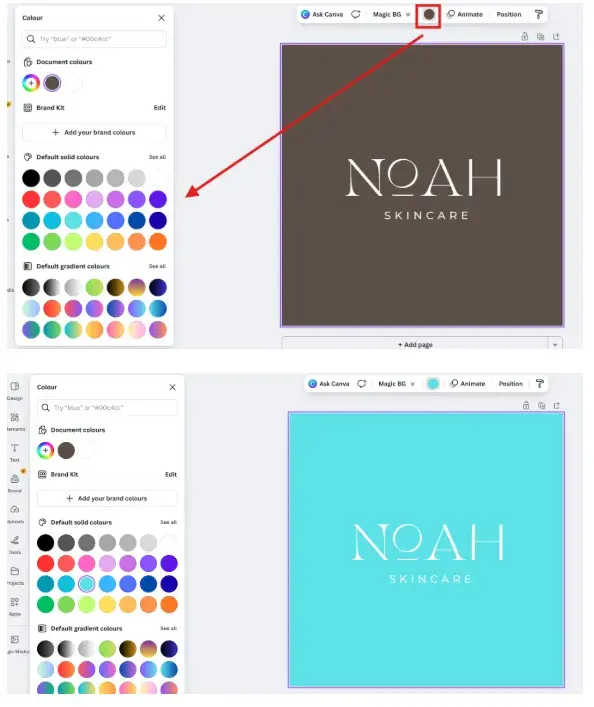
You can also change the background color of the logo template to match your own brand. I did this by selecting the background element and then clicking on “Background color.” (It’s the little colored circle on the top toolbar.)
Final Thoughts
Truth: I use Canva to create pretty much everything for myself and my clients. In my experience, it’s incredibly intuitive, it works without glitching, and there are marketing templates for days.
I achieved a lot with the free plan when I was just getting started in marketing. But I invested in a paid plan as I used Canva more. The Pro plan (which I use) is $12.99/month, and you get so much value for that price point.
While Canva’s free version is excellent for new designers working with templates, you can access more complex tools and features — such as resize functions, team sharing, and my personal favorite “Brand Kit” — in the paid version.
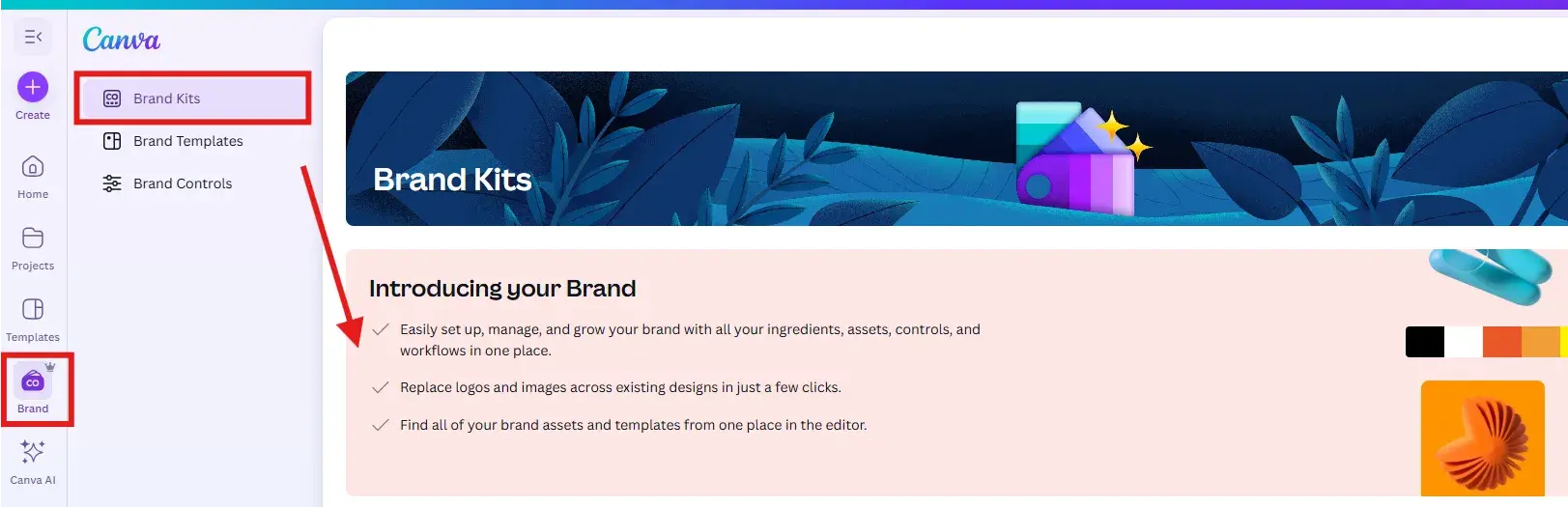
One thing I will say about Canva is that it’s so widely used that people can usually recognize the pre-made templates and elements. There are folks out there who can see a Canva design a mile away. Have you seen these popular Canva elements around? I see them everywhere. I still love them.
That’s not a unique problem, though, in web design — experienced designers can look at just about any website and tell you if it was made from scratch or if it’s a familiar template from various no or low-code website builders.
4. Looka
Looka is an AI-powered design platform catering to logo and brand design. The tool uses your initial input to help you create a logo and brand you love. If you’re a design newbie, it can help you cover logo making to marketing your business with physical and digital designs.
Testing It Out
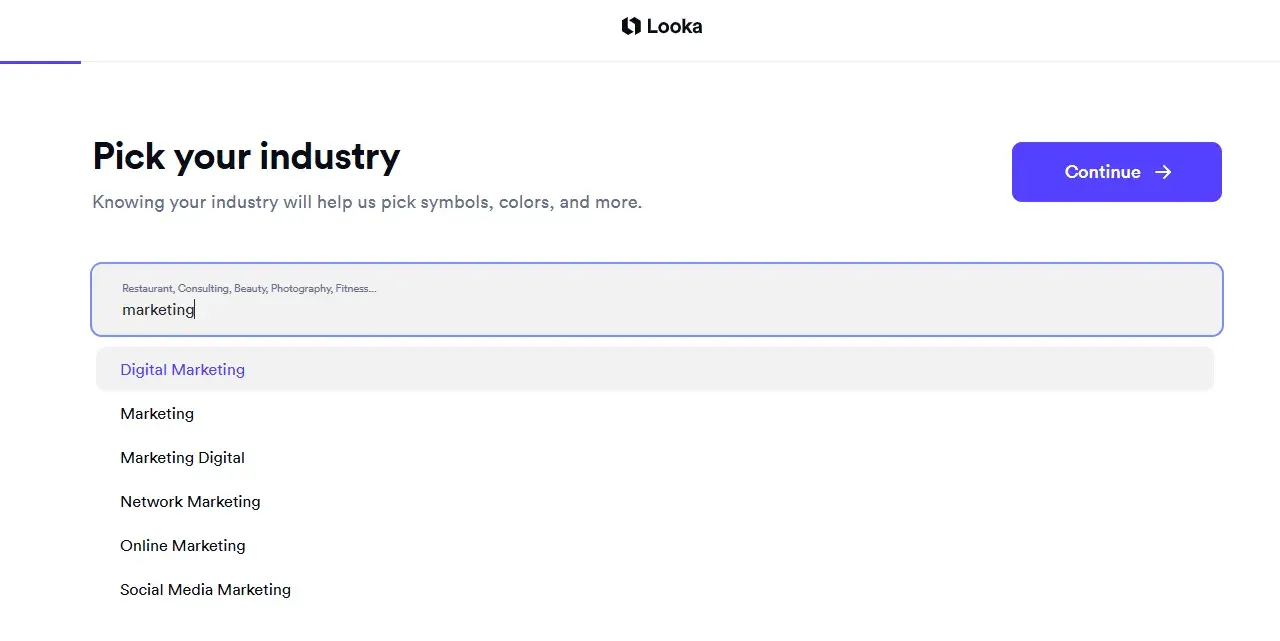
To get started, the Looka platform prompts you to tell it about your industry. I used “Marketing” to get started.
I love that the tool has multiple sub-niches within marketing. Because of this, you can get really specific about your offering. I went with “Social Media Marketing.” This is a lot better so far than my attempt via DesignWizard’s. If you remember, it said “No Data Found” when I specifically tried to search for marketing industry design elements.
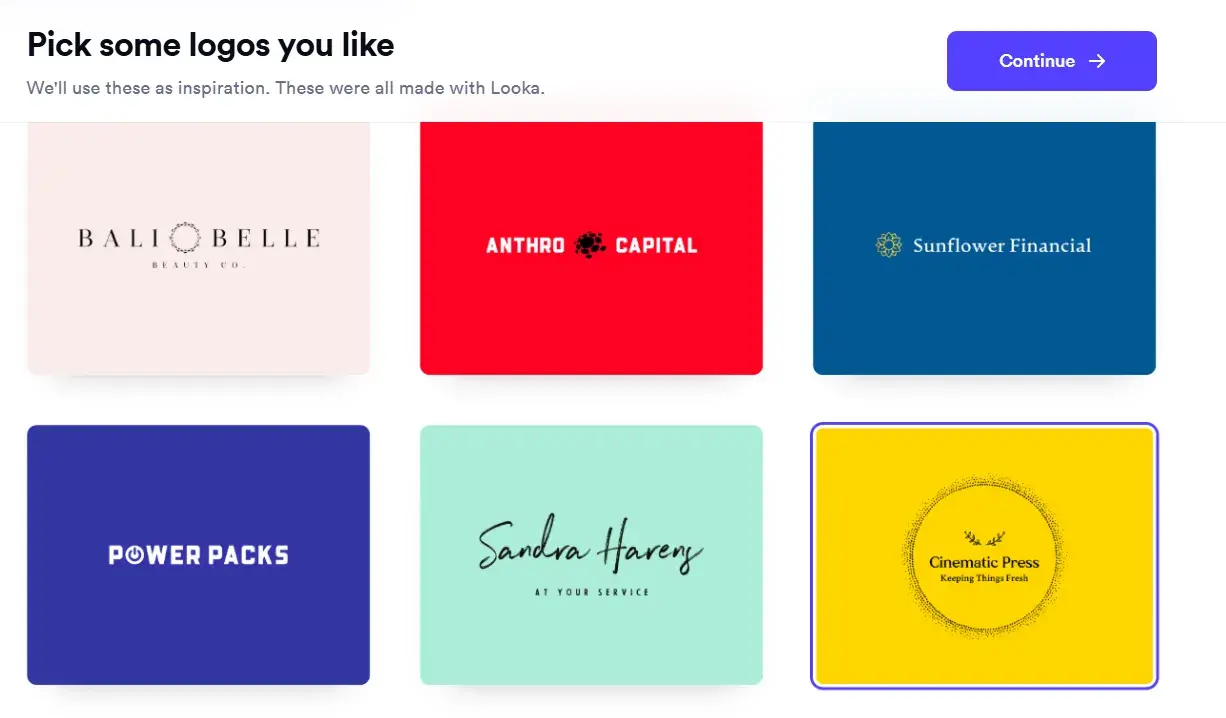
On the next page, Looka shared some pre-made logos. As you can see by the business names, these designs aren’t that specific to “Social Media Marketing,” let alone “Marketing” more broadly. Maybe I spoke too soon about these sub-niches. Anyway, I went with “Cinematic Press.”
Then it was time to pick some colors. When I hovered my mouse over each color, the platform revealed some color psychology information in relation to each. I really, really like this feature. Even design pros need a color psychology refresher once in a while, and this touch means they don’t have to leave the tool to get up to speed.
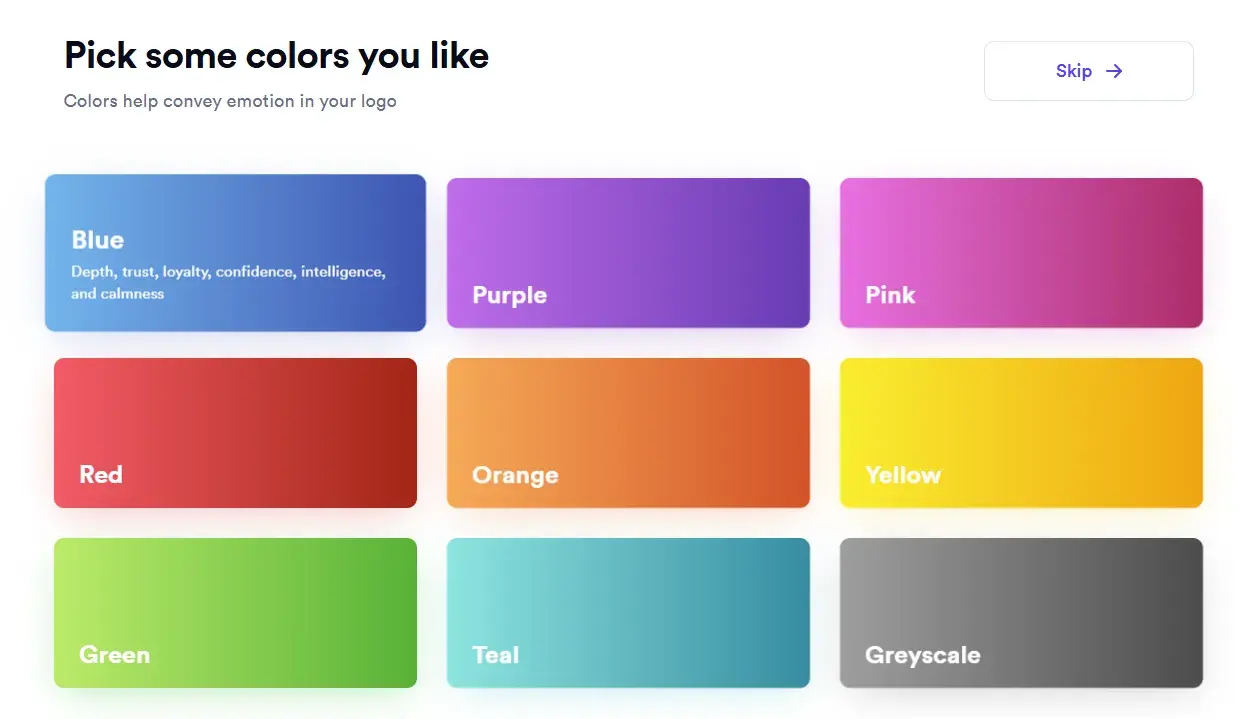
Here’s my selection, below. I also noticed that the “Pick some colors you like” heading changes to the color you last selected. That’s such a nice touch because you’re already seeing your color choices in action. If you don’t like the look of it, you can preview how another color would look when displayed on a website.
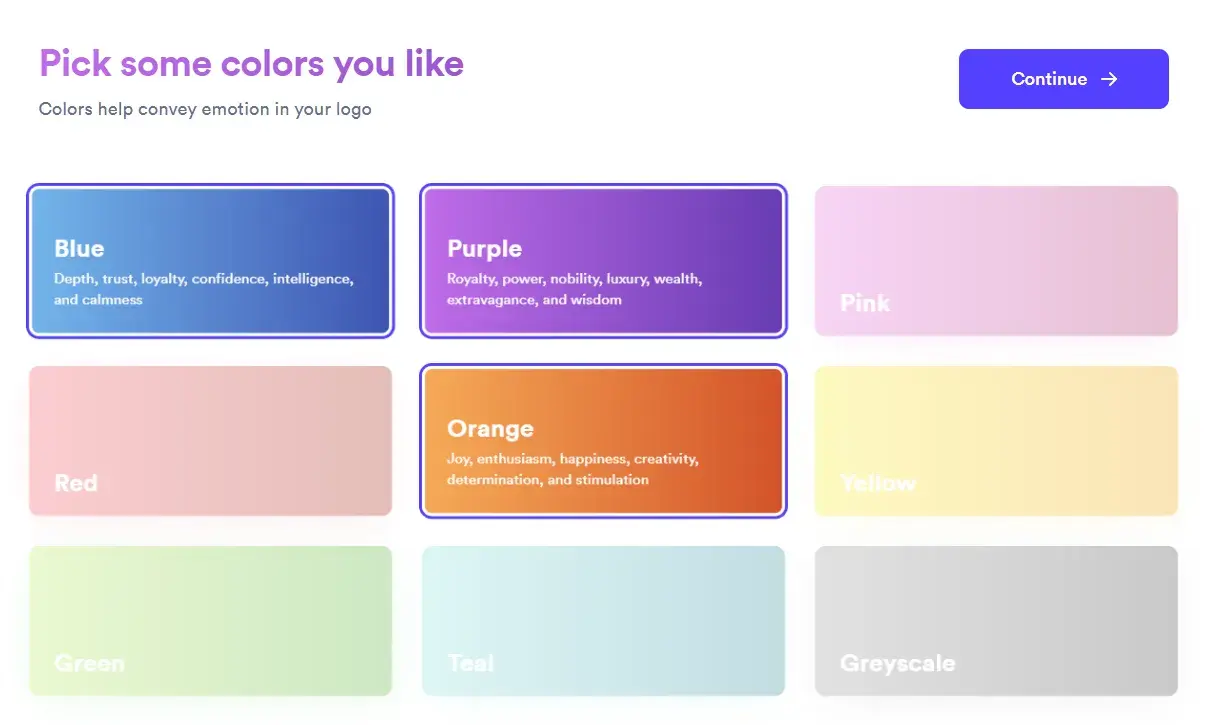
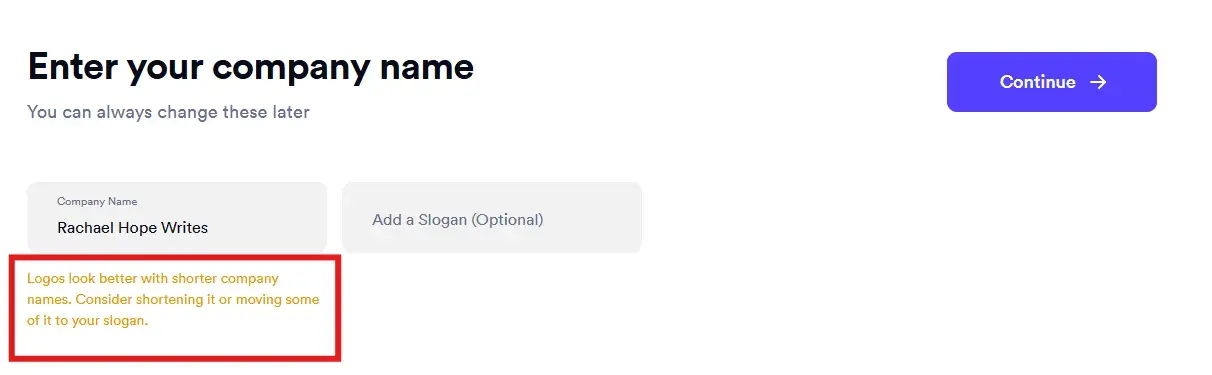
I am loving how intuitive this platform is so far. For example, I won’t change my company name for this test, but I appreciate that Looka has suggested this option based on design best practices. I think this would be very helpful for newer designers and business owners taking a DIY approach.
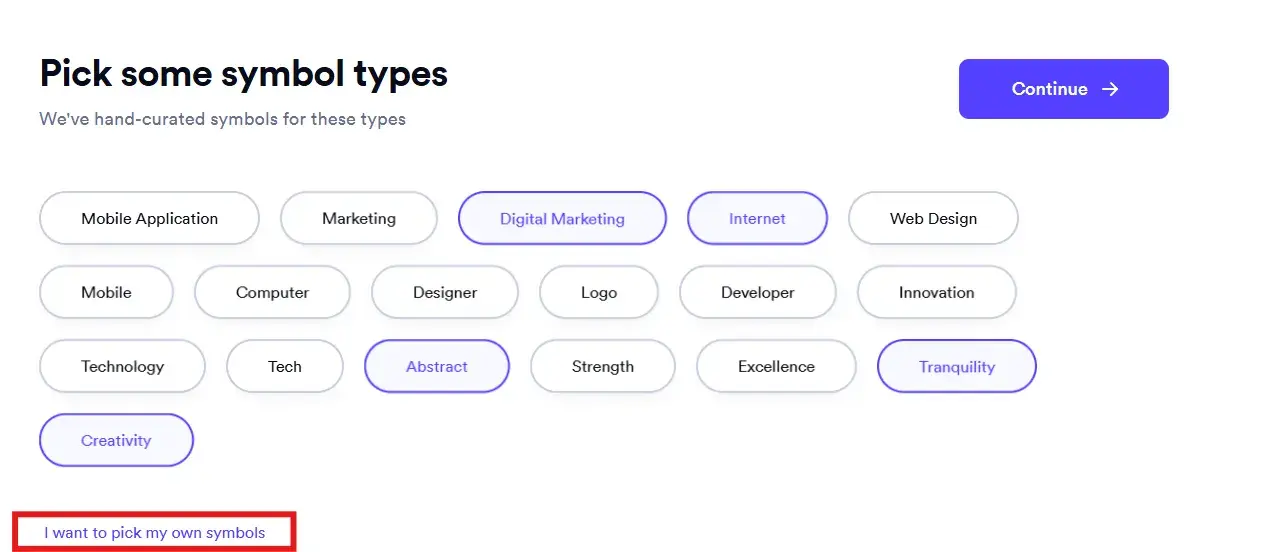
Next, the tool asked me to pick some symbol types. My first thought was “Oh, how cool! They have a mixture of industry symbols and ones that describe feelings and traits.”
Why do I like this? Your brand should clearly convey what you do. But it should also make people feel something. So this variety is excellent. I also like that you can pick your own symbols if the curated ones don’t match your needs.
Below are a few of the logos Looka generated for me. Considering I haven’t given TONS of context and criteria to the tool, I don’t think the designs are bad. Don’t get me wrong, they still look very “templated.” Still, they’re not THE most templated logos I’ve seen from free graphic design software.
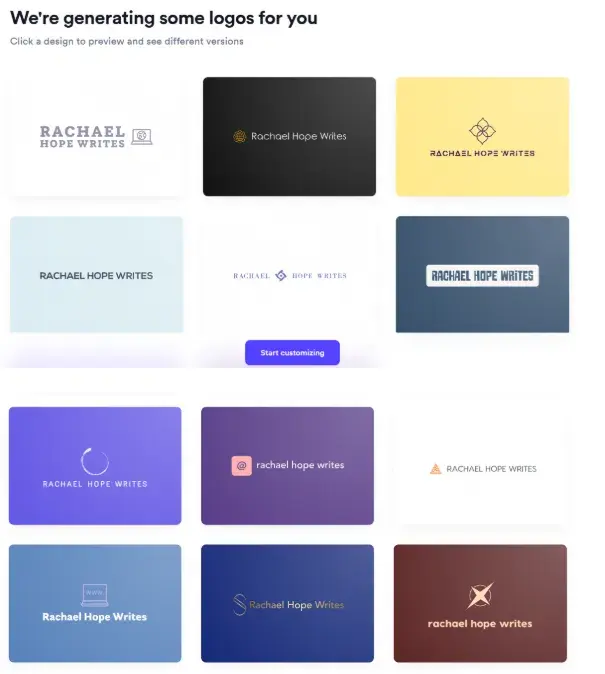
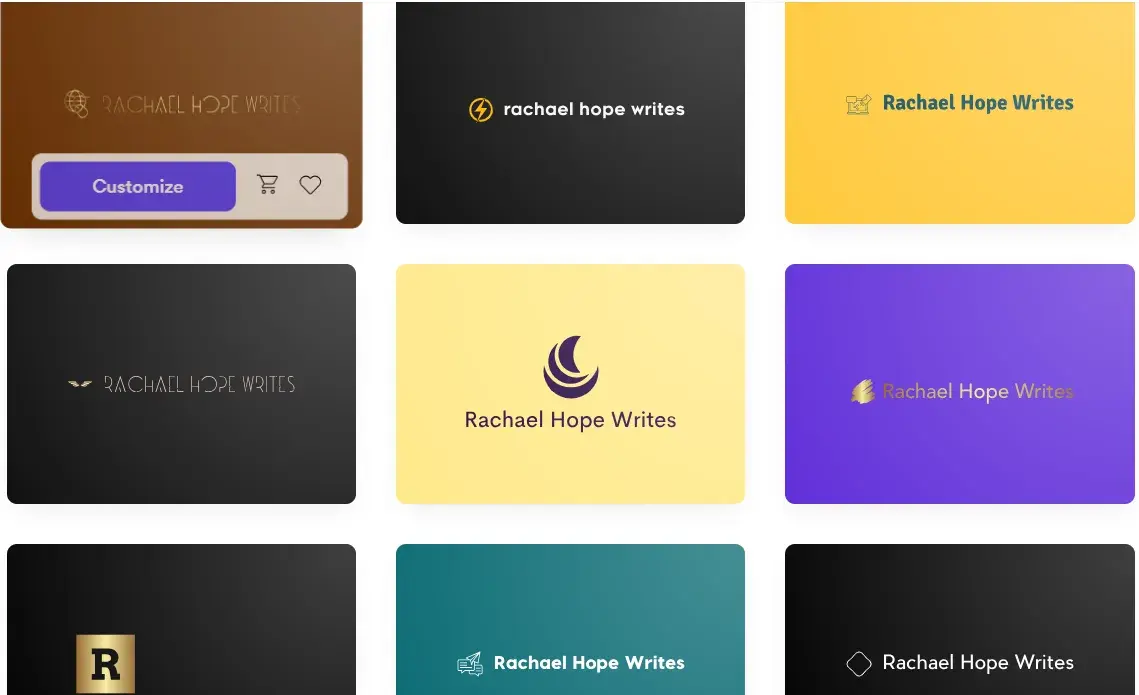
Here are a few more examples. I think Looka has incorporated my “abstract” symbol choice. Luckily, I have “writes” in the sample business name, or else people might not know what I do at a glance. That’s likely more on me for braving the abstract route, rather than the tool itself. My bad: It’s more important to be clear than clever after all.
If you look below, you can see that as you’re customizing your design, Looka previews how it might look on printed and digital media.
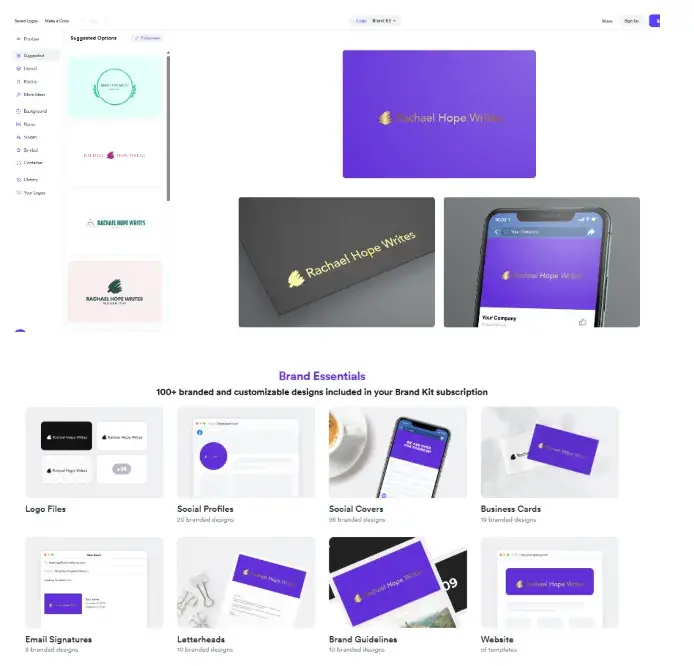
I get such a kick out of this feature because it shows you the full context of how your design will apply across things like social media and printed marketing materials. Ultimately, this will help people to make more informed design decisions.
15 Free Infographic Templates
Build better infographics with these free designed templates.
- Color schemes
- Icons & shapes
- Fonts
- Eye-popping themes
Download Free
All fields are required.
Form not available
Final Thoughts
First of all, I like that you can get started with the tool without having to create an account. I mean, this isn’t my first time at the rodeo using design tools, so I know to expect some form of sign-up and/or financial commitment if I choose to download whatever I create. But for quickly being able to test a tool to see if it’s a fit? A sign-up free process is perfect!
I’ve also used this tool before, so I didn’t get really into the weeds with the customization element. But I can tell you from experience, if you’ve used Canva, you won’t struggle with Looka’s customization tools.
What I did show you, however, is arguably my favorite thing about the Looka — the brand design previews. I love that you can get a clear idea of how your design will look across digital and physical brand assets.
5. Adobe Express (formally, Spark)
Adobe Express is a free alternative to the company’s popular, for-pay Adobe Illustrator. While it’s not nearly as full-featured, it does support integration with other Adobe products.
It’s easy to use, and it comes with a host of free templates. If you’re looking to quickly create posters or videos for ad campaigns, Express is a great choice.
Testing It Out
Unlike Looka, you will need an account to test the tool. I already have an Adobe account, so this wasn’t too much of a fuss for me. I wanted to flag this for you, though, so you have clear expectations before getting started.
Adobe Express kicked off the experience with some market research. I mean, sometimes this is the entry price when using free tools. It is what it is.
After inputting some more market research on behalf of Adobe, it was time to do what I came there to do — make some stuff. The tool offers a selection of different design types (social media, flyer, logo, etc). As I’ve been quite heavy with logos so far, I’m going to pick “Infographic.”
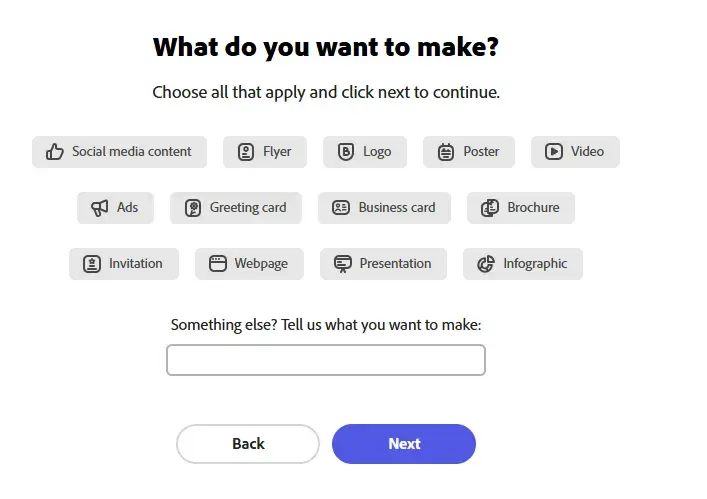
Now it’s time to pick a style. I was tempted to go all wild card and select “Grunge.” A Grunge infographic? Dare I…
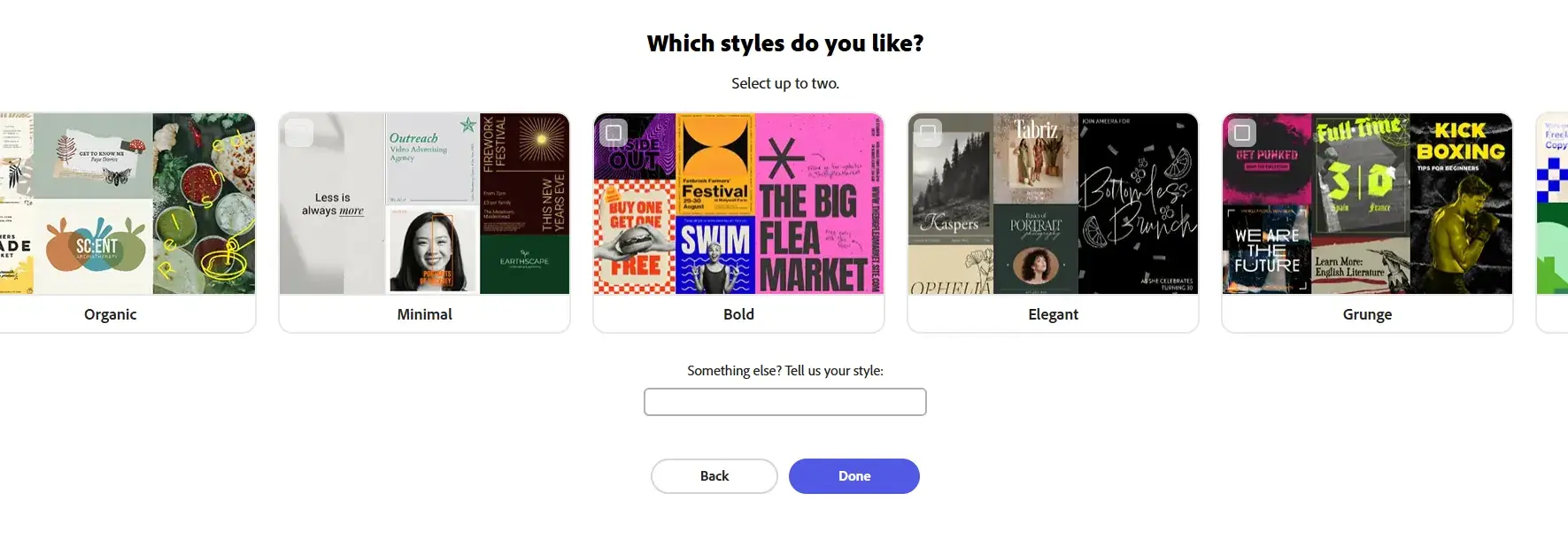
After inputting information about what I wanted to create and in which style, I was befuddled to be then met with a design platform that had seemingly taken none of these preferences on board. I was expecting a load of grunge-stylized infographic templates, honestly. Maybe I’ve been too spoiled by other plug-and-play products on the market.
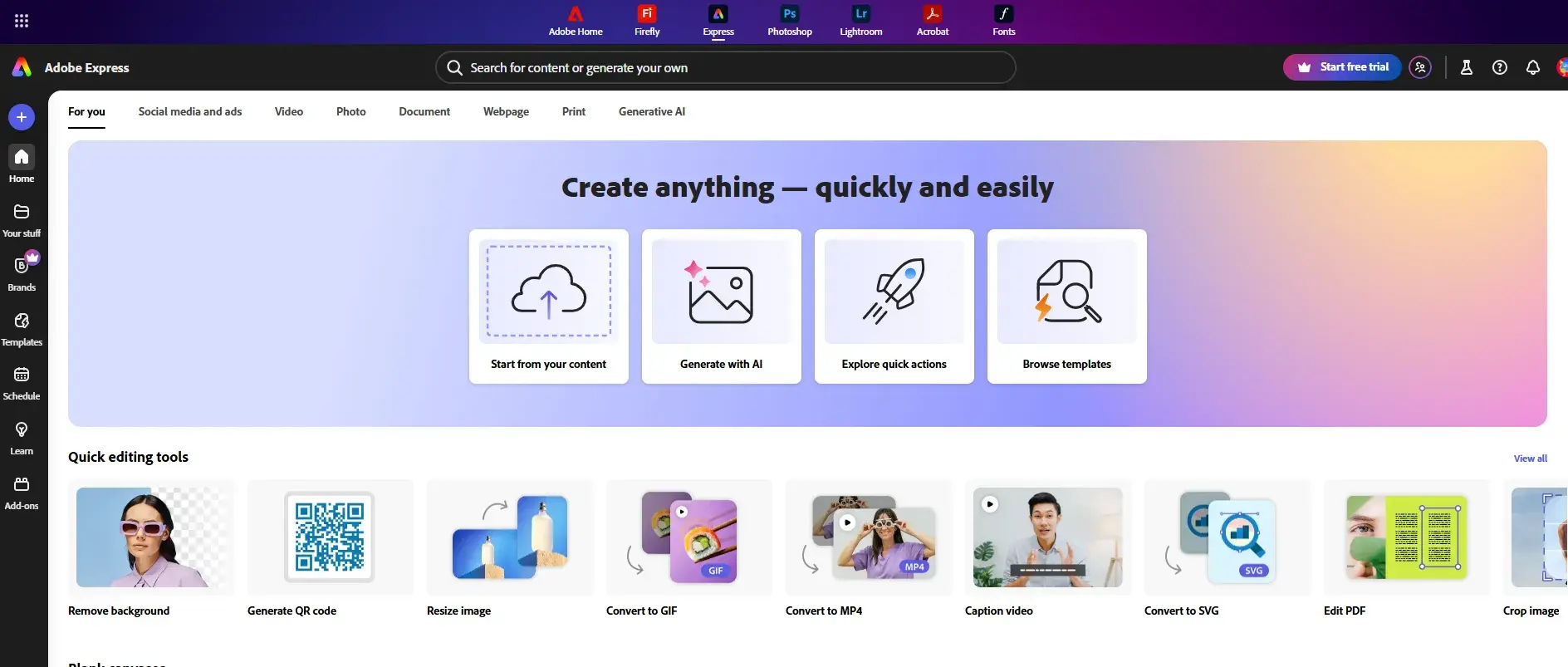
Rather than working with the templates, I braved it and tried “Generate with AI.” On the next screen, I went with “Generate template.”
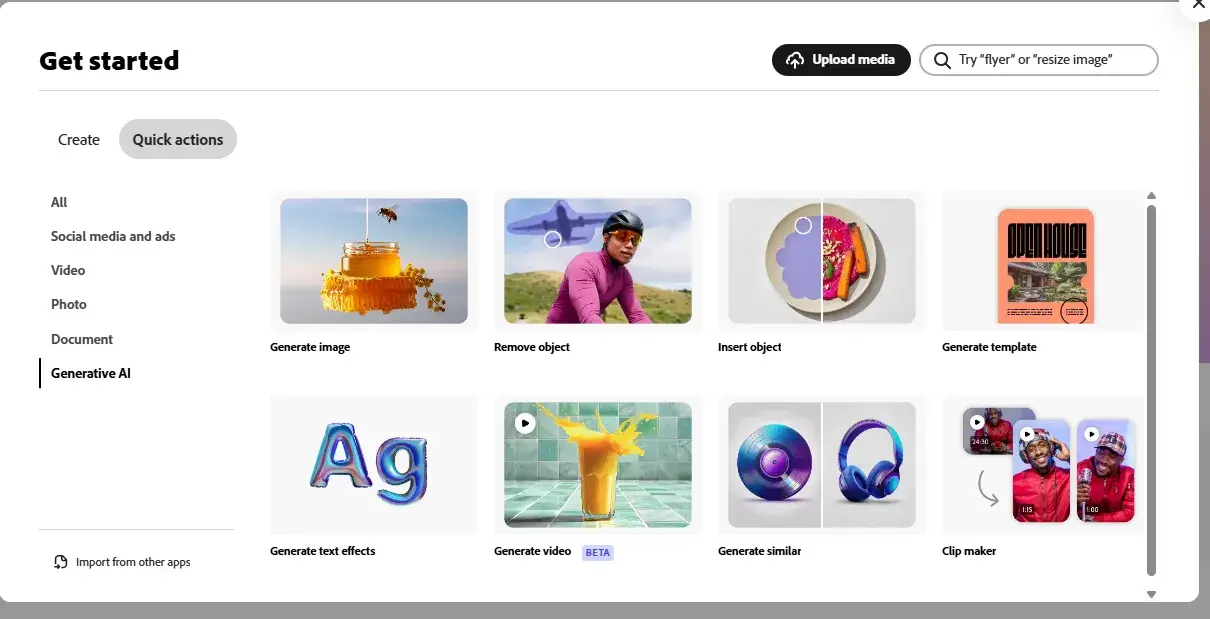
My prompt? “An image-heavy infographic template with a grunge aesthetic.” (I really couldn’t wait to see what happened here.)
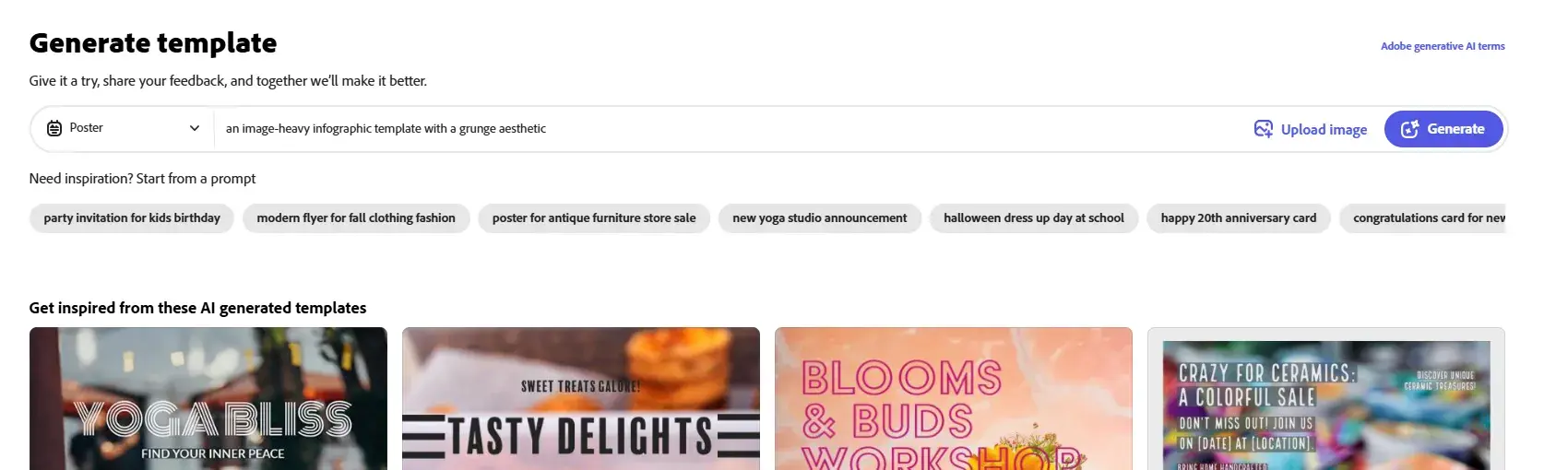
Considering I gave it the most complex type of infographic with a completely non-infographic, typical aesthetic, and the tool didn’t just “blue screen,” I’m kind of impressed. Is that a high bar to clear, though? Not really, I guess.
Diving into the designs a little deeper, three out of four of them didn’t really meet the infographic element of the brief. They looked more like event posters. It was a tricky brief, though.
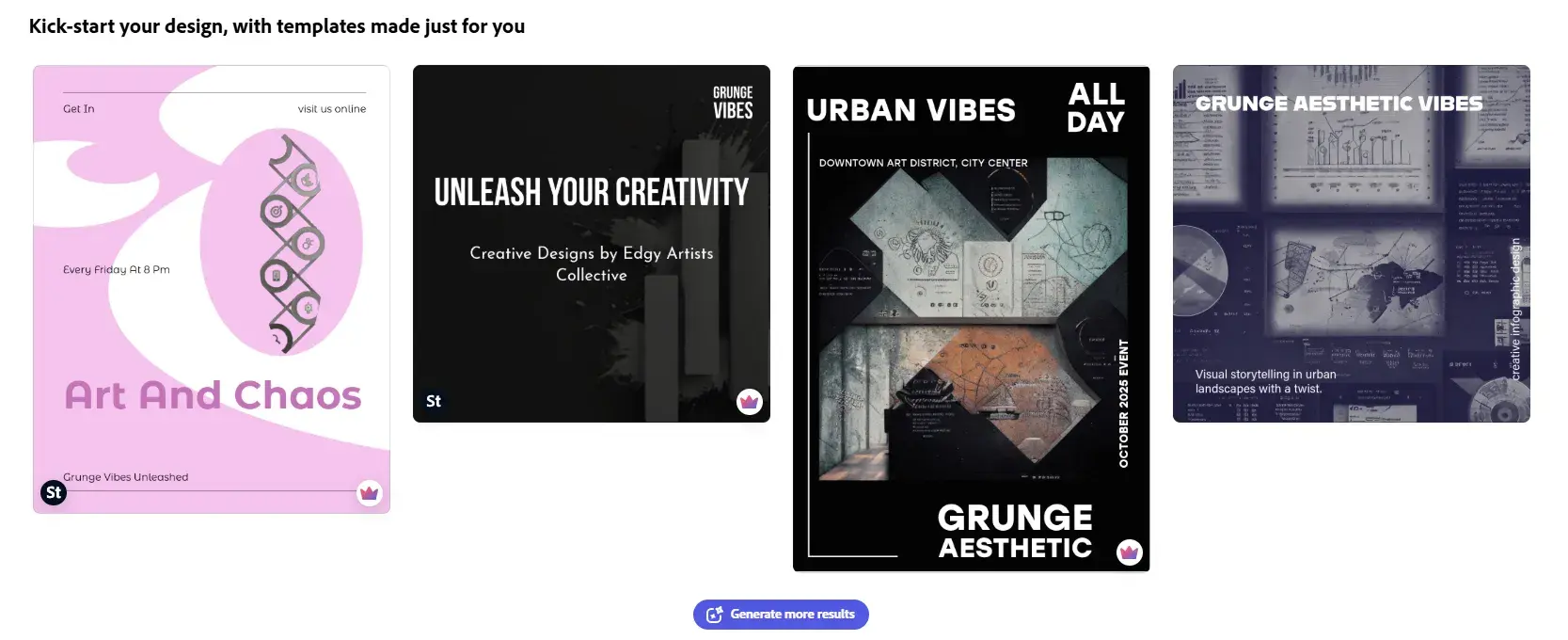
That said, I was intrigued by the one design that seemed at least a little more like an infographic. I picked that option so I could get an idea of the tool’s customization ability. First thoughts: I liked the layout of the design canvas. There’s a nice mixture of features spread between the toolbars.
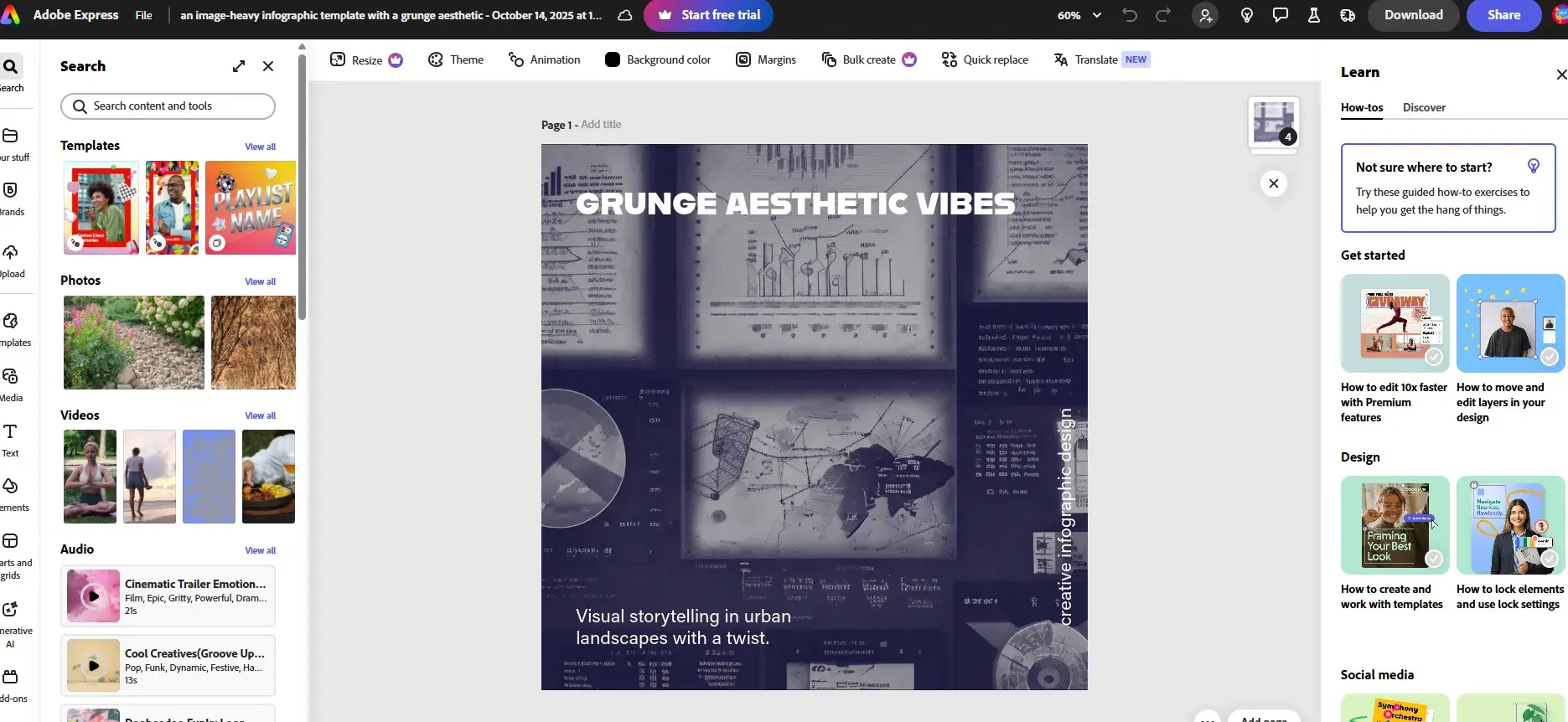
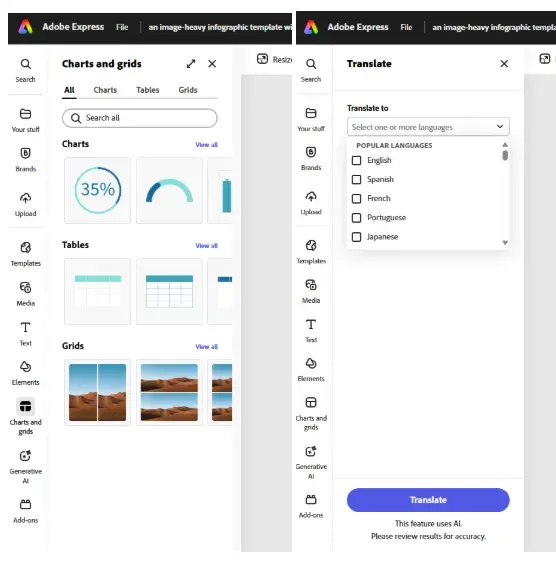
In terms of the features that stood out to me, I can see the “Charts and grids” section being beneficial for infographic design.
The “Translate” option is another interesting feature. If you serve different international markets, it will help you create marketing materials tailored to each one. Although I’m not sure I’d feel confident about relying on any tool, rather than a human, for translation. A translation blunder could make you look really unprofessional or even disrespectful to foreign markets.
Final Thoughts
Adobe Express was relatively easy to use. Though I am wary that this impression could be based on my prior knowledge. I’ve used a lot of different design software over the years, including the Adobe Suite, so none of this looks overwhelming to me. Plus, the interface seems clean, fast, and easy to navigate, which is always a bonus.
Overall, I think you could use Adobe Express as a beginner, although it does have a bit of a learning curve. I’d also suggest sticking to the templated options if you don’t have a vast design vocabulary. I think to prompt the tool effectively, you’ll need to know exactly what to ask for.
6. Snappa
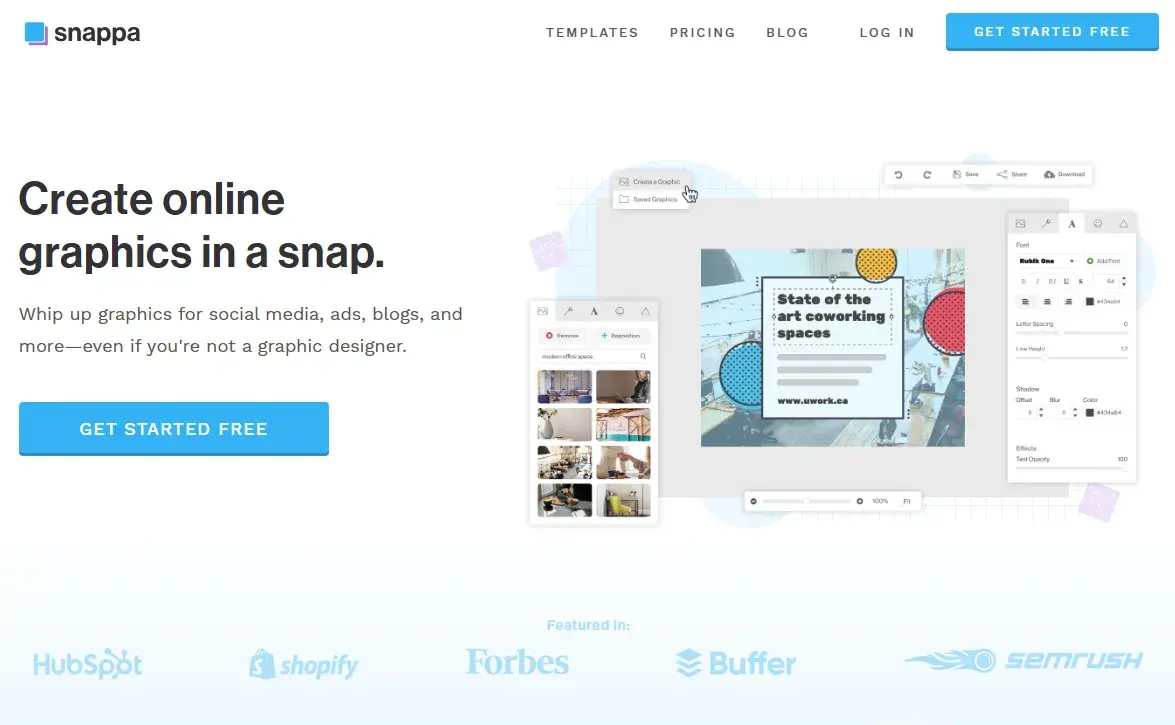
Snappa is a free design software that specializes in online graphics for things like social media, blogs, and ads.
Something I think is worth noting upfront: Yes, the software is technically “free.” And on the free plan, one user can access over 6,000 templates and 5 million HD photos and graphics. But you only get three downloads per month on the free plan. That’s three unique graphics across all of your online channels — a month. That’s quite limited, especially compared to something like Canva.
Now that the disclaimer is out of the way, let’s road test the tool.
Testing It Out
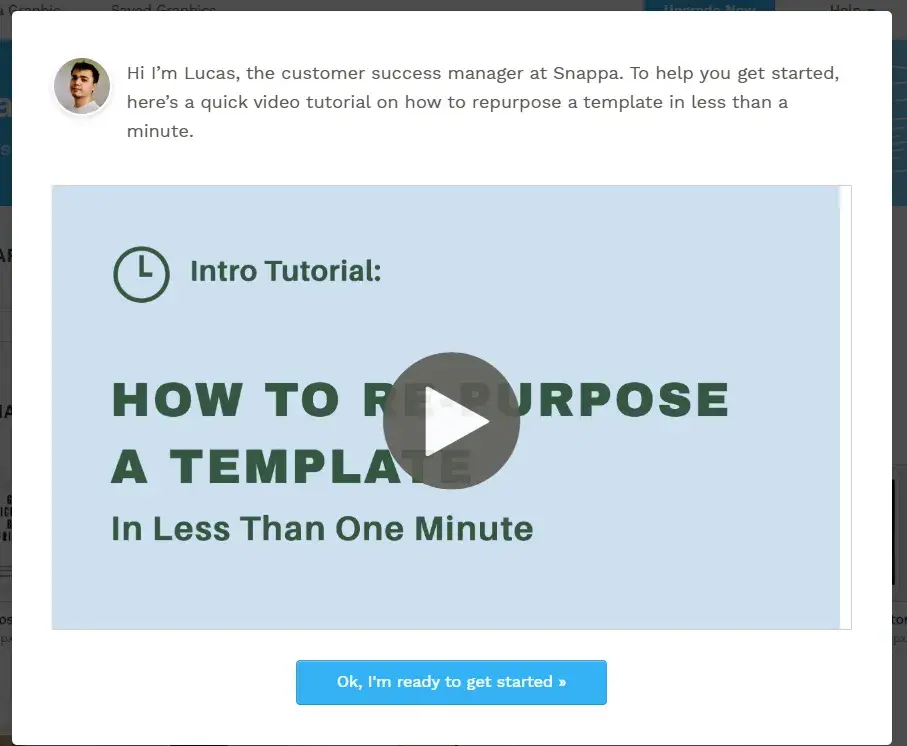
My first hurdle was creating an account to sign up. Sigh. As soon as that was done, there was a pop-up from the customer success manager sharing a video tutorial. Honestly, I’m not sure how I feel about this.
On the one hand, I wanted to get straight into testing the tool, and it’s just another hurdle to jump over. On the other hand, I’m sure other people testing this tool for the first time would feel reassured by having some kind of knowledge base shared with them by a human avatar.
The Snappa homescreen is relatively straightforward to navigate. Granted, I think this is helped by the fact that Snappa specializes in online graphics. That means the tool only has a few categories of graphic templates to browse. Now I’m harking back to the other design tools, and thinking the sheer volume of options available was actually quite overwhelming.
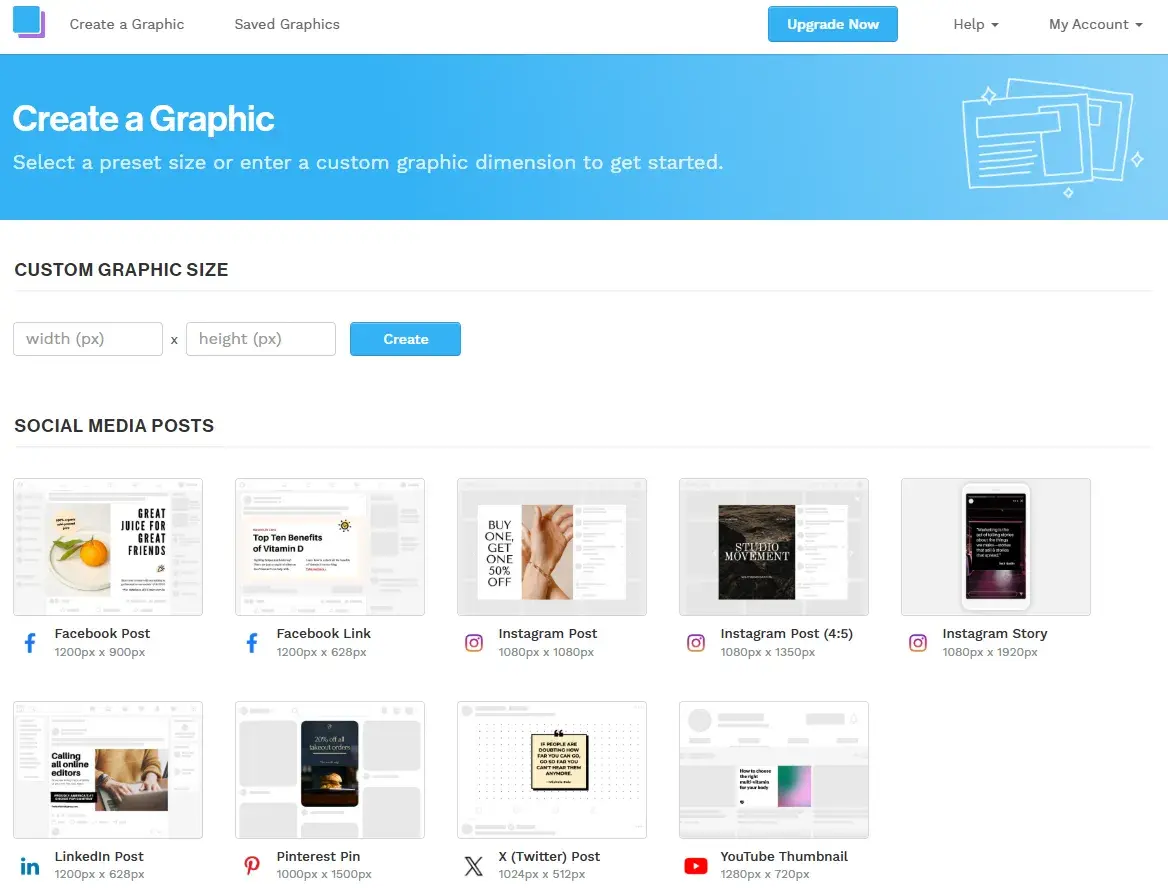
I continuously forget the ideal image sizes for different social media platforms, so I decided to test out a template.
As an aside, I do love that Snappa shares the option for a custom graphic size right at the top. I can see this being helpful for blog images specifically. In my experience, blog image sizes can vary for different web themes, not to mention the size restrictions for custom-built websites.
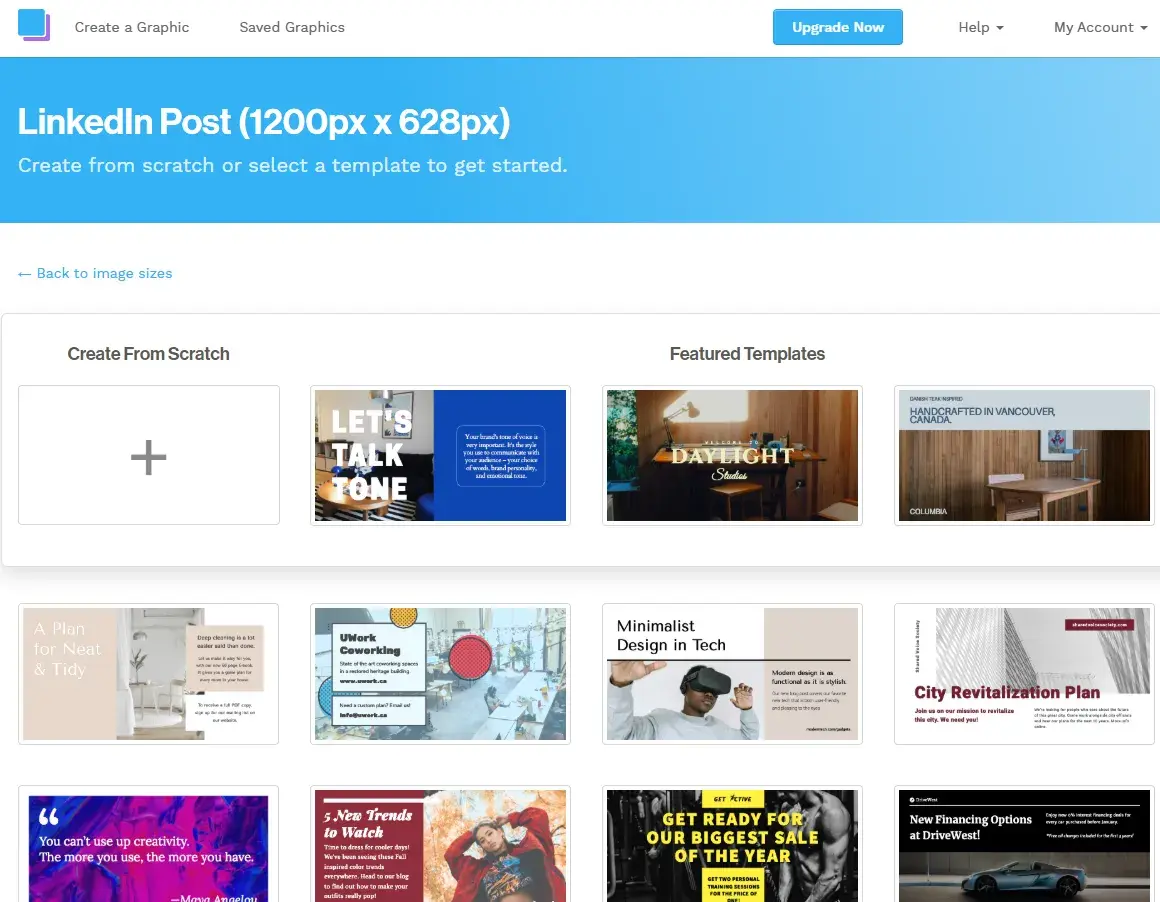
Back to it. I went for a LinkedIn post and picked the template with the Maya Angelou quote. The design caught my eye — and I do enjoy a good motivational quote on LinkedIn.
I really liked Snappa’s design canvas. It’s clean, simple, and gets the job done.
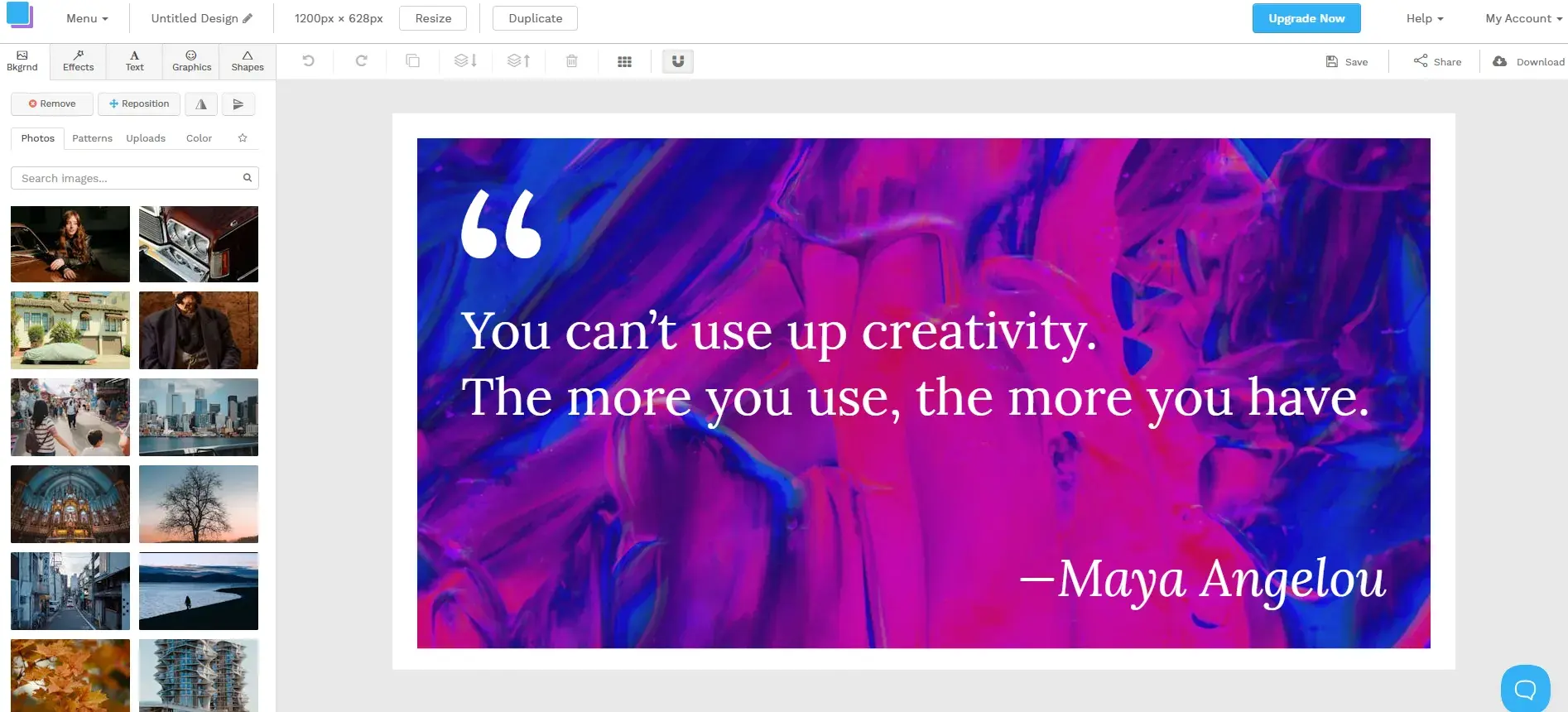
Here are some of the features that jumped out to me based on my experience as a social media manager:
- There were plenty of high-quality photos to choose from. It’s bad enough when you use the same templates as everyone else, but the same photos, too? A lack of unique photos makes brand differentiation a struggle, especially when using free tools.
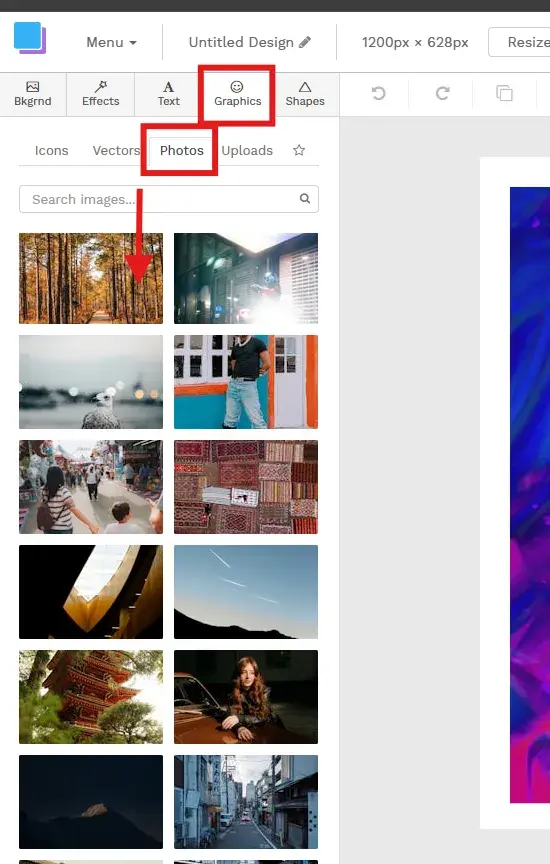
- There is a resize button. When you click it, you can choose from a list of pre-sized social media image types and dimensions as per each platform. This is such a time saver. It makes it easy to repurpose a graphic for each social media platform without having to revisit the recommended sizes.
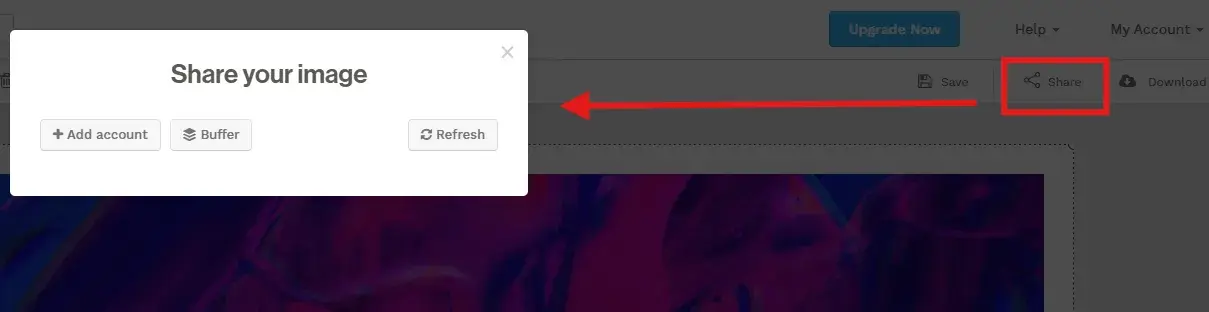
- You can sync your design with Buffer. Even if you only manage accounts for one business, social scheduling is a MUST. No one can be online 24/7, and you have to post at different times to reach different audiences. I love that you can share your creations directly to Buffer. That is my go-to social scheduler, by the way. Plus, if you select “Add account,” you can link Snappa directly to your Facebook and X.
Final Thoughts
When it comes to the usability of the design platform, its straightforward layout means it’s beginner-friendly. Once you choose a template, I don’t think you’ll have much trouble working through the customization options to make it suit your brand.
If you specialize in social media, this could be your one-stop design shop, honestly. After testing it above, I highly rate this tool.
7. CorelDRAW Go (previously Corel Vector )
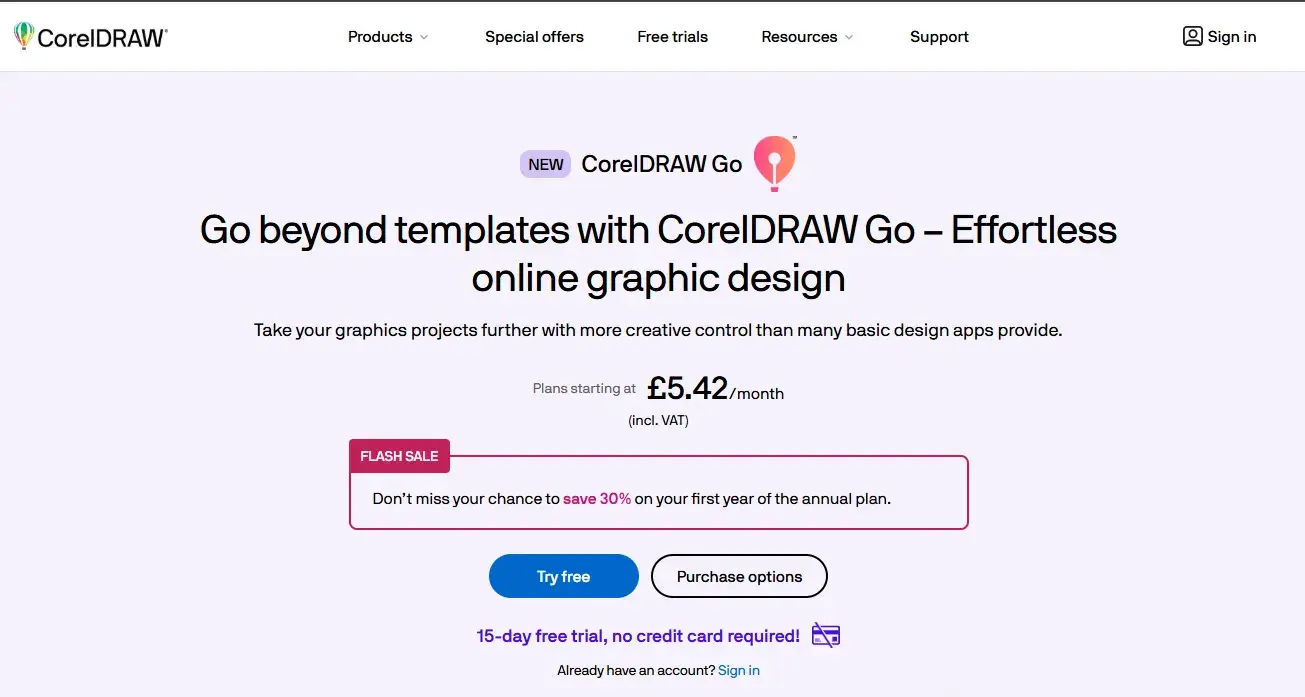
CorelDRAW Go (which used to be called Corel Vector) is a vector design application created by the makers of CorelDRAW.
With a host of tools for creating vector art and a self-adjusting interface, CorelDRAW Go earns its place among the best free graphic design software for Mac and Windows — the tool is also available for ChromeOS and Linux.
While I don’t technically consider this to be free software, signing up for a free trial of Corel Vector automatically grants you access to “Pro” features for the duration of the trial.
This includes the ability to work offline and see version history. However, you lose these features when your trial is up unless you’re willing to pay for a subscription. That said, a 15-day free trial, with no credit card requirement, should be enough to test if this tool is worth paying for.
Testing It Out
After signing up, I was met with a screen asking me to describe my design experience level. For this post, I said “I’m new to graphic design” to make the test beginner-friendly. I was then asked how I would use the tool and what I intended to make. On the latter, I’m going with “Branding.” That covers logos and business cards. I haven’t tested a tool for business cards on the list so far, and this had me curious.
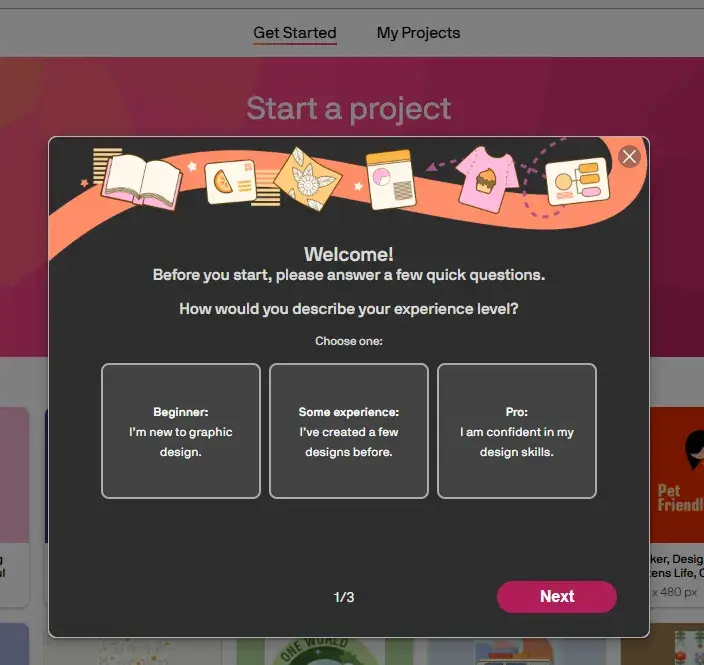
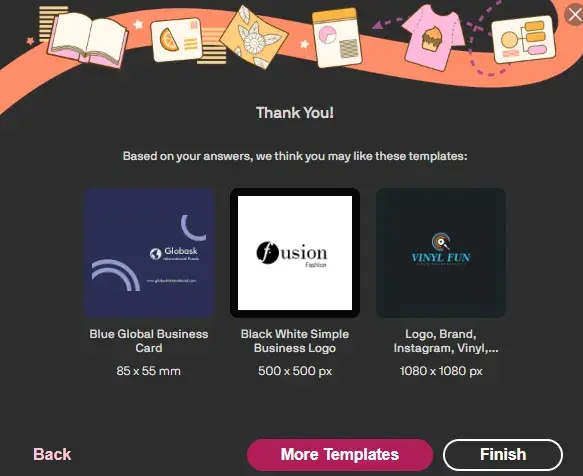
After inputting the above, CorelDRAW Go shared a couple of templates with the option “More Templates.” I think this would be helpful for beginners, because even for design pros, starting with a blank page can be unnerving.
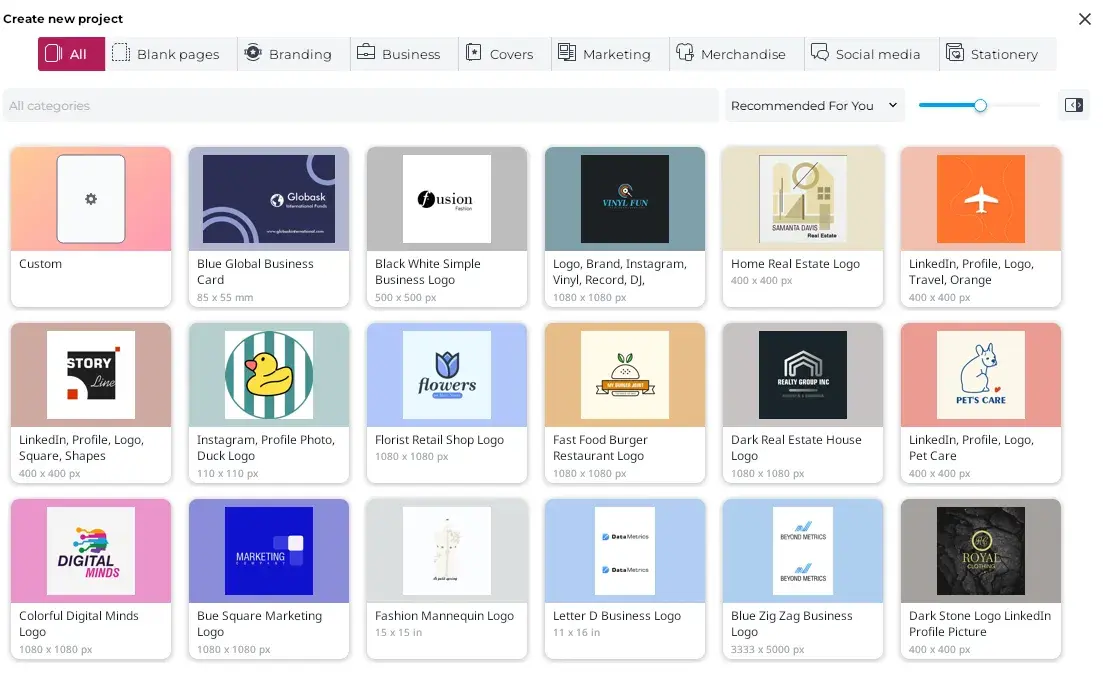
I was curious about the templates, so I clicked “More Templates,” and a bunch more popped up on the next screen. There is a nice range, catering to multiple niches. I was pleasantly surprised.
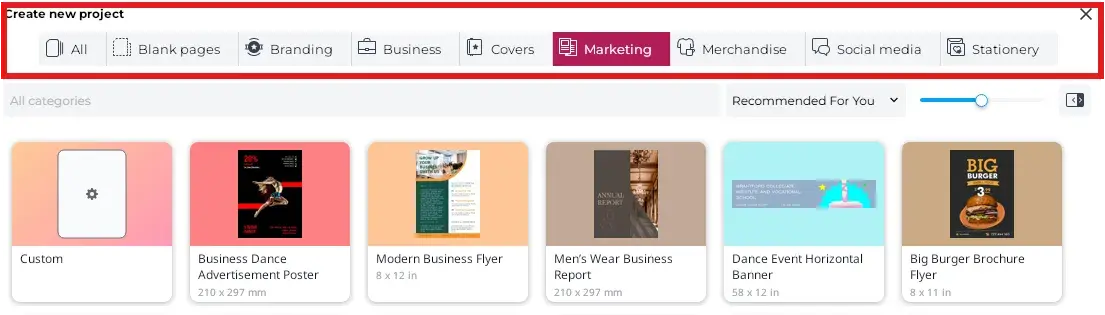
I also liked that the top toolbar has been broken into different categories of designs (Branding, Business, Marketing, etc.). You can cycle through each design category to browse more templates.
Anyway, I’m here to make a business card, so let’s get back on track. I used the search bar to filter the business card templates in the “Branding” category. It worked great — a pleasant surprise given some of these search bars have been glitchy on different tools.
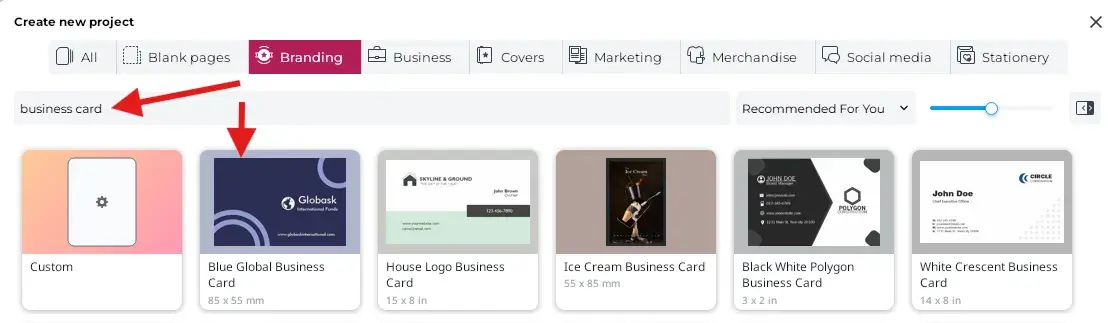
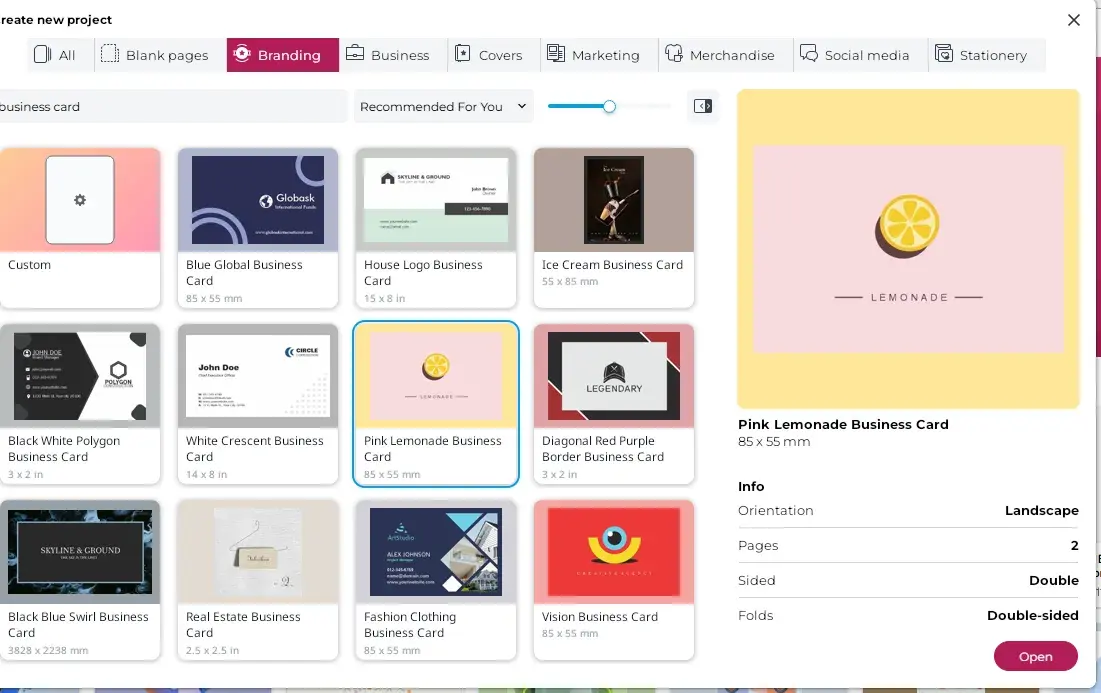
I went with the “Pink Lemonade Business Card,” so I could road test the customization options. Note: When you select a template, the platform opens up a section on the right giving further details. That’s a nice touch.
I think if you’re a beginner, and you’ve only used something like Canva, this design canvas may throw you for a loop.
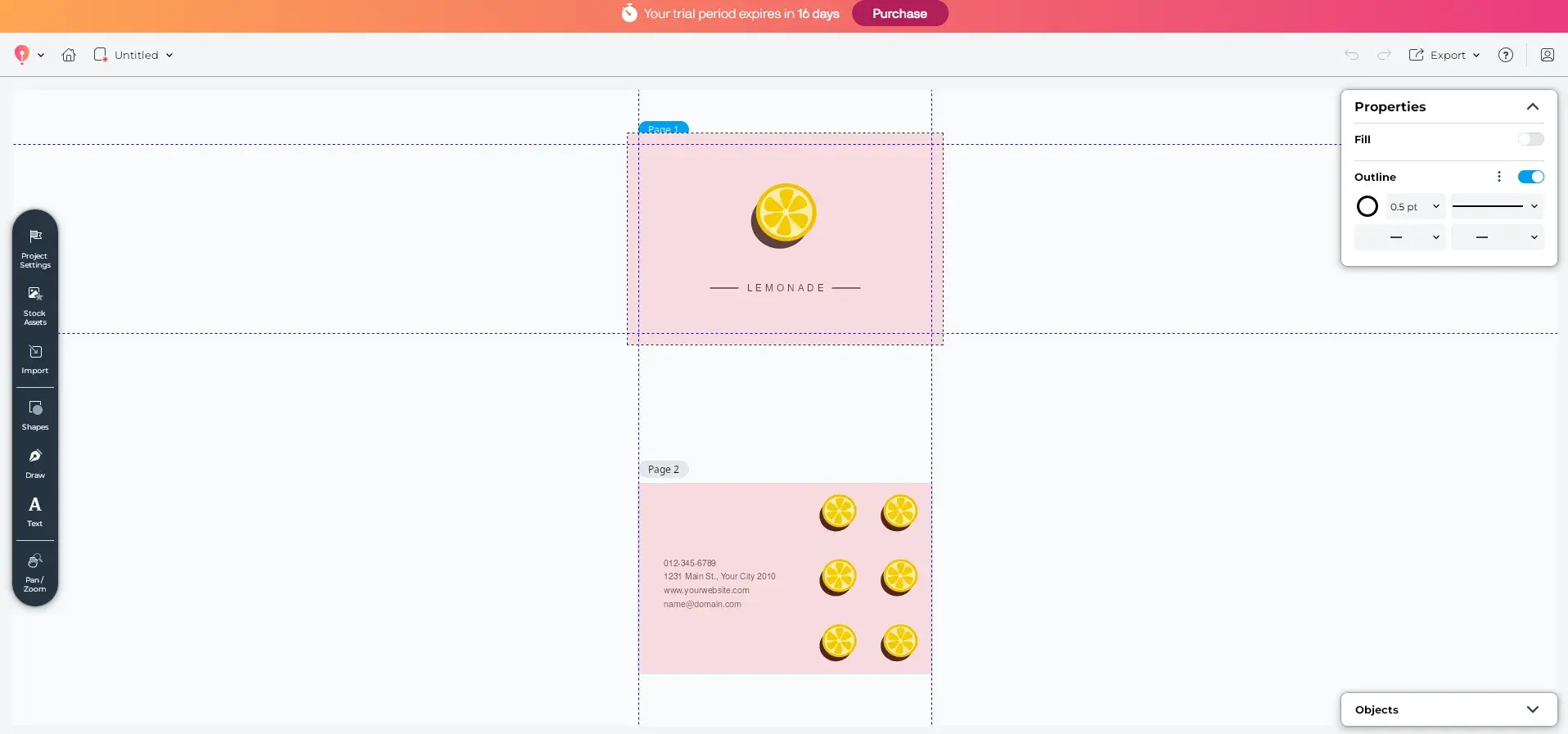
For example, if you look at the screen capture below, all I did was click on the word “lemonade” to examine the customization options. And there were A LOT of them in one place. It could just be the way the options are presented, but it does feel overwhelming.
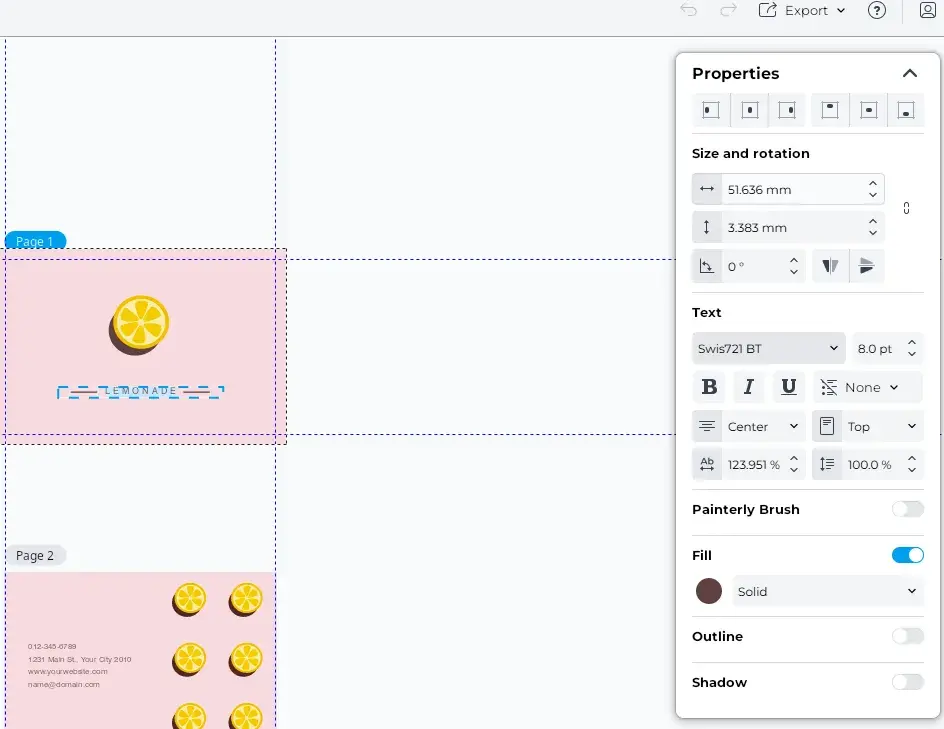
Final Thoughts
If you’re just going to keep everything the same on these templates apart from inputting your own details, you’re golden. If you’re new to design and you want to customize the templates further, you may face a learning curve. That said, if you’re more experienced in design, I think you will enjoy the variety of customization options available.
15 Free Infographic Templates
Build better infographics with these free designed templates.
- Color schemes
- Icons & shapes
- Fonts
- Eye-popping themes
Download Free
All fields are required.
Form not available
8. Design.com
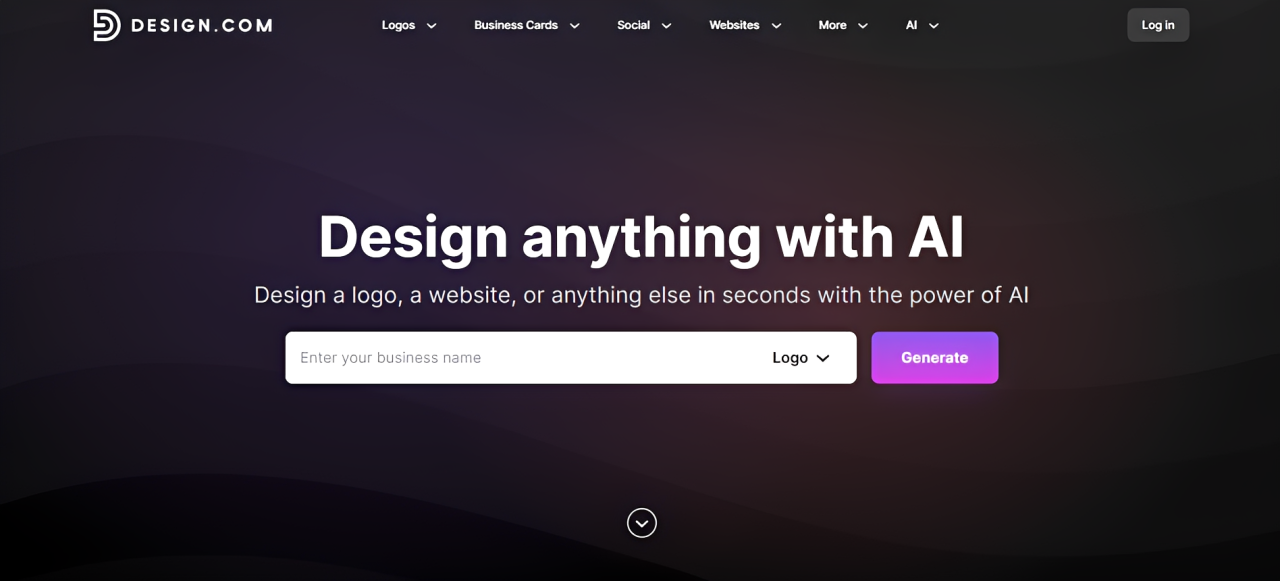
Design.com is a platform that offers AI design tools and customizable templates for design newbies and busy entrepreneurs to easily create logos, websites, posters, social media graphics, and more.
Testing It Out
Design.com asks you for your business name to get started. Though you can also add your keywords afterward to help refine the results. This then helps the platform’s AI get enough info about you to give you relevant results.
I tried it out to look for a logo for a fictional coffee brand called “Clancy’s Coffee”. There seems to be a pretty good mix here, with cutie-fied coffee beans serving as a brand mascot, intricate seal-looking icons that may be perfect for more high-end brands, and the usual steaming coffee cup icons.
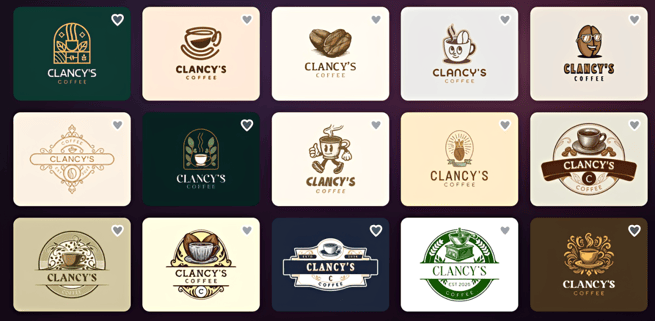
They also have a huge amount of results. I estimate it to be about 10k+ logos just for this fictional brand alone. That's good news for people who want a lot of options… or a nightmare for indecisive people.
I also noticed that since I only added the business name and the keyword “coffee”, the designs are more varied and broad. If you want to see specific styles, colors, or icons, you really need to put it in the keywords to filter the results so you won’t have to spend ages combing through the results.
Editing works pretty much the same as other design platforms. It’s a beginner-friendly drag and drop, so you just need to click elements, then drag to move, or click the right-hand tab to change colors, fonts, etc.
What they have extra is the AI chat feature. Here you can ask Design.com’s AI to make changes for you a la ChatGPT. You can ask it to change colors, change to a gradient, change the font, add an icon, and so on.
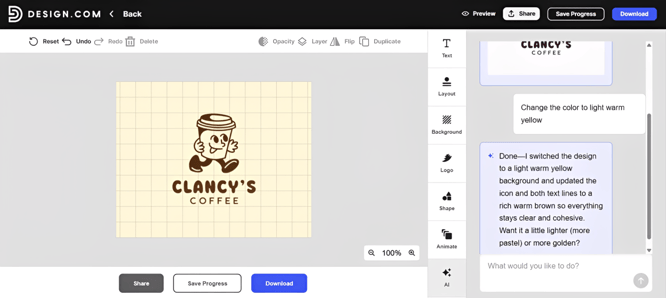
It gets the job, but you need to be extra clear with your prompt for the AI to get what you want. My ask above was too vague; I could have specified the hex code to get what I want. But not a bad start, and I did like that they automatically updated the other elements so that my color change will still work.
Another thing to note is that you need to sign in or create an account before you can start editing. Though you don’t need to pay anything yet or subscribe to any plan, so you can freely edit or explore designs before committing to anything. Though of course, it means another time spent on signing up.
Final Thoughts
The tool is indeed simple enough to use even for non-designers. Everything is pretty straightforward, and there are no complicated features or settings that need to be dealt with when editing.
The templates are also of good quality. There is a great variety of options, but it also means you should be able to find what you are looking for in the tool.
Another notable thing is their Brand Kit feature. Apparently, once you create a logo on their site, all subsequent materials you create will automatically have your logo’s color palette, font, styling, and so on. It’s an easy way to get visually cohesive materials, without having to reapply the same font style or look for your background’s hex code just to get it the exact same.
9. VistaCreate
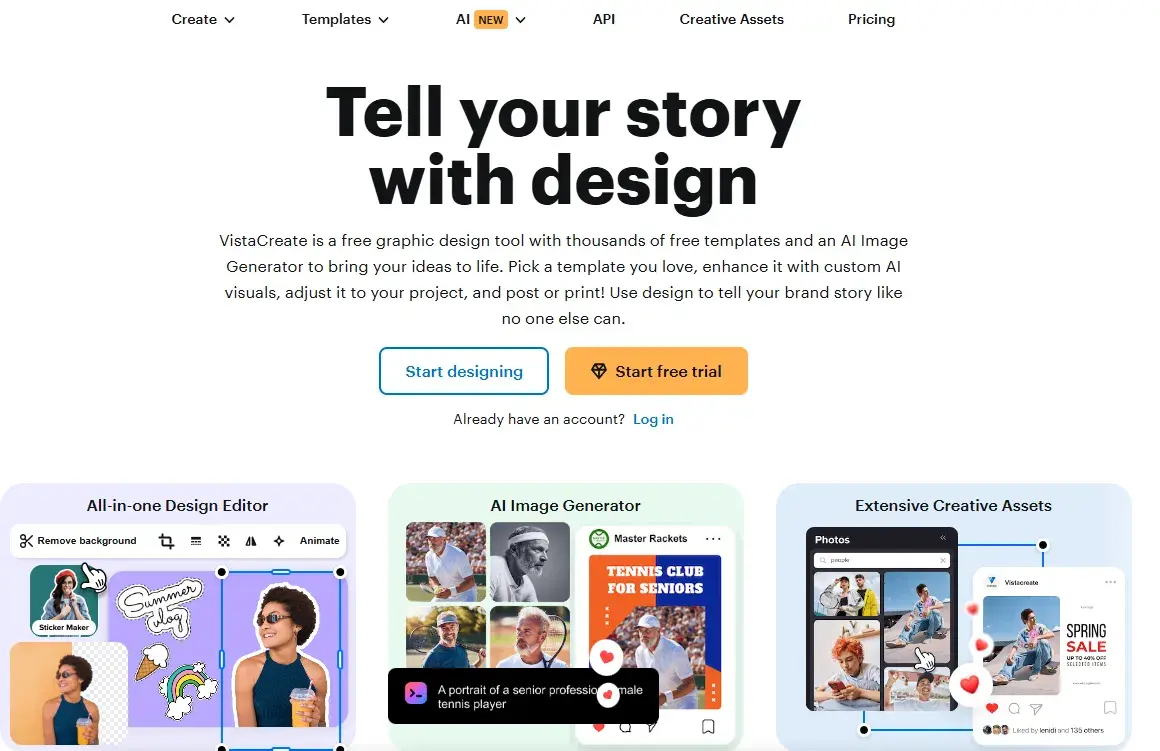
VistaCreate is a free graphic design tool that works in conjunction with VistaPrint. The last time I used VistaPrint was over five years ago. I remember finding the design platform portion slow and frustrating to use. I also found the website old-fashioned on the branding front.
But looking at the homepage now? Fair play, VistaPrint! It looks like you’ve upped your game. I like that it’s not just doing physical merch printing, but digital marketing assets too. Something else that caught my eye is that you can now “Make your own designs and post or schedule them for socials.”
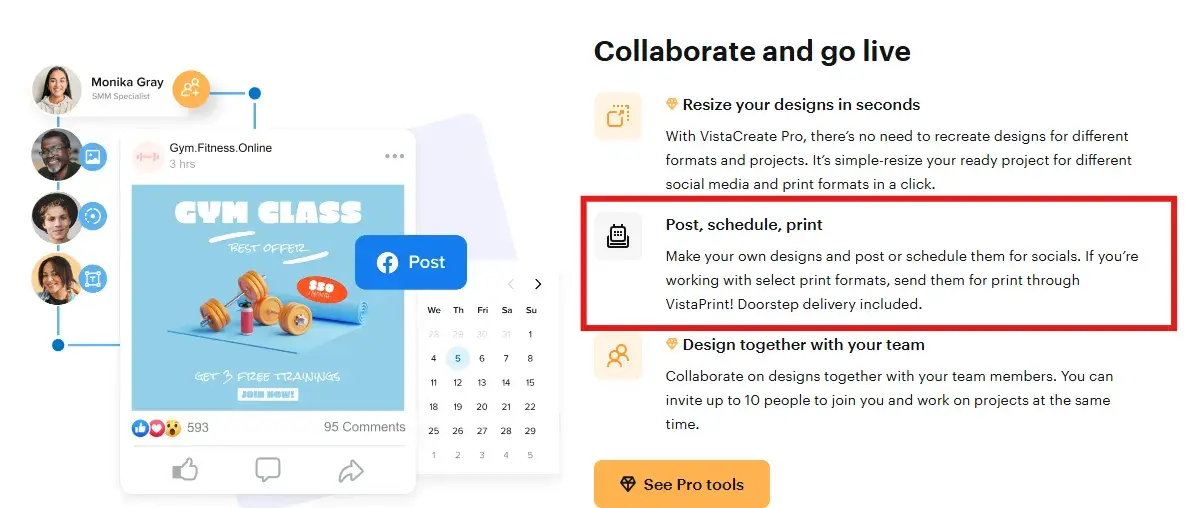
Testing It Out
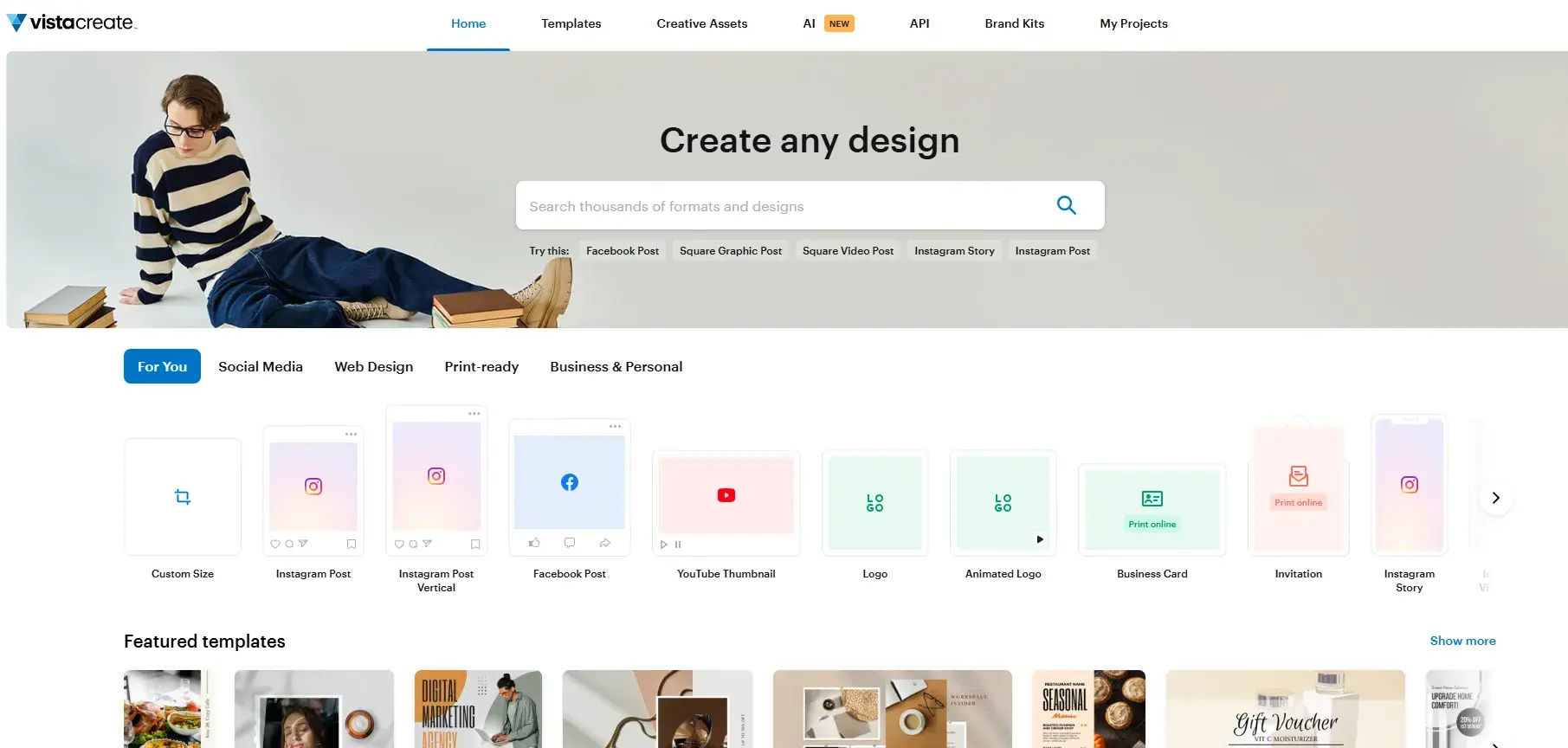
Again, the home screen really changed my old perception of VistaPrint. It loaded really fast and was easy to navigate. Like other platforms, I could browse through design type categories, curated templates, or use the search bar to find what I needed.
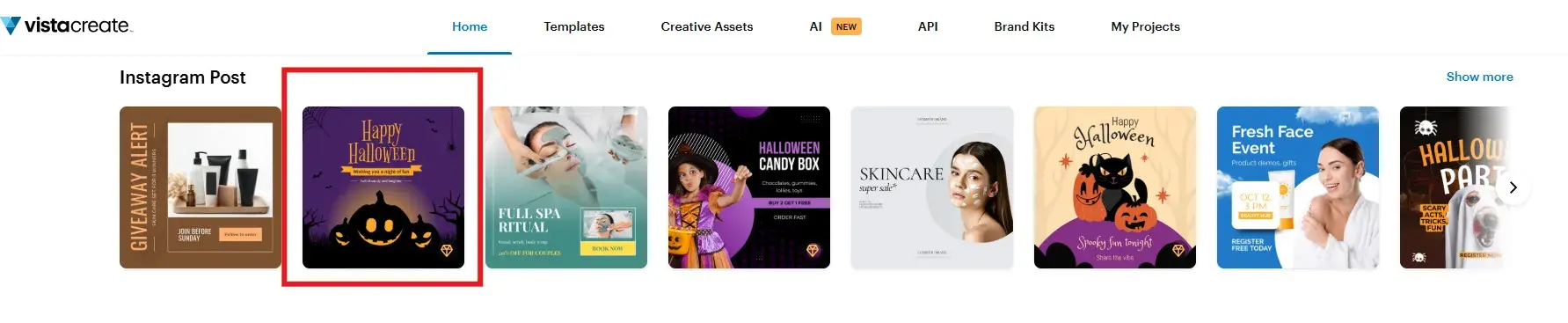
I wanted to see how that scheduling function worked, specifically. So I looked at the social media templates. At the risk of dating this article, it’s currently “Spooky Season,” so for a bit of fun, I picked a seasonal Halloween-themed Instagram post.
I selected a theme, but was met with a blank canvas. I’m guessing the one I chose was on the paid plan?
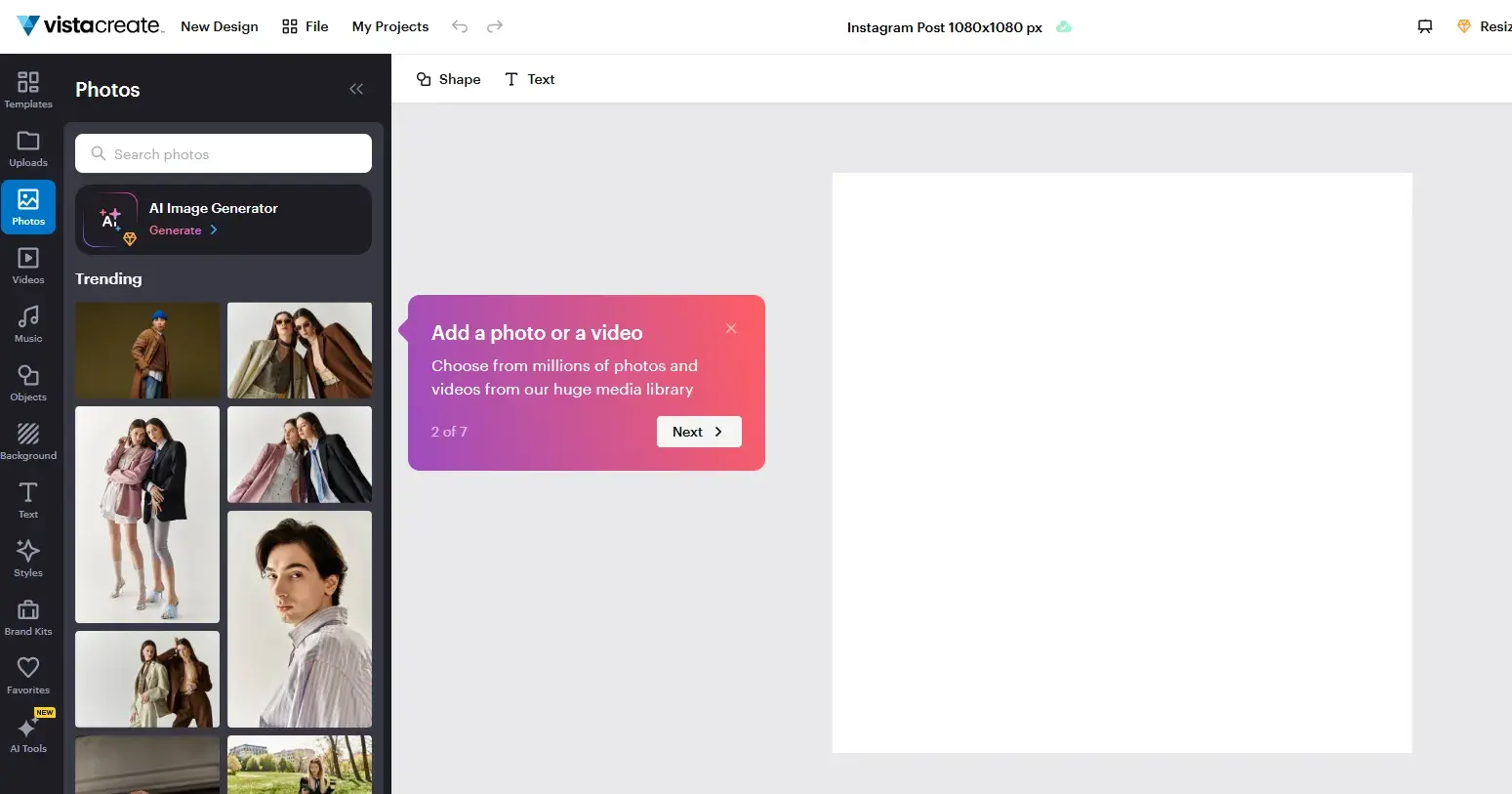
Back to the drawing board. I selected “Templates” from the toolbar on the left-hand side, and typed “Halloween” into the corresponding search bar. This surfaced a range of Halloween-themed Instagram post templates that I suspected I could use for free.
There were some good quality templates, honestly. If Halloween creeps up on you, and you need to craft a post quickly, you won’t go wrong with most of these templates.
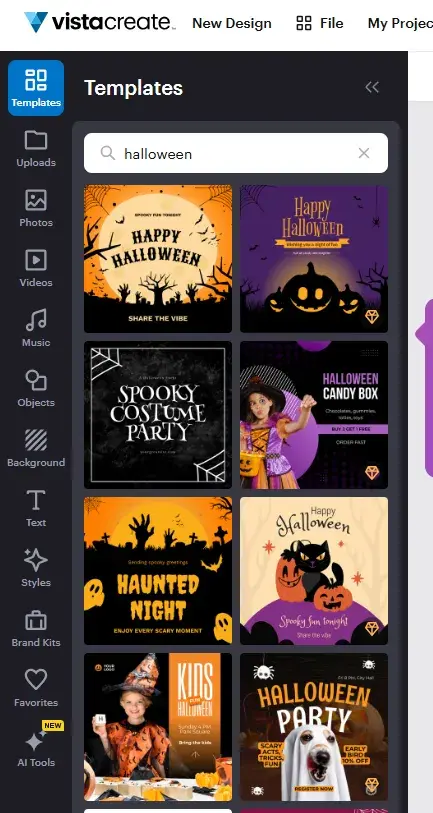
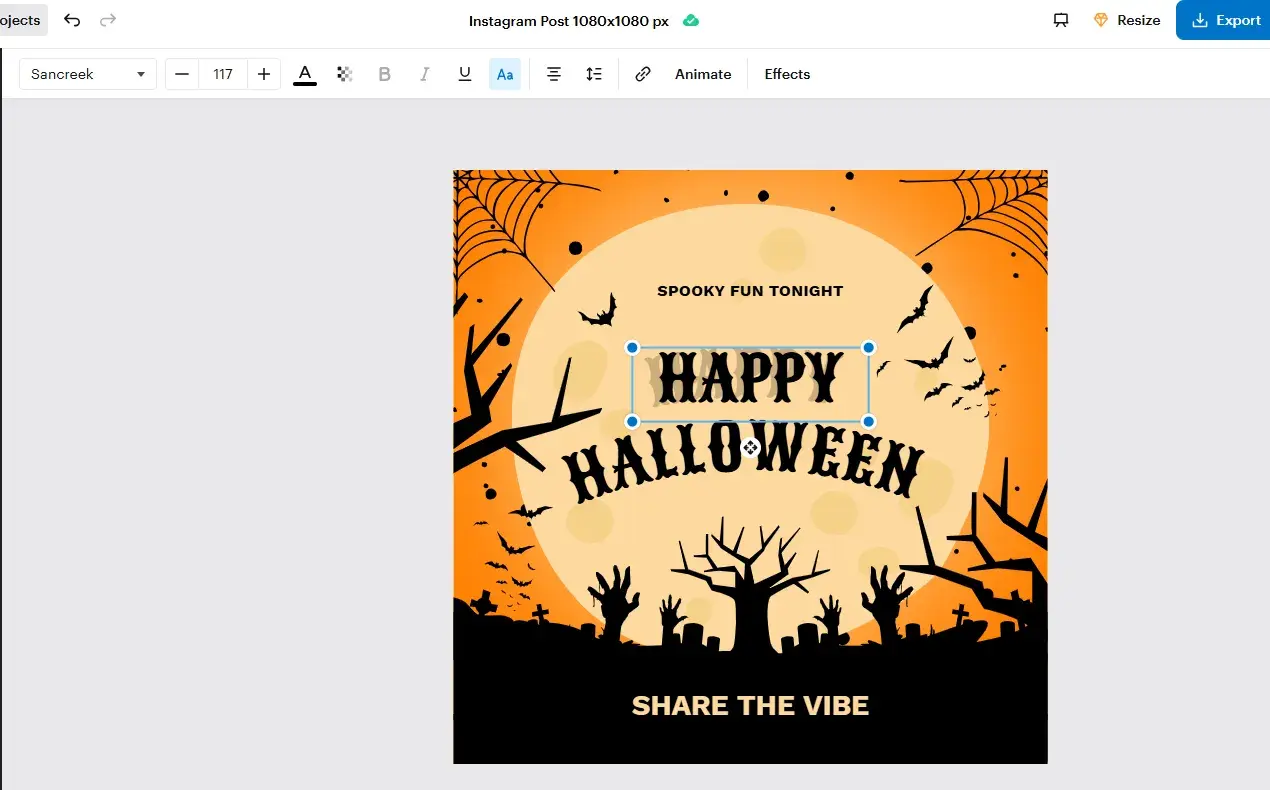
When it comes to the design dashboard, if you’ve used Canva, this will be a quick learning curve. The customization options are very similar, and even if you haven’t used Canva before, the dashboard is straightforward.
The only thing I will say with this template, specifically, is that it doesn’t have any sections to add your business logo or details. That said, you could probably just add that in the “Share the vibe” section.
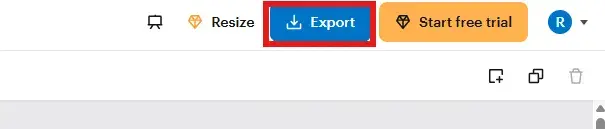
Next, I really wanted to see how the social media scheduling aspect of VistaCreate held up. I guessed it was under “Export.” And I was right!
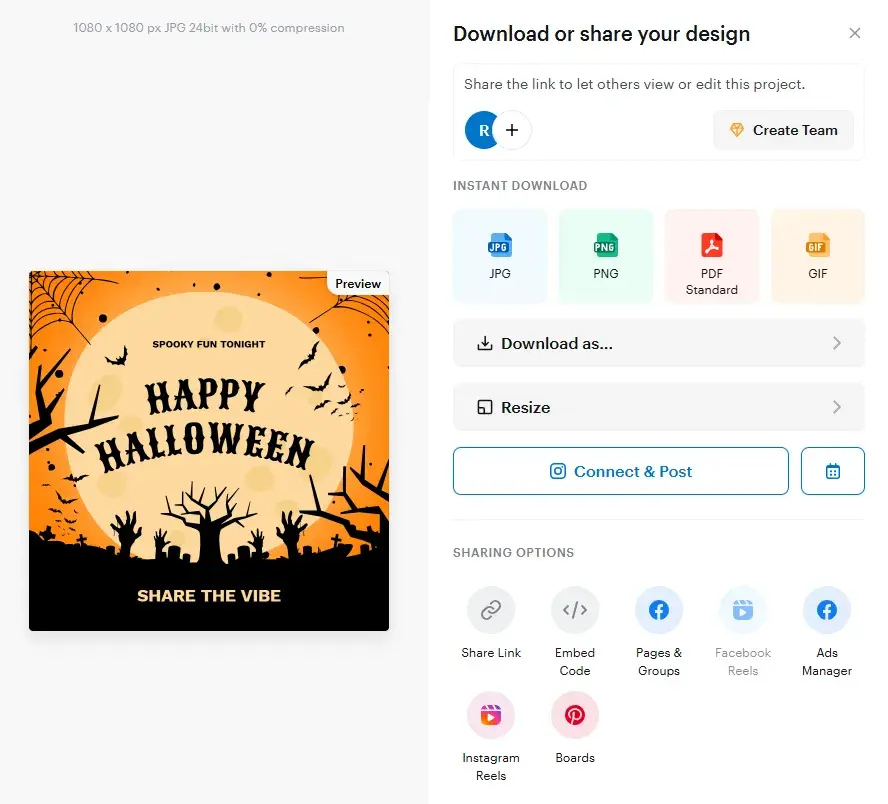
There were some great export options. These included image type options depending on your use case and relevant social sharing options. I liked that the options presented were in line with the template choice (Instagram). Because Instagram and Facebook are both Meta products, this template will be compatible with both.
Final Thoughts
I enjoyed using VistaCreate and think it’s beginner-friendly. That said, if you’re a design pro or marketer with intermediate design skills, I still think you’d do well with this tool. I also think it’s ideal for folks who want to go from design to printed merch on one platform.
The social scheduling feature is also nice! But it doesn’t look like you can connect with a third-party scheduler, though. So if you use something like Buffer, aside from the image download options, this scheduling portion of the tool won’t be of much use.
10. BrandCrowd
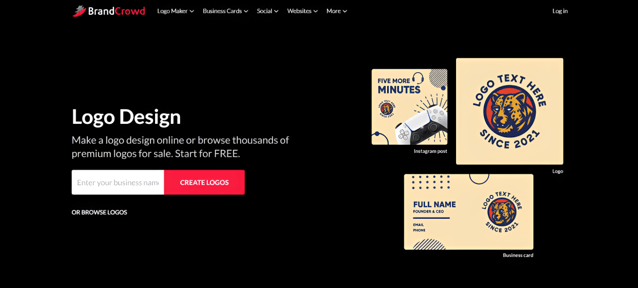
BrandCrowd is a design platform that mainly offers logos, but also provides templates for any marketing templates you can think of, like social media graphics, websites, business cards, QR codes, T-shirts, etc. They are geared for small businesses and solopreneurs looking for an easy and hassle-free way to get high-quality materials.
Testing It Out
Just like with most tools, you just need to input your business name to get started. Or you can click the tabs at the top to choose. For example, logos can be sorted by keyword or industry.
But I want to do it by typing a fictional name. This time I went to look for a logo for a women’s jewelry brand called “Crown Jewelry”.
I wasn’t surprised to see literal crown icons right from the get-go. Template sites can get literal after all. But once I edited the keywords, I got something more of what I wanted. So note to all of you: always add keywords!
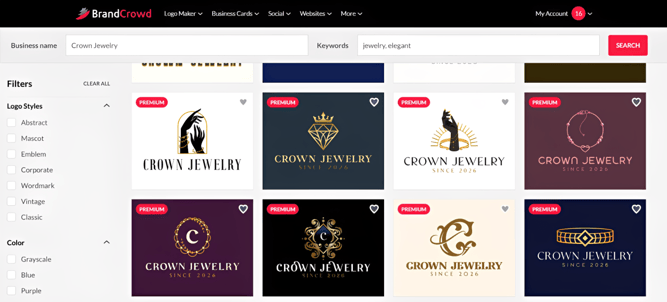
Users can freely browse designs, but the moment you edit a template, you’ll have to sign in or sign up for an account.
Now for the editing. Everything is simple and intuitive. Click Text to change the size, color of text, you know the drill. You can even add animations if you are tired of the usual static logos.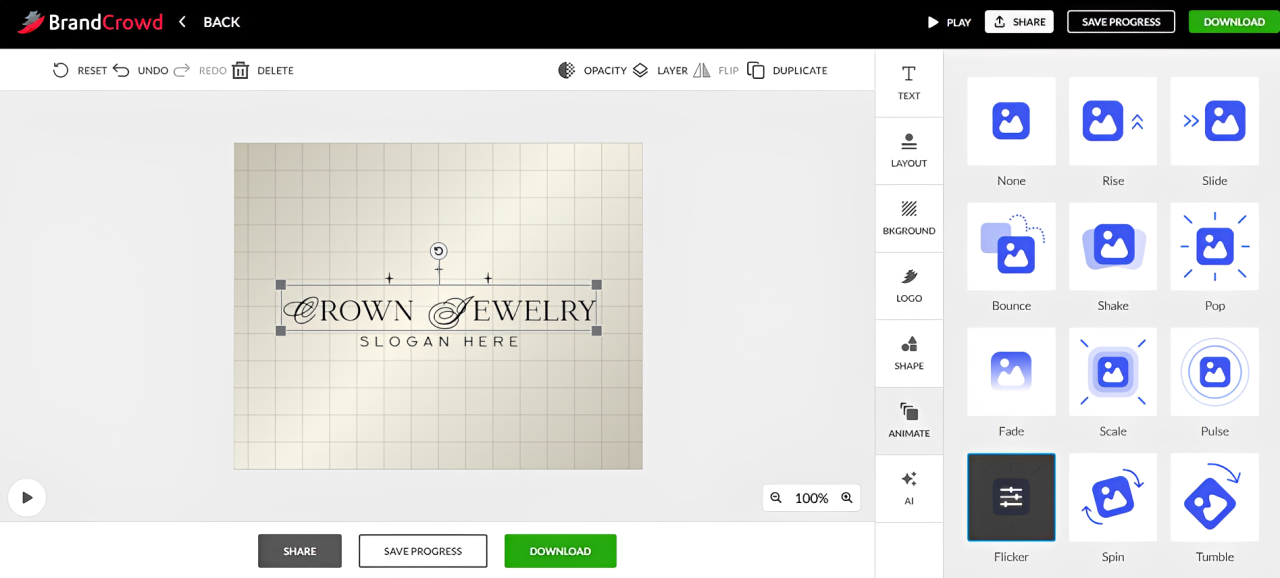
You can do some more “granular” editing like changing the spacing of text or the degree of your gradient. But if you’re looking for more complex edits then you won’t really find it here.
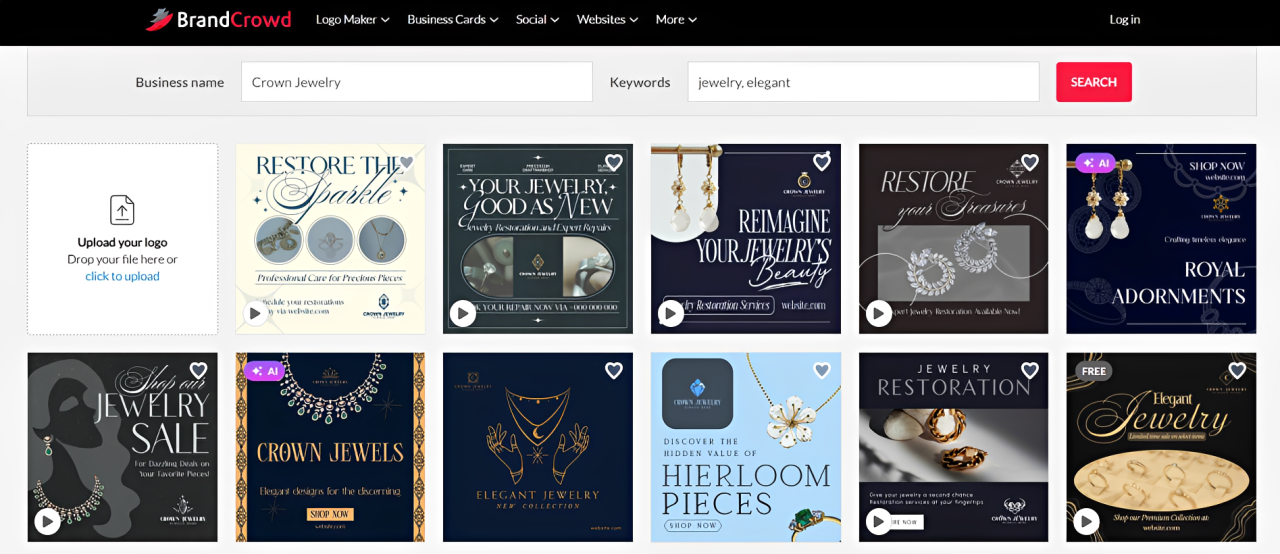
Once you are done with the editing, you can look at the preview of your logo on a website, business card, and more. It’s a helpful way to visualize if the logo can actually look good as a brand. Their other assets are also great. Here’s what I’ve found for some potential Instagram posts for my fictional jewelry brand.
Final Thoughts
BrandCrowd is another solid design tool. They have good templates to choose from, whether it’s their logo specialty or their social media graphics.
It may seem too basic and straightforward but I think that’s actually their strength, since they do cater to non-designers and small businesses. If you want good designs without the hassle, then they will work for you.
11. Zoviz
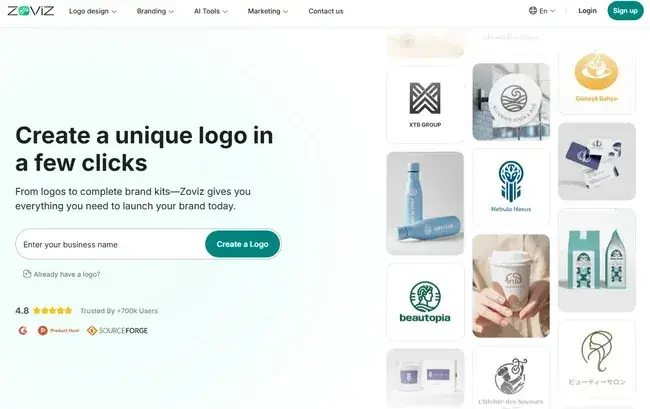
Zoviz is a graphic design software that focuses specifically on branding. The platform advertises itself as giving “you everything you need to launch your brand today.” Zoviz specializes in logos, complete brand kits, social media covers, and more.
The tool provides highly customizable designs. If you’re looking for a logo design tool, for example, Zoviz goes beyond pre-made icons. I’ve previously tested this tool as a logo maker, but now I’m curious to see what else it has to offer.
Testing It Out
Instead of using the logo maker portion, I’m going to test the email signature generator. I haven’t touched upon email branding in this post yet, so let’s see what Zoviz can do.
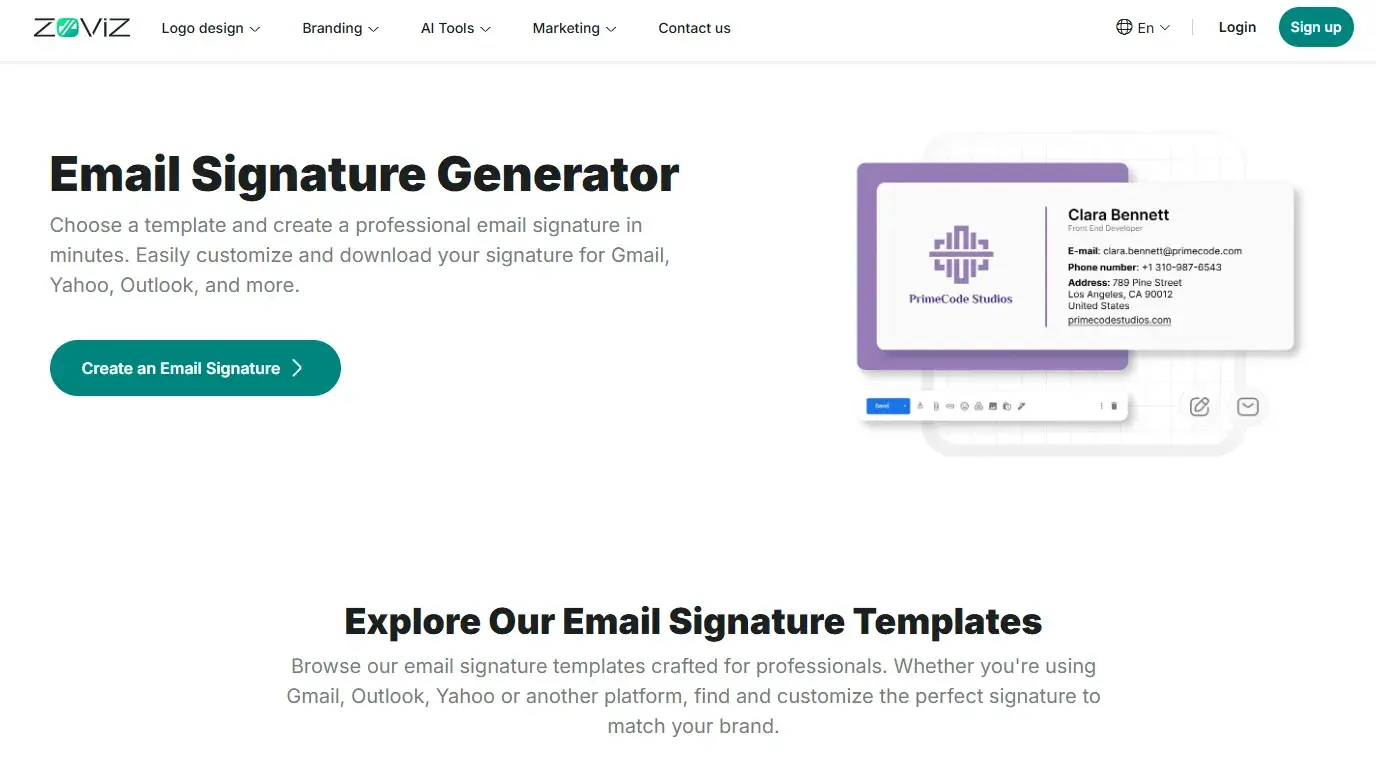
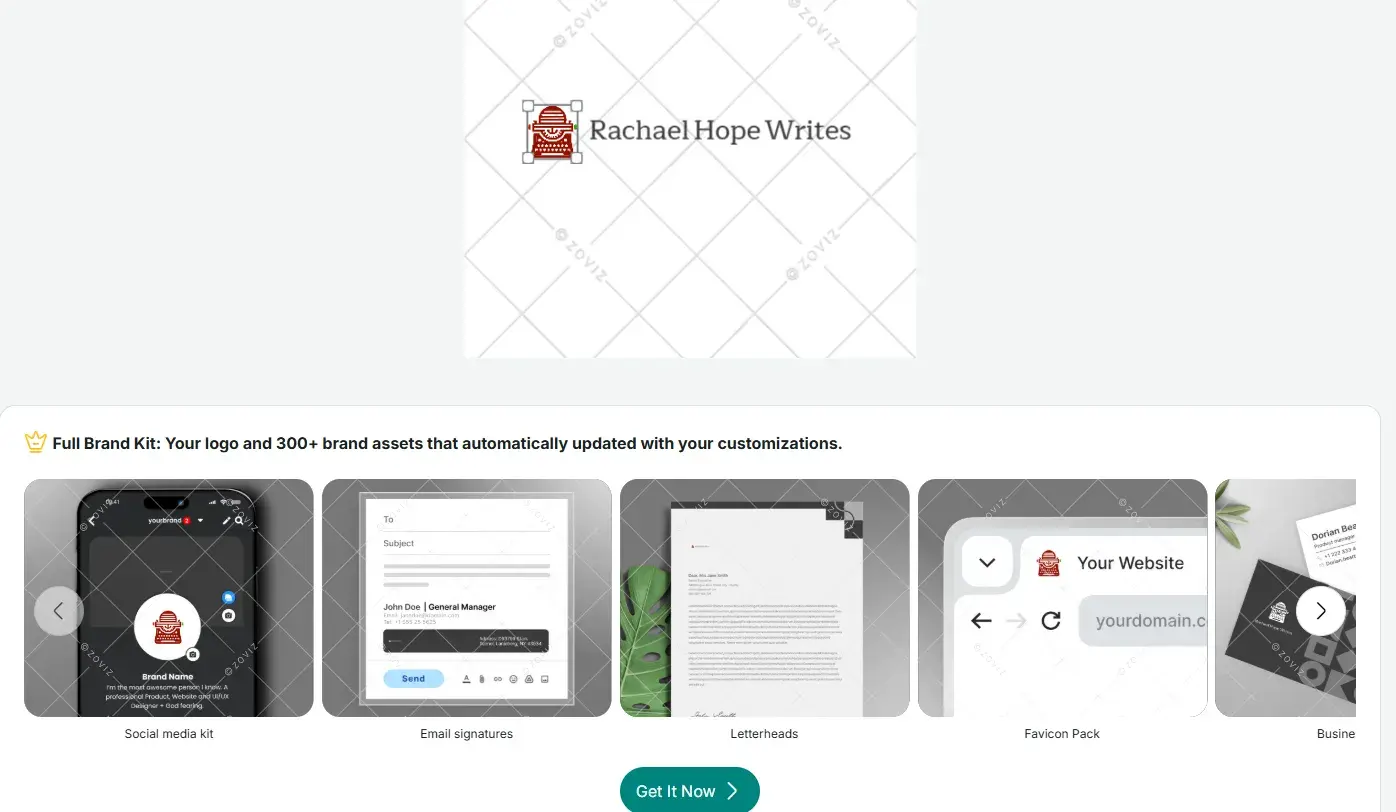
Ok, this is definitely on me. I’m not sure why I expected I could just whizz right into the email signature generator without having an existing logo. To overcome this, I clicked “Create a New Logo” and picked the first one that came up.
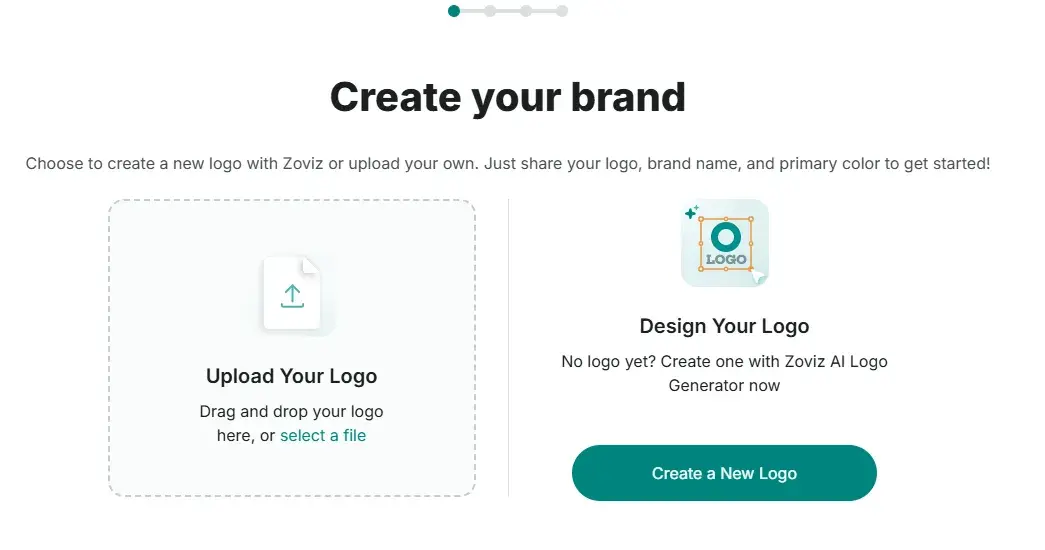
Like other tools, the process involved inputting my business name, describing my ideal icon in a few words, choosing a word that describes my brand, and adding an optional slogan. If you don’t have a slogan, Zoviz includes an AI tagline generator. I skipped the slogan because I just needed a logo to get going with the email signature. Et voila!
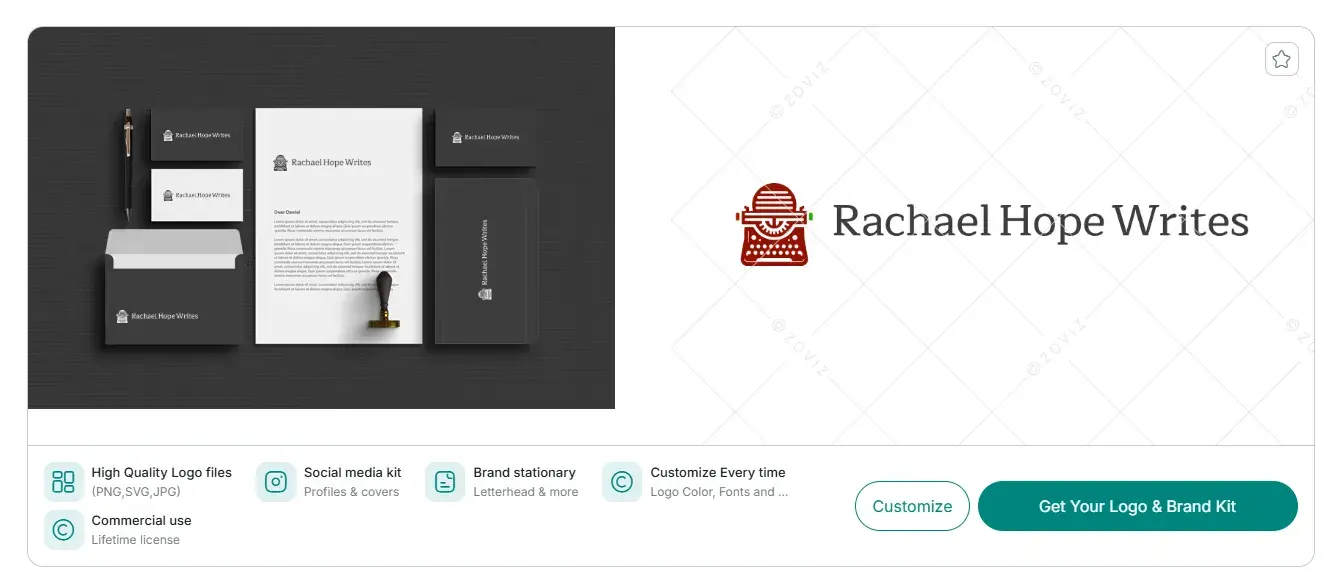
And it was about this time I realized I’d made an error. Like many design tools, it’s free to create a mock-up of what you need, but downloading the designs comes at a price. So my plan to download and upload this logo… failed, miserably. What you get for the price (plans start at $19.99 for a basic logo kit) isn’t actually bad value-wise. But don’t make the same mistake as me and expect to download anything you’ve designed for free.
Final Thoughts
Based on my own fallibility as a human being, this test was a bit of a bust. I’ve already tested Zoviz as a logo maker for a different article. So for this one, I really wanted to go beyond the logo aspect. Unfortunately, the closest I got to previewing an email signature design was underneath the design canvas. Speaking of which…
My favorite thing about Zoviz is how the tool uses this section to preview logo designs on other things, like social media, email, and print media like letterheads. I think it will give people a better idea of what direction to go in logo-wise.
After using this tool previously, I can also confirm there seems to be an extensive range of templates, including for social media, and flexibility with file types and sizes. I think you could make this design platform work for you as a beginner. But be wary that downloading your assets comes at a cost.
12. HubSpot Email Signature Template Generator
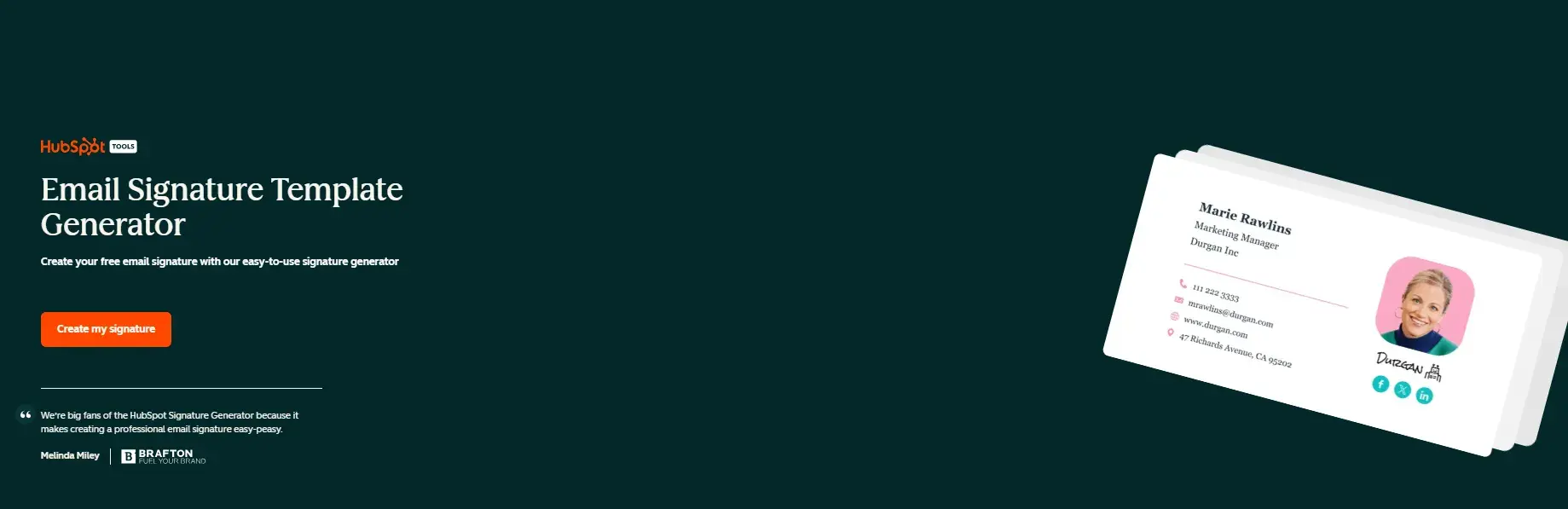
HubSpot’s email signature template generator is a free tool that you can use via your web browser. It’s marketed as “easy-to-use,” and if it’s anything like HubSpot’s logo maker, I 100% expect this to be true. I wanted to try this tool, specifically, as I was unable to test the email signature design portion of Zoviz.
Testing It Out
So far, so good. No sign-up process was needed for me to get going. For me personally, that is a big plus. I simply clicked “Create my signature” to get started. And then I input some test information into the email signature details section.
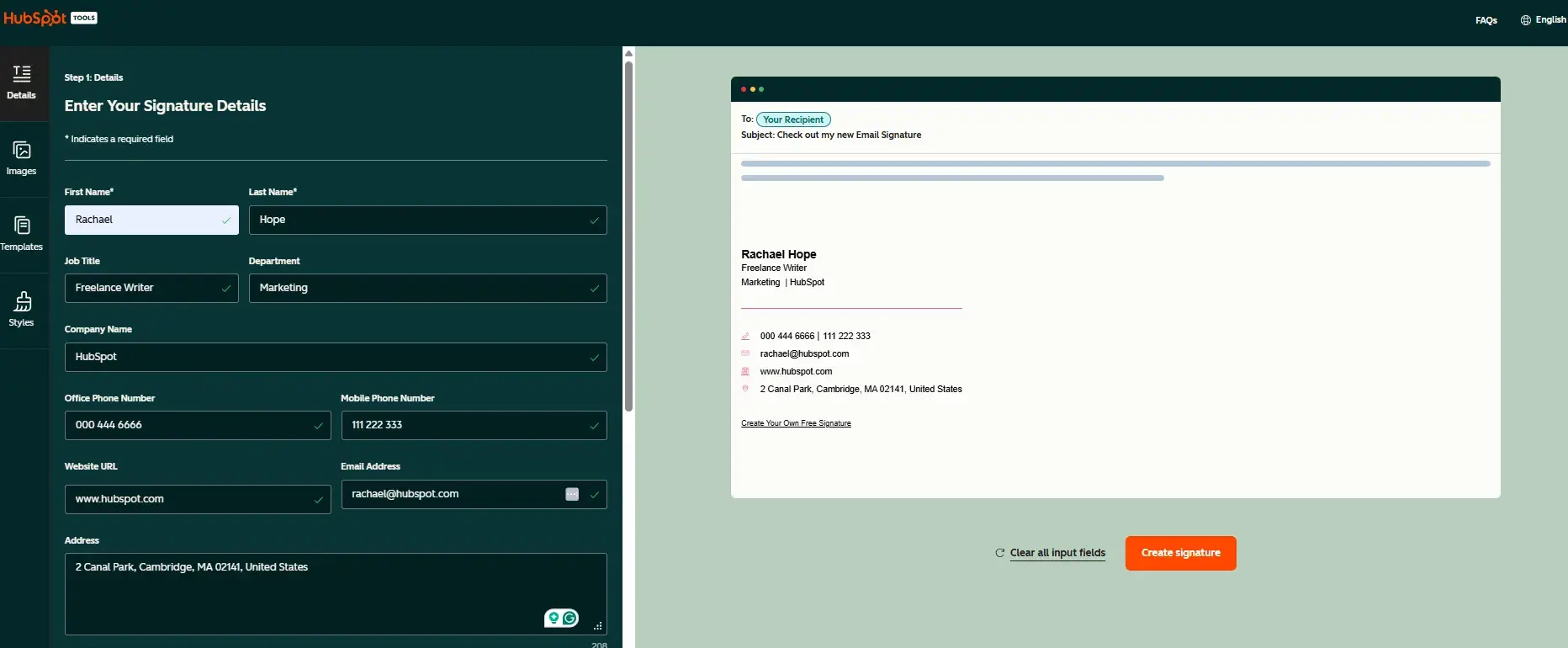
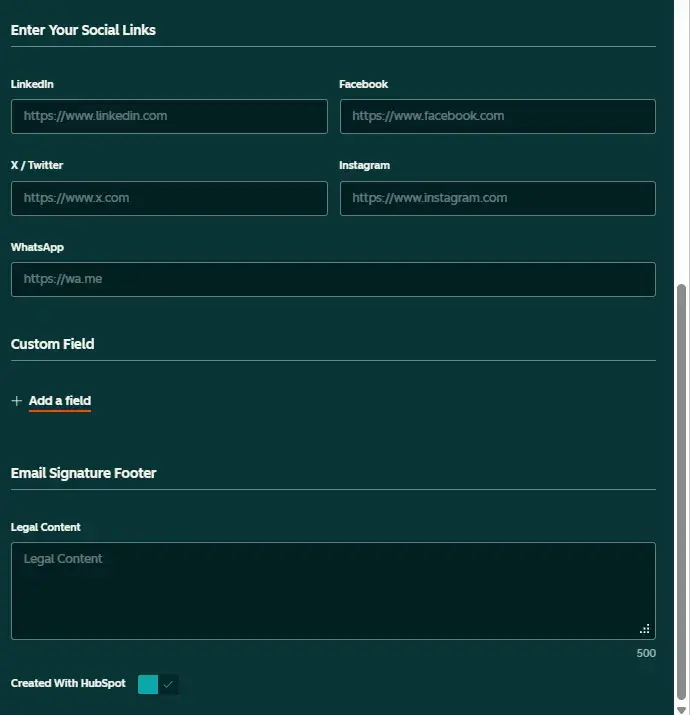
There was also a section to input social media handles, any legal content, and, if needed, you can create custom fields. I like the social media handle section, especially since the links are included, allowing folks to access your profiles and pages with a click.
I also liked that there were options to add images to the email signature. I also noticed that there was a good range of templates to use for a free tool.
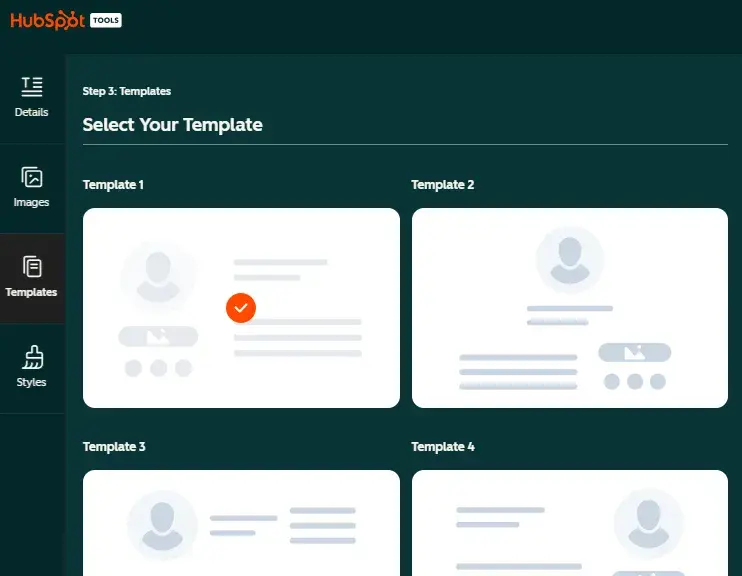
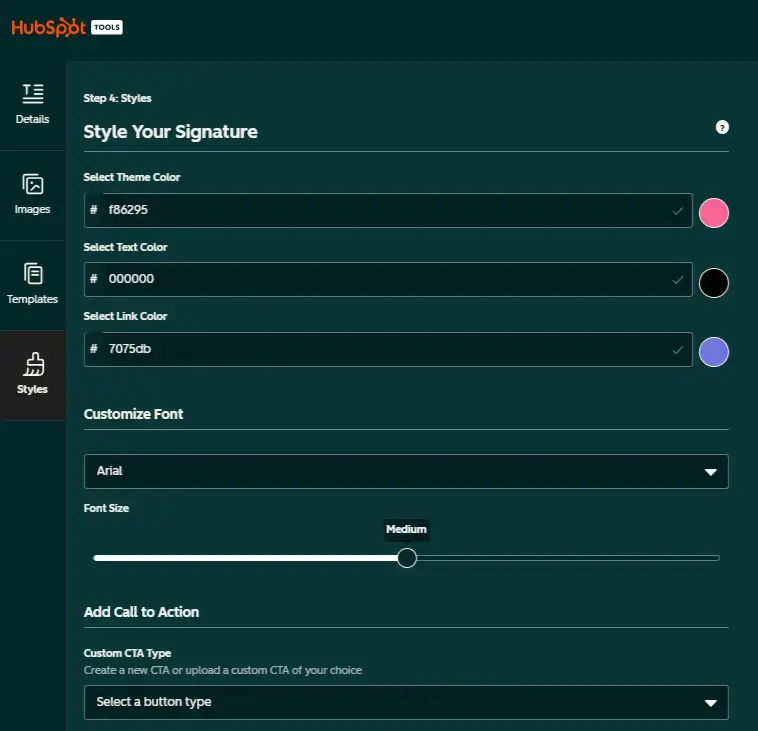
You can even get into the styling of your signature by customizing the font and design colors. I really loved that I had the option to add a custom call-to-action button, too!
Final Thoughts
Overall, if you’re a beginner, HubSpot’s email signature generator makes crafting an email signature easy and quick. Like HubSpot’s logo maker, this tool walks you through the process, making the learning curve minimal.
My one (extremely mild!) grievance is that before you can access your email signature, the tool requires data about how many employees work at your company. Still, considering you get a free email signature, and this data goes directly to HubSpot, rather than any third parties, it’s not a bad trade-off.
13. Designs.ai
Designs.ai is an integrated Agency-as-a-Service platform powered by AI technology. Looking at the homepage, you can use the tool to create images, videos, logos, and social media graphics. Unlike Canva, you can’t access this tool for free forever. But you can get started for free over a seven-day trial period. You can also sign up to receive 50 complimentary credits.
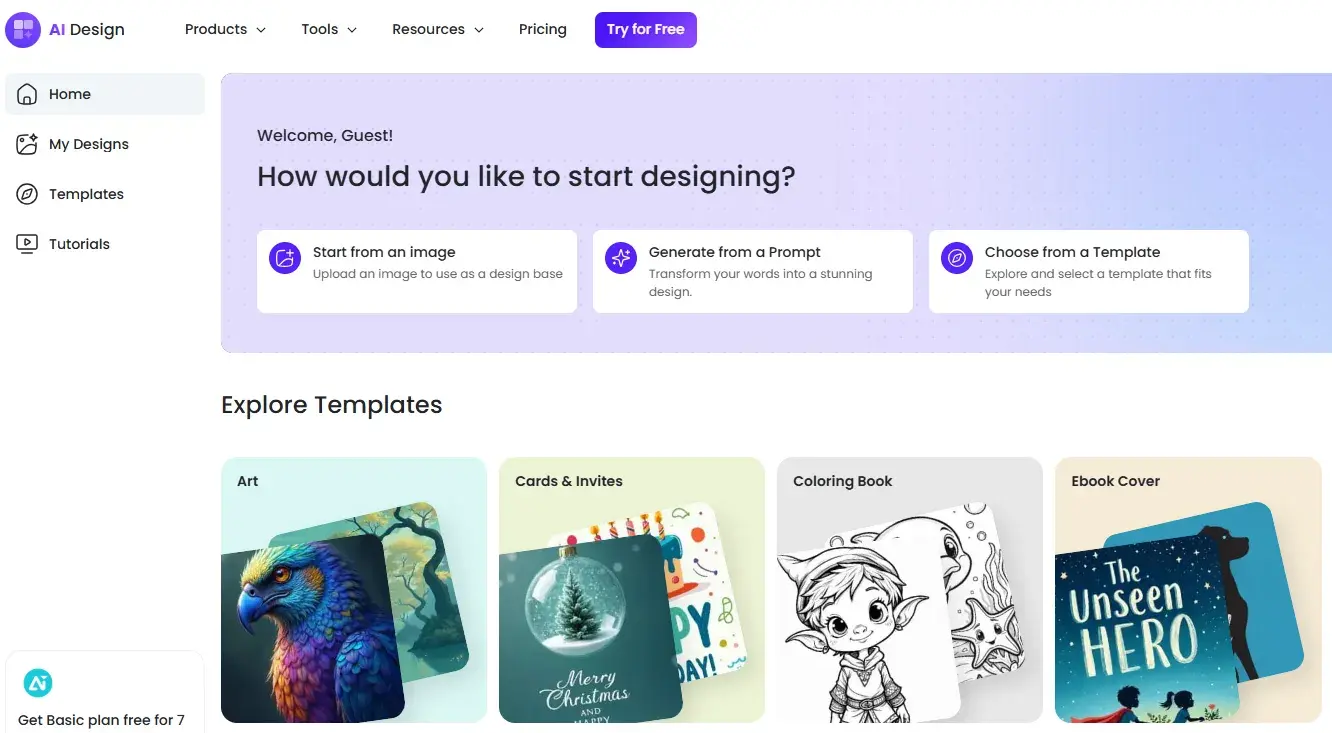
Testing It Out
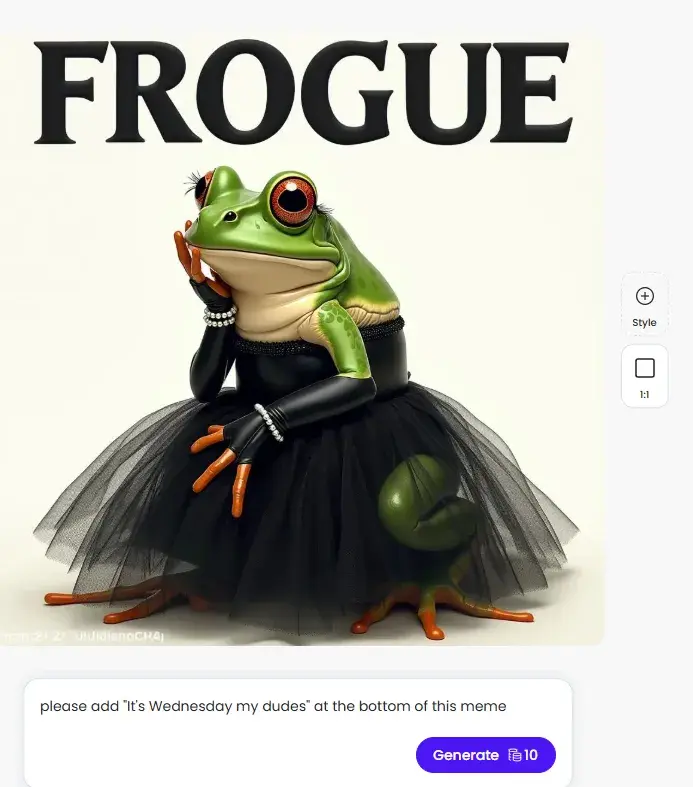
I was instantly drawn to the “Meme” category. And as it’s 2025, and memes are part and parcel of internet marketing these days, I decided to indulge myself. But when I first looked at the designs, I felt like maybe I was missing something? Maybe I’m wrong here, but I’m just not getting “meme” from the designs.
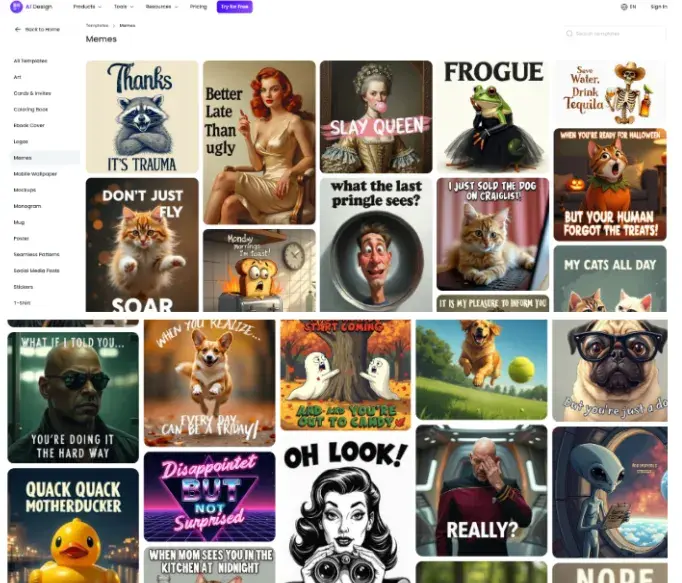
I also didn’t like that they felt very “generative.” The designs had that weird AI veneer to them. I personally don’t find this aesthetic that appealing. But I decided to stick with my first choice so that I could test out Designs.ai’s customization abilities.
As a homage to my marketing friend, Nick Reijmerink, who is the marketing manager at The Branding Club, I picked the frog meme design. I asked the tool, “Please add ‘It is Wednesday, my dudes’ at the bottom of this meme.” (Context = I’m the senior community manager over at MostlySEO, and every Wednesday, Nick shares a collection of hilarious “It is Wednesday, my dudes” content.)
Final Thoughts
Unfortunately, I had to upgrade to proceed with this design. Disappointing but not surprising. Because of the paywall, I didn’t get a chance to test Designs.ai thoroughly, but here are my thoughts based on what I did manage to test.
You can really tell by the look of the designs that this is a generative tool. I don’t personally like the “generative” style.
I’m also not sure I like the fact that most of the design capabilities are prompt-based. I can see this being beneficial for beginners, but while there's an option to make a minor tweak manually, the customization options seem limited.
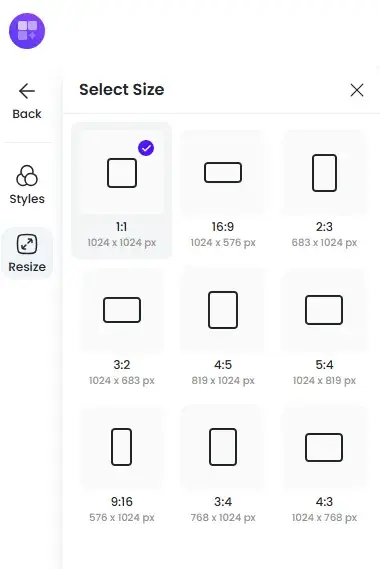
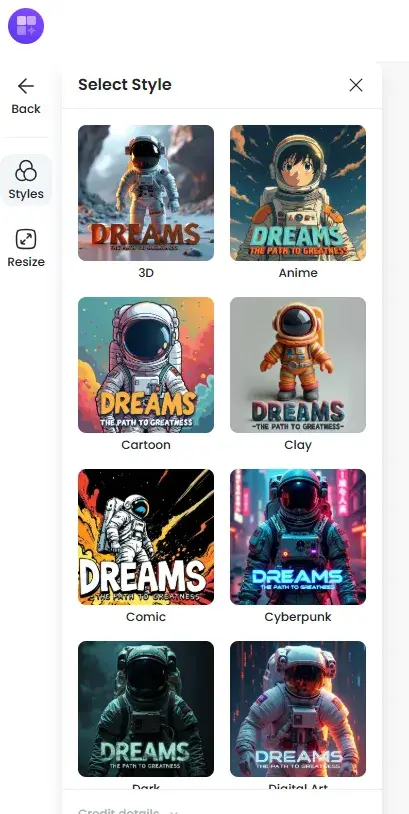
That said, the resize option looks helpful, and you can test out the same design (in my case, a meme) in different styles.
So, which free graphic design software is truly “best”?
Without knowing your current skill level or specific design needs, I’d be lying if I were to say that one specific free graphic design software was best for you. But based on my most recent tests for this article, I can make a few general suggestions.
- I’d say if you’re looking for a real beginner-friendly “allrounder” (as in, it caters to multiple design needs and has a ton of templates for each), you really can’t go wrong with Canva.
- If you have a specific use case like designing an email signature, HubSpot’s Email Signature Generator is your best bet.
- If you want to design business cards or merchandise — basically anything you need to get printed — VistaCreate can help you achieve this all in one place.
- For social media managers? I absolutely LOVE Snappa. I think it works so well because it caters specifically to one area: online graphics.
Hopefully, my tests here have given you a glimpse into some of the free design tools available on the market. I’d suggest picking up to three from this list and trialling them against your own needs.
Editor's note: This post was originally published in December 2020 and has been updated for comprehensiveness.
15 Free Infographic Templates
Build better infographics with these free designed templates.
- Color schemes
- Icons & shapes
- Fonts
- Eye-popping themes
Download Free
All fields are required.
Form not available
.webp)
![How to create a landing page with high ROI [+ expert and data-backed tips]](https://53.fs1.hubspotusercontent-na1.net/hubfs/53/%5BUse-2.webp)
![Signs it's time to redesign your website [+ 15 steps to follow]](https://53.fs1.hubspotusercontent-na1.net/hubfs/53/phaseswebsiteredesign%20copy.png)


![How to start a blog (the right way) and write posts people actually want to read [+ free templates]](https://53.fs1.hubspotusercontent-na1.net/hubfs/53/how-to-start-a-blog-2.webp)
![What is a lead magnet? 20 lead magnet ideas and examples [+ step-by-step]](https://53.fs1.hubspotusercontent-na1.net/hubfs/53/lead%20magnet%20represented%20by%20a%20magnet.webp)