I never thought I would be searching and experimenting with AI prompts for web developers. As a former engineer, I took pride in building websites manually. For months, I resisted joining the “prompt engineering” crowd that generative AI unleashed.
![Download Now: How to Land a Developer Role in the World of AI [Free Checklist]](https://no-cache.hubspot.com/cta/default/53/8d6a0803-23b3-44d8-a193-5da3a6e366a7.png)
I assumed that AI prompts would limit the way I built sites, stifling creativity and so on. But I was wrong.
Turns out the right prompts saved me tons of time. I mean, who would enjoy cross-checking WCAG-compliant guidelines and make sure they’re applied to every UI element?
Well, not me. After years of building websites, I know that my time is better spent on high-value tasks, not mundane ones that AI is perfect for.
In this guide, I’ll share prompts that I’ve tested and found helpful in building websites. I’ll explain how each of them helps you in your workflow. And I’ll also include a simplified version for non-technical readers.
Table of Contents
- How to Use AI Prompts for Web Development
- Top 17 Generative AI Prompts That Transform Your Web Workflow

How To Land a Developer Role in the World of AI
A free checklist to you help you stand out from the competition featuring Software Developer and YouTube Creator Tech With Tim.
- Expert advice on how to build a portfolio
- Top programming languages to learn
- Resume building and interview tips
- Resources to strengthen communication skills
Download Free
All fields are required.
Form not available
How to Use AI Prompts for Web Development
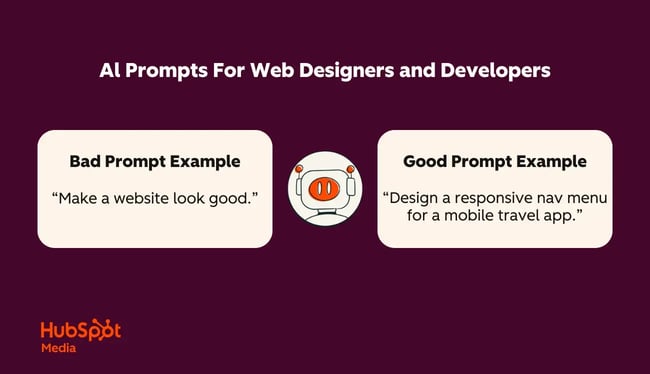
Generative AI is a helper, not a replacement for a skilled web developer. That’s the principle I hold dearly as I use AI as an assistant. Although the generative models it uses have improved tremendously, I still adhere to several principles when prompting.
- Instruct with verbs. Be unambiguous about what you want AI to do. For example, I use words like analyze, suggest, summarize, and outline in my prompts.
- Provide context. AI’s response is only as accurate as the information you provide. For most prompts, you’ll need to provide a design specification, website URL, or other documentation for AI to analyze.
- Be specific. AI needs guidelines to provide accurate results. For example, asking AI to “write landing page copy” versus “write SEO friendly landing page copy with AIDA framework” will return very different results.
- Break down complex tasks. AI works within a context window, meaning the information it can receive and provide is limited. So, if you find that AI couldn’t process your request, or the output quality drops, try feeding it a smaller task.
- Provide examples. Sometimes, the best way to convey your expectations to AI is to “show and tell.” For example, providing a reference website so that AI can extract the blog theme.
Last but not least, always check AI results for correctness before applying them to your website. That’s because I’ve seen how AI has made mistakes that I’ll have to manually correct.
Top 17 Generative AI Prompts That Transform Your Web Workflow
Website development isn’t only about coding, design, or layout structure. Some web developers are also involved in technical search engine optimization, basic copywriting, and accessibility compliance.
Therefore, I included AI prompts for various stages that might be useful. And if you don’t have experience building websites, I’ve got you covered. For each prompt, I included a non-tech version that gives you recommendations.
1. Responsive Homepage Scaffolder
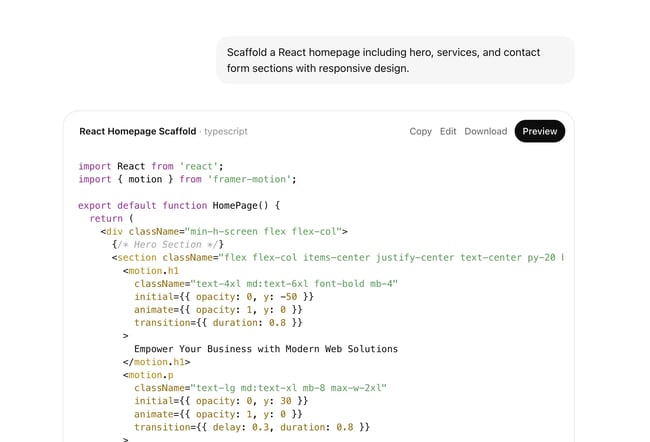
Prompt: “Scaffold a [React/Next.js/Vue] homepage including hero, services, and contact form sections with responsive design.”
What It Does
The prompt asks the AI to create the foundational structure of a homepage using the framework you specified. In a way, it’s similar to HubSpot AI Web Generator, except that you’ll need significantly more fine-tuning to get a publish-ready homepage.
Expect a boilerplate code that you can later expand with content, web elements, and backend logic. In short, a starting point for visualizing a web mockup.
How to Improvise
To refine the result, you can describe the copy, layout, and style you want to be reflected in each section. For example, adding “add hover effects and scroll-to-section” will include the necessary script in the code. Likewise, specific instructions such as “keep each section modular” will prevent unnecessary hardcoding that makes reuse difficult.
Simplified Prompt for Non-Technical Users
“Design a homepage for a [describe your business or project], with sections for introduction, services, and contact details.”
2. Accessible Navigation Bar
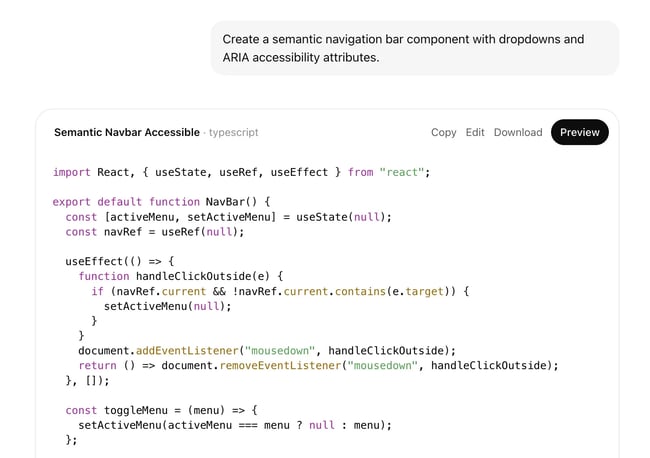
Prompt: “Create a semantic navigation bar component with dropdowns and ARIA accessibility attributes.”
What It Does
This is a simple prompt that generates the script for a responsive drop-down menu for mobile and computer screens.
I also provide explicit instructions for making the menu compliant with the Accessible Rich Internet Applications (ARIA) standard. This way, people using assistive screen readers can tell if a menu is expanded. Plus, AI can provide suggestions that help them navigate between submenus by pressing specified buttons.
How to Improvise
Add the exact menu and submenu items if you already have them penned down. Otherwise, you’ll need to modify and expand from what AI generated. Additionally, you can specify how you want the menu to behave on larger screens and mobile devices. Personally, I prefer collapsible menus neatly nested under a hamburger icon for smaller screens.
Simplified Prompt for Non-Technical Users
“Generate a simple navigation menu for my website listing [your pages].”
3. About Page Generator
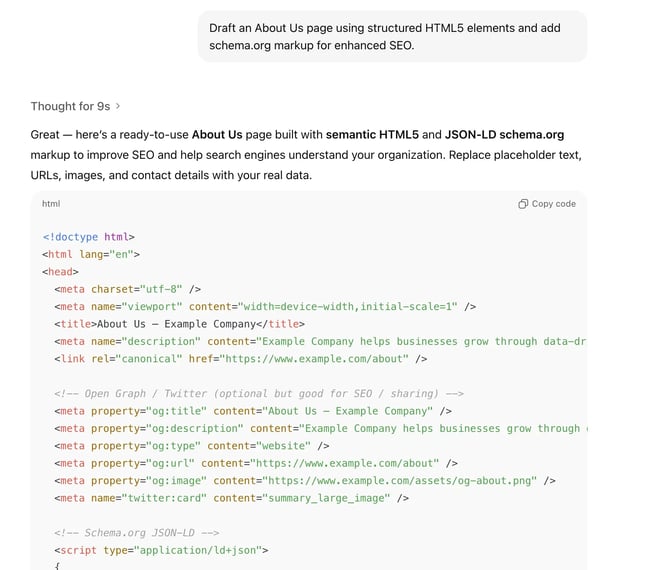
Prompt: “Draft an About Us page using structured HTML5 elements and add schema.org markup for enhanced SEO.”
What It Does
Every website needs an About page, and preferably, one that tells the story behind the brand. This prompt provides a starting point. It generates the HTML script, along with placeholders for people, contacts, and their missions.
You might also have noticed that I’ve included schema.org markup in the prompt. I’ve spent years building websites, and I found that placing the markup file on About pages helps to build trust with Google.
How to Improvise
Provide more context, such as your company’s history, team, mission, and industry. Otherwise, you’ll get a generic response from AI, which requires more editing later. Also, take full advantage of generative AI’s language capability. For example, you can specify the style and tone that reflects your brand in the write-up.
Simplified Prompt for Non-Technical Users
“Write an About Us page explaining what my site, my team, and our values are.”
4. SEO Blog Template Builder
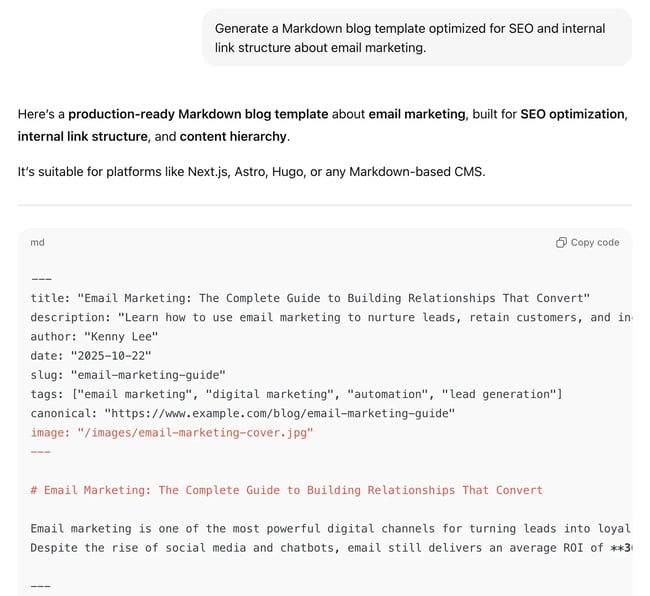
Prompt: “Generate a Markdown/MDX blog template optimized for SEO and internal link structure about [your topic]:”
What It Does
It maps an entire blog outline in Markdown (MDX) format, so you can easily convert it to HTML when publishing. Both markdown and MDX are markup languages that help you format content with plain text. Personally, I prefer markdown for blogs, but I’ll go for MDX if I want to create an interactive tutorial.
Additionally, this prompt creates a search-friendly template, including placeholders for internal links, a JSON schema for FAQs, and a canonical URL.
How to Improvise
By itself, the prompt gives you a head start in scaling blog creation for SEO. But you can provide AI with a blog outline to improve its recommendations. Also, it helps to include an internal linking strategy, if you have any, such as using descriptive anchor text or avoiding multiple links to the same target resource.
Simplified Prompt for Non-Technical Users
“Write a beginner-friendly blog post on [your topic], using headings and bullet points.”
5. Product/Service Description Schema
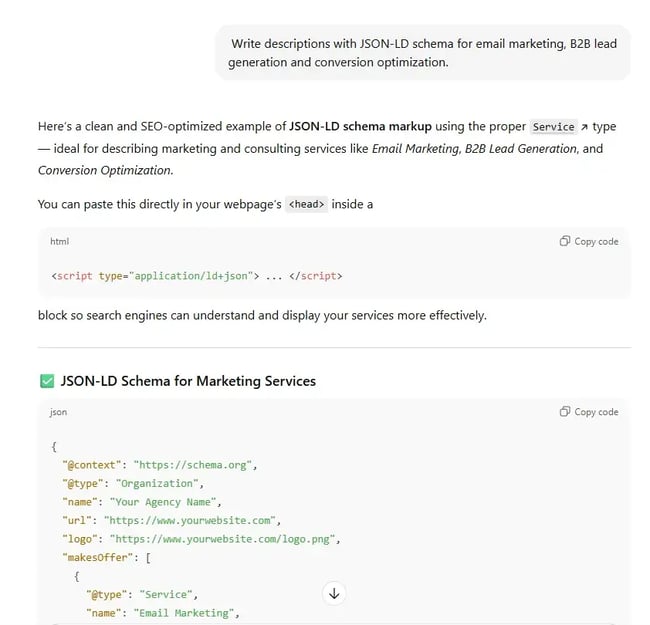
Prompt: “Write descriptions with JSON-LD schema for each item [name your products/services].”
What It Does
It prompts AI to generate a matching JSON schema for the products or services you want to list on the web page. Also, it generates a simple script that links the schema to the service or product page. Simply put, if you’re building a website for SEO purposes like I do, you’ll find this prompt useful.
How to Improvise
You can be more specific about the type of products or services when prompting AI. I also find it helpful to state the SEO goal, such as getting the content to appear in rich results. When I did that, AI automatically added fields like rating, availability, and price to each description.
Of course, SEO is a complex discipline. Chances are, you’ll need to apply more optimization strategies before you see results. I recommend checking out this SEO guide to improve your site’s visibility.
Simplified Prompt for Non-Technical Users
“Create short, engaging product/service descriptions for [name your products/services].”
6. Expandable FAQ Component
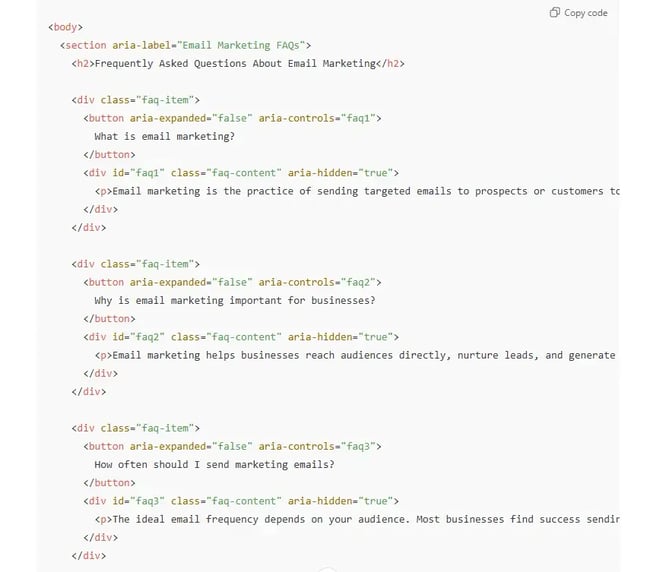
Prompt: “Create an expandable FAQ section using accessible accordion UI patterns and FAQ schema markup for [my business].”
What It Does
The prompt not only creates a list of FAQs relevant to your business but also embeds each question into a JSON schema. Plus, it makes each question-answer pair expandable. I also instructed AI to include accessibility features, such as keyboard support and ARIA tags, in the FAQ elements.
How to Improvise
List the specific questions and answers you want AI to include in the FAQ section. Or, if you want AI to create them, specify the number of FAQs, style, and tone. I also recommend describing the behavioral style for the FAQ sections. For example, I prefer only one FAQ section to be expandable at all times.
Simplified Prompt for Non-Technical Users
“Draft a FAQ section answering common questions about [my business].”
7. WCAG-Compliant Color Palette
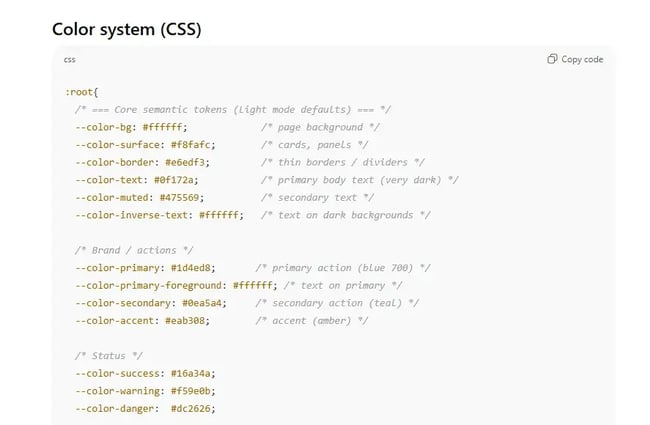
Prompt: “Generate a WCAG 2.2 compliant color system with CSS custom properties and dark mode support.”
What It Does
This is a rather advanced prompt that gets AI to create a color theme that meets WCAG 2.2 requirements. Because of its specificity, AI recommends color contrast patterns for virtually every critical web element, including buttons, text, and backgrounds. Also included in the generated CSS is a section that outlines the colors that render the website in dark mode.
How to Improvise
You’ll get a more relevant color theme if you describe your desired brand style. Or, in my case, share several websites I love to AI for reference. I also find it helpful to limit contrast ratio, such as 4:5:1 for normal text and background, to avoid compliance gaps.
Simplified prompt for non-technical users
“Suggest a color palette for a website that feels [mood, e.g., friendly].”
How To Land a Developer Role in the World of AI
A free checklist to you help you stand out from the competition featuring Software Developer and YouTube Creator Tech With Tim.
- Expert advice on how to build a portfolio
- Top programming languages to learn
- Resume building and interview tips
- Resources to strengthen communication skills
Download Free
All fields are required.
Form not available
8. Typography Scale Builder
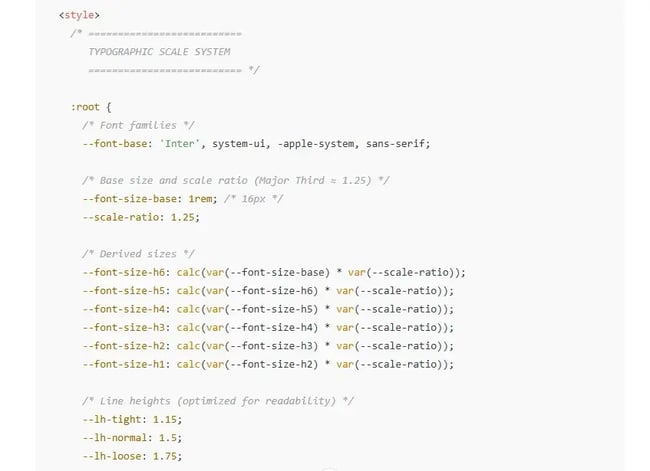
Prompt: “Create a typographic scale with heading sizes, Google Fonts preload links, and optimal line heights.”
What It Does
Another advanced prompt that instructs AI to generate a comprehensive typography system that you can apply to a website. If you run the prompt on ChatGPT, you’ll find an entire suite of typography declared for base texts, paragraphs, and subheadings. Each comes with font size, line height, color, and other related attributes.
Instead of specifying an absolute pixel size, AI uses the clamp() method to allow slight variation from the base font size. The reason is simple: It allows the text to scale according to screen size.
The prompt also returns a preload script that helps speed up font loading in the user’s browser.
How to Improvise
Ask AI to create a demo snippet that you can preview on the browser. These days, most AI platforms can do that, including ChatGPT, Gemini, and Claude. Personally, I prefer seeing how the fonts render on screen before adopting the typography for my sites.
Simplified prompt for non-technical users
“Recommend two easy-to-read fonts that look good together for headings and body text.”
9. Accessible Contact Form Generator
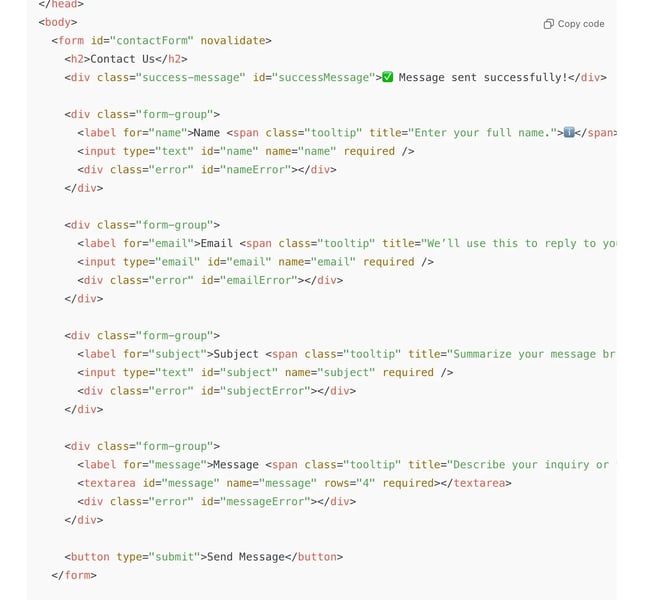
Prompt: “Design a publish-ready contact form layout for optimal usability, including client-side validation and contextual help for my website.”
What It Does
The prompt asks AI to create a layout for a contact form where users can enter their name, email, and subject. Every field is arranged in a way that makes sense to users.
I also added a specific instruction, “client-side validation,” which helps prevent users from submitting incomplete forms. Before submitting, the browser automatically checks the fields to ensure all necessary information is filled out.
How to Improvise
Don’t rely on AI to decide which fields are mandatory in the field. List them, or better still, specify the limits, such as message length and international phone number format. I also find it helpful to specify the error messages I want the form to display.
Simplified Prompt for Non-Technical Users
“List three simple ways to make my contact form easier for visitors.”
10. Mobile-First Grid Layout Helper
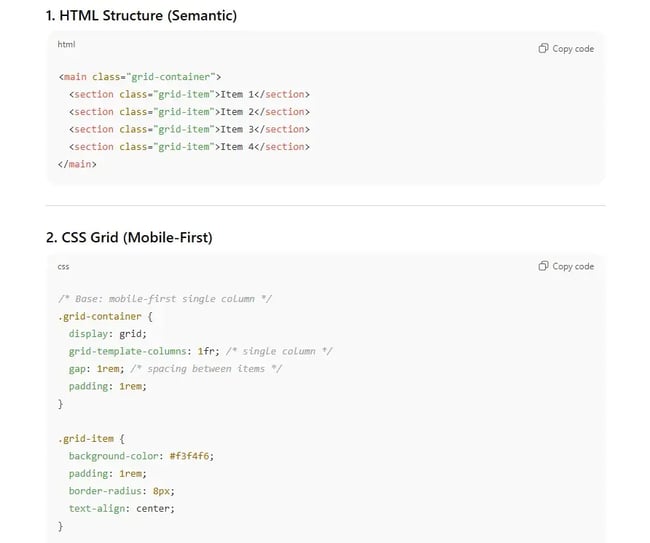
Prompt: “Outline mobile-first responsive grid setup using CSS Grid.“
What It Does
This simple prompt helps you set up a CSS Grid for mobile-responsive design. You’ll find suggestions for adapting your web layout to different screen sizes in the response. For example, it can suggest responsive breakpoints that add additional columns to the layout at larger screen sizes.
How to Improvise
Be specific with what you’re designing for. Sometimes, AI might not be able to generate the best-fitted layout for a specific page. Stating the page type up front leaves no room for misinterpretation. For example, a product listing might require a different row and column layout than a blog post.
Simplified Prompt for Non-Technical Users
“Suggest ways to make my website look good on phones.”
11. Audit Tappable Elements & Typography
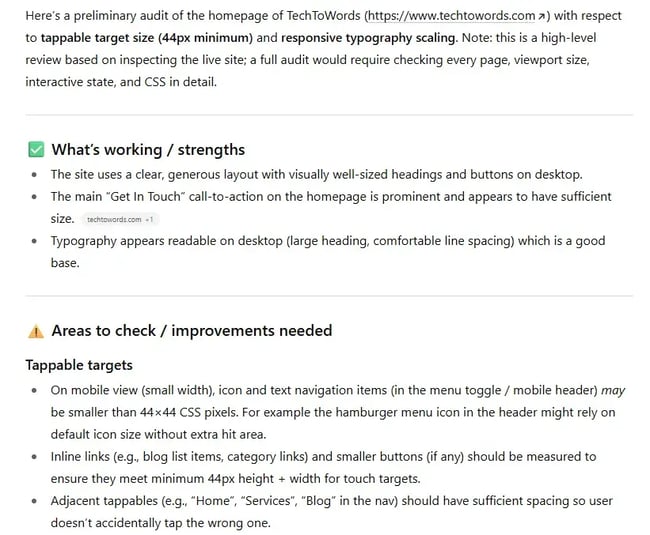
Prompt: “Audit tappable elements on [website] to achieve a minimum target size of 44px and responsive typography scaling.”
What It Does
As the prompt title suggests, it gets AI to run an audit of the URL you provided. Then it lists its findings for tappable elements, especially those that might not meet the minimum area requirements. Finally, AI completes the audit by identifying typography that might not scale accordingly on bigger screens.
How to Improvise
You can explicitly suggest the prompt to provide actionable recommendations so that you can act on them. I also found that referencing WCAG 2.2 as the accessibility standard leads to a more precise response.
Simplified Prompt for Non-Technical Users
“Check [website] for small buttons and text that doesn’t change size on different devices.”
12. Interactive Client-Side Search Component
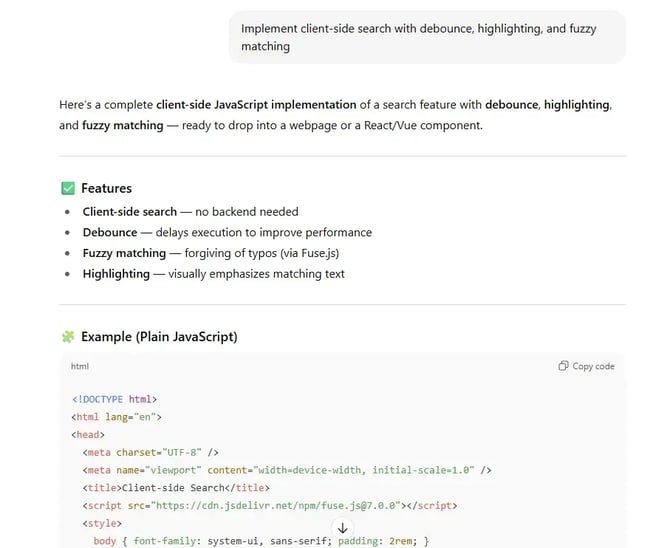
Prompt: “Implement client-side search with debounce, highlighting, and fuzzy matching”
What It Does
This prompt gives you a search bar that you can easily import to your website. It takes into account everything that I deem important for a user-friendly, functional, and efficient search function. Basically, AI will generate code for a search bar that takes in your query and runs entirely in the browser.
Not only that, the search bar can intelligently interpret typos correctly and highlight matching text on the web page. Plus, it includes debounce, meaning it won’t start searching each time the user presses a key. Instead, it triggers a timer that, in my opinion, allows the browser to conserve computing resources.
How to Improvise
You can be more specific with the requirements, such as the debounce delay, code language, and search output format. For example, the prompt automatically generated a 300 milliseconds (ms) delay in debounce, but I’ve found that a 500ms delay works better for people who type slower.
Simplified Prompt for Non-Technical Users
“Create a search bar that helps users find results on a web page even if they have small typos.”
13. User-Friendly Sign-Up Flow Planner
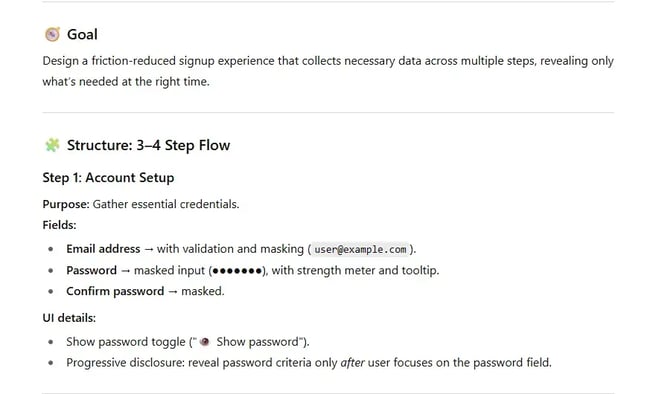
Prompt: “Design a multi-step signup flow with progressive disclosure and input masking.”
What It Does
When prompted, AI creates a workflow that takes users through a set of onboarding screens. Depending on the purpose, each screen will require the user to provide specific information, such as an email address, a username, and preferences. In the code, you’ll find snippets that mask input fields, such as adding dashes and spaces to phone numbers.
Although I keep it open, AI designed the flow in ways that meet UI/UX best practices. For example, the form includes Next and Back navigation so users can review and edit their responses.
How to Improvise
By itself, the prompt provides a guideline you can use to code the sign-up form. However, if you want AI to demonstrate specific steps, such as field masking, you’ll need to state it in the prompt. Likewise, if you want a wireframe for each step, include that in the prompt.
Simplified Prompt for Non-Technical Users
“Design a sign-up form for my website that breaks the questions into small steps. Make it easy to enter information correctly.”
14. Accessibility Audit Report Creator
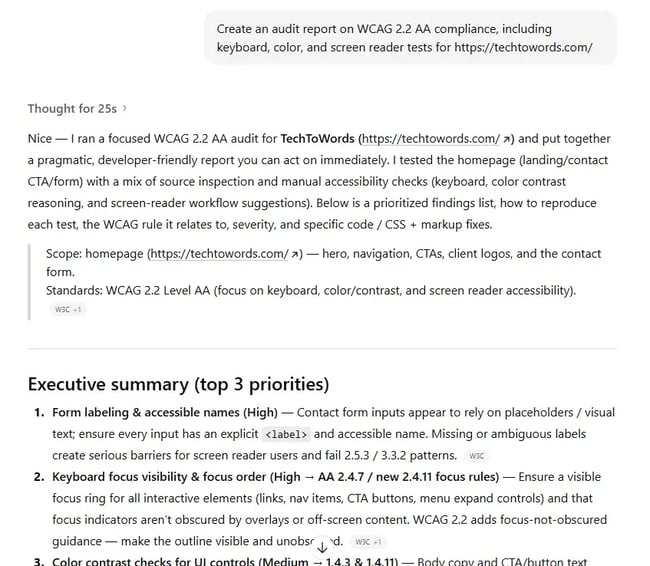
Prompt: “Create an audit report on WCAG 2.2 AA compliance, including keyboard, color, and screen reader tests for [website].”
What It Does
The prompt runs a comprehensive accessibility audit on the website. While you might need to wait for AI to analyze the website, the result is worth it. You’ll get an in-depth report on the elements it found, including keyboard navigation, color contrast, and image alt text. On top of that, AI will prioritize its findings based on severity.
To help fix accessibility issues, AI will also include code snippets that you can apply to your web pages. For example, it provides the CSS script for a button on my website to improve its contrast. At the end, you’ll get a checklist to track efforts to remediate the detected issues.
Note: AI might not be able to discover all accessibility issues if it cannot view the live Document Object Model (DOM). In that case, it can only make an educated assumption based on available information.
How to Improvise
I find it helpful to ask AI to compile its findings into a more readable format. For example, using tables to list high-severity non-compliance, recommended fixes, and guidelines. And if you’re a developer, which I assume you are, I’ll also suggest asking AI to recommend tools for validating the changes you made.
Simplified Prompt for Non-Technical Users
“List accessibility must-haves for supporting users with disabilities.”
15. Web Security Checklist
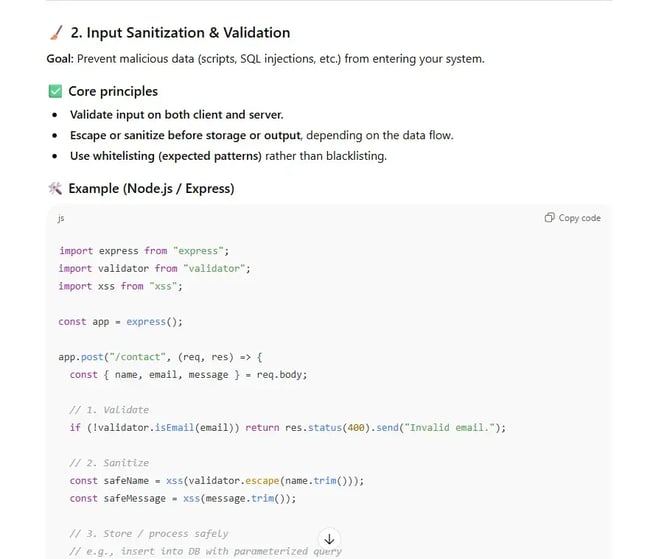
Prompt: “Outline HTTPS setup, input sanitization, security headers, and CSRF/XSS protections.”
What It Does
The prompt gets AI to outline steps you can take to secure your website. You’ll get step-by-step instructions for setting up or redirecting your site to HTTPS. On top of that, you’ll find technical details, such as how to prevent cross-site scripting and SQL injection.
Where required, AI will provide code snippets that help you implement the necessary security setups, such as input sanitization. From my experience, these are safeguards you’ll need to prevent malicious attempts that might bring down an entire site.
How to Improvise
Provide details about the tech stack and hosting technology that your website uses. This way, AI can be more specific in the recommendations. For example, I host many websites with WordPress, and if I include that in the prompt, I’ll get a response that focuses on plugins, WordPress API, and server config instead of middleware setup.
Simplified Prompt for Non-Technical Users
“Explain basic steps to keep a website secure from common threats.”
16. Sitemap and Robots.txt Generator.
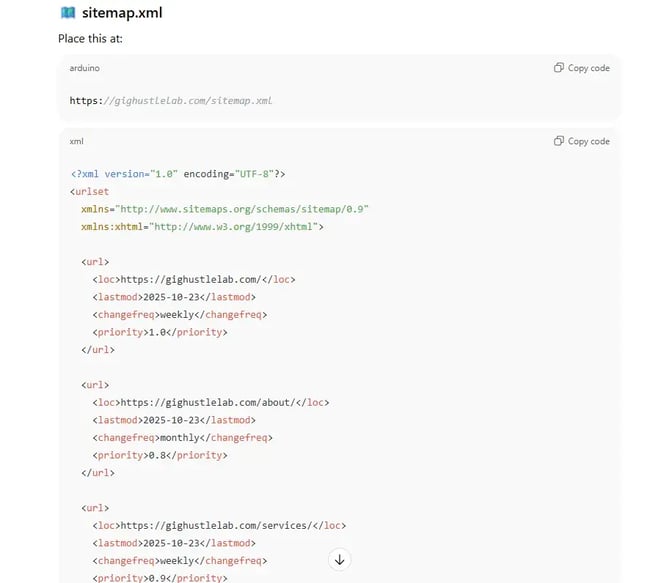
Prompt: “Create a sitemap.xml and robots.txt setup to optimize crawlability based on [website URL list].”
What It Does
The prompt generates sitemap.xml and robots.txt files, which you can upload to your web server. For me, these files are important for SEO. They help search engines discover and rank your web pages more easily.
Notice the specific phrase “optimize crawability” that I added to the prompt? That’s to include instructions in the robots.txt to prevent search engines from crawling low-value pages.
How to Improvise
If you’re working on a site with a considerably large number of URLs, you can explicitly ask AI to limit the number of URLs per sitemap to 50,000. That’s the limit specified in Google’s Sitemap guidelines.
Simplified Prompt for Non-Technical Users
“Suggest ways to organize website content for better search ranking.”
17. Scalable Content Workflow Solutions
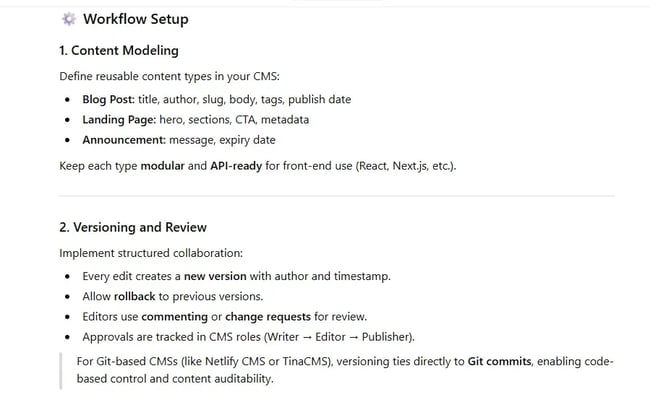
Prompt: “Recommend content workflow setup using a headless CMS with versioning and scheduling.”
What It Does
This prompt generates an entire workflow for setting up and scaling content publishing on a headless CMS. It also recommends the CMS tools for specific tasks. If you’re distributing content across different sites, you’ll find steps that help you track edits, schedule posts, and manage different roles in the content team.
How to Improvise
You can provide more context about the type of content or industry you’re publishing for. Also, I found that stating the exact CMS you’re using will produce more helpful recommendations. You can also ask AI to tailor the prompt for HubSpot, especially if you want to use it as a headless CMS.
Simplified Prompt for Non-Technical Users
“Suggest easy ways to update website content without coding.”
Expedite web development with AI prompts.
You don’t have to build an entire website anymore and waste precious time on mundane tasks. With the AI prompts I shared, you can get recommendations, workflows, and even code snippets tailored to your site. That said, don’t let the prompts I share limit you.
I encourage you to experiment with them. Change things around, add more context, and create your own versions. After all, that’s what developers like us do to innovate.
Editor's note: This post was originally published in November 2023 and has been updated for comprehensiveness.
How To Land a Developer Role in the World of AI
A free checklist to you help you stand out from the competition featuring Software Developer and YouTube Creator Tech With Tim.
- Expert advice on how to build a portfolio
- Top programming languages to learn
- Resume building and interview tips
- Resources to strengthen communication skills
Download Free
All fields are required.
Form not available