Looking at content management system examples can help you choose the right CMS for you. And trust me, there are a lot of options out there. According to W3Techs data, 60.5% of websites using a CMS use WordPress, making the open-source blogging platform the clear leader — but that doesn't mean it’s the best fit for your business.
Making the wrong choice now can have consequences. If you change your mind later, you’ll have to migrate your entire website to a new CMS — a task that takes technical knowledge, time, and resources. (You might even have to manually rebuild your site on the new platform.)

To help you avoid that outcome, I‘ll walk you through different criteria you can use to choose a CMS for your business. Then, I’ll share an in-depth look at a variety of content management system examples so you can find one that suits your unique website needs and goals.
Table of Contents
- Content Management System Summary
- What is a content management system, and how does it work?
- Types of Content Management Systems
- How to Choose the Right CMS for Your Business
- How I Chose the Best Content Management System Examples
- Best CMS Systems
- How to Build a Website with a Content Management System
- Frequently Asked Questions About CMS Platforms
- Picking the Best CMS for Your Business
Content Management System Summary
A content management system (CMS) is software that enables content editors to upload, manage, edit, and store text, images, videos, and other files for their website. There are three types of CMSs: Traditional (monolithic), headless, and hybrid. Top content management system examples include HubSpot Content Hub, WordPress, Drupal, Webflow, Joomla, Shopify, and Storyblok. Create a free website using Content Hub today.
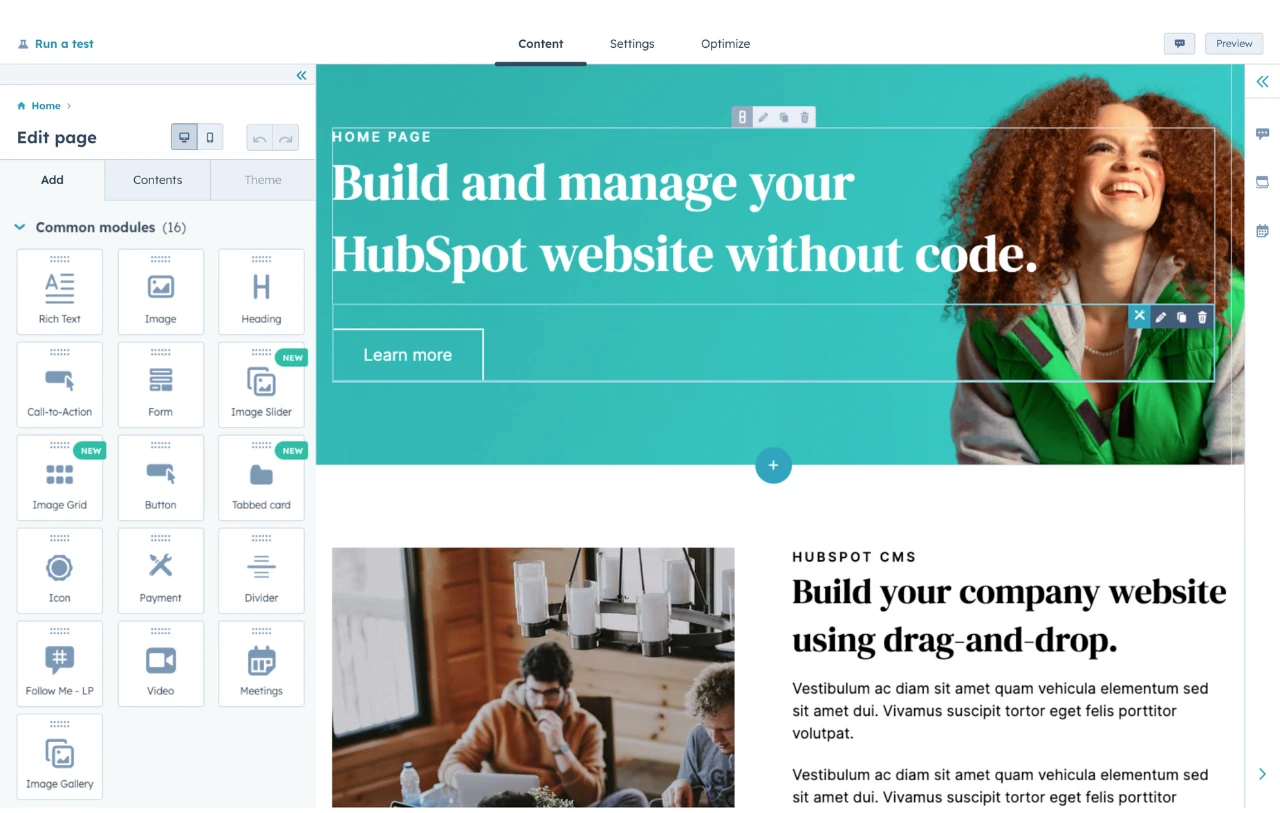
HubSpot's Free Website Builder
Create and customize your own business website with an easy drag-and-drop website builder.
- Build a website without any coding skills.
- Pre-built themes and templates.
- Built-in marketing tools and features.
- And more!
What is a content management system, and how does it work?
A content management system gives you an easy way to manage all of your website’s content without needing to manually edit your site’s code every time you want to make a change.
Rather than needing to work directly with code, a CMS gives you a backend area where you and your team can use a no-code WYSIWYG editor to add or edit your website's content. For example, if you want to publish a new blog post, you can typically add that blog post using a simple text editor.
Once you’ve added content on the backend, the CMS will then take that content and properly display it on the actual website where your visitors/customers can interact with it. Typically, the CMS will display the content according to the theme/templating rules that you’ve already set up.
A content management system offers a much easier way to create and manage content on your site, while ensuring that all of that content displays according to your brand's design specifications.
Key Features Every CMS Should Have
- WYSIWYG editor - Add, edit, and format content, including text and images.
- No-code page layout editor - Edit your site’s design, such as adding an image slider section to the homepage.
- User roles and permissions - Add admins who can review, edit, and publish a post, or authors who can add or edit posts but not publish them.
- Blog taxonomy (categories and tags) - Categorize and organize your blog posts.
- Content approvals - Have an editor approve content before publishing a blog post.
- Version history/content versioning - See changes made to a blog post and restore to a previous version, if needed.
- Scheduled publish - Choose the date and time the blog post will be automatically published.
CMS vs Website Builder: What's the difference?
A standalone CMS is software that website content creators use for uploading, storing, and editing content; the CMS software must be installed on your hosting. Website builders, on the other hand, are all-in-one platforms that come with a CMS, templates/themes, and web hosting.
Examples of website builders include HubSpot Content Hub, Squarespace, and Wix.
Examples of standalone CMSs include WordPress.org, Drupal, and Joomla. These CMSs do not come with website builders installed, but you can add website builders via plugins or extensions.
Types of Content Management Systems
Traditional CMS
A traditional (or “monolithic”) CMS comes with two connected parts: the backend (where website owners upload, edit, and manage content) and the frontend (where website visitors can view content). The two parts work together.
Examples of a traditional CMS include WordPress, Drupal, and Joomla.
Headless CMS
Unlike a traditional CMS, a headless CMS comes with only one part: the backend. It’s separated from the frontend presentation layer, which a developer must build and then connect to the backend via APIs. Though more technical, a headless CMS offers the major benefit of giving developers full control over how content is displayed, which is especially useful when displaying content on multiple devices and channels.
Examples of a headless CMS include Sanity, Storyblok, and Contentful.
Hybrid CMS
A hybrid CMS can be used in both ways: traditional and headless. Examples of a hybrid CMS include Magento, Webflow, and Adobe Experience Manager. For effective integration of these solutions, many businesses choose to work with web designers like Magento 2 extension development services to customize their stores to meet their specific needs.
How to Choose the Right CMS for Your Business
Below, I’ll show you seven of the best CMS platforms for businesses of all sizes. But with so many options, I think it’s important to provide some tips on how to choose among them before I get into the list.
Here's a simple six-step process that you can follow to choose the best CMS software for your business:
1. Build a list of the key features that your website needs.
Before you even start looking at CMS tools, it's important to understand the feature needs of your website.
Pro tip: Create a list of “needs” and “wants” before looking at any tools, as this will avoid the situation of you trying to fit your needs into what your preferred tool offers.
While there are a lot of areas that you should be focusing on here, here are some of the most important:
- Ecommerce functionality. Do you need the ability to sell products or services via your website? Or will it be purely informational?
- User registration. Do you need to allow public user accounts for visitors to your website? Or will only your team members need access?
- Content personalization. Do you need the ability to personalize content to visitors, or will every visitor see the same content?
- Content management. What features do you need to manage content? Is a simple text editor acceptable, or do you need a no-code way to build more complex designs?
- Theme/templating system. What kind of system do you want to use for the frontend content display?
- Third-party integrations. What third-party services do you need your website to integrate with? How complex do those integrations need to be? Does the CMS need to offer tools to help you build custom integrations (e.g., a REST API)?
- Search engine optimization (SEO) tools. If you want to market your business on Google, you should think about the specific SEO implementation you're planning for and whether the CMS can handle that.
Of course, your business will have its own unique needs, so I don't recommend limiting your thinking to just the list above.
2. Be real about your team's knowledge level (CMS vs. website builder).
When it comes to which CMS you’ll want to use, you should first be aware of two major paths you could take:
- Self-hosted: In this path, you’ll buy your own web hosting from a provider such as SiteGround or Bluehost, and then install your chosen CMS, such as WordPress or Joomla.
- All-in-one website platform (website builder + CMS + hosting): This path can be simpler because it’s more streamlined. You simply sign up for one account on a website platform, such as Squarespace, HubSpot, or Wix, and your website builder, CMS, and web host are in the same place.
Which path you take depends on your team’s technical skills. Choose self-hosted if your team has higher technical skills and a high need for flexibility and portability (the ease with which you can switch platforms). Go with an all-in-one website platform if your team has lower technical skills and a high need for simplicity and streamlined services.
3. Plan for scalability.
CMS
Can your CMS grow with you? A common path many marketers take when trying to scale their CMS with business growth is to use plugins and integrations to extend the CMS’s functionality. That’s why it’s crucial to look at how many plugins and integrations a CMS has, and how those suit your business needs.
Web Hosting
Web hosting comes in different tiers, and the more traffic to your site, the higher tier of hosting you’ll need. So, whether you self-host or use a website platform, it's important to plan for a rough estimate of the number of visitors your website will receive and ensure your hosting can handle that.
All-in-one website platforms like HubSpot Content Hub ensure scalability for you, automatically scaling infrastructure as your traffic grows, without extra charges for traffic spikes. In contrast, if you have a self-hosted website and your traffic outgrows your hosting package, you’ll need to manually upgrade to a higher tier or risk downtime or slow speeds.
4. Run the numbers on your budget.
When it comes to pricing, there's a lot of variability between different CMS platforms.
Some, like WordPress, are free and open source, with your only costs being hosting and a domain name (plus potentially some premium add-ons). Others are more enterprise-focused and can easily run into the thousands per month.
So, before you start building your list of candidates, run the numbers on what you can pay for everything. You don‘t need an exact dollar figure, but you need a rough estimate so you can rule out candidates that don’t fit your budget.
5. Build your shortlist.
Once you've thought about all the details above, you can start building a shortlist of CMS candidates. I recommend narrowing it down to three options.
Below, I‘ll dig into all of the most popular CMS platforms, so you can start your search there. I’ll cover the strong points of each CMS, along with important information on key details such as features, security, customization, and pricing.
Try to narrow it down to just a few options that you think can get the job done. This will make it easier when you're working through the final step.
6. Discuss with your team and get buy-in.
Once you have a shortlist of candidates, it's time to circulate it with all the stakeholders on your team to narrow it down to a final decision.
Get buy-in from both the tech side and the non-technical side. Your marketing team will spend a lot of time managing content in the backend. So, if a CMS doesn‘t offer the tools that the marketing team needs, that’s just as much of an issue as any potential technical problems.
Once you have broad buy-in from your teams, you can finalize your CMS choice and launch your website with confidence.
HubSpot's Free Website Builder
Create and customize your own business website with an easy drag-and-drop website builder.
- Build a website without any coding skills.
- Pre-built themes and templates.
- Built-in marketing tools and features.
- And more!
How I Chose the Best Content Management System Examples
The right CMS platform for your business will align with your site's needs and goals. I think that some of the most important factors to consider are ease of use, customizability, security, pricing, and popularity in the market.
If a platform offers the exact functionality you‘re looking for but is way out of budget, then it’s not the best choice. On the other hand, an inexpensive platform that will require a lot of maintenance and extensions to meet your needs is also not ideal.
To give you more insight into how I chose the web content management systems, let's break down these criteria in more detail.
Ease of Use
In my experience, ease of use is an essential factor to consider when selecting a CMS since it greatly impacts the adoption rate and workflows of your workforce. An ideal platform will be easy to use for all stakeholders on your team.
Let's say everyone from content marketers to developers will be working in the backend of the CMS. In that case, you need CMS features that make it easy for each of these team members to carry out their everyday tasks. Look for a platform that offers a WYSIWYG editor for editorial members to quickly create and edit content and modules for developers to quickly add custom code.
Customizability
While you may prioritize ease of use over customizability, you'll ideally want a solution that offers both. A CMS with lots of customization options and flexibility, like Content Hub, will be able to scale as your business grows.
When evaluating a CMS, look at what customization options are built right into the dashboard, how many extensions are available, and whether you can edit the source code.
If you need to create a website with minimal development resources, most CMS platforms allow you to pick a pre-designed theme and customize it to fit your brand. However, if you hire a developer, many CMS platforms also allow coding options so you can add more advanced features to your site.
Security
You need a platform that will keep your content, your users, and your front-end visitors safe. When evaluating different solutions, consider what role the platform assumes and what role you'll have to assume in protecting your site. Will you need to manually back up your site? Update the software? Install security add-ons?
In my experience, these are just a few questions to ask when looking at different CMS systems. As a general rule of thumb, if you don‘t have the time or aren’t familiar with best practices for securing your site, then you need a platform with robust security protocols, features, and teams in place to keep your site safe for you.
Pricing
Budget plays an important role in almost every decision you make for your business. When it comes to your CMS, you want a solution that meets your needs, your visitors' expectations, and your budget.
Fortunately, many platforms offer different tiers of plans with resources that scale up at each price point, like HubSpot's free CMS. Like customization options, these upgrade options indicate that the CMS will be able to grow as your business grows.
Popularity in the Market
I think that another great way to narrow down CMS systems is by looking at their current list of highly successful customers, such as major brands or your competitors.
If credible brands in similar industries to your own are using a certain CMS, this could mean that the platform's features are valuable and can expand with a growing company.
Even if you already work with a CMS, you might feel that your current tool isn't accomplishing your goals, or you might want to keep up with the CMS strategies of other successful brands.
Furthermore, looking at CMS platforms and websites used by brands in your industry can also give you inspiration for your own content strategy.
These criteria may rank differently in your selection process, but each is important for picking a CMS that can support and grow with your business. To help you make this important decision, I'm going to take an in-depth look at the ease of use, customizability, security, and pricing of some of the best CMS systems on the market below.
Best CMS Systems
Below, I’ll dive into the details of the best web content management systems. But here’s a quick CMS comparison chart for an overview:
|
CMS Name |
Best For |
Key Features |
Pricing |
|
Content Hub |
Small to large businesses that want their website natively connected to sales and marketing tools for growth |
|
|
|
WordPress |
Small to large businesses that have editorial teams, personal websites, and general blogging needs |
|
Free CMS, but there are costs associated with starting and maintaining a website. |
|
Drupal |
Developers and businesses that have significant technical resources |
|
Free CMS, but there are costs associated with starting and maintaining a website. |
|
Webflow |
Designers and marketers with design skills |
|
|
|
Joomla |
Individuals with technical know-how to larger companies with developer resources |
|
Free CMS, but there are costs associated with starting and maintaining a website. |
|
Shopify |
Ecommerce and first-time sellers |
|
|
|
Storyblok |
Businesses that want a marketer-friendly headless CMS |
|
|
1. Content Hub
As the only CMS with a native CRM on this list, Content Hub by HubSpot helps businesses easily build and manage a website that connects to customer data for a more personalized experience.
It‘s important to note that there are many Content Hub plans available, but I’ll limit my focus to Content Hub Professional below.
Best for: Small to large businesses that want their website natively connected to sales and marketing tools for growth
Key Takeaways
- Beginner-friendly, all-in-one platform
- Integrates with HubSpot's marketing, sales, service, and CRM tools
- CMS apps and templates available in HubSpot Marketplace
- Globally hosted CDN, 24/7 threat monitoring, and a built-in web application firewall (WAF) keep your site safe
- Offers four plans, including a free plan
Ease of Use
Content Hub is a powerful platform for users with little to no technical knowledge to build a website right out of the box. With this CMS, you can manage, optimize, and track the performance of your content with the same platform you used to create it.
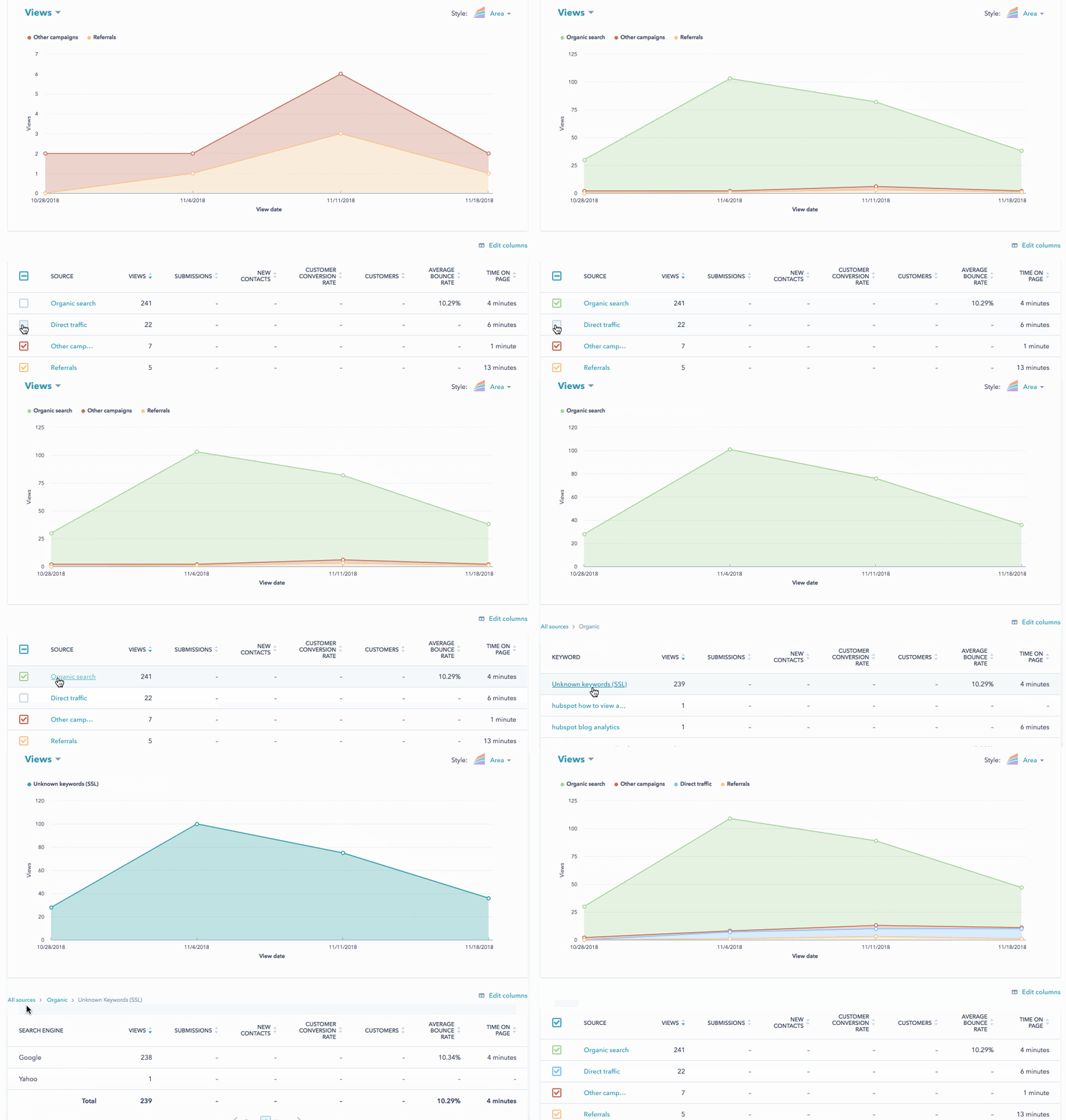
Since Content Hub integrates HubSpot’s marketing, sales, and service tools, you can also capture leads, run A/B tests, create email campaigns, and track contact-level insights right in your dashboard.
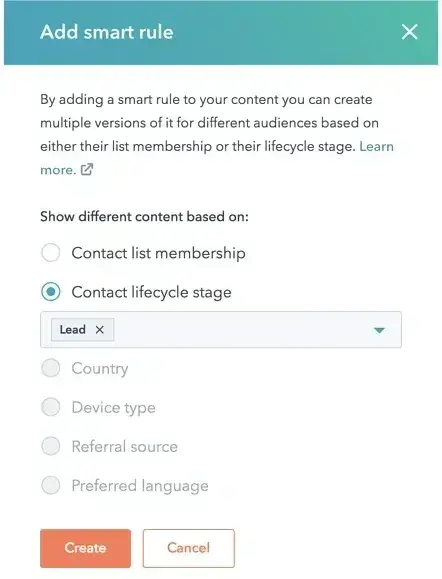
And don’t forget that since Content Hub comes with HubSpot’s CRM built in, you can use smart content to create multiple versions of your website pages, landing pages, emails, and forms based on specific criteria you have stored about your contacts.
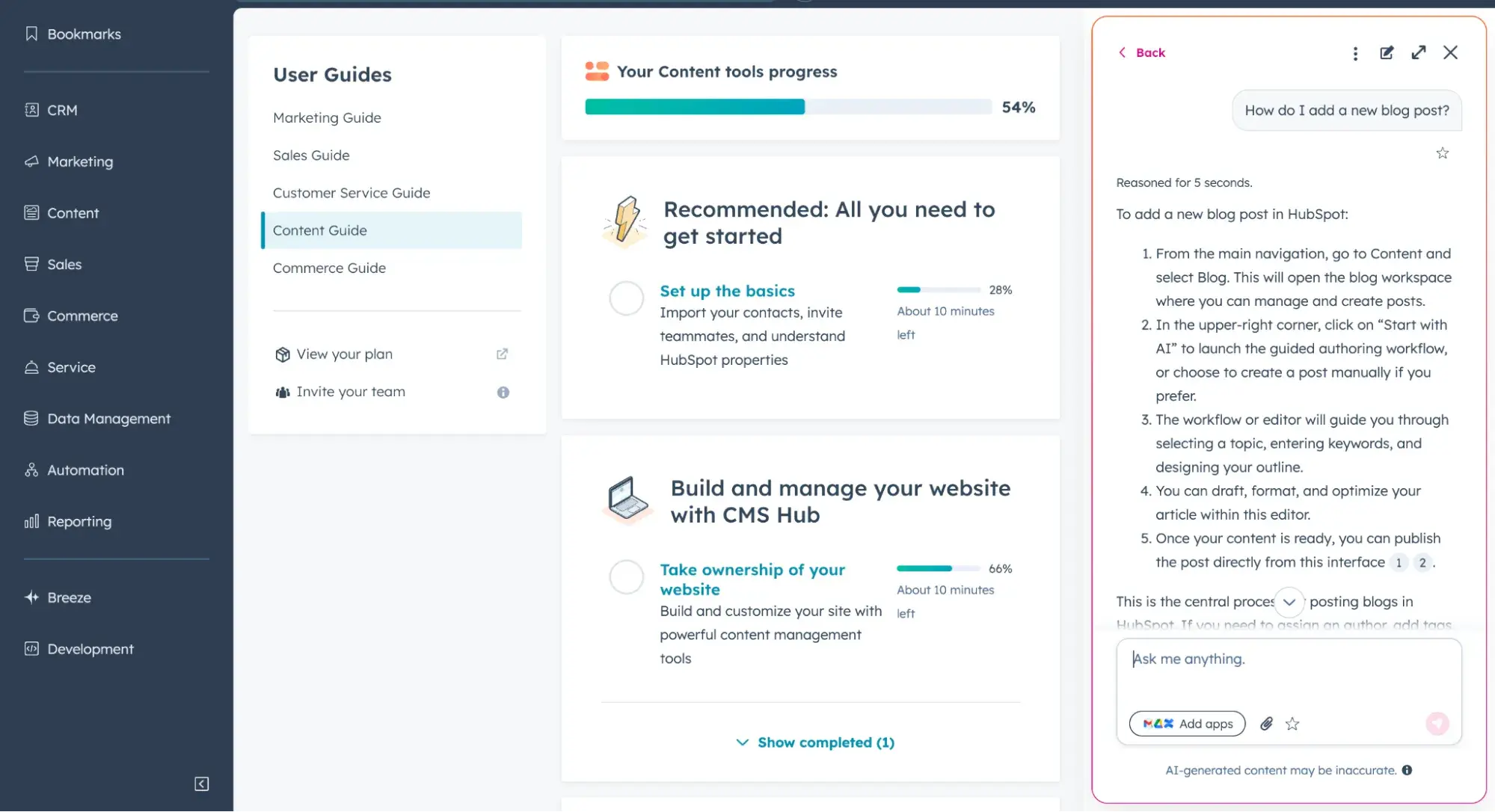
Typically, the more out-of-the-box features a platform has, the steeper the learning curve. To help you ramp up on this platform as quickly as possible, Content Hub includes suggestions to guide you step by step through setting up your content.
Plus, Breeze AI assistant can provide you with guidance and insights in seconds.
Customizability
Website Themes and Templates
Content Hub has hundreds of website themes; just choose one and customize it using a visual drag-and-drop editor (no coding necessary) to change the appearance of your site.
Drag-and-Drop Editor
Each template is mobile optimized and natively supports drag-and-drop modules so you can easily add and arrange text blocks, images, CTAs, and more on your templates. You can also go into theme settings to make global changes to keep your website consistent and unique across every page.
Integrations
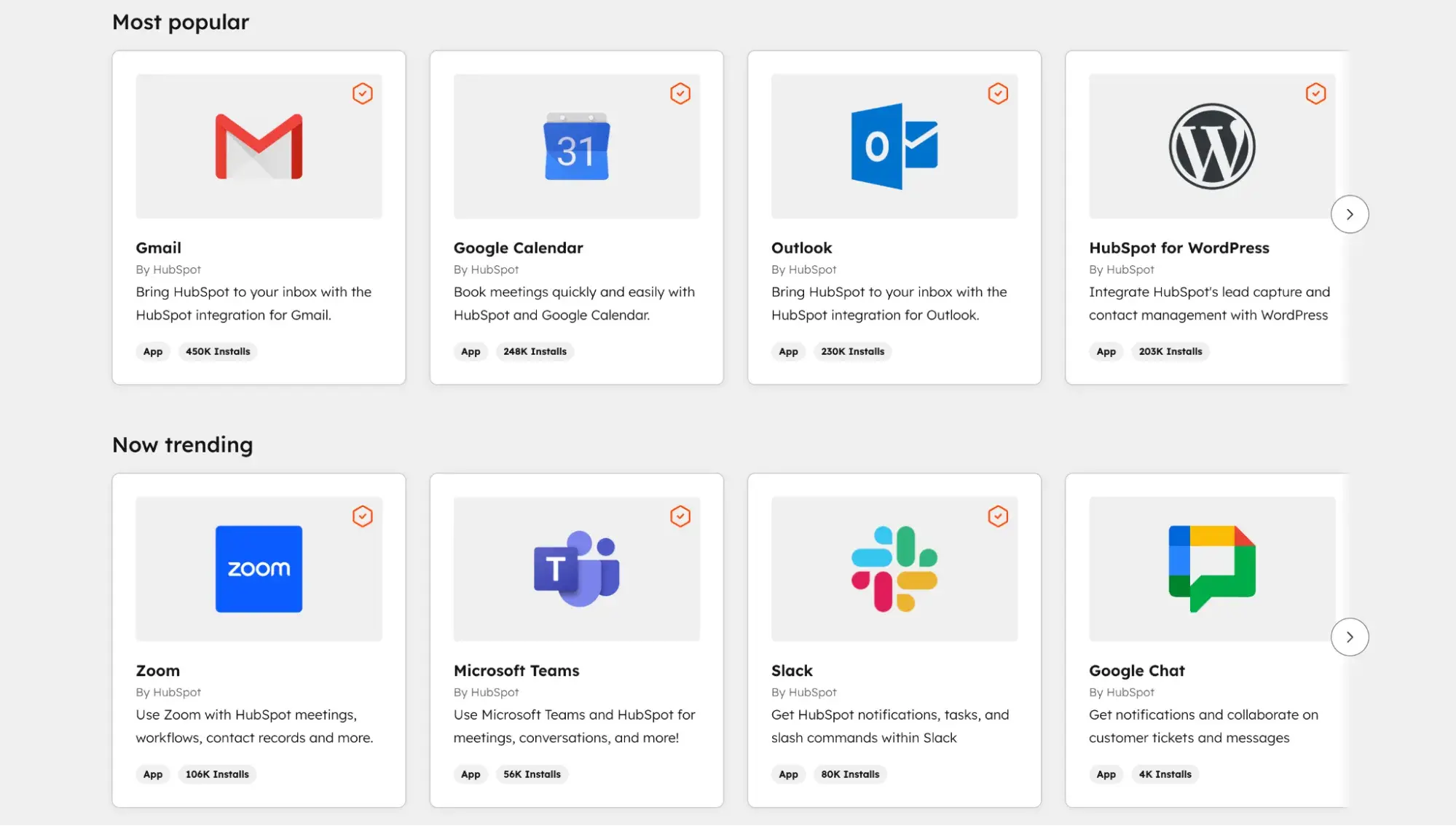
HubSpot Marketplace has over 1,900 integrations to connect to the apps already in your tech stack, including Gmail, Meta Ads, and Canva.
Security
Another advantage of HubSpot’s app ecosystem is the additional layer of security it provides your site. Unlike open-source CMS platforms, HubSpot selectively partners with third-party vendors and apps that can integrate with existing portals. That means you don’t have to stay on top of plugin compatibility or maintenance to ensure your site is secure.
You also don’t have to worry about installing plugins to secure your site against threats. Instead, you can rely on Content Hub's built-in security features — including a global CDN and web application firewall (WAF) — and a dedicated security team to keep your site safe from DDoS attacks, hackers, and other anomalies.
Pricing
Here are the different Content Hub plans based on annual billing:
- Free
- Starter: $9/mo/seat
- Professional: $450/mo (includes three Core Seats)
- Enterprise: $1,500/mo (includes five Core Seats)
Designed for fast-growing companies, Content Hub Professional is $450 per month. To get activity logging, multisites, custom objects, serverless functions, and more, you can upgrade to the Enterprise tier, which is $1,500 per month.
Example of a Brand Using HubSpot
The Chopping Block
The Chopping Block, a celebrated culinary school in Chicago, has been using HubSpot's CMS to run its website since 2015.
According to a case study, the Chopping Block wanted a more modern, interactive design that could better connect the school to its customers digitally. Nine months after its new HubSpot site went live, The Chopping Block saw a 139% increase in leads from its website.

2. WordPress
Note: WordPress.org is different from WordPress.com. WordPress.org is the self-hosted version, while WordPress.com is the SaaS version. Below, I’ll be referring to self-hosted WordPress.
Originally launched as blogging software, WordPress has evolved into the most popular CMS platform ever. Due to the open-source platform‘s nature, which emphasizes editorial features like article and blog publishing, it’s regularly used in publishing and blog-friendly industries. Because its interface and website themes are quite simple to use, I think it also might be useful for smaller businesses that are just building out their web strategy or have less experience with design.
If you're a tech-savvy web editor or developer who wants to add customizations to your site, WordPress allows a number of plugins and other personalization opportunities.
Best for: Small to large businesses that have editorial teams, personal websites, and general blogging needs
Key Takeaways
- WordPress VIP is a SaaS solution built for growing tech companies that want a WordPress CMS that can scale with them.
- Self-hosted WordPress requires more technical knowledge but provides more flexibility (you can move your site to different hosts relatively easily).
- Largest collection of plugins and themes
- Plugin and site maintenance can be time-consuming.
- Costs vary by domain registration, hosting, and premium plugins and themes.
Ease of Use
WordPress is designed to be easy enough for beginners to use without coding knowledge. Its dashboard is intuitive so that every user can tweak the appearance of their site, install a plugin, change permalink settings, add blog posts, and more.
Its block-based editing interface brings drag-and-drop functionality to the platform so you can develop media-rich pages without relying on custom code or plugins, which I think makes it even easier for non-technical people to create custom designs.

Using managed WordPress hosting from providers like Hostinger simplifies the user experience by offering features such as one-click WordPress installation, recommended plugins, and automatic updates to keep your site secure. However, extending the functionality of your WordPress site in other ways — say, to display a list of random posts in the sidebar of your site — will require you to either install and configure a range of WordPress plugins or add code to your files.
My experience has taught me that this won‘t be a problem for most developers, but it will limit beginners’ ability to build complex sites with advanced functionality.
HubSpot's Free Website Builder
Create and customize your own business website with an easy drag-and-drop website builder.
- Build a website without any coding skills.
- Pre-built themes and templates.
- Built-in marketing tools and features.
- And more!
Customizability
WordPress has one of the largest collections of plugins and themes available for download to customize the design and functionality of your site. There are over 60,000 free plugins in the official directory and more than 14,000 free WordPress themes are available in the official repository, as well as additional themes available for purchase in third-party marketplaces.
Using these plugins and pre-designed themes, users with little to no technical knowledge can easily create fully-functional websites. For example, the HubSpot WordPress plugin connects free forms, live chat, and a CRM to your site.
However, you have to make sure these add-ons are compatible with your site and updated. If they aren’t, they can pose a serious security risk.
Security
Every CMS is vulnerable to hackers and malicious users. Open-source CMS systems with outdated or unmaintained parts of their code are particularly vulnerable to attacks.
Outdated or incompatible plugins can also make sites built on open-source CMS systems more vulnerable to attacks. In fact, according to Wordfence, 96% of all WordPress vulnerabilities in 2024 were due to plugins.
That is why site owners must regularly update their software and plugins. Thankfully, WordPress has a built-in update system that lets you make these updates with the click of a button.
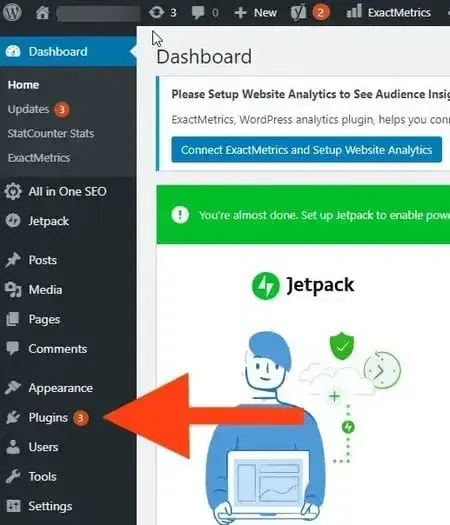
However, some updates may not be compatible with all the extensions on your site. That is why software and plugin updates can require considerable administrative effort, especially on larger web projects.
If security is your top priority, then you may want to check out some WordPress alternatives, like Drupal.
Pricing
As open-source software, WordPress is free to download. You do have to pay for a domain name, hosting, and any premium plugins or themes you want to install, however.
While that means the costs of building and managing WordPress sites can range dramatically, the average costs are relatively moderate. According to Website Builder Expert, building a WordPress site will cost you a one-time fee of up to $200 for the premade website theme, and managing it will cost anywhere from $11 to $40 per month. Of course, custom development will cost much more.
Example of a Brand Using WordPress
TechCrunch
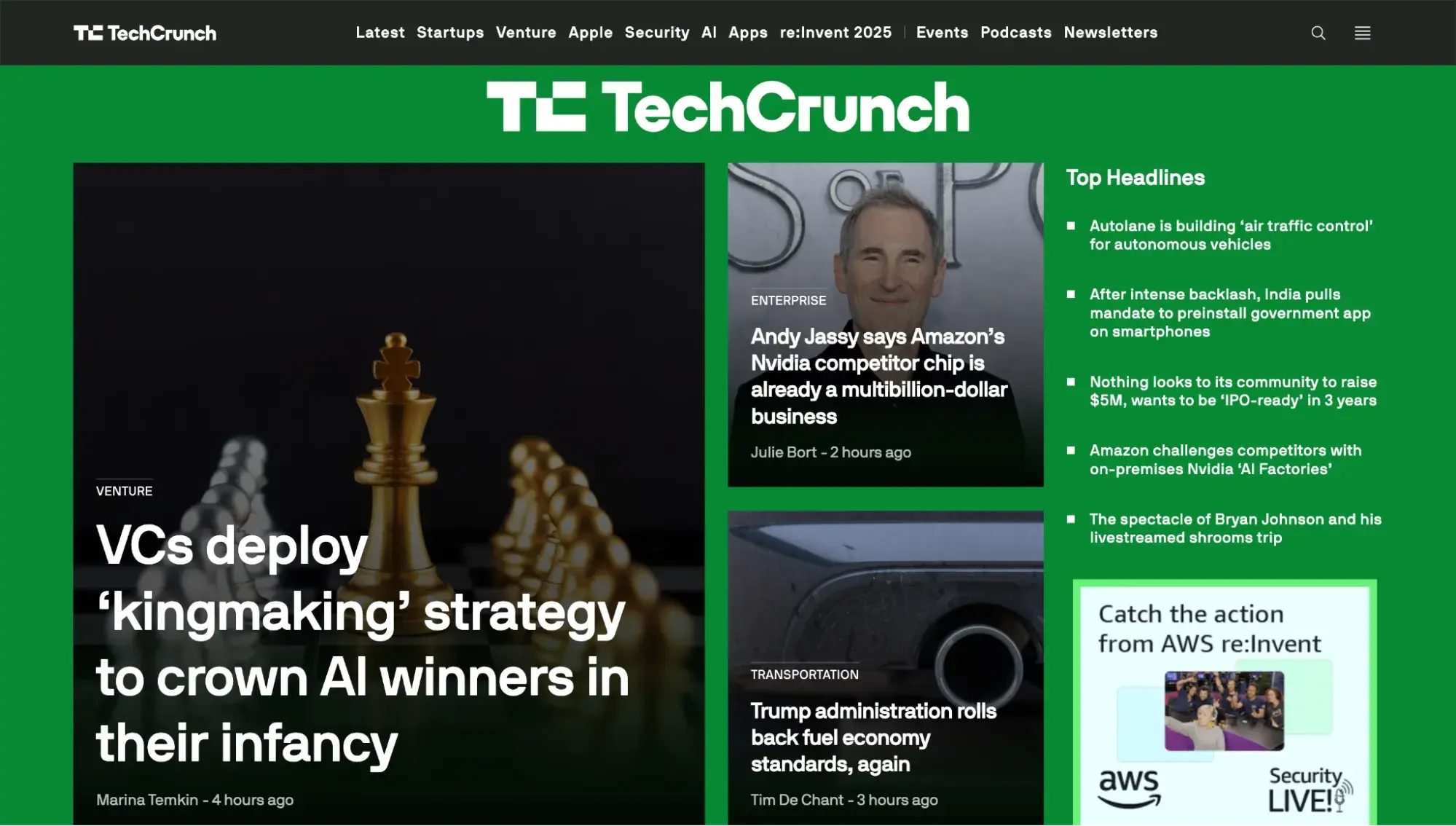
Given the massive popularity of WordPress, you’ll find that many blogs you frequent use this CMS. For example, TechCrunch regularly publishes tech-related news, articles, and videos on a WordPress-powered website.
In an article that announced TechCrunch's 2018 site redesign, the publication noted why it’s been loyal to the WordPress CMS.
“[WordPress] handles content authoring, delivering, and caching very well. There’s a reason it’s the CMS powering around a quarter of the internet, and let’s be real — our small team isn’t going to reinvent that wheel and do it better than WordPress’s massive community already has.”
I think it‘s worth noting that TechCrunch actually uses what’s called a “headless WordPress” implementation, which separates the backend WordPress dashboard from the frontend content display.
3. Drupal
Update: In January 2025, Drupal launched Drupal CMS, a platform that makes the CMS accessible to marketers and content teams. Below, I’ll be talking about Drupal Core, which is the foundational framework that’s more geared toward technical teams.
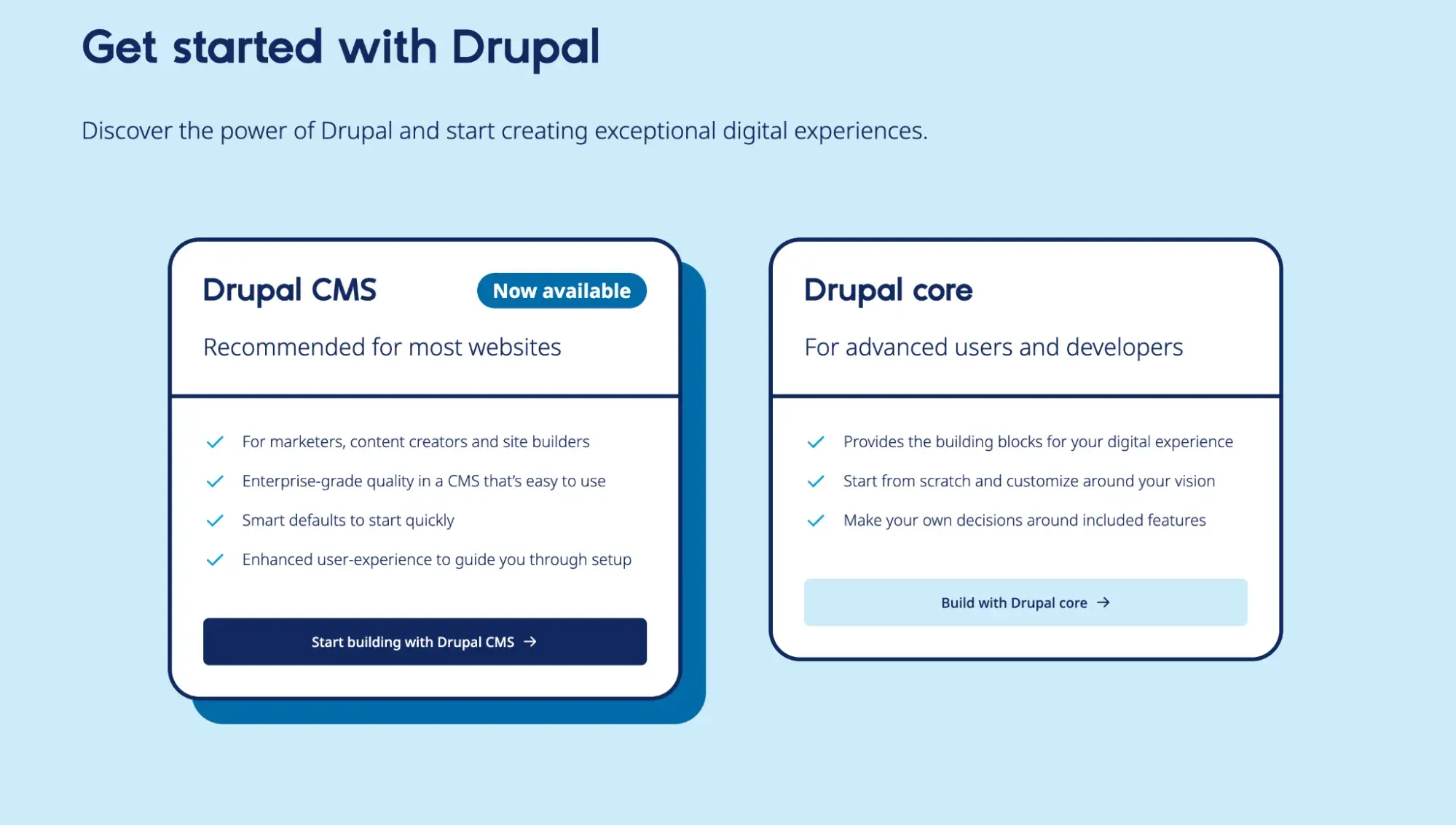
Drupal is a highly flexible open-source CMS targeted to a wide pool of developers, marketers, and agencies. The CMS lets developers create a site that can handle large volumes of data and heavy traffic.
I don't think Drupal Core is a good choice if your team is primarily comprised of non-technical people, but it can be a good option for more advanced use cases (or businesses with dedicated technical teams).
Best for: Developers and businesses that have significant technical resources
Key Takeaways
- Geared toward developers
- Vast selection of highly configurable modules and themes
- Highest reputation for security among open-source platforms
- Costs of building and customizing a Drupal site typically range in the thousands
Ease of Use
Because Drupal was designed by developers for developers, I think you’ll need to have some understanding of PHP, HTML, and CSS to take advantage of all of Drupal’s power. There are tons of Drupal distributions you can use to maximize its potential, too. You’ll also have to spend more time setting up and configuring your site than you would on WordPress, for example.
Customizability
With over 54,000 modules available in its directory and thousands of free themes in its theme repository, Drupal’s selection of add-ons and templates just falls short of WordPress’ impressive selection.
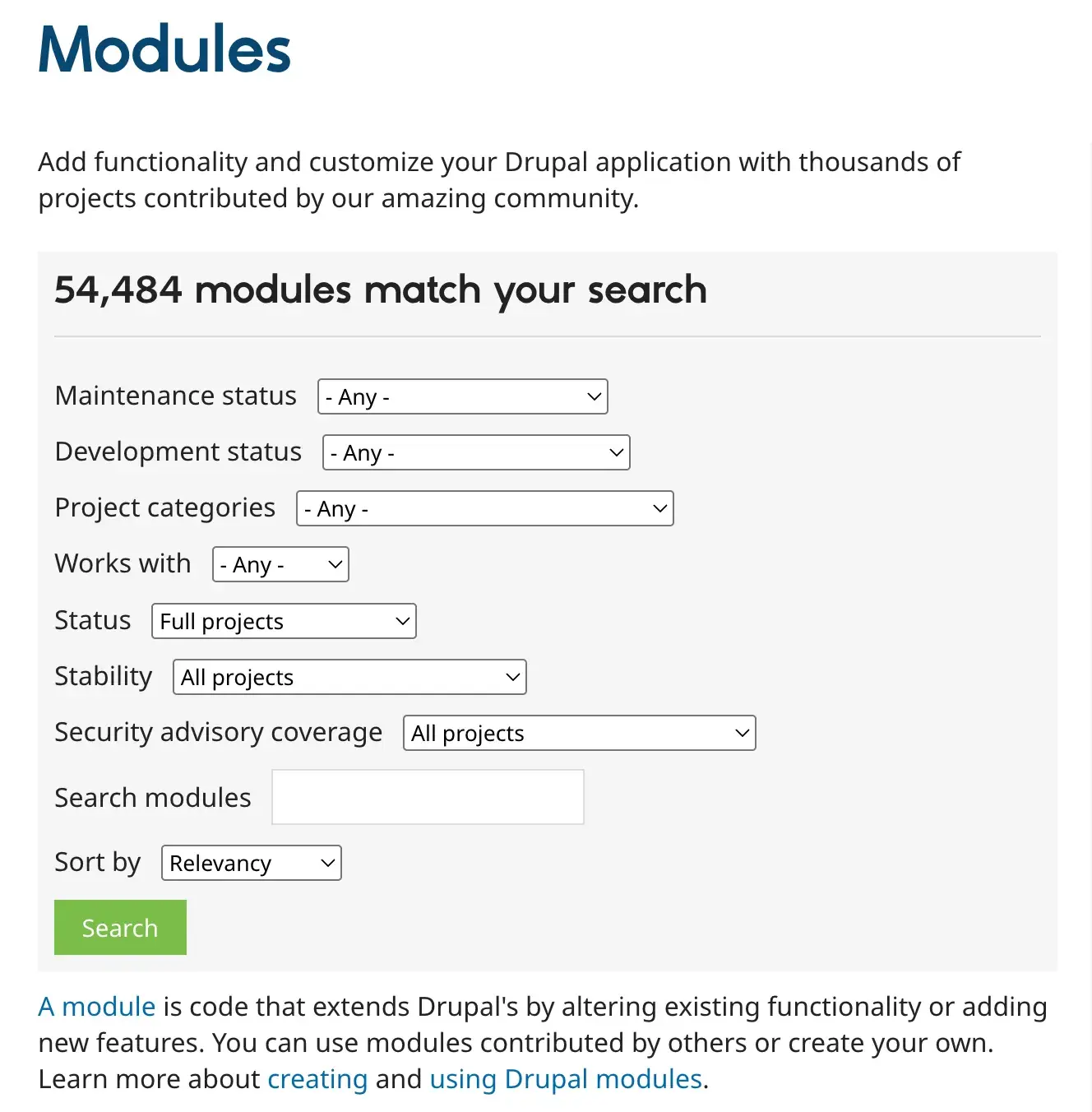
However, unlike many WordPress plugins and themes, Drupal’s modules and themes are highly configurable. That means, if you have the required coding skills, you can use these resources to create a site that does exactly what you want.
Security
To help keep the platform secure, Drupal has a dedicated all-volunteer security team that delivers bug fixes and releases software updates. However, since these updates aren’t automatic, site owners must remember to make them and adhere to other best practices. When they do not, hackers and other malicious users can more easily attack these outdated or unmaintained areas of Drupal Code.
Pricing
Like WordPress, Drupal is open-source software that's free to download. However, the costs associated with building and managing a Drupal site are much higher than those of WordPress, particularly for non-technical users.
You'll likely have to hire a developer or agency to build and design a Drupal site. ADCI Solutions estimates the average cost of development for a custom Drupal company website in North America to be $20,000 to $43,750.
Brands Using Drupal
UNICEF
The UNICEF organization has built its website on the Drupal platform, a striking example of how nonprofits can take advantage of the CMS’s powerful internals to make a high-performing, visually appealing website.

The website is mostly dedicated to informational pages. However, it allows access to a large number of reports and data, plus interactive visualizations that Drupal handles gracefully.
4. Webflow
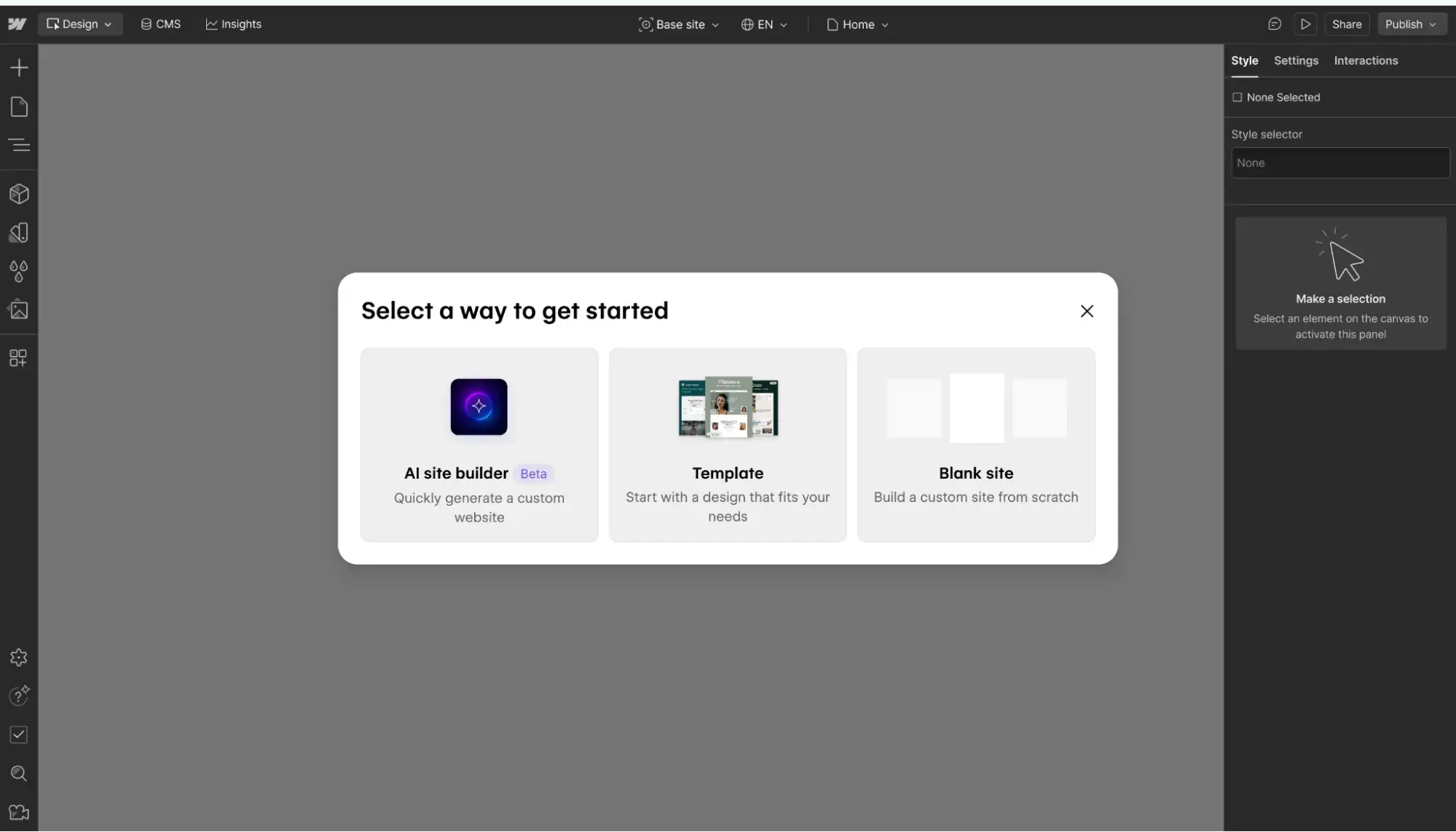
Like Content Hub and Shopify, Webflow combines a CMS, hosting, and website builder on one platform. However, Webflow bills itself as a visual content management system aimed at web designers who want to focus on creating and customizing sites without worrying about hosting or security.
Best for: Designers and marketers with design skills
Key Takeaways
- Ideal for experienced designers
- Offers complete control over your site's design
- Built-in security features like SSL certification and 2FA, plus AWS Shield on the Enterprise plan
- Offers multiple hosting plans at different price points
Ease of Use
Webflow’s designer looks like Photoshop in a browser. You can drag and drop elements onto a canvas and style them to create a completely custom site.
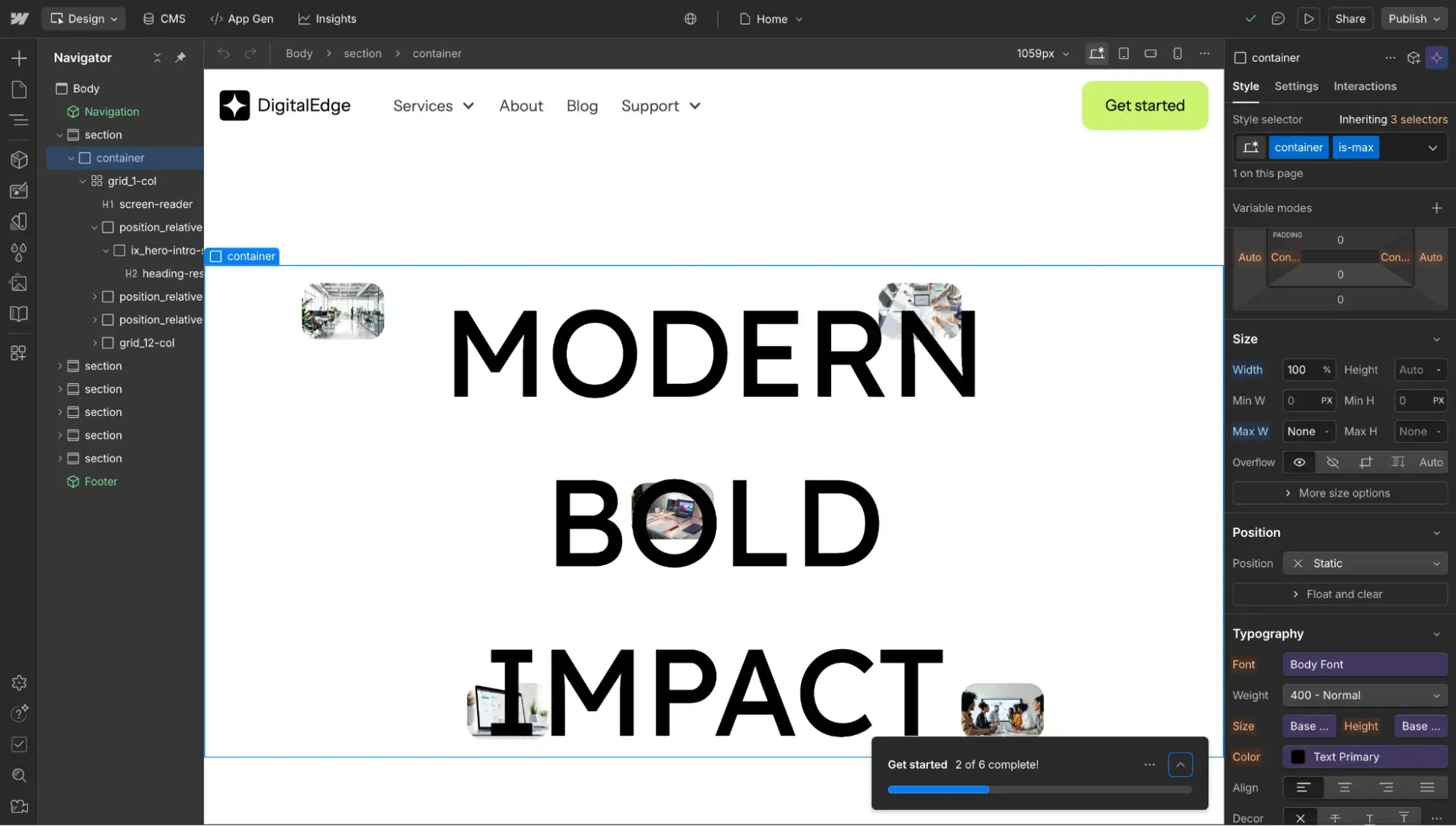
While you don’t necessarily need to understand HTML, CSS, and web design concepts like CSS grid and Flexbox — it will help simplify the design process if you do. That’s why Webflow is best suited for experienced designers and agencies creating websites for clients.
To extend the functionality of your site, you have two options:
- Apps and integrations. Apps add new features to your sites, while integrations more specifically connect your Webflow site to other platforms. For example, you can connect your Webflow forms to your HubSpot account via an integration.
- Custom code. Another option is to embed third-party code or your own custom code on a page to extend the functionality of your site. You can watch this video to learn how to add custom code to your Webflow site. This option is only available to users on one of Webflow’s premium plans.
Customizability
With Webflow, you have complete control over your site’s appearance. You can select from over 7,000 free and premium pre-built templates and customize them, or you can start from scratch and design every single detail on your own.
In the Webflow Designer, you can drag in unstyled HTML elements and customize their color, typography, size, background, positioning, and more. You can also use pre-built pieces for more complex elements, such as sliders, tabs, and background videos.
When you’re happy with a style element — like a navbar, footer, or signup form — you can turn them into symbols and reuse them across your site. Then, if you want to make an edit, you only have to make it once. The symbol will change across your whole site. You can also change the style of multiple elements at the same time, thanks to Webflow’s CSS-based class system.
Users who are capable of taking advantage of the full power of Webflow will find the customization options unparalleled in other CMS platforms.
Security
In addition to the benefits provided by AWS, Webflow has additional built-in security features. Depending on the plan, you can get free SSL certification, two-factor authentication, role-based permissions, backups, and continuous security monitoring to keep your Webflow site secure. You can also password protect your whole site or individual pages with Webflow hosting.
Pricing
Webflow offers a free plan that grants you a Webflow.io domain, up to two static pages (blog posts don't count toward this limit), and 1GB of bandwidth.
Paid site plans are as follows, based on annual billing:
- Basic: $14/mo for a custom domain, 150 static pages, and 10GB of bandwidth.
- CMS: $23/mo for a custom domain, 150 static pages, and 50GB of bandwidth.
- Business: $39/mo for a custom domain, 300 static pages, and 100GB of bandwidth.
- Enterprise: Contact Webflow for pricing. This plan grants you a guaranteed 99.99% uptime SLA, enterprise security, and dedicated Enterprise support agents.
Ecommerce plans are as follows, based on annual billing:
- Standard: $29/mo for 500 ecommerce items, 2,000 CMS items, and a 2% transaction fee.
- Plus: $74/mo for 5,000 ecommerce items, 10,000 CMS items, and 0% transaction fee.
- Advanced: $212/mo for 15,000 ecommerce items, 10,000 CMS items, and a 0% transaction fee.
5. Joomla
Designed to be the middle ground in the open-source CMS marketplace, Joomla combines the versatility of Drupal with the user-friendliness of WordPress.
Best for: Individuals with technical know-how to larger companies with developer resources
Key Takeaways
- This is a middle ground between WordPress and Drupal in terms of ease of use and price.
- Nearly 5,000 extensions in the Joomla! Extensions Directory
- As of October 2025, Joomla now has automatic updates for the core system, a huge win for site security. Before, if you forgot to manually update your Joomla software, your site could have been left vulnerable.
Ease of Use
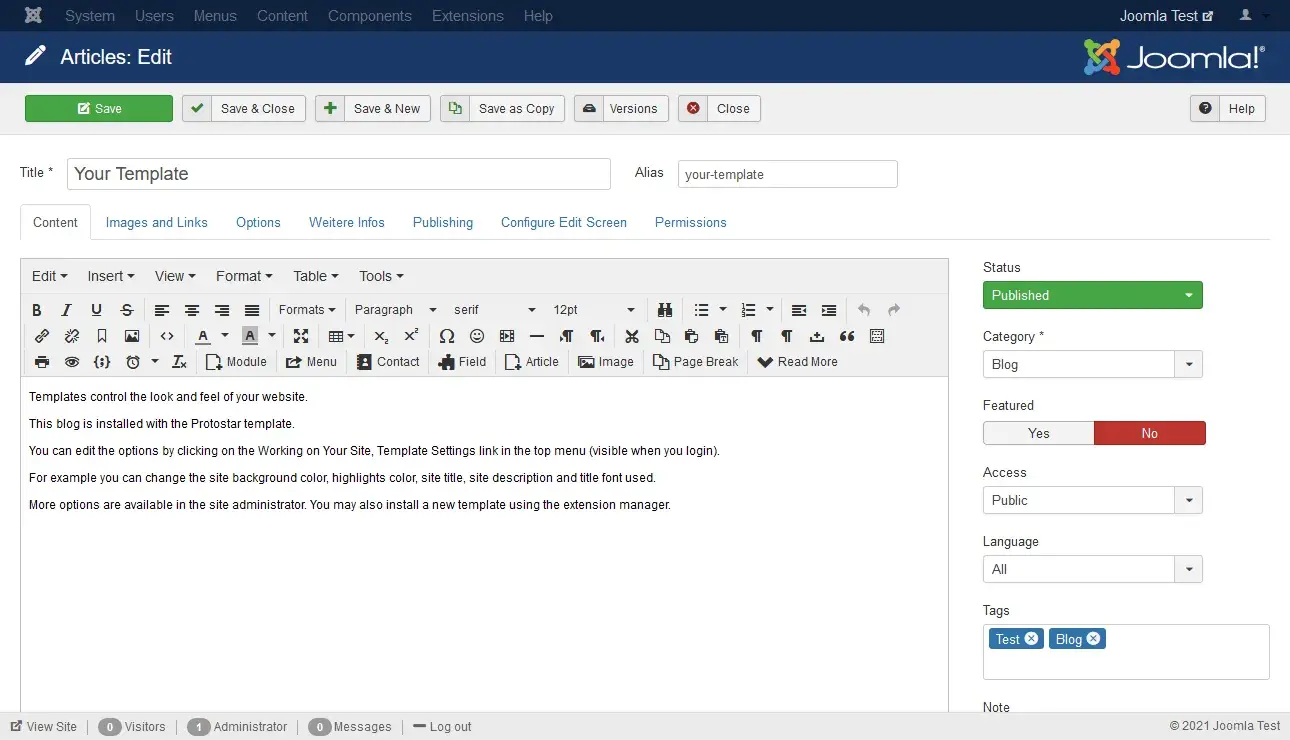
Joomla has more out-of-the-box features than most open-source CMS systems. With its built-in functionality, you can manage hundreds of users, build pages in multiple languages, and create custom post types that use different templates or themes.
You can also configure many of your site’s settings to modify your articles, banners, menus, media, redirects, and SEO settings.
However, Joomla’s backend is more stark and less user-friendly than WordPress or Content Hub, in my opinion. That’s why Joomla has a steep learning curve for beginners. Users with some experience in web development, on the other hand, can use Joomla’s built-in flexibility to create more complex sites right out of the box.
Customizability
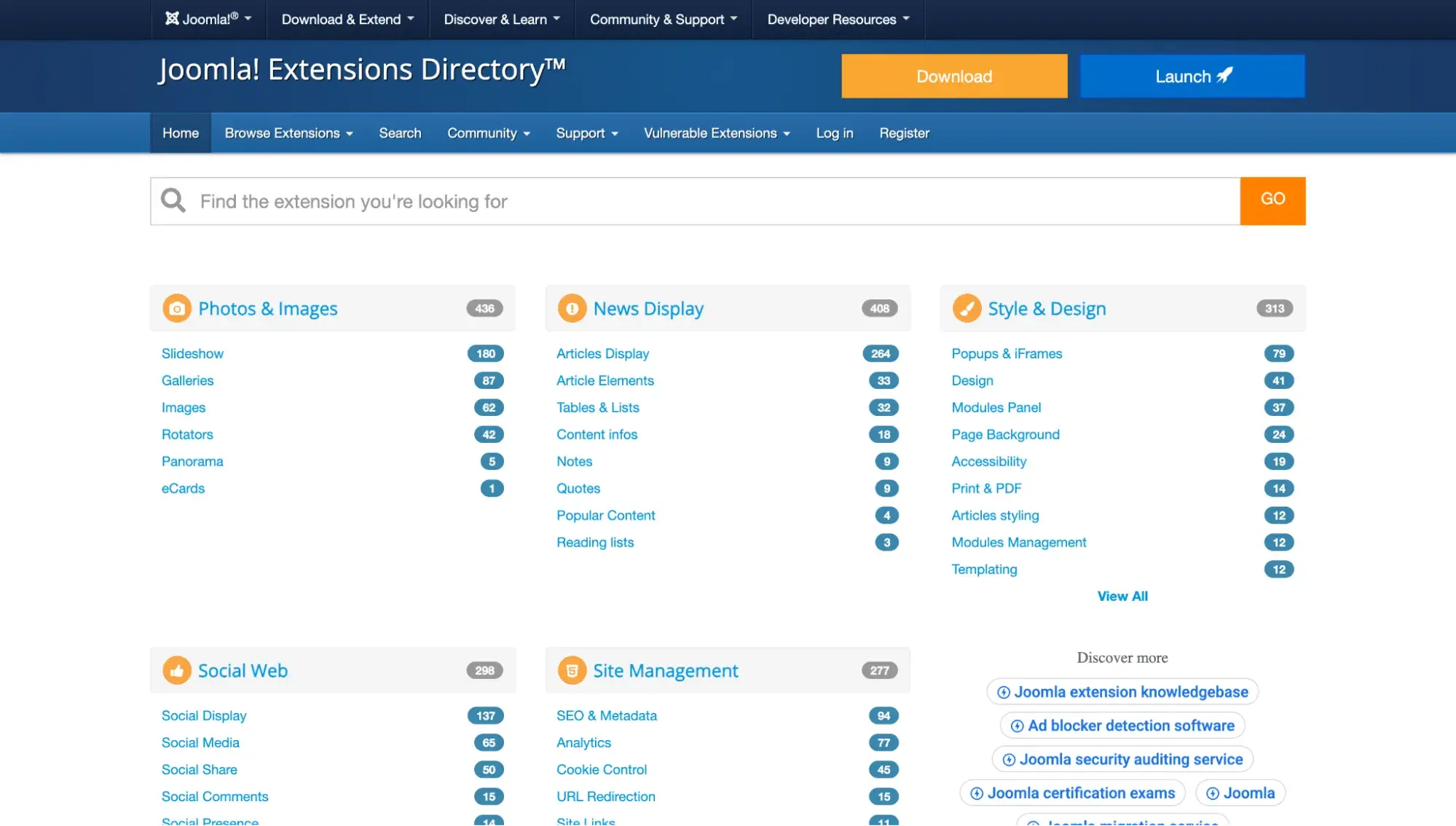
Despite Joomla’s robust built-in functionality, you’re not limited to the features that the platform provides. You can download any of the nearly 5,000 extensions available in the official directory for additional functionality and control over your site.
Security
Joomla has a small Security Strike Team, which regularly releases security patches. A major issue with security was the platform’s lack of built-in functionality for scheduling automatic updates, but as mentioned above, that has been fixed as of October 2025.
As with WordPress, plugins that are outdated are a security risk for Joomla users who install plugins without reviewing or updating them regularly.
Pricing
As with the other open-source platforms mentioned above, Joomla CMS software is free — but you'll have to pay for domain registration, hosting, themes, and maintenance to create and run a Joomla site.
A Brand Using Joomla
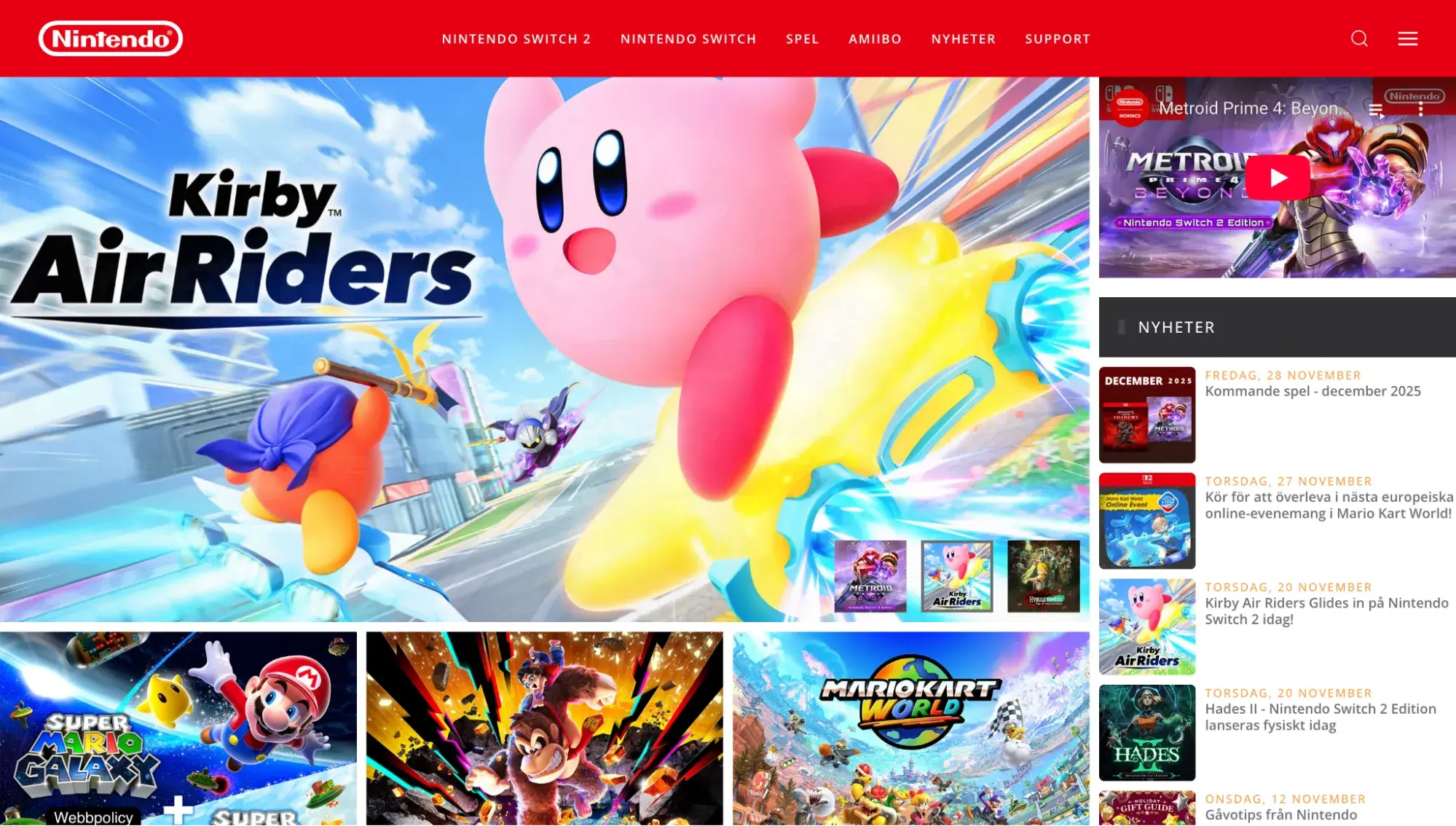
Nintendo Nordic
Joomla notes that the gaming company has used its CMS to manage content on its Nordic websites. When comparing the Nordic example given by Joomla, as well as the site you see in the U.S., both are similar and on-brand with Nintendo. However, the Nordic version seems slightly more visual, with an image grid taking up most of its homepage.
6. Shopify
Shopify is the second most popular CMS in terms of market share, with 6.8% of all websites with a detectable CMS using it, according to W3Techs. It is an all-in-one ecommerce platform designed for retailers to set up and manage an online store. I don't recommend it for non-ecommerce stores (the feature set would be overkill), but it can be a great option if you want to sell physical products online.
Best for: Ecommerce and first-time sellers
Key Takeaways
- Ideal for first-time shop owners
- 800+ website themes and 8,000+ apps
- Handles security and software updates for you
- Second most popular CMS
Ease of Use
Shopify makes running an ecommerce store as simple as running a site on WordPress.com. Though you won’t have as much control over its appearance and functionality, you’ll get a range of features, security, and support to help you manage your site.
If you’re a first-time shop owner or just don’t have the time or resources to design every aspect of your site, this may be ideal. You can use Shopify’s templates (or its AI website builder), built-in blogging tools, customer reviews, ready-to-go payment options for customers, abandoned cart recovery, and analytics on web traffic and products, among other features, to quickly get your store up and running. Shopify also handles software updates and other aspects of the day-to-day management of your site.
HubSpot's Free Website Builder
Create and customize your own business website with an easy drag-and-drop website builder.
- Build a website without any coding skills.
- Pre-built themes and templates.
- Built-in marketing tools and features.
- And more!
Customizability
In exchange for this simplicity, you’ll forgo some customization options. Most notably, because Shopify is a proprietary platform, you can’t modify its code as extensively as you could with an open-source CMS like WordPress or Drupal.
You can, however, change the appearance and functionality of your site by selecting from over 800 themes and 8,000+ apps in Shopify’s official store. Many of the apps enable integrations between Shopify and other platforms like HubSpot to fill in any gaps you need to run your business.
You can also build your own Shopify template or modify an existing one, but you must know Shopify’s template language, Liquid, to be able to do that.
Security
To sell online and accept payments from Visa, Mastercard, American Express, or Discover, your store needs to be PCI compliant. All Shopify stores are automatically PCI compliant by default.
Shopify will also manage security issues and ensure the software is up to date for you.
Pricing
Shopify plans are as follows, based on annual billing:
- Basic: $29 per month
- Grow: $79 per month
- Advanced: $299 per month
- Plus: $2,300 per month on a 3-year term
Shopify plans include web hosting, an SSL certificate, and unlimited products. If you want a custom domain, that will be an additional cost of registering the domain.
For additional seats and other advanced features like gift cards and more reports, you can upgrade to Grow for $79 per month. As you continue to grow, you can upgrade to Advanced for $299 per month for even more seats, analytics, and discounts on payment processing fees.
There is also a Plus plan at $2,300/mo on a 3-year term, which includes unlimited staff accounts and up to 200 inventory locations.
A Brand Using Shopify
Briogeo
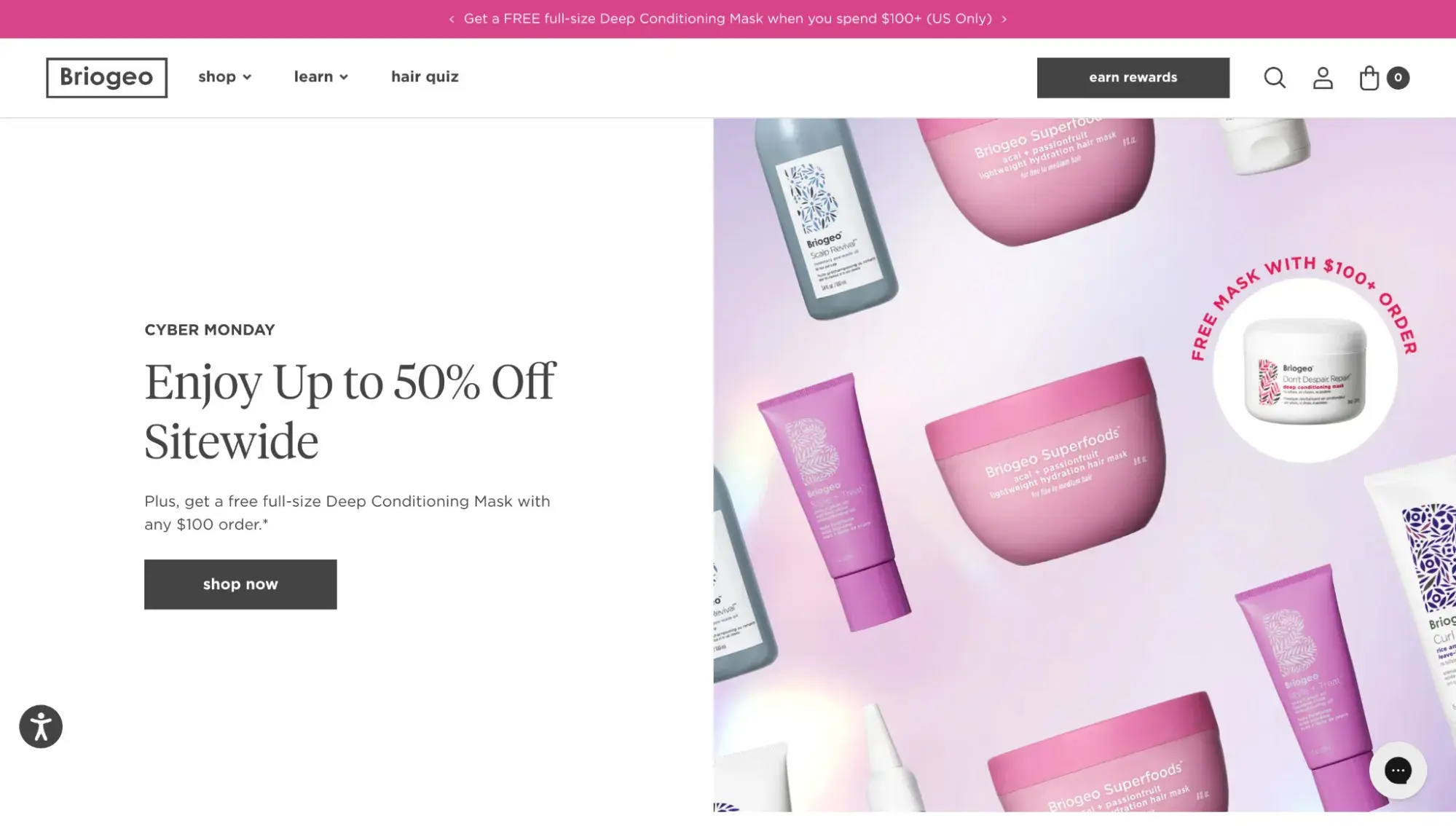
Shopify holds a major share of ecommerce websites, so it’s easy to find go-to examples of websites built on the platform. One that stands out is Briogeo, a hair care company that specializes in using natural ingredients in its products.
Briogeo’s website itself is a fine showcase of what’s possible on Shopify, complete with product displays, mega menus, user accounts, checkout, and even a rewards program.
7. Storyblok
Storyblok is the only purely headless CMS on this list. A headless CMS, unlike a traditional CMS, doesn’t have a front-end presentation layer. Instead, it only comes as the backend layer, where you upload and modify content. A developer must build the frontend and connect it via APIs. For that reason, headless CMSs are beloved by developers, while non-technical professionals struggle to use them without knowing how to code. Storyblok seeks to stand out by being a headless CMS that’s friendly for marketers, too.
According to its site, it has over 177,000+ users, ranging from developers to marketers. Storyblok can be used to build corporate websites, ecommerce sites, mobile apps, screen displays, and more.
Best for: Businesses that want a marketer-friendly headless CMS
Key Takeaways
- Easy-to-use headless CMS for marketers and content managers
- Can serve content to multiple countries, in multiple languages, on multiple device types
- Intuitive visual editor that marketers will enjoy
- Real-time collaboration
Ease of Use
Storyblok is unlike your typical headless CMS platform. While other systems are more flexible for developers, their capabilities for content managers are too limited.
So, in addition to providing a modern headless architecture that gives developers the flexibility to deliver powerful content experiences on any platform, Storyblok offers a unique combination of visual editing tools and highly customizable content blocks for marketers.
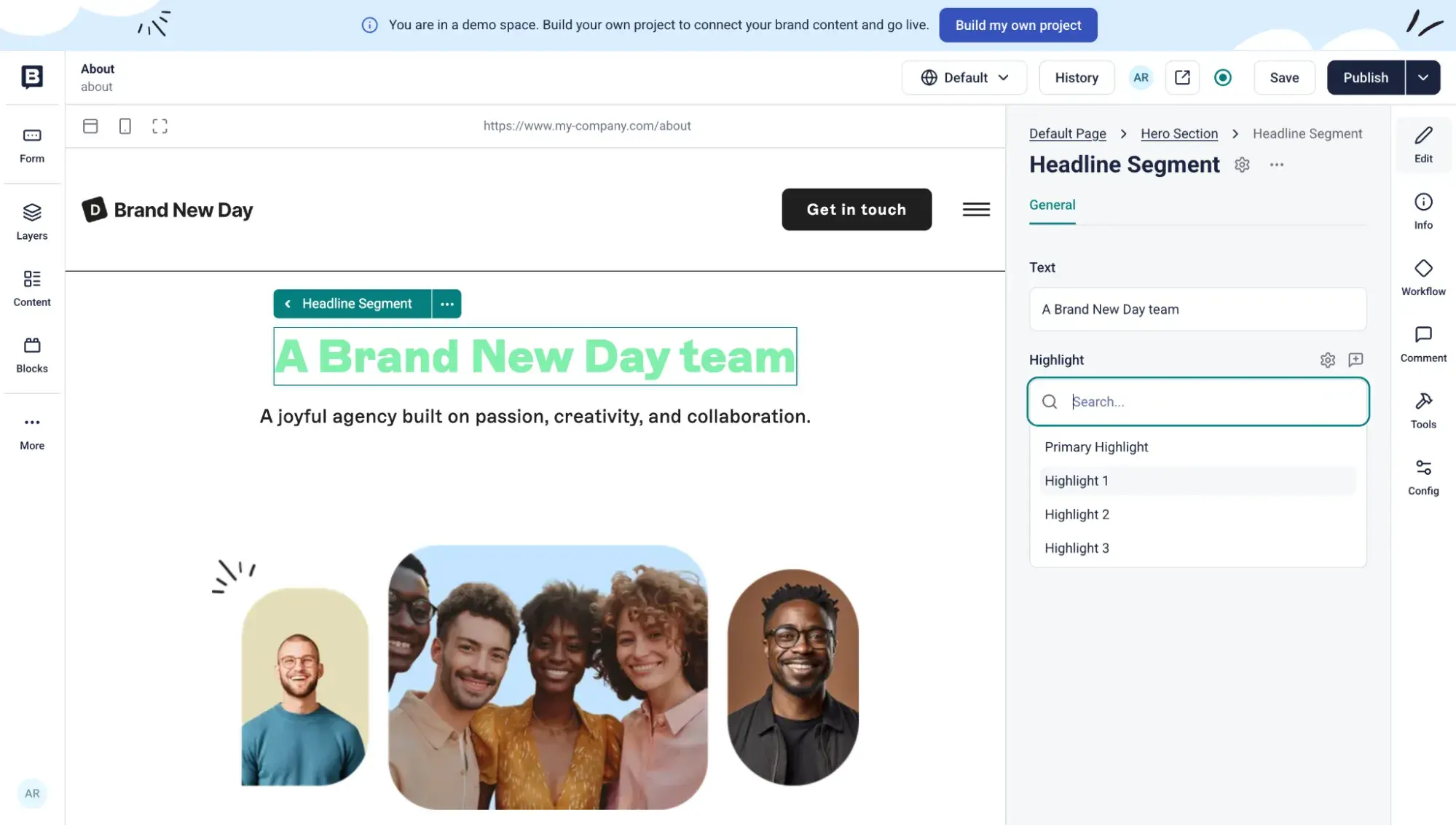
While Storyblok‘s visual editor looks and feels different than a traditional CMS platform’s WYSIWYG editor, it's the closest approximation compared to many other headless CMS systems. It offers drag-and-drop components, clickable content blocks, and customization options in a sidebar — kind of like the block editor in WordPress.
Customizability
Similar to WordPress plugins, Storyblok plugins extend the CMS’s functionality. It offers three types: field, tool, and space plugins. They can do things like customize the visual editor more to your liking.
Another unique feature of Storyblok is its advanced content localization functionality. With Storyblok, you can define your own content localization strategy. That means you’ll be able to serve multiple countries and languages in addition to multiple device types.
Security
Storyblok is hosted on AWS, which provides access control and data security. Storyblok also has several security features and processes in place to protect projects built on its infrastructure, including a WAF and access control with monitoring and changelogs.
Pricing
Below are Storyblok's plans based on annual billing:
- Starter: Free for one member seat, includes one space, 100GB of traffic/month, 100K API requests/month, and 100K AI tokens.
- Growth: $90.75/month for five team member seats. Includes one space, 400GB of traffic/month, 1 million API requests/month, and 250K AI tokens.
- Growth Plus: $319.91/month for 15 team member seats. Includes one space, 1TB of traffic/month, 4 million API requests/month, and 250K AI tokens.
- Custom: Contact Sales for pricing. Includes AI SEO, custom roles and workflows, 99.9% uptime SLA, and GraphQL.
A Brand Using Storyblok
Oatly

According to this case study, Sweden-based oatmilk maker Oatly expanded its online presence to 16 global sites in two months using Storyblok. Because Oatly‘s non-technical team members didn’t need developer support to update content, the time to launch was much faster. Oatly took advantage of Storyblok's localization tools to help with its digital expansion into different countries.
How to Build a Website with a Content Management System
Once you‘ve chosen the best CMS for your specific situation, here’s a quick guide on how you can set up your website:
- Purchase web hosting and a domain name — These are basic requirements to run any self-hosted CMS, regardless of which CMS you choose. For a website builder or hosted CMS platform, you won't need to purchase your own hosting, but you will still need a domain name.
- Install the content management system on your hosting — Most web hosts provide one-click installer tools for popular CMS software, such as WordPress and Joomla. If you use something like HubSpot Content Hub, there's no need to install any software. You can just register for your account and start building.
- Use your system's theming tools to control the design of your site — I recommend setting up your basic site design before going any further. Most CMS platforms offer some type of theme or templating system to help you do this. You can also usually find premade themes to help you save time, such as the hundreds of themes in the HubSpot Template Marketplace.
- Start adding content — Once you have the basic design of your site, you can start adding content using your CMS's content editor.
- Install extensions to add new features when needed — Most CMS platforms offer some type of add-on, app, or extension functionality so that you can add new features to your site when needed.
- Publish and go live — When you're ready to start accepting live visitors, some CMS platforms will give you an option to “publish” your site. With others, your site will already be live as soon as you install the CMS software.
Frequently Asked Questions About CMS Platforms
What is the most commonly used CMS?
WordPress is the most commonly used CMS, with about 43% of all websites using it as their content management system, according to December 2025 data from W3Techs.
What is the easiest CMS for beginners?
This is a complicated question because when beginners say they’re looking for a CMS, rarely are they looking for the CMS software alone. You are probably actually looking for an easy way to build a website, whether it be a blog or a business website. And in that case, what you actually want is a CMS that’s part of an all-in-one website builder — of which there are many.
- Content Hub is suitable for beginners to more advanced users, and is particularly useful for marketing teams that want to use content like blog posts to grow their business.
- Shopify is the best for ecommerce and first-time sellers. It’s a powerful ecommerce platform that has checkout, payments, and more.
- WordPress via the hosted solution WordPress.com is great for individuals and businesses that want the most popular blogging platform but don’t have a dedicated team of developers. You can quickly launch a website using a premade theme or AI.
What's the most common type of CMS?
There are three main types of CMS: traditional, headless, and hybrid. Of these, traditional is the most common type of CMS.
Do I need technical skills to use a CMS?
No, in most cases, you do not need technical skills if you use a CMS like Content Hub or WordPress. The exception is if you’re setting up a headless CMS — the setup is quite technical and requires a developer.
How much does a CMS really cost?
Great question. You can get a CMS for completely free. For example, the software you download from WordPress.org is totally free and open source. However, to use that CMS to actually launch a website will cost money. If you use WordPress as the CMS, for example, you still have to buy web hosting to host your site and a custom domain so people can visit the URL to see your site. Then, you’ll either need a website theme/template (free or paid) or you’ll have to hire a developer for a custom website, which is the most expensive option. If you use a free CMS and purchase hosting, a domain, and a website theme, the total cost starts at less than $100 upfront. Custom development, however, has a price tag in the thousands.
If you use a CMS like Content Hub, which is an all-in-one platform, it handles the CMS, web hosting, and website builder for you. So you pay one subscription fee for all of it; you don’t need to buy separate hosting, and the cost is predictable and transparent. Content Hub has a free plan, and a paid plan starts at $9/month on annual billing.
Can I switch CMS platforms later?
Yes, you can switch CMS platforms later, but it can be technically difficult and resource intensive. For example, if you build your site on Squarespace and then decide you want your site to be self-hosted WordPress, you can’t simply export your Squarespace website’s design. That’s because the design is proprietary to Squarespace. So, in this case, you’d have to export all the content (images, videos, and text), rebuild that design on WordPress, and then migrate all the content over to the new host and WordPress.
Picking the Best CMS for Your Business
While you can’t find “The Best CMS” or one solution that best suits all websites, you can find the best CMS for your business. Your ideal platform will offer the CMS features you need, improve the ability of your teams to manage content, and, ultimately, enable you to provide a desirable website experience for your visitors.
And with plenty of free CMS options out there, it’s easy to get started on experimenting. Sign up for Content Hub for free to begin building your website today.
Editor's note: This post was originally published in February 2020 and has been updated for comprehensiveness.
HubSpot's Free Website Builder
Create and customize your own business website with an easy drag-and-drop website builder.
- Build a website without any coding skills.
- Pre-built themes and templates.
- Built-in marketing tools and features.
- And more!


.webp)