

Social media is an extremely valuable tool for promoting your marketing content.
Additionally, embedding your social profiles on your website or blog posts can help increase traffic to your social networks, and ultimately create brand consistency across platforms.
But with so many social networks providing their own individual sharing and follow buttons, it's often difficult to know which social media button to use for what purpose.
To address this, we've put together a comprehensive guide to help you understand the differences between the share and follow buttons for six of the biggest social networks — Twitter, Facebook, LinkedIn, YouTube, Instagram, and Pinterest — as well as how to implement them on your website, blog, and other content.
Jump to instructions for: Twitter | Facebook | LinkedIn | YouTube | Pinterest | Instagram
The Ultimate Cheat Sheet for Creating Social Media Sharing Buttons
Differentiating between social media sharing buttons and social media follow buttons lets you identify which type of button you should be using for what purpose.
It's the first step in understanding the nuances of all the various social media buttons available to you. Let's clear that up right now.
Social Media Follow Buttons
These buttons serve to promote your business' presence on various social networks and help you generate fans/followers for those particular accounts. By placing these buttons on your business' website, you can help to create visibility for your social media accounts and easily extend your reach there.
You can put these buttons anywhere on your website, but we recommend at least placing these buttons on your website's 'About Us' page and your blog's homepage/sidebar. The Twitter Follow Button, Facebook Follow Button, LinkedIn Company Follow Plugin, and YouTube Subscribe Button (and more) that we'll cover in this article all serve as social media follow buttons.
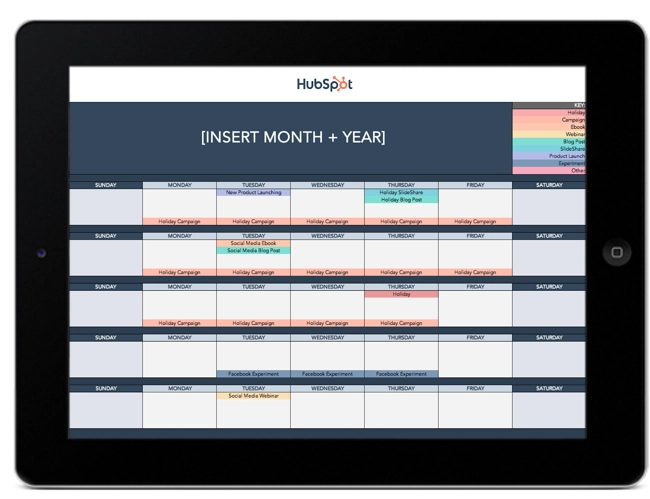
Free Social Media Content Calendar Template
Download the free template and user guide to manage your social media posts and strategy.
- Coordinate campaigns
- Increase your reach
- Measure engagement
- Plan your posts
Download Free
All fields are required.
Social Media Share Links/Buttons
These links and buttons enable your website visitors and content viewers to easily share your content with their social media connections and networks. Adding these buttons to your content allows you to expand the reach of your content to new audiences and generate new visitors back to your website.
You should add social media sharing links/buttons to every piece of content you create, including landing pages, web pages, individual blog articles, email content, etc. The Tweet/Share Button, Facebook Like and Share Buttons, and LinkedIn Share Button (and more) that we'll cover in this article all serve as social media sharing buttons.
Now, let's dive into the most important social media buttons available for each of the top six social networks. (HubSpot customers: Many of these buttons come out of the box with HubSpot's Social Media Apps.)
Social Media Buttons for Twitter
1. Twitter Follow Button
What It's For:
The Twitter Follow Button is great for generating new followers for your Twitter account. Users can start following you on Twitter with just one click -- without ever having to leave your site.
How to Add a Twitter Follow Button:
Visit https://publish.twitter.com/# and select "Twitter Buttons" to customize your button's featured account (i.e. the account you want people to follow).

Then, select "Follow Button":

Finally, copy and paste the HTML code it generates where you want the button to appear on your website.

Alternatively, click "set customization options" above the embed link if you'd like to further customize aspects like language, or size of button.
See it in action. Follow HubSpot on Twitter:
2. Twitter Share Button
What It's For:
Use this button to enable site visitors to easily share content (e.g. blog posts, landing pages, other web pages, etc.) with their networks on Twitter, extending the reach of your content to their connections.
How to Add a Share Button:
Visit https://publish.twitter.com/# and select "Twitter Buttons". Then, Choose "Share Button":
We recommend adding your company's Twitter username to increase your account's reach and generate new followers.

Once customized, grab the HTML code for your new button and place it on your site where you want the button to appear.
See it in action. Tweet this blog post:

3. Twitter Hashtag Button
What It's For:
This button is great for encouraging visitors to tweet about certain hashtags you're promoting, like for events or specific marketing campaigns. Add these buttons to pages for these campaigns or events to spread and promote the event and its hashtag. (For more information about hashtag use, check out this blog post.)
For instance, if you're promoting an event with a hashtag, you can grab the HTML code and place it your event's website or registration page.
How to Add a Twitter Hashtag Button:
Visit https://publish.twitter.com/# and click "Twitter Buttons" to customize your hashtag button. Then select "Hashtag Button". Next, you can either customize or copy-and-paste the code as-is into your website.

See it in action. Tweet about HubSpot's annual marketing and sales event, INBOUND:
.webp?width=356&height=92&name=Screen%20Shot%202020-09-18%20at%204.42.17%20PM%20(1).webp)
4. Twitter Mention Button
What It's For:
Use this button to encourage website visitors to communicate with you via Twitter. Add this button to pages on your site like your 'Contact Us,' 'About Us,' or 'Help' pages. It's great for customer support.
How to Add a Twitter Mention Button:
Visit https://publish.twitter.com/# and click "Twitter Buttons" and then "Mention Button" to customize your button. Then grab the HTML code and paste it into your website's HTML where you want the button to appear.

See it in action. Tweet a message to HubSpot:

5. Twitter Message Button
What It's For:
Use this button to helps users connect with you via a private direct Twitter message. This is another great Twitter button to add to your site's 'Contact Us' or 'Customer Service' pages so customers can easily connect with you for problem-solving.
How to Add a Twitter Message Button:
Visit https://publish.twitter.com/#, and click "Twitter Buttons" and "Message Button" to customize your button. Then grab the HTML code and paste it into your website's HTML where you want the button to appear.

See it in action. Send a direct message to HubSpot:
6. Pre-populated 'Tweet This' Anchor Text Links
What They're For:
Have you ever wanted to create an anchor text link that pre-populates a specific Twitter message for your visitors to share? We call these links 'Tweet This' links, and at HubSpot, we use them in blog articles a lot to make sharing content easier.
Usually, these tweet links are used on landing pages to promote offers using specific messaging, and within content itself such as in blog posts. Similar to the official Tweet Button, 'Tweet This' links enable marketers to have more control over the message a visitor shares about their content on Twitter.
Free Social Media Content Calendar Template
Download the free template and user guide to manage your social media posts and strategy.
- Coordinate campaigns
- Increase your reach
- Measure engagement
- Plan your posts
Download Free
All fields are required.
How to Add a 'Tweet This' Anchor Text CTA:
Luckily, there's a great, free tool to help you easily create 'Tweet This' links for your content. Simply visit http://clicktotweet.com, enter the message you want to populate the tweet and click "Generate New Link", and then copy/paste the generated URL into your anchor text (e.g., "Tweet This!"):


As a best practice, include a URL in the tweet message to direct people back to the original piece of content you're trying to promote, and be sure to shorten the URL to save room for the tweet copy. It's also a great idea to include your business' @username in the tweet to help increase reach.
See it in action:
(Remember, you can customize the anchor text however you like.)
7. Twitter Timeline Widget
What They're For:
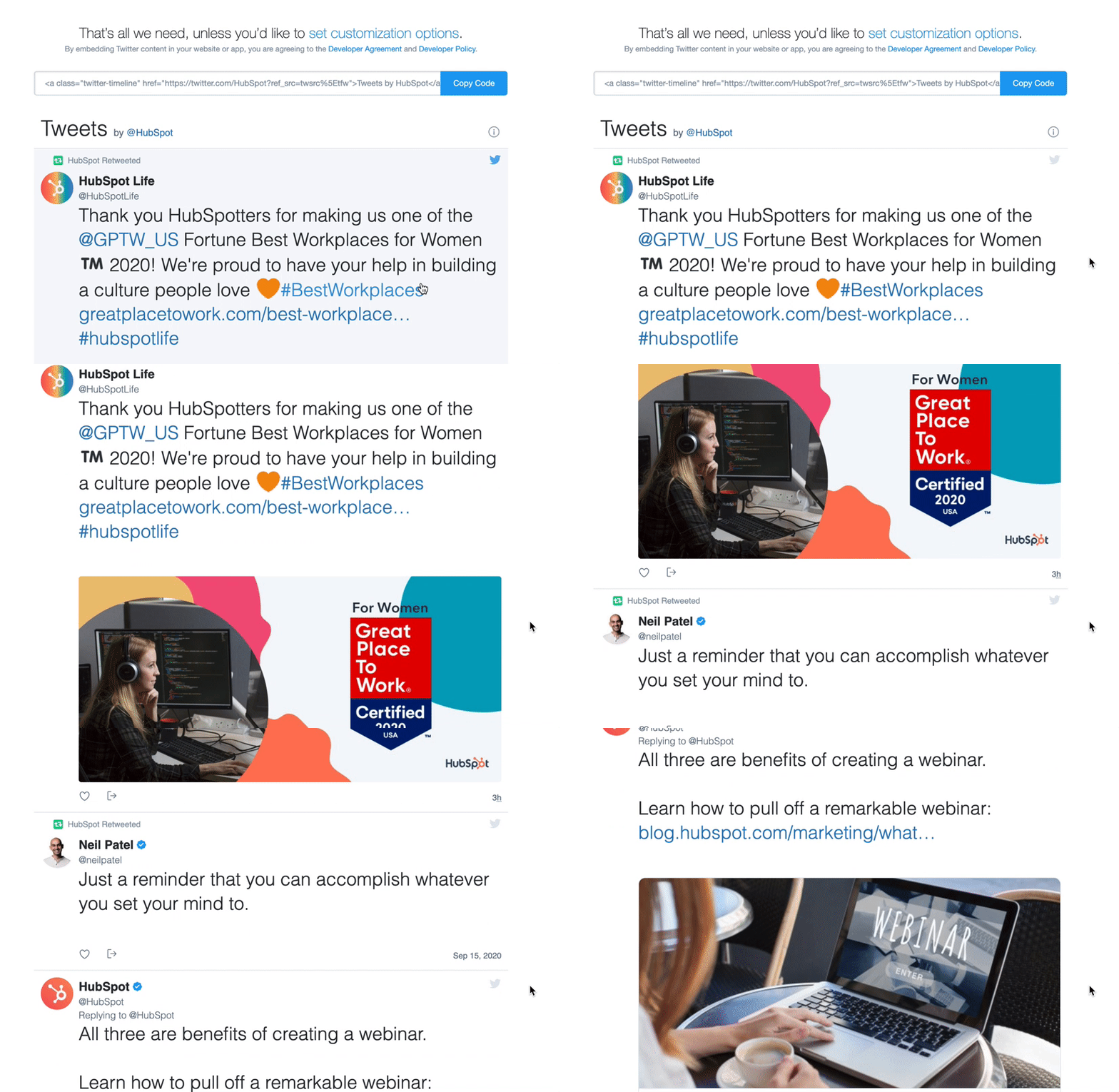
Twitter's Timeline widget allows you to embed your entire business' Twitter profile onto your website, so users can see all recent Tweets right from within your website.How to Add a Twitter Timeline Widget:
Visit https://publish.twitter.com/#, click "Embedded Timeline", and paste your business' Twitter profile URL, lists, or favorites. Then grab the HTML code and place it on your website where you want the widget to display.
.webp?width=1278&height=763&name=timeline-min%20(1).webp)

See one in action:
Social Media Buttons for Facebook
1. Facebook Page Plugin
What It's For:
The Facebook Page Plugin enables you to promote your business' Facebook Page on your website/blog, highlight other users who have already Liked your page, display your follower count, and feature recent posts on your page.
The box also allows visitors to like your Facebook Business Page with just one click -- without leaving your site -- enabling you to promote your Facebook presence and easily increase your page's Likes.
How to Add a Facebook Page Plugin:
To generate a Facebook Like Box for your website, visit https://developers.facebook.com/docs/plugins/page-plugin. Include the vanity URL for your Facebook Page as well as your customization preferences. Then generate the code (available in HTML5, XFBML, IFRAME, or a URL), and place it on your website where you want it to appear.

See It in Action:
2. Facebook Like Button
What It's For:
Facebook's Like Button is a button that enables users to easily give your content a virtual thumbs up. By clicking the Like Button, a story also appears on the user's Facebook Timeline and in their friends' News Feeds with a link back to your content, whether it's a blog post or a specific landing page.
Use this button to make it easy for visitors to endorse your content and share it with their Facebook connections, but keep in mind this button doesn't allow them to add personalized messages to links before sharing them. To allow users to add a personalized message, use the Facebook Share Button (see below).
How to Add a Facebook Like Button:
Visit https://developers.facebook.com/docs/plugins/like-button to customize your Like Button and grab the code (available in HTML5, XFBML, IFRAME, or a URL) to place on your website.
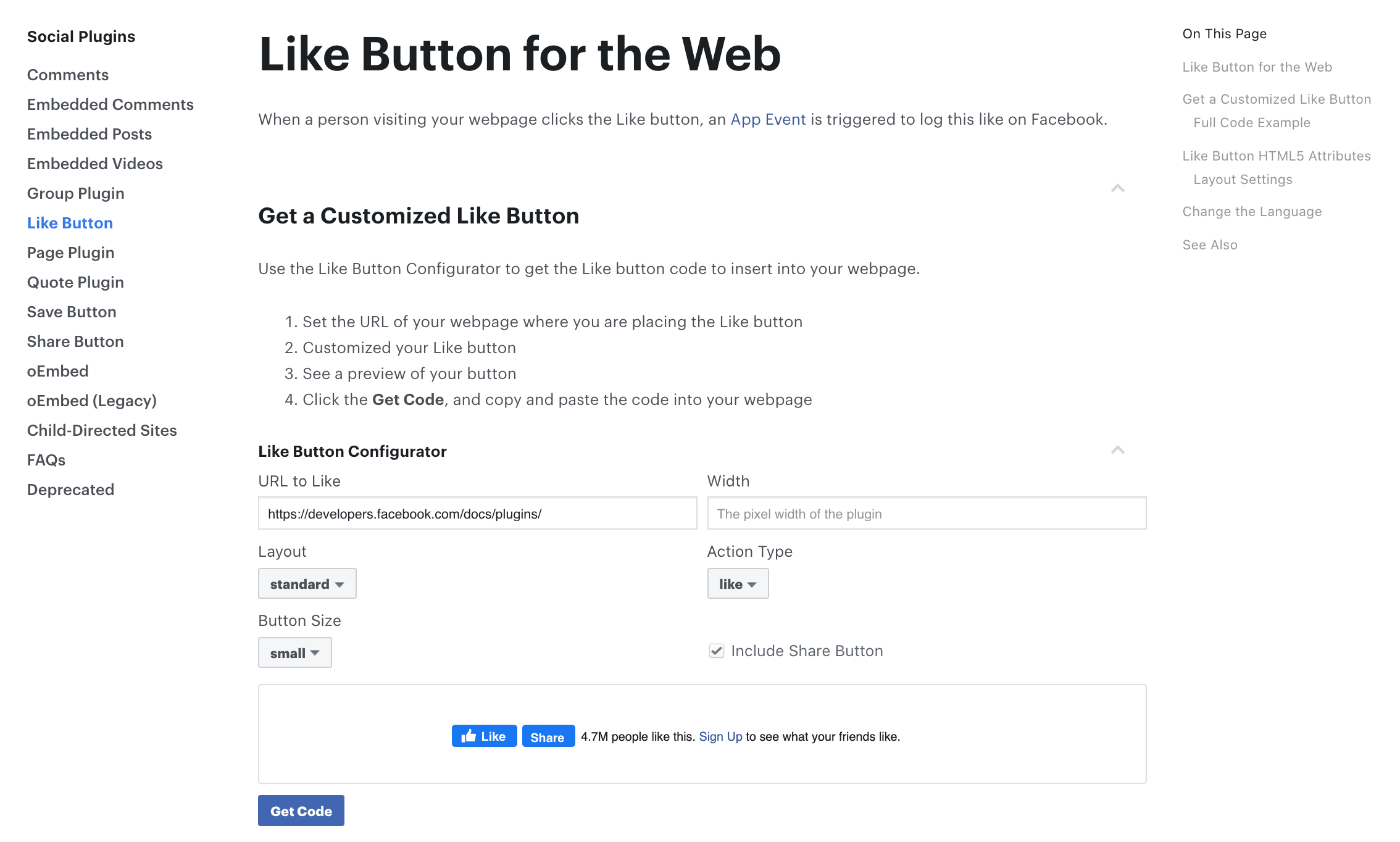
See it in action:
3. Facebook Share Button
What It's For:
Facebook's Share Button acts similarly to the Like Button (sharing your content on their Timeline and in friends' News Feeds), but it also gives users the option of adding a comment or message to the link when sharing it. This button also allows them to share the content in other ways -- in Facebook Groups and in Facebook Messages to specific users.
How to Add a Facebook Share Button:
To generate a Facebook Share Button, visit https://developers.facebook.com/docs/plugins/share-button and specify the URL you want people to share as well as the width. Then generate the code, and paste it into your site where you want the button to appear. (Note: The share button is only available in HTML5 or XFBML, and it requires the JavaScript SDK.)
See it in action:
4. Facebook Anchor Text Share Links
What They're For:
There may be times when you prefer to use an anchor text share link over a button. These links are easy to create and can be added to web pages, blog articles, landing pages, or within content like ebooks and whitepapers.
How to Add Facebook Anchor Text Share Links:
To create your own Facebook share links, replace the orange section of the URL, below, with the URL of the content you want to promote. Then link the full URL to the anchor text you want to appear in your content.
http://www.facebook.com/share.php?u=hubspot.com
See One in Action:
Share This Post on Facebook!
More Facebook Buttons: We've covered the most commonly used social media buttons for your business here, but to find all of Facebook's official social media plugins in one place, visit https://developers.facebook.com/docs/plugins/.
Social Media Buttons for LinkedIn
1. LinkedIn Follow Company Plugin
What It's For:
The LinkedIn Follow Company Plugin, similar to Twitter and Facebook's follow buttons, makes it easy for visitors to follow your Company Page on LinkedIn. This enables you to increase your business' reach on LinkedIn.
Free Social Media Content Calendar Template
Download the free template and user guide to manage your social media posts and strategy.
- Coordinate campaigns
- Increase your reach
- Measure engagement
- Plan your posts
Download Free
All fields are required.
How to Add a LinkedIn Follow Company Plugin:
Visit https://docs.microsoft.com/en-us/linkedin/consumer/integrations/self-serve/plugins/follow-company-plugin to configure your button. There are a few different styles to choose from, with options to show your follower count above, to the right, or not at all.
Next, copy the HTML script, replacing the "data-id=1337" part with your own company's ID number. You can find this under the admin section of your company page.
How They Look

2. LinkedIn Share Button
What It's For:
Adding LinkedIn's Share Button enables visitors to easily share your content with their connections on LinkedIn, whether it be a blog post, a landing page, or another web page. Like Facebook's Like and Share Buttons and Twitter's Tweet Button, incorporating this button can help extend the reach of your content to the LinkedIn audience and drive traffic back to your site.
How to Add a LinkedIn Share Button:
To create and install this button, visit https://docs.microsoft.com/en-us/linkedin/consumer/integrations/self-serve/plugins/share-plugin, and copy the HTML code. Then, swap out the data-url="https://www.linkedin.com" with whichever URL you'd like visitors to share, i.e. the blog post visitors are reading or the web page they've landed on.

More LinkedIn Buttons: Although we've covered the most commonly used buttons above, you can find all of LinkedIn's official social media buttons and plugins in one place at https://docs.microsoft.com/en-us/linkedin/consumer/integrations/self-serve/plugins?context=linkedin/consumer/context.
Social Media Buttons for YouTube
1. YouTube Subscribe Button
What It's For:
This button is an easy way for an organization to promote their YouTube video channels. You can embed this button on your homepage or 'Contact Us' page to increase the reach of the content you promote on your channel and to increase your subscriber base.
How to Add a YouTube Subscribe Button:
To create a YouTube Subscribe Button, visit https://developers.google.com/youtube/youtube_subscribe_button, enter the name of your company's YouTube channel, select a button size and color theme, decide whether you want to display your logo, and decide whether you want to display your follower count shown or hidden. Then, copy and paste the code onto your website where you'd like the button to appear.
See it in action. Subscribe to HubSpot's YouTube channel:

Social Media Buttons for Pinterest
1. Pinterest Follow Button
What It's For:
Just like the other popular social networks, Pinterest also offers a Follow Button to enable you to promote your Pinterest presence and generate new followers for your account.
How to Add a Pinterest Follow Button:
Visit https://developers.pinterest.com/tools/widget-builder/?type=follow, and configure your button by typing in your Pinterest account's URL and account name. Once you input that information it will automatically generate the code, which you can paste into your website.
See it in action. Follow HubSpot on Pinterest:
2. Pin It Button
What It's For:
This is Pinterest's share button, enabling users to share your content on Pinterest and expand its reach. The Pin It button is great for visual content. Place these buttons next to images, infographics, and other visual content on your site.
How to Add a Pin It Button:
Visit https://developers.pinterest.com/tools/widget-builder/?type=pin to create your Pin It Button. Paste in the pin's URL and pin size. Then, copy the generated embed code to use on your website.
See it in action. Pin this blog post:
More Pinterest Buttons: Other Pinterest widgets include a Profile Widget for showing a preview of your pins, a Board Widget for showing off specific pinboards, and a Pin Widget for showing off specific pins. Build them at https://business.pinterest.com/en/widget-builder.
Social Media Buttons for Instagram
1. Adding Instagram Profile to Your Website
What It's For:
Instagram offers a "View on Instagram" badge for organizations to promote their accounts on their blogs and websites. The badge also helps organizations promote their social media accounts without web visitors having to navigate using their mobile devices. The badges keep visitors looking at your content and engaging with you on the same web browser.
How to Add an Instagram Icon:
Most popular website builders, including HubSpot, WordPress, and Wix, come with social media icons, including Instagram, to easily embed into your site. From there, you'll simply want to link the icon out to your business' Instagram account (http://www.instagram.com/yourusername).
Alternatively, there are third-party plugins that enable you to embed your entire Instagram feed. Some options include Powr and Juicer. It's important to note, you might not want to embed your feed into your website since it might dissuade users from checking you out on Instagram. In that case, simply having an Instagram icon linking to your profile is the best option.
How They Look:
 (This is how the button looks on HubSpot.com, but you can design your own to match your website's aesthetic.)
Free Social Media Content Calendar Template
Download the free template and user guide to manage your social media posts and strategy.
- Coordinate campaigns
- Increase your reach
- Measure engagement
- Plan your posts
Download Free
All fields are required.
Note to Sharers: Social Media Terms of Service
Before modifying social media buttons on your website, take a look at the Terms of Service for Facebook, Twitter, LinkedIn, Pinterest, YouTube, and Instagram. Modifying logos and branding could result in your website being penalized, so when in doubt, use the exact logos populated by the widgets we've listed above. Happy sharing!
Editor's Note: This post was originally published in December 2011 and has been updated for accuracy and comprehensiveness.


![11 Facebook Cover Photo Size & Design Best Practices [Templates]](https://53.fs1.hubspotusercontent-na1.net/hubfs/53/facebook%20cover%20photo%20size.jpg)
![Your Bookmarkable Guide to Social Media Image Sizes in 2021 [Infographic]](https://53.fs1.hubspotusercontent-na1.net/hubfs/53/social-media-sizes-2.jpg)

![How to Change Photo Privacy Settings on Facebook, Twitter & Other Popular Social Networks [Infographic]](http://53.fs1.hubspotusercontent-na1.net/hubfs/53/keep-personal-photos-private.jpeg)
![The Free Stock Photos You've Been Searching For [New Download]](http://53.fs1.hubspotusercontent-na1.net/hubfs/53/00-Blog-Related_Images/free-stock-photos-blog-image.png)


