
Taking a page from a 2004, 2014, or even 2024 Facebook playbook isn‘t going to guarantee success. Businesses that get traction on Facebook are tailoring their strategy to what’s working right now (and most are running ads). I've managed Facebook pages for all kinds of brands: nonprofits, local government offices, small businesses, digital brands, and more. Let me show you the ropes of a modern Facebook strategy.
Table of Contents
How to Use Facebook for Business
If you're just doing Facebook to “check the box,” then you can set up your Page, enter your business details, and go water your virtual grass elsewhere. Brands ready to actually build and engage on Facebook can follow these steps.
The State of Social Media in 2025
Explore the top trends in social media for brands to know and optimize your social strategy.
- AI Content Creation
- Community Building
- Social Media Shopping
- Social Vs. Search Engine
Download Free
All fields are required.
1. Create engaging content.
Posting only text and photos on Facebook is so mid-2000s. Content can take almost any form on Facebook, including:
- Text posts.
- Photos.
- Short-form videos.
- Long-form videos.
- Live videos.
- Stories.
- Polls.
Here's a great content example from activewear brand POPFLEX Active. This is a short-form video asking for product feedback from viewers:
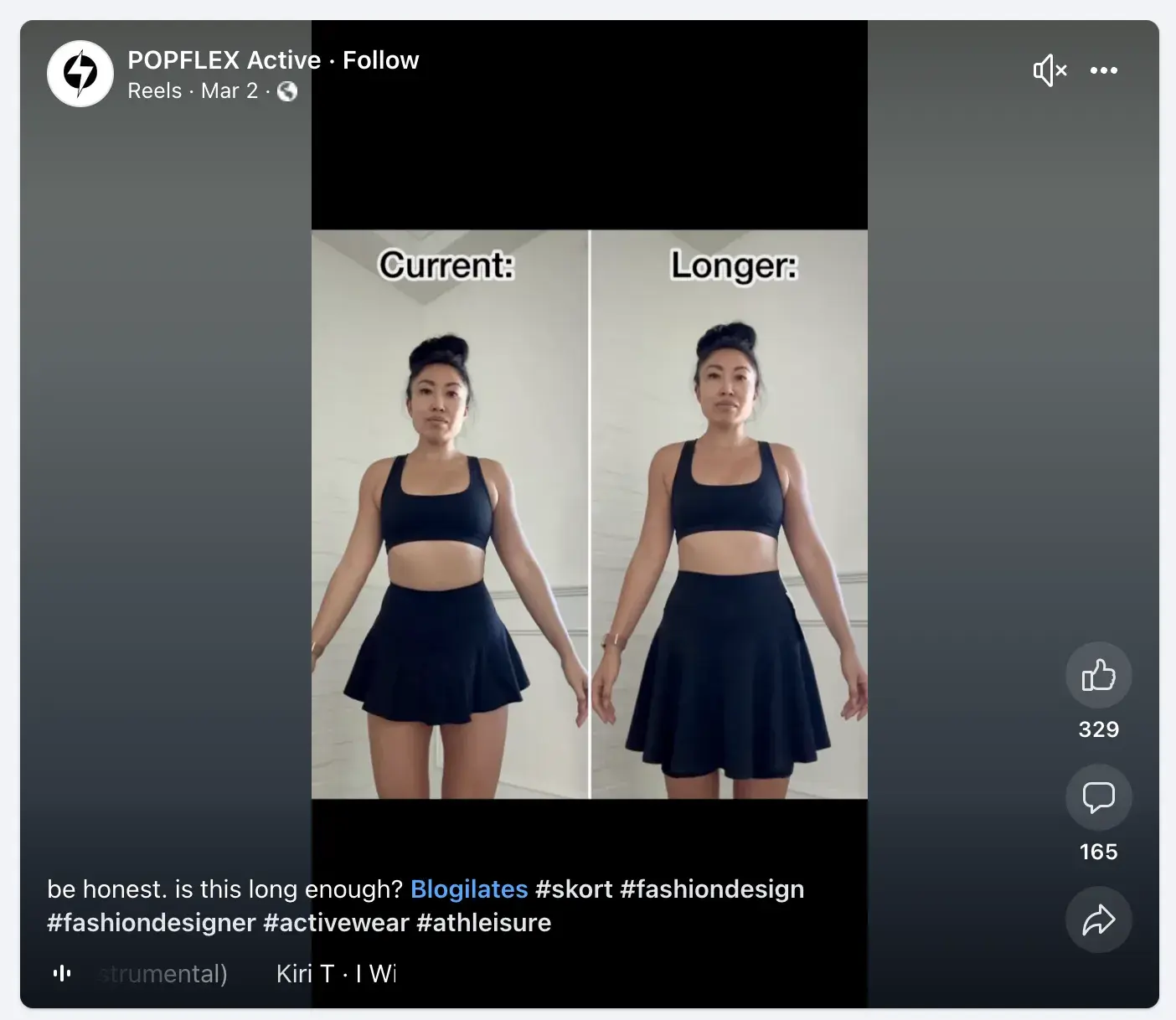
The above list covers different content formats that you can produce on Facebook. Each piece of content also needs a goal. Popular content goals include:
- Demonstrating products.
- Showing off happy customers.
- Answering questions.
- Getting product feedback.
- Engaging customers in comments.
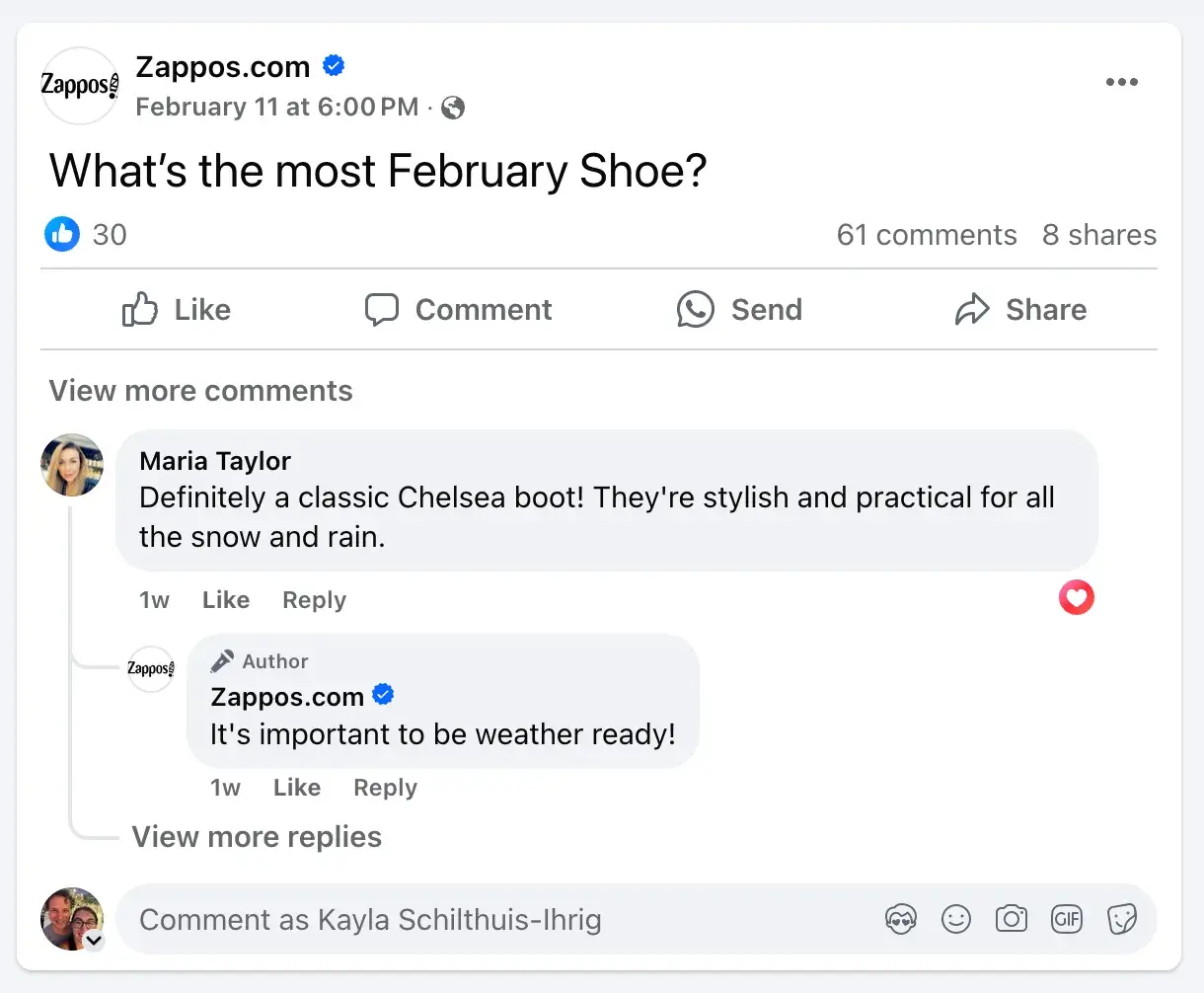
Here's an example of a short text post from Zappos. Not only did they post an engaging, on-brand question — they also replied to the comments from their audience. This leads us right into step number two.
2. Engage with your audience.
If I had to guess, I would say that 80% of businesses handle engagement badly on Facebook. This isolates customers, loses momentum in the algorithm, and defeats the purpose of social media. Engaging with viewers on your Facebook Page is key in growing a meaningful social media presence.
On Facebook, you can directly engage with your target audience through:
- Post comments.
- Comment reactions.
- Direct messages.
- WhatsApp messages.
- Groups.
- Live video.
Here's a great example from Forme answering questions from their audience on a Facebook ad:
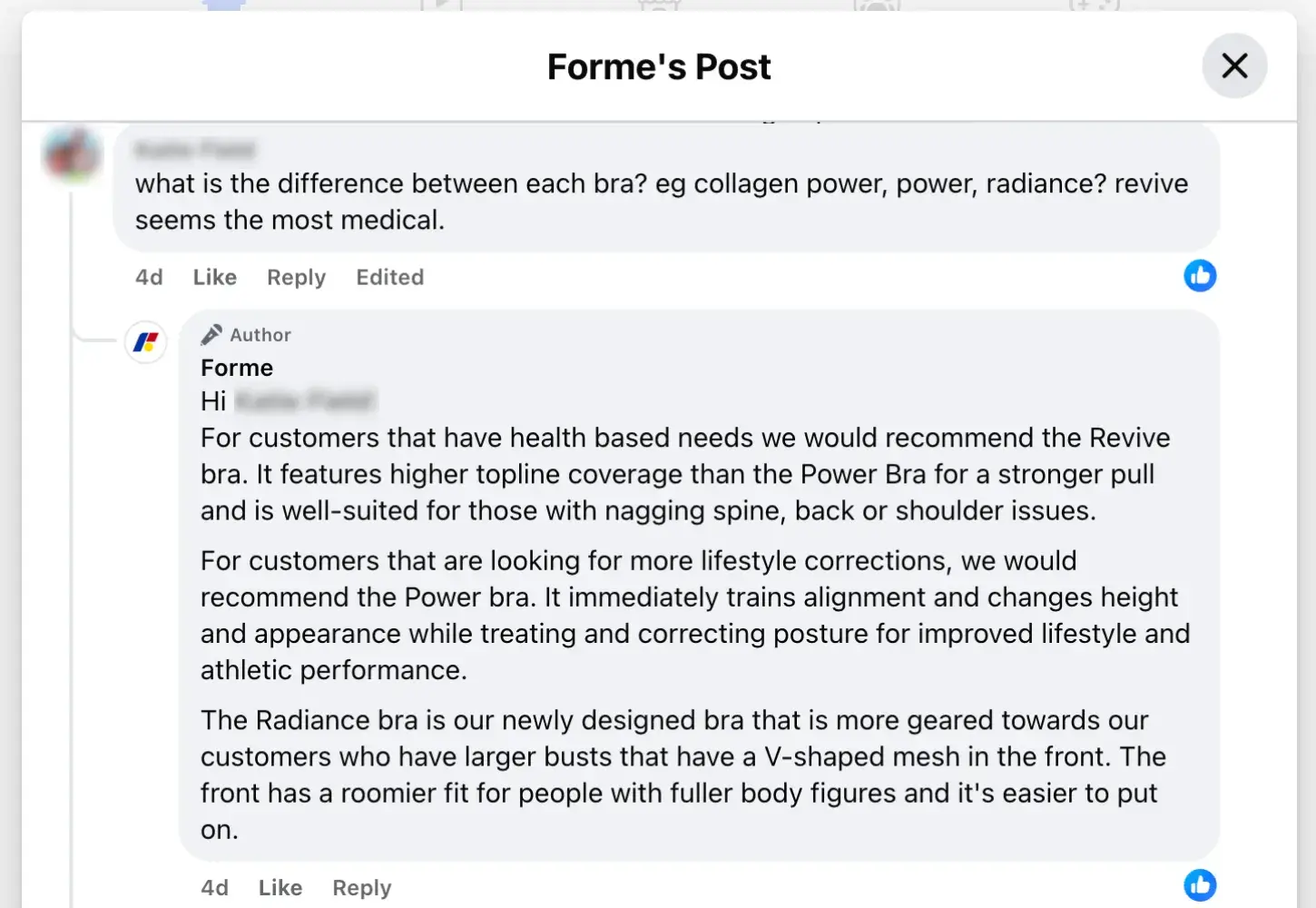
An engaged Facebook Page will require more time from the marketing or customer support team, but engagement is a good thing. Facebook tries to make it easy for brands, too.
Within your Meta Business Suite (previously called Facebook Business Manager or Business Manager Account), you can see your curated “to-do list” that includes unread messages and comments. This makes it easier for you to engage with customers and show that your page is a dialogue and not a monologue.
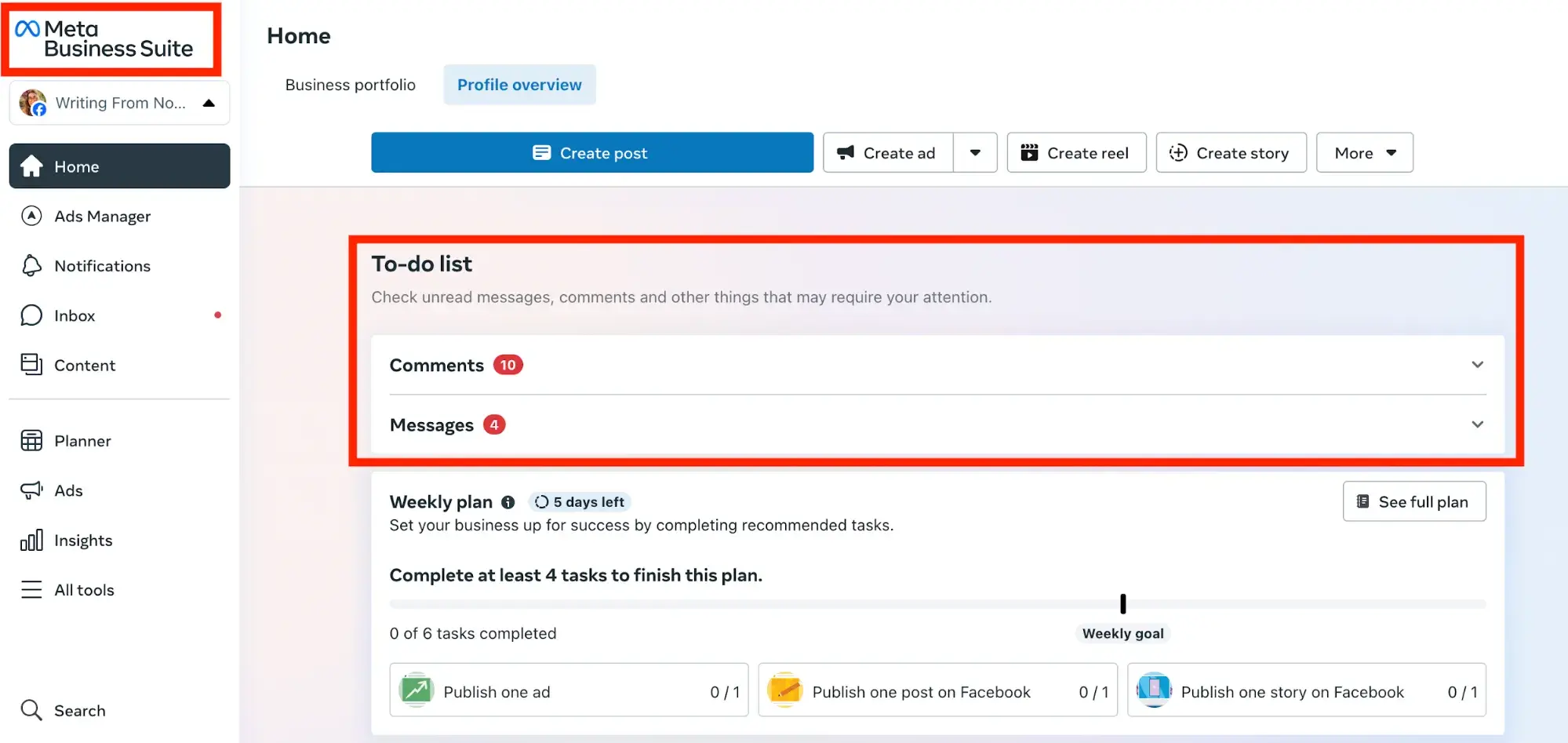
Note that business tools like this aren‘t available on a personal Facebook account. You’ll need to create a Facebook Business Page to access the Meta Business Suite. You can also use our social inbox tool to help manage all of your social communications.
3. Consider creating a group.
There‘s more to Facebook marketing than just having a business page. Facebook groups are a powerful way to help customers maximize their success with your brand, but it’s not right for everyone.
Here are a few questions to ask to determine if a Facebook group is right for your brand:
- Are referrals a big part of your lead generation strategy?
- Does your brand rely on a membership model?
- Are there existing groups (run by others) dedicated to your products?
- Could users of your product help each other, instead of you having to answer customer support tickets all day?
If you're nodding your head, then a Facebook group could be a viable part of your marketing plan.
Here‘s a Facebook group example from Instant Pot®, a pressure cooker company (that I can personally testify is worth the hype). On top of facilitating discussion, it’s a rich resource helping customers find success with the product:
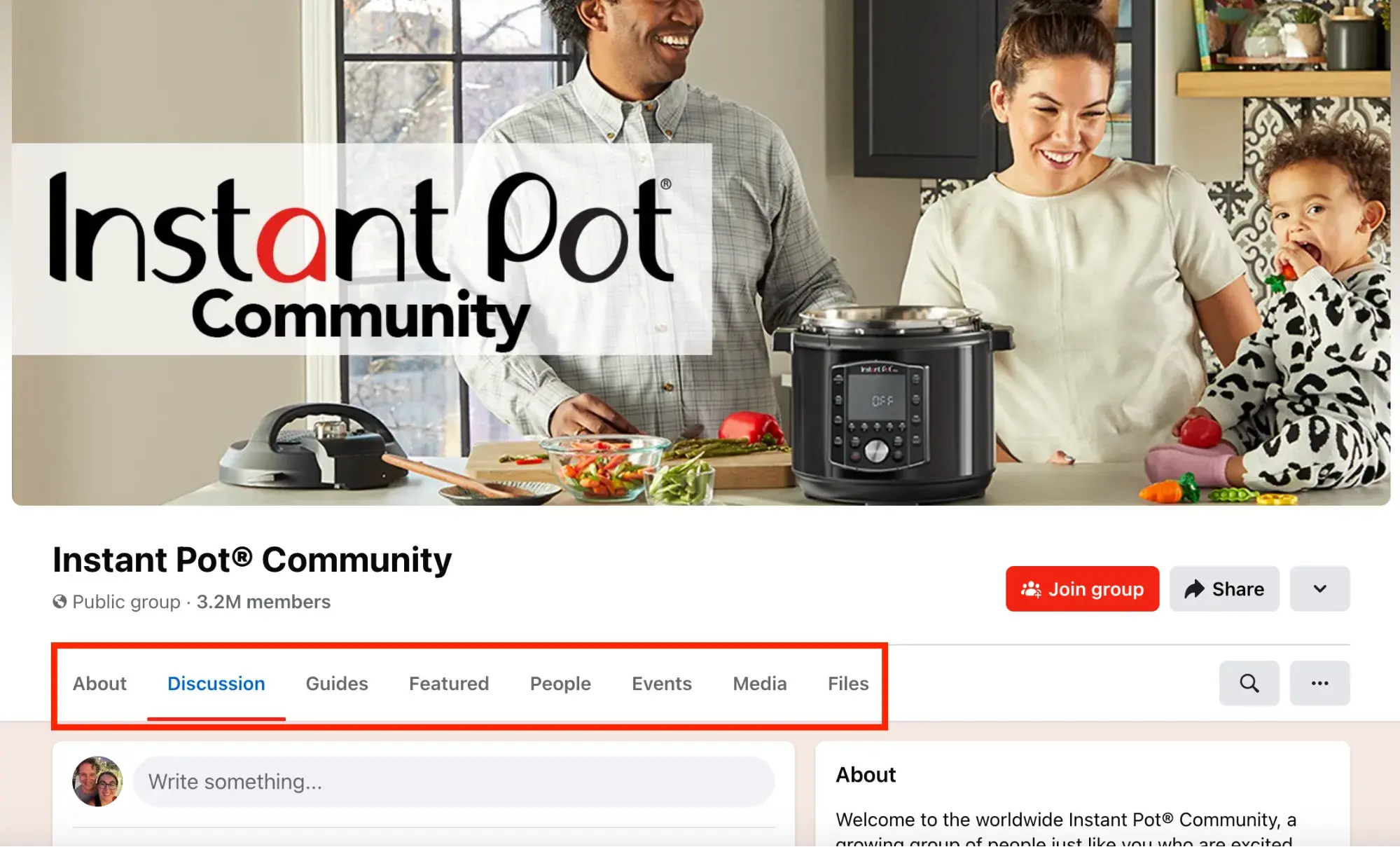
The idea of an online forum surrounding a specific topic isn't new. In fact, it has early internet vibes where there were dedicated community forums for any topic you can imagine.
A Facebook group is a powerful forum because you can observe the discussion and moderate when necessary, instead of having to provide all of the engagement yourself. Users will meet each other and find community by gathering around your brand.
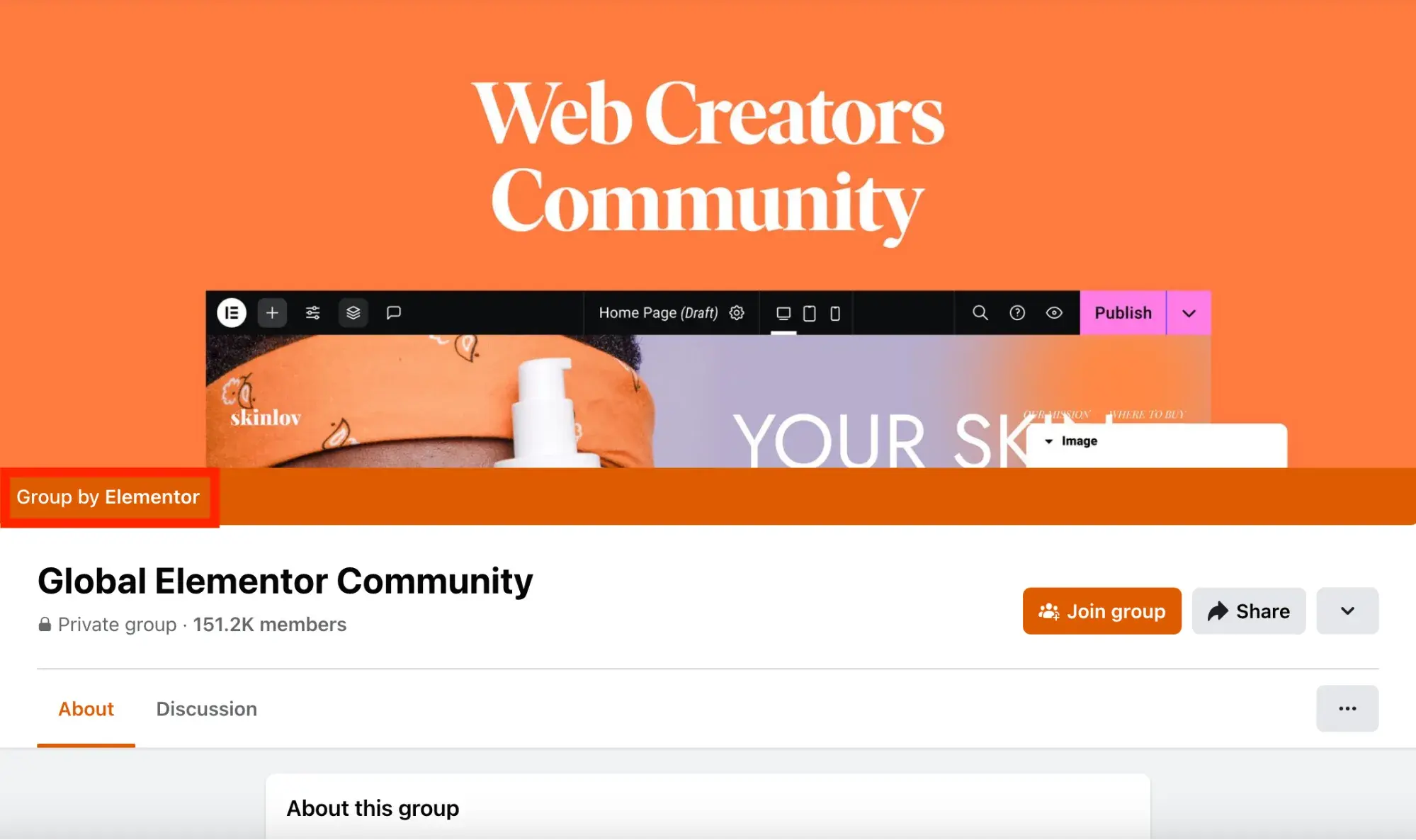
I‘m in a number of Facebook groups like this — the Elementor Facebook group comes to mind. As far as I’m aware, Elementor employees engage minimally and users are helped by one another. Creating the group allows Elementor to have some say in the narrative/advice stemming from online chatter.
4. Listen to your audience.
This step is similar to the engagement step, but it drills straight to the core of social media marketing. Is your Facebook page a monologue or a dialogue? It should be a massive learning opportunity for your marketing team.
I've noticed that many businesses let their failure to listen on Facebook turn into a negative billboard for their company. For example, customers leaving comments on posts asking to get in touch with customer support and getting ignored.
Or worse — other viewers start to dogpile on the discussion, complaining about the brand together (I see this happen all the time on the Pinterest Facebook page).
When I managed the Facebook page for a local government office, I can remember people asking critical questions about how their tax dollars were being used. It's a fair question, but leadership insisted on deleting the comments instead of engaging. It was a huge missed opportunity.
To really leverage Facebook for marketing, you should actively ask users for their feedback and use social media listening tools to track what people are saying. You can track mentions of your company and follow hashtags so you always know what's trending and going on with your customers.
The more engagement you get, the more data you'll be able to pull about your audience through the Meta Business Suite:
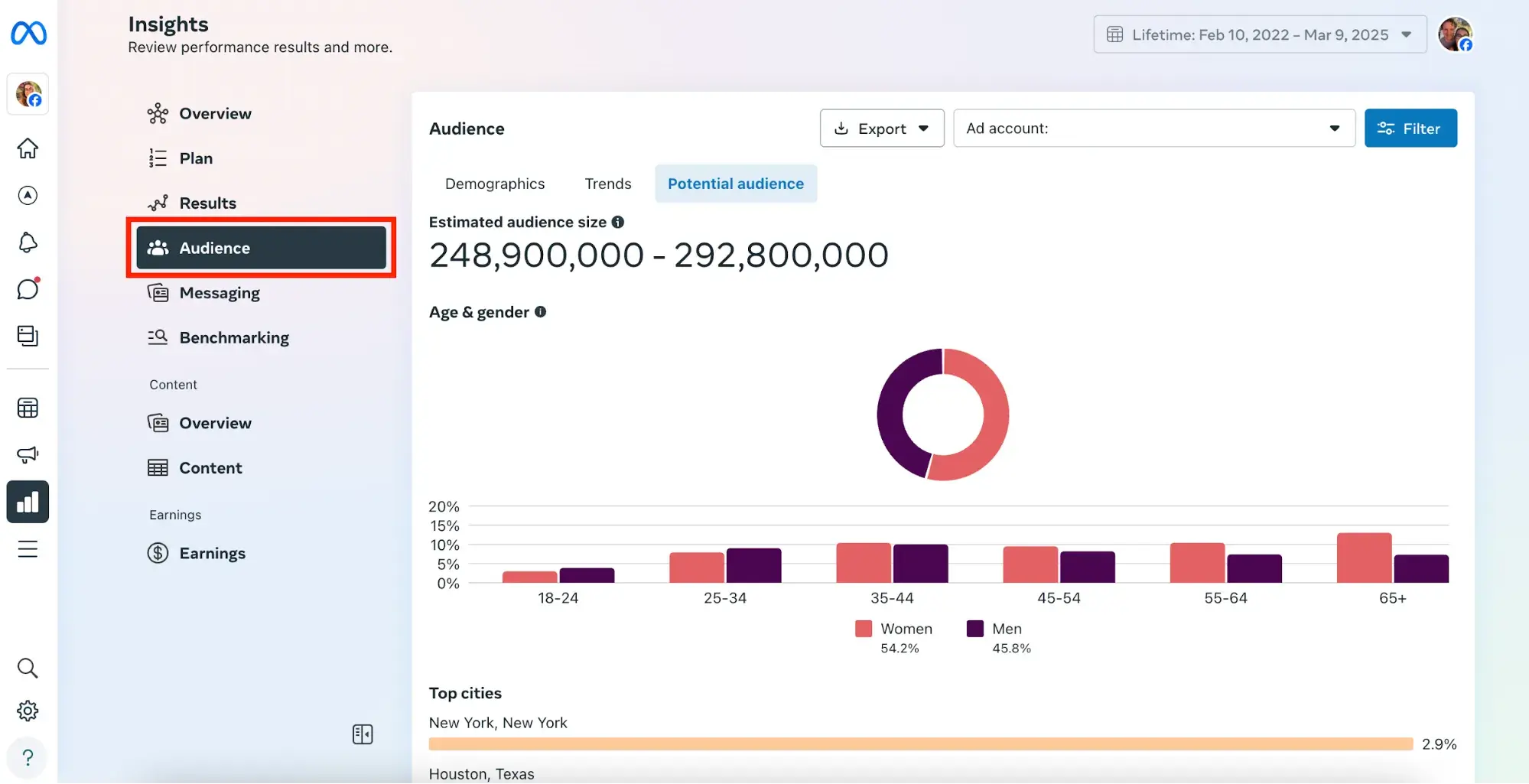
These audience insights are helpful to steer your marketing decisions in general, but they're also extremely powerful if you plan on pursuing Facebook advertising.
5. Create Facebook Ads.
Facebook is most popular among businesses for its advanced ad reach. If you're running online ads, Facebook is one of the best places to do it. You can create ads relatively quickly and use advanced tools for customization and audience targeting.
Spending money on ads is nerve-wracking, but use our free resources to help you learn and leverage AI in this process:
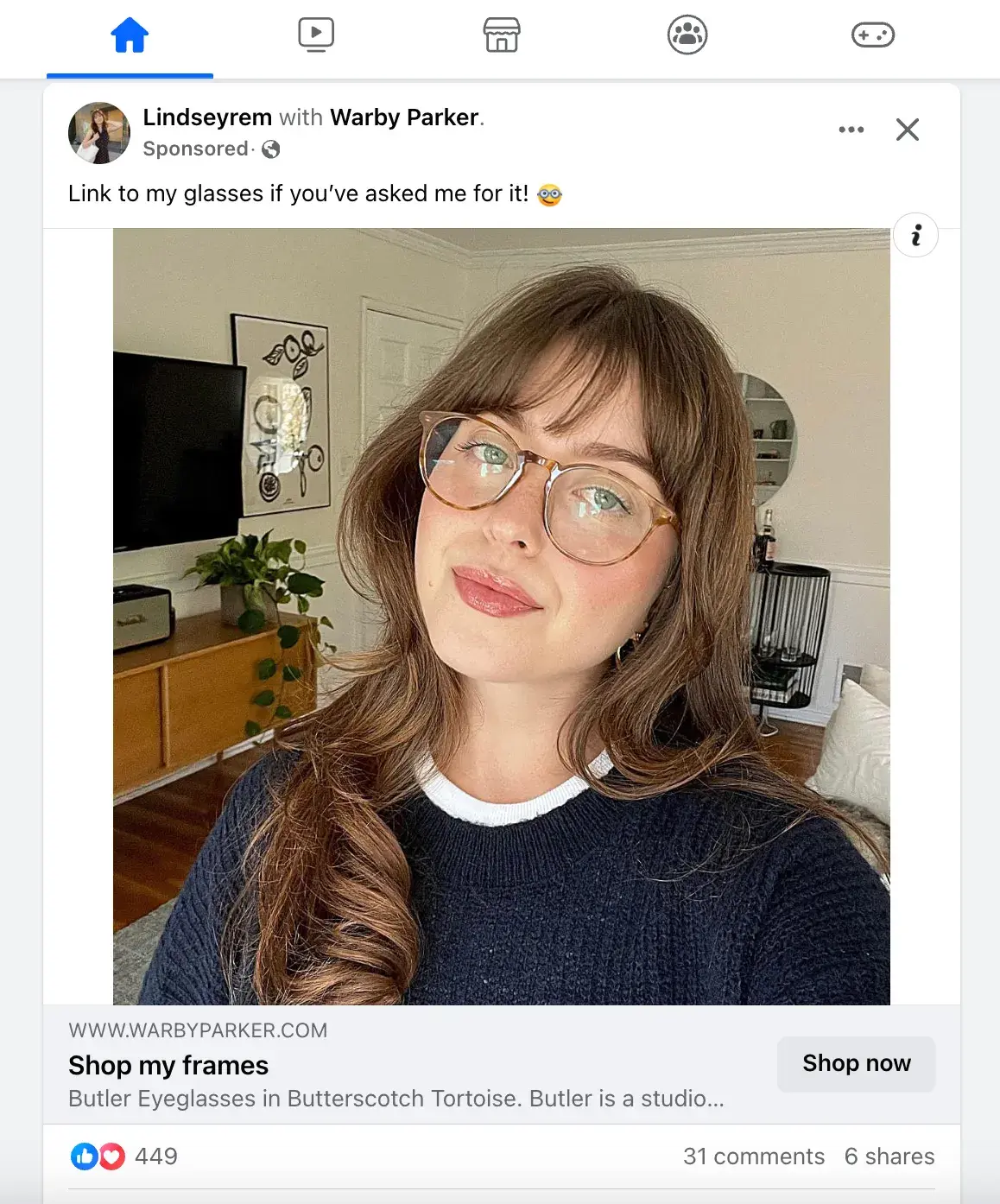
Not sure where to start? Consider starting with a retargeting ad. This type of ad campaign focuses exclusively on viewers who have already been on your website but not purchased.
Here's an example from Warby Parker. After browsing glasses on their website, I opened up Facebook and immediately saw a company ad. Retargeting ads on Facebook are extremely powerful and can help make the most of your budget.
Now that you know how to use Facebook for business, let's dive into some tips and tricks to help you succeed.
(P.S. Already a HubSpot customer? Click here to integrate your HubSpot account with Meta Ads and become eligible to win $15K to skyrocket your business ads strategy.)
25 Tips and Tricks for Marketing on Facebook
New to Facebook marketing? Learn all about it with HubSpot Academy.
Tips for Your Facebook Business Page
1. Create a business Page, not a personal profile.
First thing's first: You need to create a business Page — not a personal Facebook profile — to represent your brand. Pages look similar to personal profiles, but they include unique tools for businesses, brands, and organizations. Your fans can Like your Page to see updates from you in their News Feeds, which is something they can't do for personal profiles.
Not only will this maximize Facebook‘s business potential for you, but it’s actually against Facebook's Terms of Service to use a personal account to represent something other than that person, like a business. If you‘ve already created a profile for your business, you’ll want to convert it into a business Page, which you can learn how to do easily here.
Setting up a page is simple. Just visit this page and follow the step-by-step setup instructions.
The State of Social Media in 2025
Explore the top trends in social media for brands to know and optimize your social strategy.
- AI Content Creation
- Community Building
- Social Media Shopping
- Social Vs. Search Engine
Download Free
All fields are required.
2. Claim your Page's website URL.
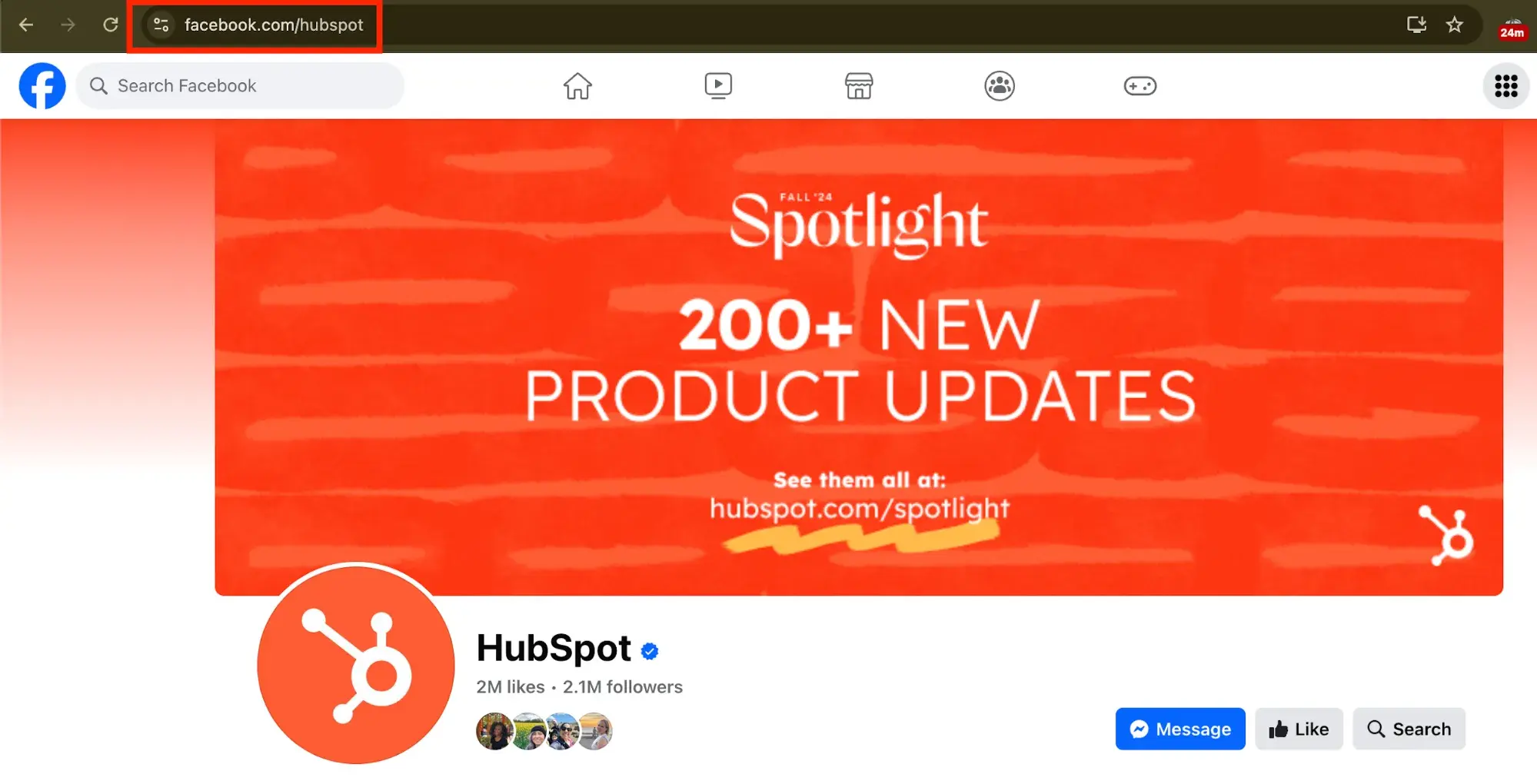
Once you‘ve created your business Page, it’ll get a randomly assigned number and URL, like facebook.com/pages/yourbusiness/123456789. To make your Page more shareable and easier to find, you'll want to create a recognizable vanity URL (e.g., http://www.facebook.com/hubspot).
To create a vanity URL, visit this page, then follow the instructions.
3. Add a great cover photo.
Facebook‘s page design lets you feature an 820 x 312 pixel cover photo at the top of your business Page. You’ll want to optimize that cover photo to capture the attention of new visitors, encourage them to explore and learn more, and provide an effective mobile experience — all the while ensuring you‘re following Facebook’s Page Guidelines.
Learn all about do‘s and don’ts for your Facebook cover photo in this blog post.
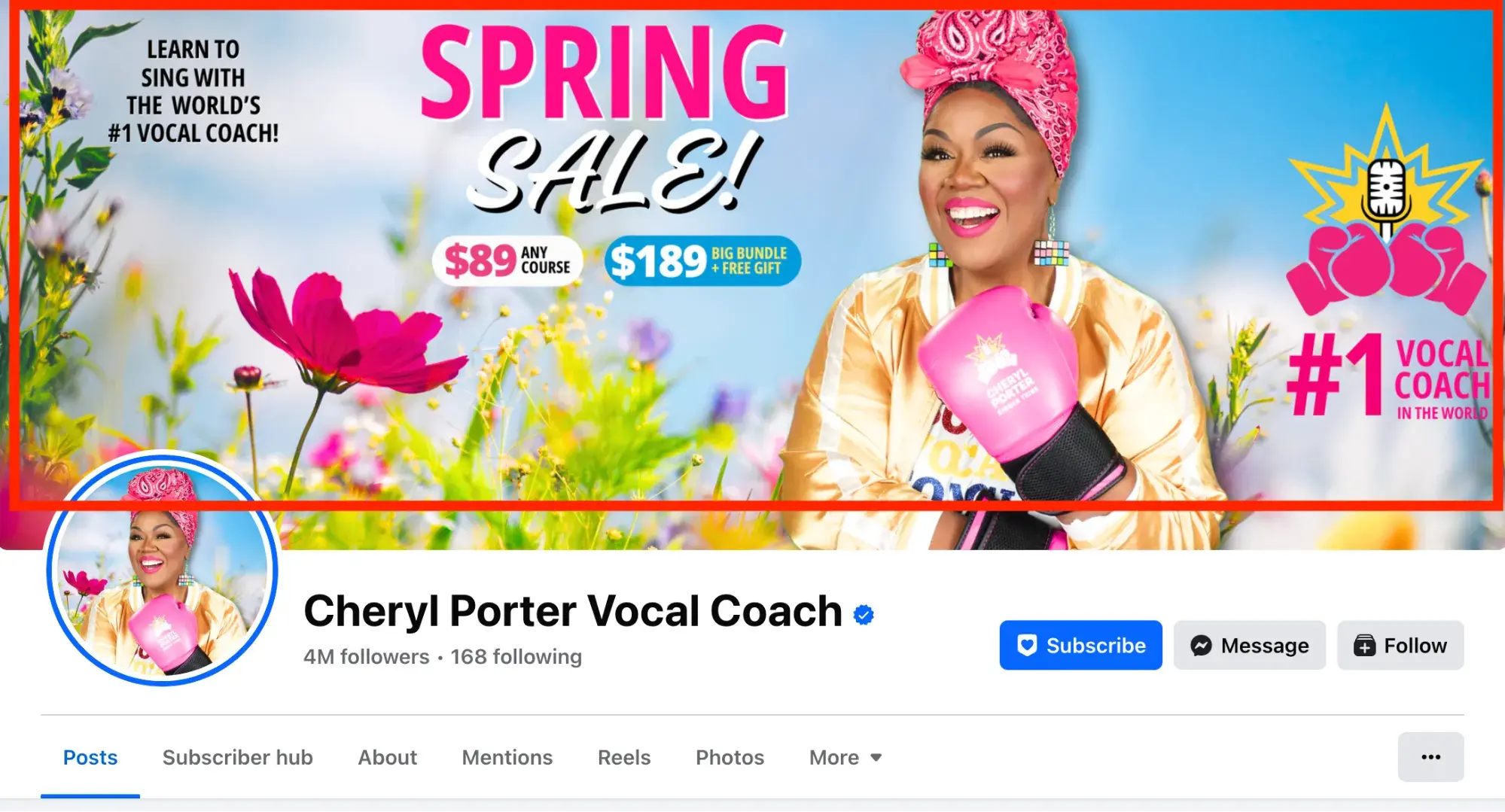
Here are some more awesome examples of business Page cover photos to get your creative juices flowing. You can also use these free Facebook cover photo templates to create your own.
Download Free Facebook Cover Photo Templates
4. Add a recognizable profile picture.
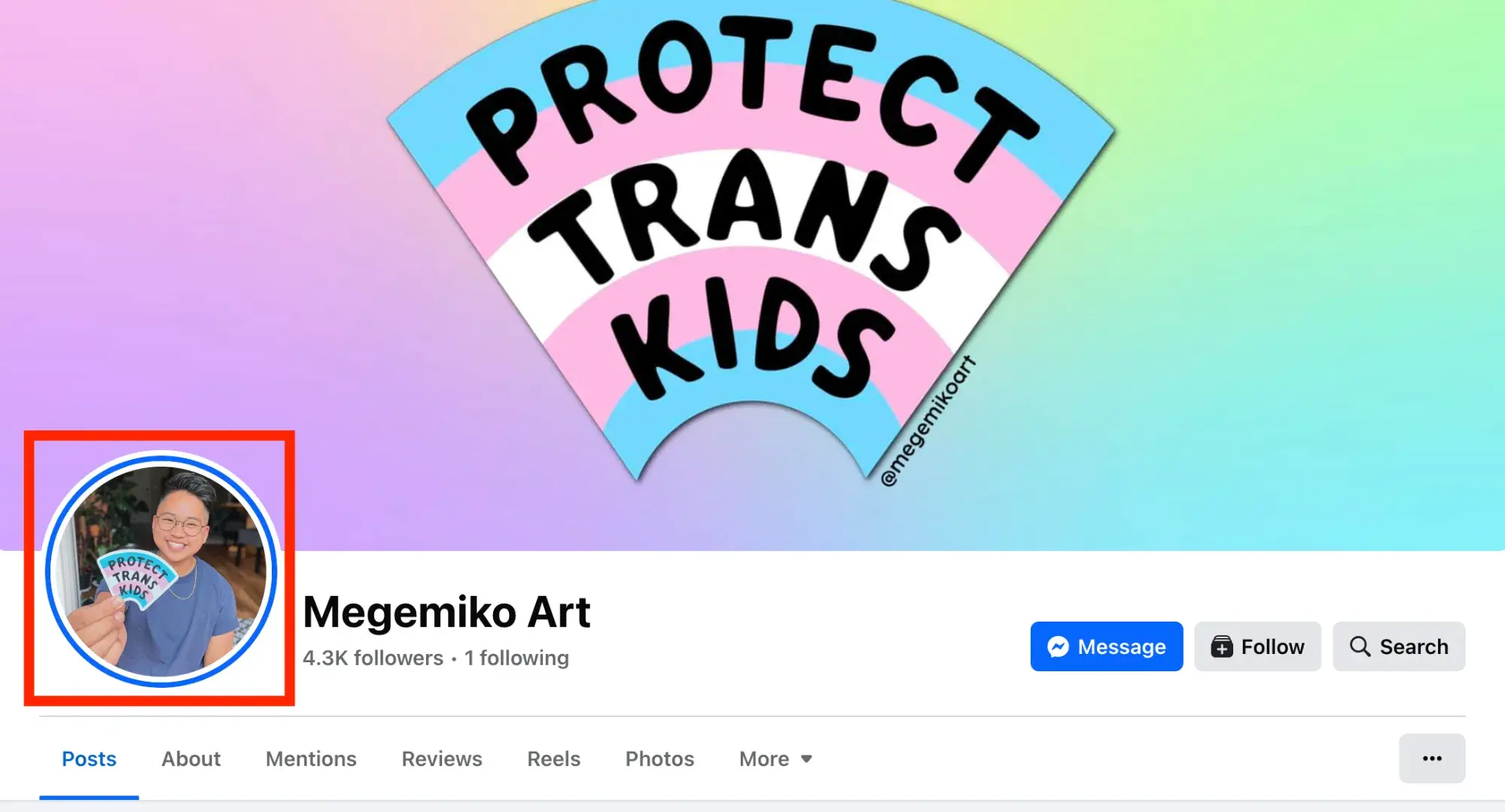
Pick a profile picture that will be easy for visitors to recognize — like your company logo or a headshot of yourself if you're a solopreneur or consultant. Being recognizable is important for getting found and Liked, especially in Facebook Search. Your profile image is pictured at the top of your Facebook Page and is also the thumbnail image that gets displayed next to all your Facebook Page updates, so choose wisely.
When choosing a photo, keep in mind that Facebook requires your profile picture dimensions to be 170 pixels by 170 pixels.
5. Optimize your “Intro” section.
It's located on the left-hand side of your page beneath your profile picture. This is the first place people will look when they arrive on your Facebook Page.
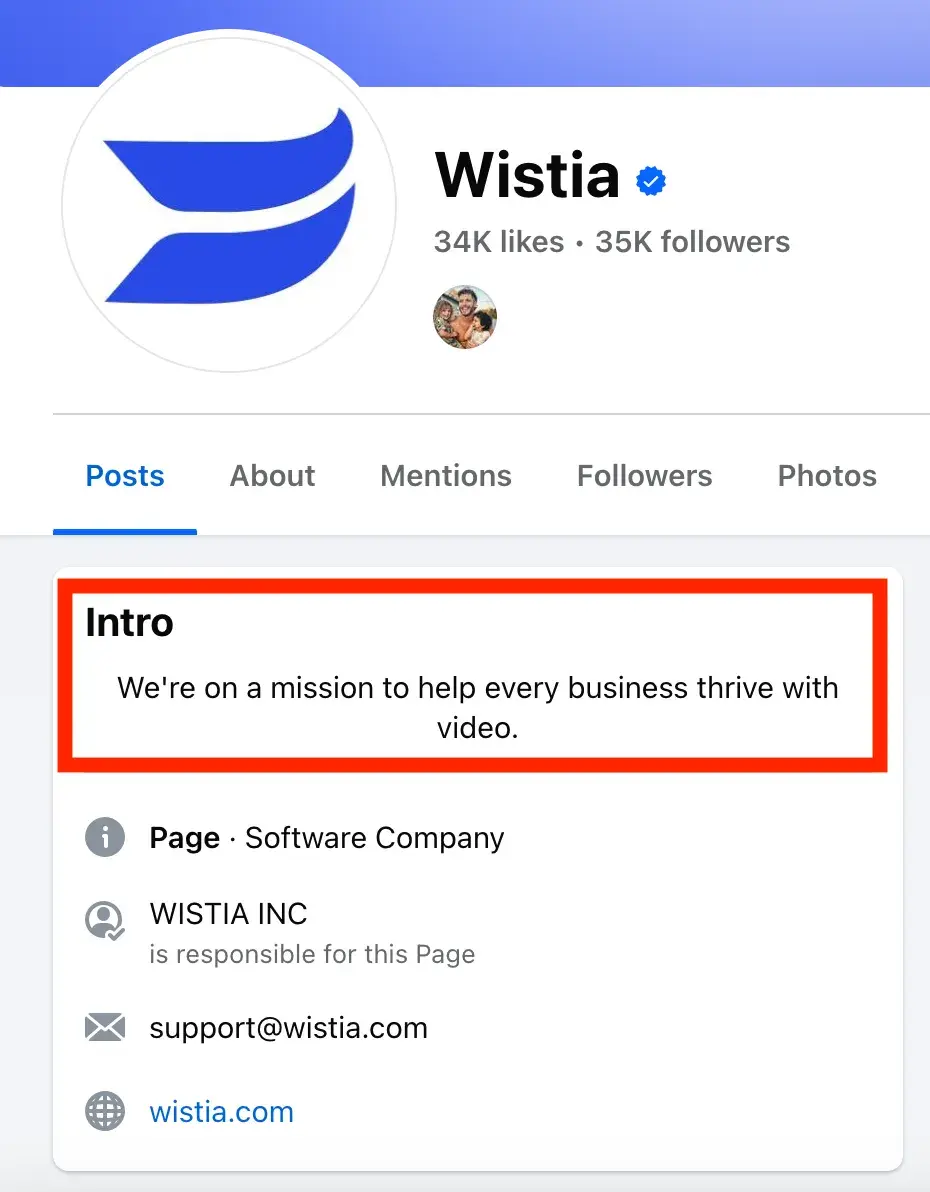
Optimize this section with brief yet descriptive copy to give visitors a sense of what your Page and your business are about before they decide to “like” you.
Here's an example video marketing software company Wistia:
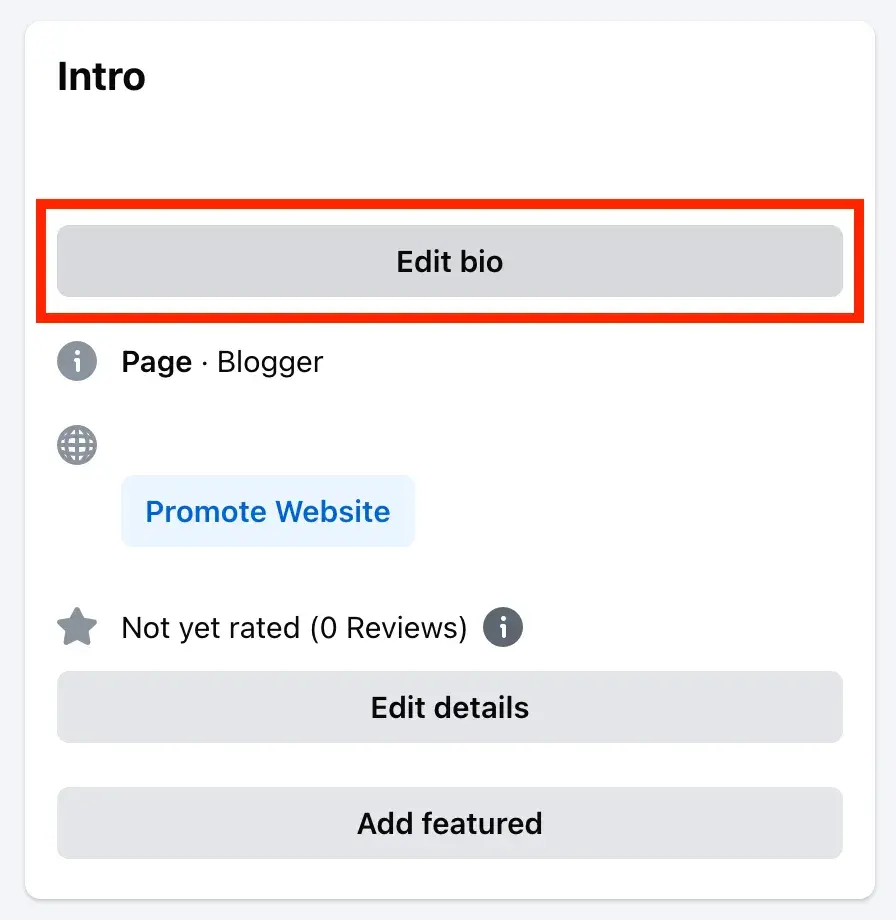
To edit your own “Intro” section, scroll down to this page of your Facebook business page and select “edit bio.” You have 255 characters to use, so choose your copy with intention.
6. Go for depth.
The best tip for Facebook marketing in 2025? “Get deep into community, engaging content, and adding value,” shared Dr. Stefanie Boyer, Professor of Marketing at Bryant University.
“Stop broadcasting like an advertising channel with one-way communication and deliver what the community wants. Think local groups, private groups, sending individual messages, and make sure each engagement adds value, rather than 'checking in' or pushing an agenda,” Dr. Boyer advised.
“The algorithm prioritizes meaningful interactions. A Facebook Group that is run well (responsive, engaging moderators, and valuable content) can outperform public posts 10 fold in engagement.”
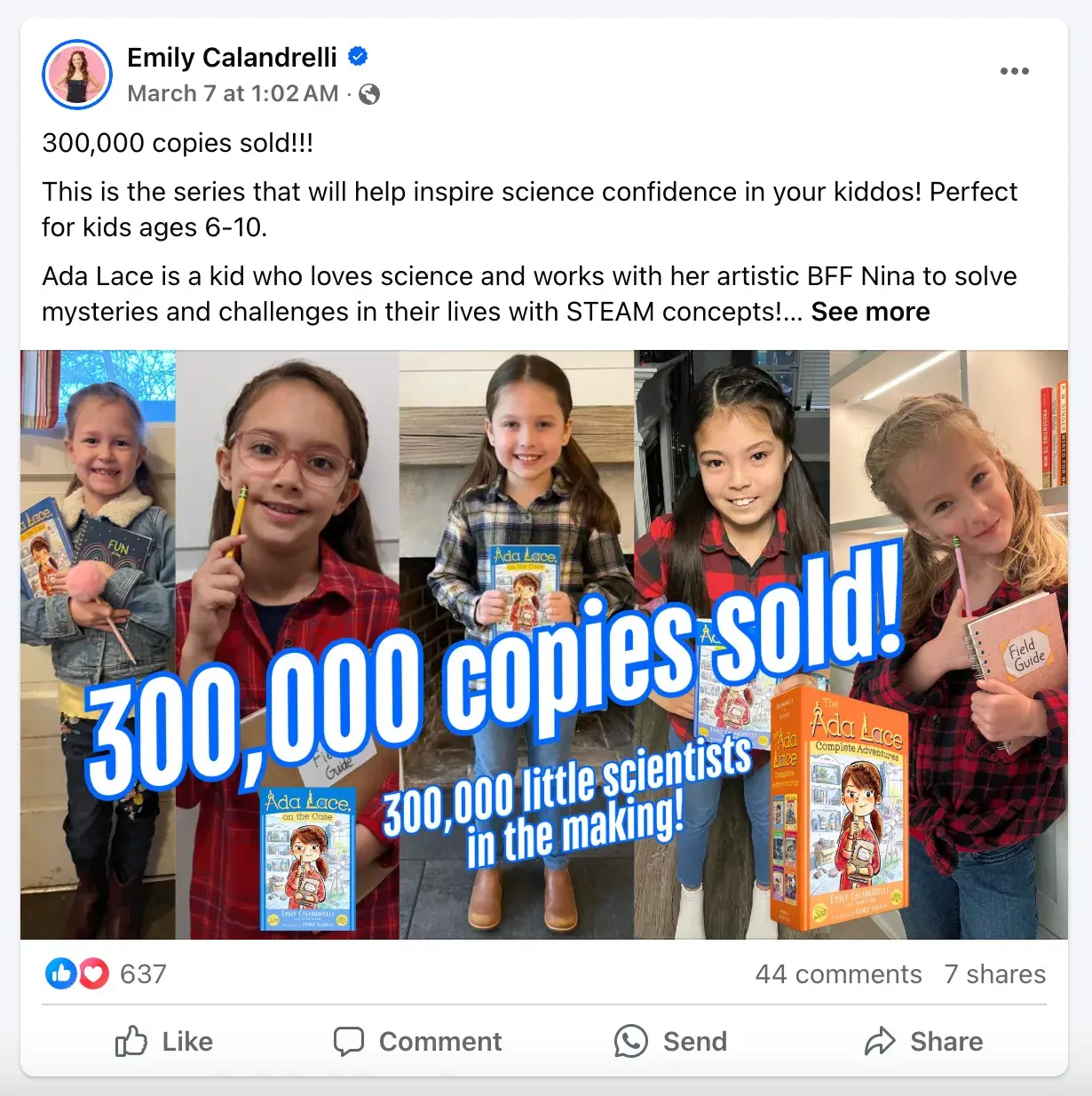
7. Add a featured section.
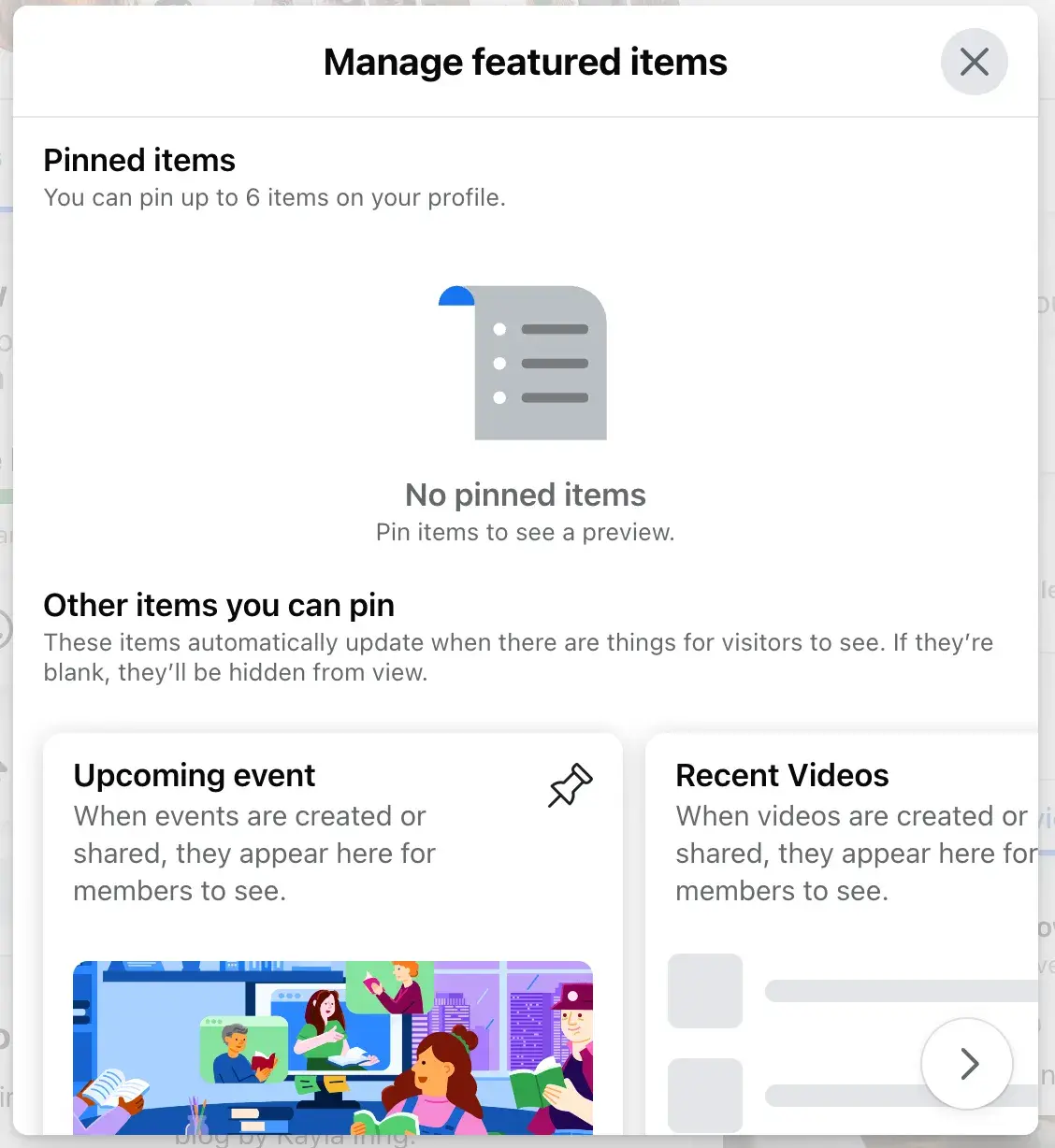
Let viewers immediately see your most important content by putting it in the “featured section” of your Facebook Page. Also called the “pinned items” section, you can include up to six items here, including:
- Upcoming events.
- Recent videos.
- Recent posts.
To edit, go to the top of your Facebook Page wall and select “manage” under the “featured” section:
9. Choose a call-to-action button.
Facebook's option to place a simple call-to-action button at the top of your Facebook Page is another handy feature. You can learn how to add a CTA button to your business' Facebook Page here. Edit this setting by clicking on the three dots on the right-hand side and selecting “add action button.”
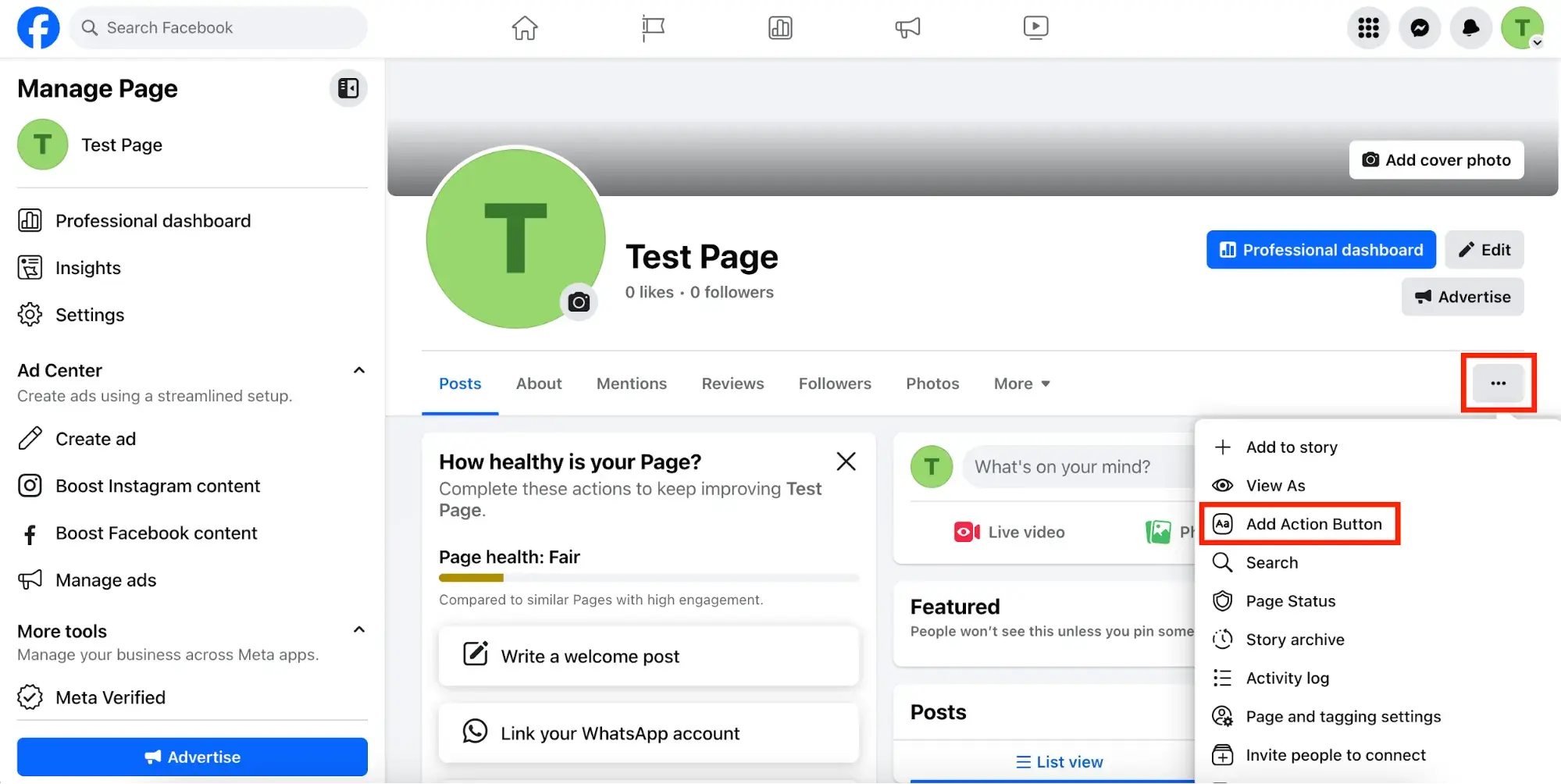
You can choose from 16 pre-made button options:
- Book now.
- Sign up.
- Start order.
- View shop.
- Get tickets.
- Send message.
- Send WhatsApp message.
- Call now.
- Send email.
- Contact us.
- Learn more.
- Watch now.
- Visit group.
- Play game.
- Buy now.
- Reserve.
Use these buttons to link to any website that aligns with your business's goals.
10. Manage Page “Sections.”
The “Sections” on your Facebook Page appear like tabs under your profile picture. In fact, these used to be called Facebook business page tabs.
Some of these are required, like about, mentions, and reviews. Others are optional, allowing businesses to remove these “sections” from your page:
- Music.
- Check-ins.
- Sports.
- Movies.
- TV shows.
- Books.
- Likes.
- Reviews given.
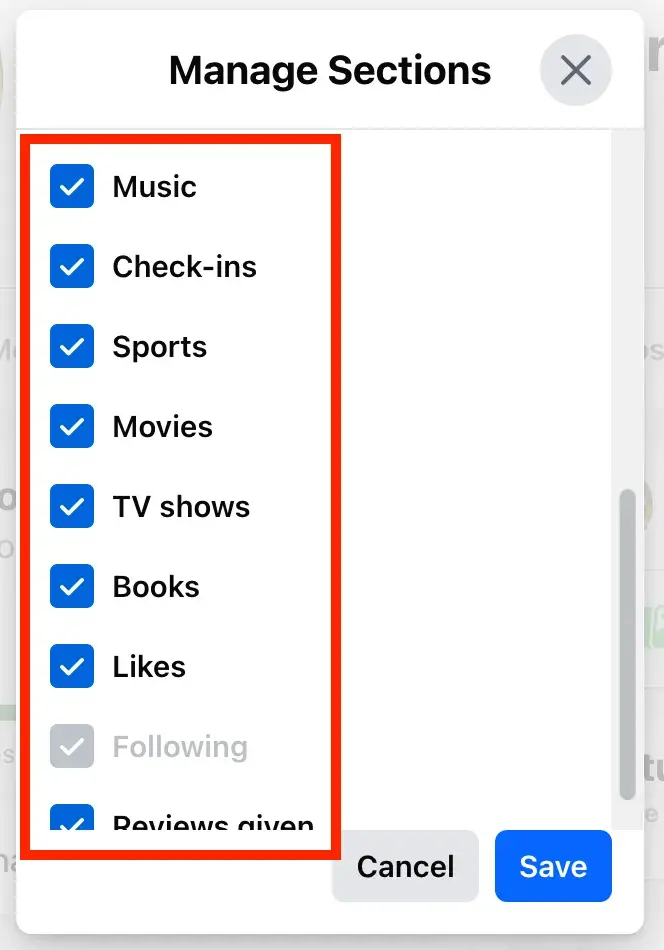
Blast from the past: Facebook business page tabs used to be more customizable. Now, they're quite limited, but businesses should still deselect the off-brand topics from this list. To do that, visit your page, then click the “More” tab and choose “Manage Sections” from the dropdown menu.
Tips for News Feed Visibility
11. Prioritize quality over quantity.
Here are two questions we hear a lot: How often should I post to Facebook? Will posting more frequently help me reach more people?
Statistic: The average Facebook page posts 7.9 times per week.
Should you automatically post that often? In short, the answer is no. At the end of the day, how visible your posts are in people's News Feeds all comes down to the quality of your posts. These algorithms are meant to filter out the irrelevant and the poor-quality posts so that the highest-quality stuff is what gets through and gets shown to users.
So don‘t overwhelm your customers with content on Facebook, and be selective about what you’re publishing. Spend more time crafting better Facebook posts, and less time crafting a lot of Facebook posts.
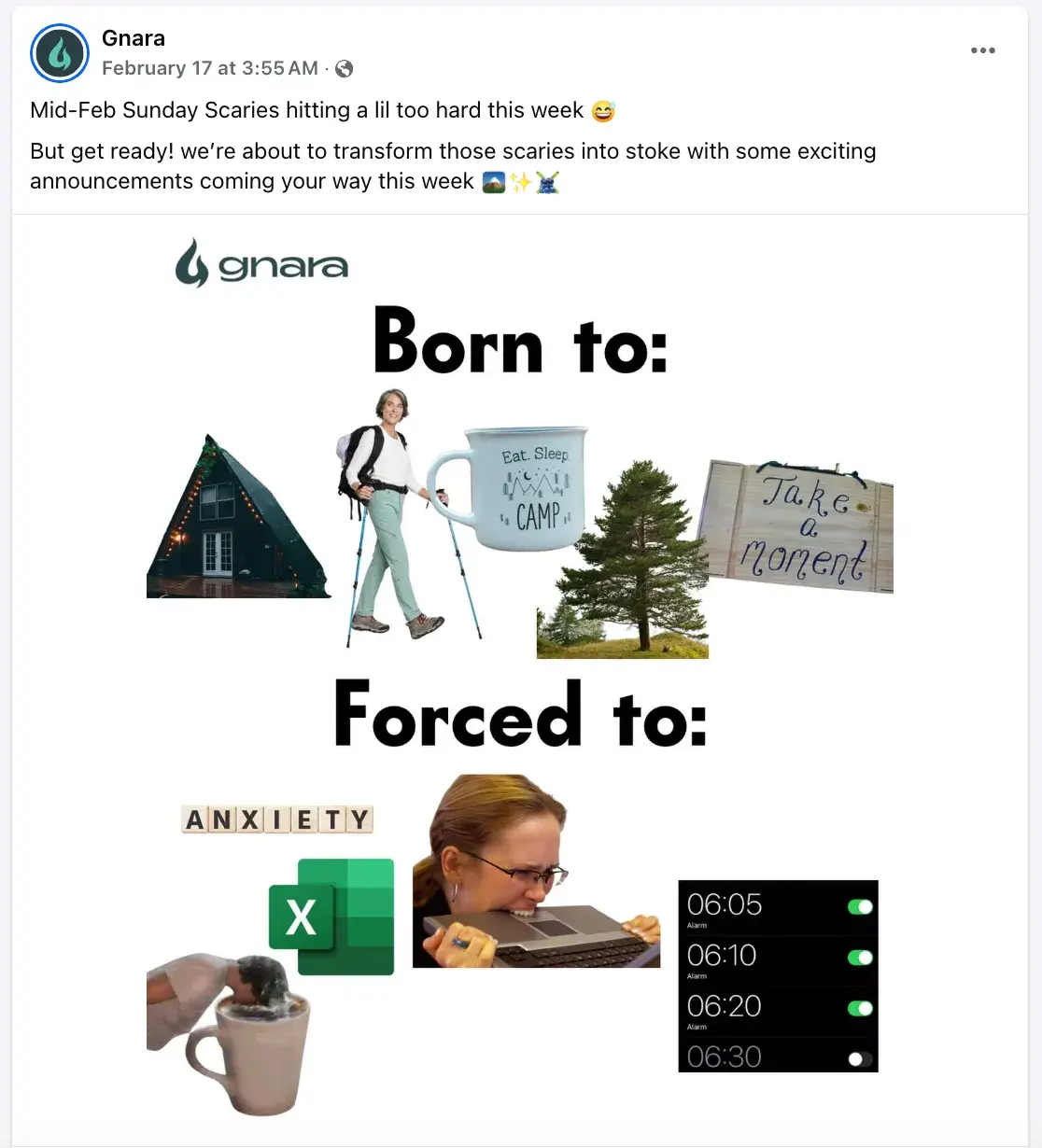
Remember: It‘s a marketer’s job to post content to social that's interesting, entertaining, helpful, and/or relevant to the audience. This means picking relevant topics, writing delightful copy, and posting compelling images and videos. Many brands even lean into internet culture, like the below example from outdoors brand Gnara.
12. Post at the best times for your audience.
Another common question: When's the best time to post to Facebook? Unfortunately, there‘s no perfect answer — different businesses may find different days and times work best for them. Timing often depends on what your target audience uses Facebook for, the region(s) you’re targeting, the content of your post (e.g., funny or serious), your goals (e.g., clicks versus shares), and so on.
That being said, there is data out there on optimal times to post on Facebook:
- The best time to post on Facebook is Wednesday, 11 a.m. and 1–2 p.m. Other optimal times include Tuesday through Thursday, 8 a.m.–3 p.m.
- The worst times to post on Facebook are on Sundays, or every day before 7 a.m. or after 5 p.m.
Think of this data as a general guideline, and use it to help you find the optimal posting times for your business.
13. Post your best blog content.
For businesses, social media continues to be driven by content. It‘s a marketer’s job to post content to social that‘s interesting, entertaining, helpful, and/or relevant to our audience. Start populating your Page’s timeline with content by handpicking your best, most helpful blog posts.
If you're strapped for resources but maintain a business blog, you can try connecting your blog to auto-post links to new blog content you publish. Many blogging platforms (like HubSpot) automatically offer this feature within the software — you‘ll just need to turn it on and sync it with your Page.
You don’t want to put too much emphasis on automation, though. It's okay to auto-publish some content, but make sure a real human is posting and engaging with your fans, too.
.png)
6 Free Blog Post Templates
Save time creating blog posts with these free templates.
- "How-to" Post
- "What is" Post
- Listicle Post
- And More!
Download Free
All fields are required.
14. Make sure your blog posts' meta descriptions are complete.
Have you noticed that when you post a link to Facebook, it pulls in a brief description as well as an image?
The description gets pulled from the page's meta description, which refers to the HTML attribute that explains the contents of a given web page. It‘s the short description you see on a search engine results page to "preview" what the page is about, and it’s also the copy Facebook will automatically pull in to populate the description of a post.
Without a meta description, Facebook may pull in the first text they can find, which doesn't make for a very good user experience. Plus, meta descriptions are your chance to sell your visitors on what you have to offer: informative, valuable content.
Your meta description should be compelling enough to get people to click, and it should be 155 characters or fewer in length. Read this blog post to learn more about writing effective meta descriptions.
15. Remove links from your post copy.
Keep your copy succinct by removing the horrendously long URL you're sharing from the text in your post.
Your post real estate is precious, and you want to ensure any characters employed are purely for the sake of sparking a reader‘s attention. Plus, any user can click on the generated thumbnail or title for that URL to navigate to the blog post, web page, or any URL you’re linking to — so there’s no need to include it in the copy of your post as well.
16. Post your most compelling visual content.
Facebook‘s timeline page design places more of an emphasis on visual content like images and videos. That’s why posting compelling visual content is one of the most important things you can do to improve your Facebook strategy.
Use this to your advantage by posting your best visual content to your Facebook page or making an effort to create more visual content. (Click here to download 50 social media image templates for free.)
A successful social strategy will often include photos, videos, and screenshots of infographics or other graphs. In addition to being fun to look at, it's important that your visual content be compelling and relevant to your audience.
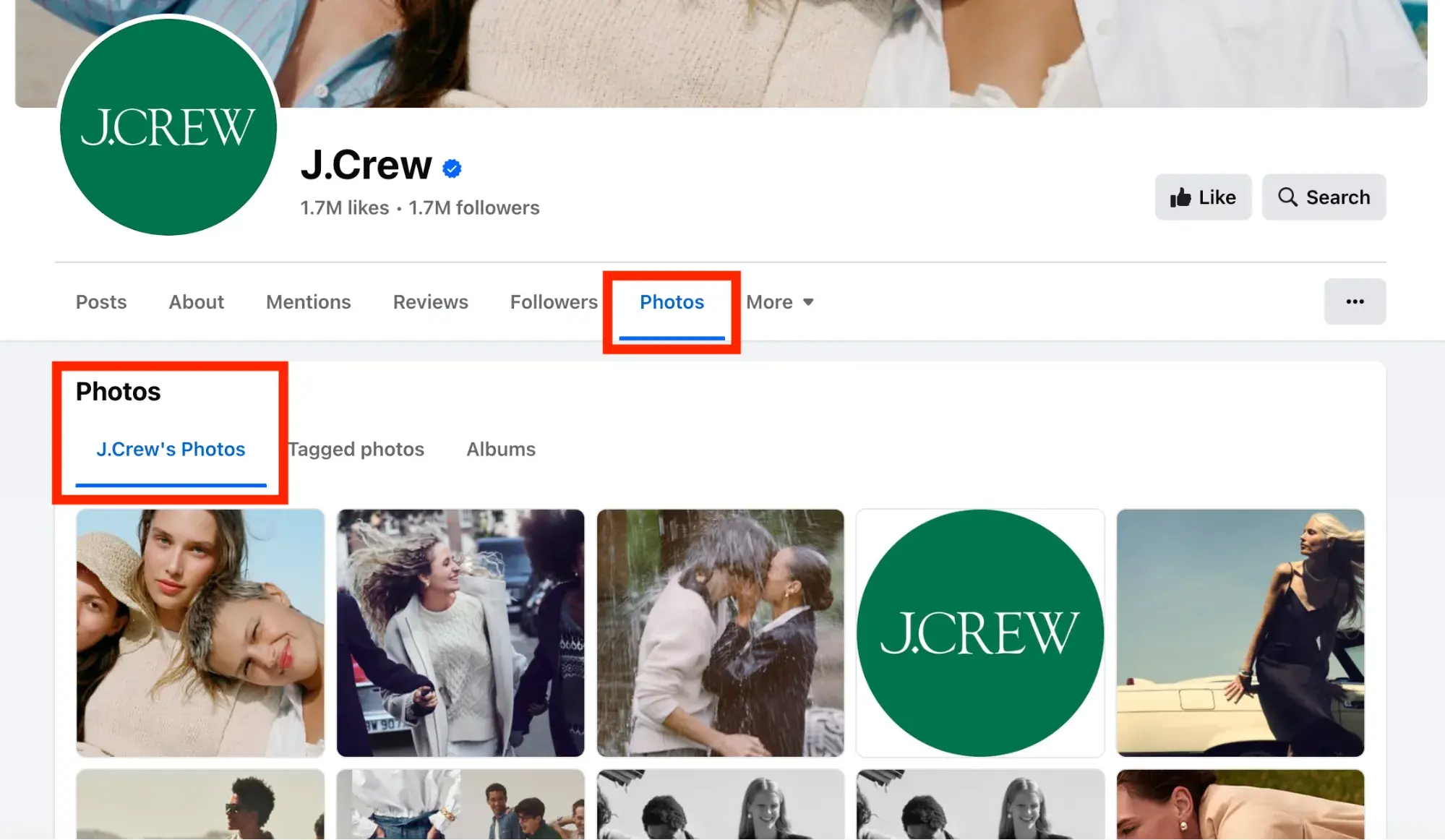
Another reason to post lots of visual content? It'll help auto-populate the “Photos” and “Videos” tabs, which are automatically added to every Facebook Page. You want those to be rife with visual content when people click on them.
17. Make sure your images are properly formatted.
Don‘t just post images for the sake of posting images. To give your users the best experience possible, you need to optimize your images for Facebook so that they’re the right sizes and dimensions. (Click here to download pre-sized cover photo templates for Facebook and other social networks for free.)
Below are a few of the most common Facebook image sizes, but you can find a more detailed guide here.
- Cover photo: 820 px wide by 312 px tall
- Profile image: 170 px wide by 170 px tall
- Shared image: 1200 px wide by 630 px tall
- Shared link thumbnail image: 1200 px wide by 627 px tall
18. Prioritize video content.
Video content on Facebook can take a couple different formats:
- Short-for vertical videos (AKA reels).
- Long-form horizontal videos.
- Live videos.
Statistic: Video consumption accounts for 60% of the time users spend on the Facebook app. Reels alone account for 50% of that time.
Facebook is continuing to tweak how the algorithm measures people's interest in video content on Facebook, but the main takeaway is to make your videos as visually engaging as possible — especially in the first few seconds. This is known as a video's “hook.”
Why? Although all videos on Facebook autoplay in people‘s News Feeds, they’re on mute until the viewer manually turns the volume on. The more visually engaging your video, the more you can entice people to stick around.
Getting people to spend more time watching your video will help your video rank higher in the News Feed because to Facebook, signs of user engagement with a video include spending time watching the video, turning on the audio, switching to full-screen mode, or enabling high definition.
19. Use Facebook Insights.
Facebook Insights is Facebook‘s internal analytics tool that helps you measure and analyze your Facebook presence. The tool provides Facebook page administrators with analytics data about Page visits and engagement, which can help you understand which content is and isn’t engaging to your fans.
Access your page's Insights here or by clicking into the ‘Admin Panel’ on your Page. We've also published an informative blog post and video that walks you through how to analyze Facebook Insights to improve your content strategy.
20. Schedule posts in advance.
Scrambling for Facebook content is not a new phenomenon. We have meetings. We run late. Things come up. That‘s why you’ll want to use a third-party Facebook application like HubSpot's social media publishing tool to schedule your Facebook posts (and other social media posts) in advance.
First, download our free social media content calendar template to help plan your posts in advance. You can fill it in at the same day and time every single week to prep for the following week's social media content. Then, use that third-party Facebook application to actually schedule out your posts.
However, just as we advised against too much Facebook automation with blog auto-posting, the same holds true for scheduling. Don‘t get caught in the trap of turning your page into a robot, and make sure you’re actively engaging with your fans, too.
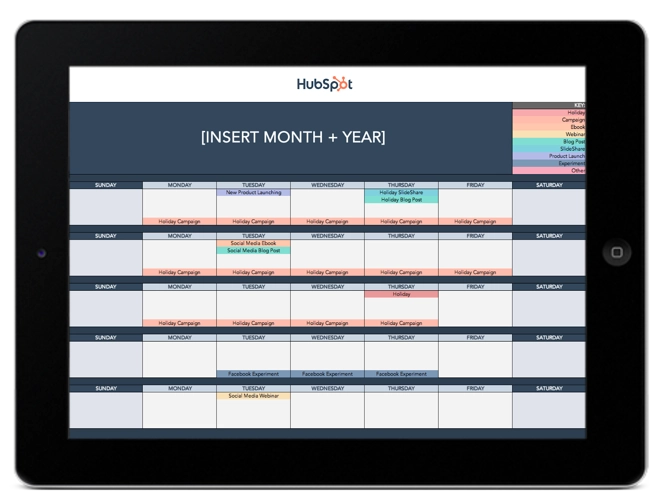
Free Social Media Content Calendar Template
Download the free template and user guide to manage your social media posts and strategy.
- Coordinate campaigns
- Increase your reach
- Measure engagement
- Plan your posts
Download Free
All fields are required.
21. Add Facebook social media buttons to your blog and website.
Adding Facebook social media buttons will help encourage visitors who are on your website to also connect and interact with you on Facebook, as well as spread your content and expand its reach.
The Facebook Follow Button lets you expand your Facebook reach by making it easy for your site visitors to Like your business‘ Facebook Page with just one click. It displays your page’s number of Likes, as well as faces of people who already like your page, using social proof to amplify its effectiveness.
The Facebook Like Box lets you promote your business' Facebook Page on your website and blog, highlight other users who have already Liked your page, display your follower count, and feature recent posts on your page. With just one click, people can Like your business Page — without leaving your site.
The Facebook Like Button lets people easily Like your content. When a user Likes a piece of content, it may show up in your friends' News Feeds because the algorithm takes it as a signal that your friends will find it relevant.
(Note: This button doesn't allow them to add personalized messages to links before sharing them. To allow users to add a personalized message, use the Facebook Share Button, explained below.)
To customize your Facebook Like Button, visit this page and follow the instructions.
Facebook Share Buttons act similarly to the Like Button by sharing your content on their Timeline and in friends' News Feeds, except they also let people add a comment or message to the link when sharing it.
To generate a Facebook Share Button, visit this page and follow the instructions.
22. Subscribe to Facebook's Official Blog for future announcements from Facebook.
Give yourself a competitive edge by staying on top of the latest announcements from Facebook, such as new features and tools, by subscribing to the official Facebook Blog.
Tips For Advertising on Facebook
23. Choose the right advertising tool.
Facebook offers users the Ads Manager. Facebook's Ads Manager works great for most companies. Figure out which is best for your business based on your company size and the number of ads you plan to run at once.
24. Use Audience Insights to learn about your audience.
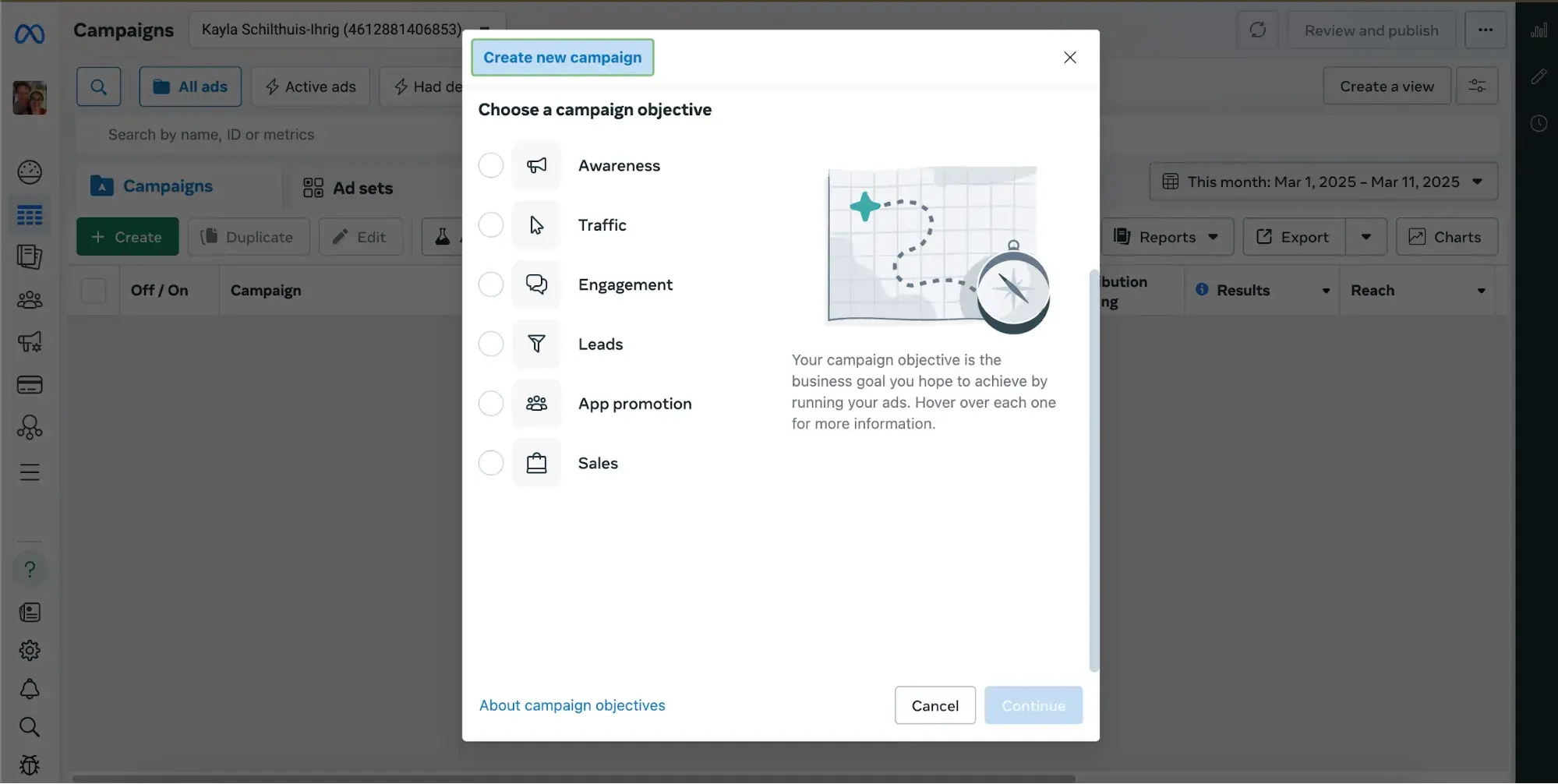
The best Facebook ads are high-quality, relevant ads that fit seamlessly into the user's environment on Facebook. Learn more about your customers and prospects using Audience Insights, which you can find inside the Facebook Ad Manager in the left-hand navigation.
The tool will help you target your ads more effectively and learn about your audience — even if you are not advertising to them. How? The data can help you build stronger buyer personas, create more compelling content, and uncover some gems for your competitive research.
25. Test multiple versions of a single ad.
Running a single campaign won't give you much to work with in terms of finding your audience, optimizing your ads, and determining if Facebook advertising works for your business. You need to be able and willing to run multiple campaigns to test and experiment with different parts of a single campaign. This process should be strategic.
“You need a structured approach to test Facebook ad creatives at a high volume without losing sight of why ad creatives are performing well,” shared Colby Flood, Founder at DataAlly. He shared that he tests his Facebook ads in this order:
- First brand positioning.
- Then, messaging angles.
- Then, emotional triggers.
- Lastly, creative design styles.
“Most marketers get very hung up on why one single ad performed well, which is important, but you will get lost in the data if you don't zoom out and track performance from a 1,000-foot view to understand the 'why' behind performance trends,” Colby advised. “You can accomplish this with clear naming conventions for your ad creatives to help filter data by each category you test.”
Facebook ads reward you for testing more ads and targets. Whereas cost-per-click doesn‘t change much when you’re advertising on Google or LinkedIn, Facebook ads cost a lot less if you're diligently testing them.
Want to learn more? Read this blog post to learn more about creating, optimizing, and analyzing your Facebook ads.
Getting Started
As I discovered in the State of Marketing Report, Facebook is the social media channel that marketers plan to invest the most in 2025. It also holds the highest ROI from influencers (28%). I know that Facebook for business has undeniably changed in the past few years, but it still holds incredible power for your brand, and it's important to figure out how it can work for your company.
Editor's note: This post was originally published in September 2011 and has been updated for comprehensiveness.
The State of Social Media in 2025
Explore the top trends in social media for brands to know and optimize your social strategy.
- AI Content Creation
- Community Building
- Social Media Shopping
- Social Vs. Search Engine
Download Free
All fields are required.
Facebook Marketing


![22 Facebook Stats to Know in 2023 [+HubSpot Data]](https://53.fs1.hubspotusercontent-na1.net/hubfs/53/Untitled%20design%20(8)-1.jpg)
![How to Create a Facebook Group for Your Business [+ Why You Should]](https://53.fs1.hubspotusercontent-na1.net/hubfs/53/Copy%20of%20Featured%20Image%20Template%20Backgrounds-Jun-30-2023-05-58-51-2746-PM.png)
![Facebook Insights: A Beginner's Guide [+ Step-by-Step Instructions]](https://53.fs1.hubspotusercontent-na1.net/hubfs/53/Untitled%20design%20(38).jpg)

![11 Facebook Cover Photo Size & Design Best Practices [Templates]](https://53.fs1.hubspotusercontent-na1.net/hubfs/53/facebook%20cover%20photo%20size.jpg)