.png?width=112&height=112&name=Image%20Hackathon%20%E2%80%93%20Vertical%20(50).png)

Table of Contents
- How to Embed a Tweet
- Embed Facebook Post or Video
- Embed Facebook Feed
- Embed Instagram Feed and Posts
- Embed Pinterest Pins
- Embed Pinterest Boards
- How to Embed Google Calendar
- How to Embed a YouTube Video
- How to Embed a TikTok Video

How to Embed a Tweet
- Find the tweet you'd like to embed.
- Click the three dots on the top-right of the Tweet.
- Choose Embed Tweet, which brings you to the Twitter Publish page.
- Click Copy Code or make customizations.
- Paste the embed code into your website's HTML editor.
- Optional: Center align the Tweet.
1. Find the tweet you'd like to embed.
The first step to embedding a Tweet is finding the one you want to display in its natural habitat — Twitter. You can only get embed codes from its website.
2. Click the three dots at the top-right of the tweet.
3. Click Embed Tweet.
Clicking this arrow icon will reveal a dropdown menu of options, including one called "Embed Tweet." Click this option.
4. Click Copy Code or make customizations.
You can customize the theme (light or dark), set a language, and hide Tweet replies. If you make customizations, click Update, then Copy Code.
5. Paste the code into your website's HTML editor.
Paste the code into your HTML editor by opening the source code (some content management systems have a "" icon where you can access this source code) and pasting it where you want it to appear.
5. Optional: Add 'tw-align-center' after the words "twitter-tweet" in the embed code.
Once you pasted this code into your HTML, however, you'll want to center-align this tweet so it doesn't automatically appear pushed up against the left or right side of your webpage. To correct this, add the text, 'tw-align-center' (without quotation marks) directly after "twitter-tweet" in the embed code. You can learn more about this method here.
Here's what the final code should look like:
blockquote class="twitter-tweet" tw-align-center data-lang="en"p lang="en" dir="ltr"Let us know! 👂brWhat type of content would you like to see from us this year? HubSpot (@HubSpot) a href="https://twitter.com/HubSpot/status/1085634067679322114?ref_src=twsrc%5Etfw"January 16, 2019/a/blockquote
script async src="https://platform.twitter.com/widgets.js" charset="utf-8"/script
That's it! This is what your embedded tweet will look like when you're done:
Let us know! 👂
— HubSpot (@HubSpot) January 16, 2019
What type of content would you like to see from us this year?
Embed Facebook Post or Video
You can embed a Facebook post or video from the content or use the Developer Embed Tool.
Embed Facebook Post or Video
1. Find the Facebook post you'd like to embed.
Navigate to the post you want to embed from a Facebook user's profile page or your newsfeed.
2. Click the three dots on the top-right of the post.
3. Click Embed in the dropdown menu.
4. Copy and paste the code into your website's HTML editor.
5. Optional: Add center and /center tags around the entire HTML snippet to center-align your post.
Once you paste it into your HTML, you can center-align the code so it doesn't appear pushed up against the left or right side of your webpage. To correct this, wrap the code with 'center' and '/center' tags so the Facebook post displays in the center of your article or webpage.
Here's what the final code should look like with the alignment tag:
centeriframe src="https://www.facebook.com/plugins/post.php?href=https%3A%2F%2Fwww.facebook.com%2Fthehubspotacademy%2Fposts%2F741606746226328%3A0&width=500" width="500" height="448" style="border:none;overflow:hidden" scrolling="no" frameborder="0" allowTransparency="true" allow="encrypted-media"/iframe/center
That's it! Here's what it'll look like when you're done:
Embed Facebook Post with Developer Embed Tool
You can also embed a Facebook Post using Facebook’s Code Generator. To do this:
- Identify the content you want to embed and copy the page URL.
- Navigate to Facebook’s Developer Embed Tool by clicking this link.
- Paste the URL in the URL of the post field.
- Set your desired width.
- Choose whether you want to feature the full post (comments included) or the post itself.
- Click Get Code and paste the code within your site's HTML.
Embed Facebook Feed
You can embed an entire Facebook feed using a plugin (for WordPress users) or Facebook’s Page Plugin.
Using a WordPress Plugin
WordPress users have several Facebook feed plugins at their disposal. Here's how to use one:
- The Custom Facebook Feed, by Smash Balloon, is one such WordPress plugin you can download through your WordPress account. You can download this plugin here.
- With this plugin downloaded, log into your WordPress account and activate this plugin from within the Plugins menu.
- Use the Facebook Feed settings of your CMS to select and configure the specific Facebook feed you want to display on your website.
- Enter the text, '[custom-facebook-feed]' into your website's HTML editor to generate your chosen Facebook feed.
Using Facebook's Page Plugin
Facebook has its very own Page Plugin tool you can use to produce an embed code for any Facebook feed. Here's how to use it:
1. Copy the URL of the page you want to embed.
2. Open Facebook's Page Plugin tool and paste the URL into the Facebook Page URL field.
3. Add the tabs you want displayed alongside your embedded feed.
The plugin lets you display tabs for Events and/or to a messenger account. To add them to your embedded Facebook feed, enter the words "events" and/or "messages" next to the word "timeline," all separated by commas into the Tabs field.
4. Customize the dimensions of your Facebook feed.
The default size for a Facebook feed embed is 340x500, but you can choose your own width (min 180 max 500) and height (min 70).
5. Customize elements of your feed embed.
Facebook automatically checks boxes that adapt the plugin to the container width, but you can un-check them for further customization. You can also choose to use a smaller-sized header or hide your overall cover photo.
5. Click Get Code.
6. Click the 'IFrame' tab.
The popup window that opens has a tab for JavaScript SDK and IFrame. The first tab is only useful if you’re coding a website from scratch, and IFrame is ready to be embedded into your website’s HTML. Beginners should stick with the iframe code.
7. Copy and paste the embed code into your website's HTML editor.
8. Optional: Add center and /center tags around the entire IFrame snippet to center-align the feed.
Once you paste the code into your HTML, you can center align the code so it doesn’t appear pushed up against the left or right side of your webpage. To do this, wrap the code with 'center' and '/center' tags so the Facebook feed displays in the center of your article or webpage.
Here's what the final code should look like with the alignment code:
centeriframe style="border: none; overflow: hidden;" allow="encrypted-media" xml="lang" src="https://www.facebook.com/plugins/page.php?href=https%3A%2F%2Fwww.facebook.com%2Fhubspot&tabs=timeline%2C%20events%2C%20messages&width=340&height=500&small_header=false&adapt_container_width=true&hide_cover=false&show_facepile=true&appId" width="340" height="500" frameborder="0" scrolling="no"/iframe/center
Embed Instagram Feed and Posts
Here’s how to embed an Instagram feed.
The Instagram Feed WordPress Plugin
Smash Balloon’s Social Photo Feed WordPress plugin makes it easy to embed entire Instagram feeds on your WordPress site.
- Download the Social Photo Feed plugin for WordPress here.
- With this plugin downloaded, log into your WordPress account and activate this plugin from within the Plugins menu.
- Use your CMS's "Instagram Feed" settings to select your Instagram Access Token and user ID.
- Enter the text, '[instagram-feed]' in the HTML editor of your website to generate your chosen Instagram feed.
According to the instructions, you can display multiple Instagram feeds at the same time with two codes:
- [instagram-feed user="username" cols=3], where you’d be displaying three columns of content from an accounts feed.
- [instagram-feed user="username1, username2"], where you can feature photos from multiple accounts in a single feed.
Instagram's Embedding Feature
Instagram’s native tool helps you easily embed individual posts. Here's how to do it:
Note: You can only embed Instagram content from public accounts with embed settings turned on. To set your own account to public, navigate to your profile, tap Settings and privacy, Account privacy, then toggle Private account to off.
1. Click on the post you want to embed.
You can only get embed codes from Instagram.com on mobile or desktop browsers.
2. Click the three dots in the top right corner of the post.
3. Select Embed.
4. Copy and paste the embed code into your website's HTML editor.
5. Optional: Add center and /center tags around the entire HTML snippet to center-align the post.
Once you pasted this code into your HTML, you have the option to center-align the post so it doesn't appear pushed up against the left or right side of your webpage. To correct this, wrap the code with 'center' and '/center' tags so it’s centered in your article or webpage.
That's it! Here's what your embedded Instagram post will look like:

Embed Pinterest Pins
1. Open Pinterest's widget builder.
2. Select Pin in the menu bar.
3. Paste in the URL of the pin you'd like to embed into the Pin URL field.
4. Customize the embed.
You can customize the size of the widgets’ icons and choose if you’d like to hide the description. Use the live preview as a helpful reference before making a final decision.
5. Copy and paste the code from this section into your website's HTML editor.
Once you’re happy with the customizations, copy the line of code from the first code field (shown below) and paste it into your website’s HTML editor or source code exactly where you want it to appear on the page. If you want it to appear in multiple places, simply paste it wherever you want it to go.
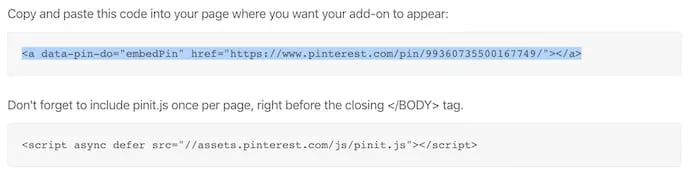 Then, copy the second line of text and paste it into your website's HTML editor at the very bottom of the page. Only include this second line of code once per page, even if you want the widget to appear in multiple places on your page.
Embed Pinterest Boards
You can embed a Pinterest Board using the same widget builder. Here’s how:
- Open Pinterest's widget builder.
- Select Board Widget in the menu bar.
- Paste the board URL, customize the sizing, and make sure you’re satisfied using the live preview.
- Copy and paste the first line of code into your HTML exactly where you want it to appear on your side.
- Copy and paste the second line of code into your HTML editor at the bottom of the page. Only add this line of code once per page.
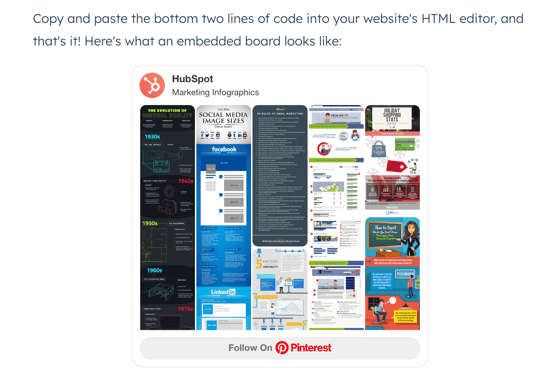
Copy and paste the bottom two lines of code into your website's HTML editor, and that's it! Here's what an embedded board looks like:
How to Embed Google Calendar
You can only embed a Google Calendar to your blog or website via desktop. Got it open? Let's embed it.
1. Click the gear icon at the top of your calendar to open settings.
2. Select the calendar you want to embed and scroll down to Integrate calendar.
(You can also simply click the option of the same name on the left-hand side under your chosen calendar.)
3. Copy the iframe embed code or make further customizations.
If you’re happy with the calendar as is, copy the iframe embed code and paste it into your website's HTML where you want it to appear.
If you want to make customizations, click Customize and edit your calendar. You can add a title, change the size, add a color, and other visual elements. Once you’re done, scroll to the top of that same page, copy the embed code, and paste it into your HTML.
4. Optional: Center your calendar.
If you'd like, you can wrap the embed code in center and /center tags to center-align your calendar within the margins of your website.
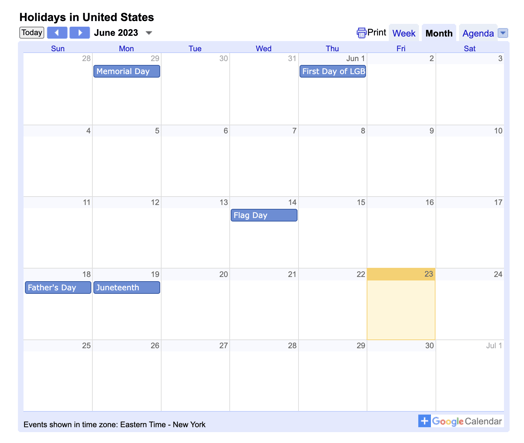
The image below is an example of a Google Calendar embedded in a blog post.
How to Embed a YouTube Video
Find the YouTube video you'd like to embed. Under the video, choose Share. In the menu that appears, choose Embed. Copy the code that appears and paste it into your website's HTML editor.
1. Find the YouTube video you'd like to embed.
2. Under the video, click Share.
3. Choose Embed from the menu options.
3. Copy the code and paste it into your website's HTML editor.
You can set a timestamp for the video to start before copying the code. Once you have your settings exactly the way you want them, Copy the code from the popup box and paste it into your website’s HTML.
4. Optional: Add center and /center tags around the entire HTML snippet to center-align your video.
Here's what the final code should look like with alignment tags:
centeriframe width="560" height="315" src="https://www.youtube.com/embed/mZxa3lrLhXM" frameborder="0" allow="accelerometer; autoplay; encrypted-media; gyroscope; picture-in-picture" allowfullscreen/iframe/center
The image below is an example of a YouTube video embedded into a blog post.

How to Embed a TikTok Video
It’s easy to embed TikTok videos into your blog or website, and there are three ways to do it.
Note: You can only get embed codes from TikTok.com (no mobile app), and you can’t embed content from private accounts or accounts of underage users.
How To Embed a TikTok Video From a User Profile
Here are the steps to embed a TikTok video from someone's profile.
1. Navigate to a user's profile and find the video you want to embed.
2. Click on the video.
3. Click the Embed icon above the comments section.
4. Click copy code in the pop-up window and paste it into your website HTML.
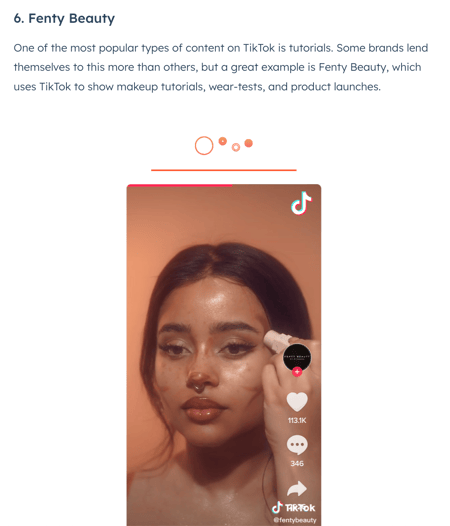
The image below is an example of a TikTok embedded into a blog post.
Embed a TikTok Video From Your for You Page
1. Click the share arrow at the bottom of the right-hand side menu of the video.
2. Tap Embed from the top of the menu list.
3. Click Copy code in the pop-up window and paste it into your website HTML.
How to Embed a TikTok Video from TikTok Embeds
TikTok Embeds makes it easy to embed a single TikTok video (Basic Embeds) or create a playlist of videos to embed (Create your own). For Basic Embeds;
1. Click Video and paste the URL of the TikTok video into the URL field.
2. Click Get code.
3. Copy and paste the code into your website URL.
To embed a playlist of videos;
1. Click Create your own.
2. Click the plus arrow in the middle of the box field.
3. Paste URLs to all of the videos you want to include separated by comma, line break, or space, and click Add.
4. Click Preview to get a live look at the embed.
5. Click Copy code and paste the embed URL into your websites HTML.
The image below is anan example of what an embedded TikTok playlist looks like:
 Over to You
Some of these embed codes may need a little tweaking to look perfect on your blog or website, but using these steps, you should be off to great start. Happy embedding!

Website Design

![What makes a good website? Here are 16 things I look at [new data]](https://53.fs1.hubspotusercontent-na1.net/hubfs/53/what-makes-a-good-website-1-20250527-1287063.webp)