As a web accessibility advocate, I often test certain functions on websites I use daily to determine if they contribute to the problem or the solution.

Last week, I tried to book a doctor’s appointment on a healthcare website that was impossible to navigate with just my keyboard. No visual focus indicators, no logical tab order — just a frustrating dead end. I eventually found a workaround, but for the millions of people who rely on assistive technologies daily, that website might as well have had a “closed” sign on the door.
I’m here to help you simplify making your website accessible. I created this guide to walk you through everything you need to know to build a website that not only complies with accessibility standards but also welcomes everyone.
Table of Contents
- What is web accessibility?
- Web Accessibility Standards
- How to Make Your Website Accessible
- Web Accessibility Tools
- Web Accessibility Examples
- Tips for Creating Equitable Web Experiences
.png)
Website Accessibility Checklist
This checklist will help you make the following more accessible on your website:
- Web Pages
- Navigation
- Video & Media
- And More!
Download Free
All fields are required.

What is web accessibility?
Web accessibility is the practice of designing and building websites that everyone can use regardless of disability or impairment. It’s about removing barriers so that all visitors can access your content, navigate your pages, and complete tasks without frustration or limitations.
By prioritizing web accessibility, you ensure that all visitors — regardless of ability — can seamlessly experience your website. Unfortunately, the majority of websites fail to meet basic accessibility standards. For users with disabilities, an inaccessible site isn’t just inconvenient; it’s a barrier to information, services, and opportunities that the rest of us take for granted.
To achieve this, your site needs to follow specific design and development guidelines that accommodate people with diverse abilities. This might mean ensuring your site works with screen readers, can be navigated by keyboard alone, includes captions for videos, or uses sufficient color contrast for readability.
So what’s the goal here? The goal is to create an equitable experience where everyone can interact with your website just as effectively as anyone else.
When asked what web accessibility means to him, Matt Fehskens, senior software engineer II at HubSpot, says, “Web accessibility for me is the ability for everyone to be able to use websites in an unobtrusive and efficient way. This means not requiring people to navigate obstacles just to get to the content they need, as well as delivering functionality that doesn’t exclude.”
To me, that’s the key distinction between an inclusive site and one that excludes: Whether or not folks can use the site in an unobtrusive, intuitive way.
Kieran Forde, senior content designer II at HubSpot, reiterates this. “Web accessibility is about making sure that everyone can have great online experiences, regardless of the technology or assistance they use,” Forde says.
Pro tip: One of the most impactful ways to understand web accessibility is to attend events hosted by groups like Ladies that UX ATL, where you can observe real users with disabilities interacting with technology in real-time.
I attended a session where Clay, a blind individual, demonstrated how he navigates everything from transportation apps to healthcare portals — and seeing the barriers (and solutions) firsthand transformed how I approach design and development. Learning directly from lived experience is an invaluable resource.
Who manages web accessibility on the internet?
So, who’s actually responsible for setting web accessibility standards and pushing for their adoption across the Internet? That would be the Web Accessibility Initiative (WAI) of the World Wide Web Consortium (W3C). These organizations develop and publish the Web Content Accessibility Guidelines (WCAG), the gold standard for web accessibility that we'll dive into below, along with other essential resources and documentation.
Why is web accessibility important?
Here is something to think about: The World Health Organization estimates that 16% of the global population — 1.3 billion people — has a significant disability. That means when you treat accessibility as an afterthought, you’re building a website that excludes 16% of potential users before they even arrive. That’s one in six people who could be excluded from your website if you don’t design with intention. Flip that approach, and suddenly you’re creating digital spaces where everyone belongs.
Anna Gallo, a web developer at HubSpot, puts it perfectly: “When I think about accessibility, I try to think about making something that is usable for the greatest possible number of people. Everyone deserves equal access to the web, and striving for inclusion is the right thing to do.”
Charlotte Cameron, senior web developer at HubSpot, drives this home even further. She says, “Designing and developing for web accessibility means more people have equal access to the web.”
I’ve encountered countless websites that only address accessibility for people with visual or hearing impairments, completely overlooking users with cognitive, motor, or neurological disabilities. When we talk about disabilities, we’re talking about a wide range of experiences. Your website needs to work for people navigating challenges like:
- Blindness and low vision.
- Deafness and hearing loss.
- Cognitive disabilities.
- Learning disabilities (like dyslexia and dyscalculia).
- Neurodivergence (like autism and ADHD).
- Motor and mobility impairments.
- Speech disabilities.
- Seizure and vestibular disorders.
- Temporary or situational limitations.
There’s something deeper happening when you choose to prioritize accessibility — you’re making a statement about what matters to your organization. I take pride in having an accessible website because it tells visitors that I see them as whole people, not just conversion opportunities. Basically, I am showing that inclusivity isn’t a buzzword for me; it’s built into my foundation.
Sure, this approach can build trust and deepen customer relationships. But if I’m being honest, that can’t be our primary motivation. Web accessibility matters because excluding people from the digital world is absolutely wrong. Think about it: If physical businesses are required to provide wheelchair ramps and accessible entrances, why wouldn’t the same principle apply to digital spaces? Your website is often the front door to your business.
“The repercussions which I think grab the attention of businesses the most are the fiscal ones,” shares Fehskens. “However, more costly than fines can be the loss of users or, even worse, an experience so bad you create an evangelist against your product — this would be someone who has such a distaste that they actively discourage others from using your product.”
The data backs this up. Gallo notes that businesses developing websites without accessibility in mind are missing out on a huge number of leads and conversions. Why? User experience and engagement impact SEO, making accessibility important for rankings.
When you look at the whole picture, web accessibility isn’t just about compliance or conversions — it’s about creating a more equitable Internet.
“Fundamentally, [web accessibility] means equitable access to the web, and everything on it — information, products, services, and opportunities," says Cameron. “By removing barriers that restrict groups of users from the web, we can promote diversity and facilitate belonging. This benefits business, society, and everyone in it.”
By now, you’re probably convinced that web accessibility is essential. But here’s the question that usually comes next: Is it legally required?
Pro tip: Mobile accessibility is just as critical as desktop — test with screen readers like VoiceOver and TalkBack, keep tap targets large, and skip complex multi-finger gestures.
Website Accessibility Checklist
This checklist will help you make the following more accessible on your website:
- Web Pages
- Navigation
- Video & Media
- And More!
Download Free
All fields are required.
How is web accessibility enforced?
Great question! The legal landscape around web accessibility is complex and evolving rapidly. If you operate a government website, accessibility isn’t optional — you must comply with Section 508 of the Rehabilitation Act guidelines. For private businesses, however, the enforcement picture is more complicated.
Here’s what catches most business owners off guard: Even without explicit federal laws mandating web accessibility for all private sites, companies still face very real legal exposure. Courts have increasingly ruled that inaccessible websites violate existing civil rights protections, and the resulting rise in litigation tells a sobering story.
The numbers are quite telling. In 2024, over 4,000 ADA lawsuits related to digital properties were filed, and the first half of 2025 saw 2,014 ADA website lawsuits — a 37% increase from 2024. These aren’t just targeting tech giants — small businesses with revenue under $25 million received the majority of these lawsuits.
Let’s look at some recent high-profile examples regarding this issue.
In 2019, real estate platform Zillow was sued for failing to make its website and mobile app accessible to visually impaired users. The lawsuit claimed that Zillow’s digital platforms were not compatible with screen readers and did not include alternative text for images, making it challenging for users with disabilities to browse properties or access services.
In one of the first high-profile web accessibility lawsuits of 2024, fast-casual health food restaurant Sweetgreen was sued under the ADA and New York Human Rights Law in January. The plaintiff in the case alleged that multiple WCAG violations were making it challenging for people who are blind or have low vision to navigate the company’s site and access Sweetgreen’s services. What makes this case particularly instructive is that Sweetgreen had already settled an accessibility lawsuit back in 2016. This proves my point that accessibility isn’t something you can satisfy once; you have to constantly iterate and improve.
Early accessibility lawsuits like Winn-Dixie focused on websites tied to physical locations, but that standard has shifted dramatically. As online shopping becomes the default for most consumers, courts now scrutinize digital accessibility regardless of whether brick-and-mortar alternatives exist. The 2023 Whirlpool/KitchenAid case exemplifies this evolution — plaintiffs successfully argued that website barriers constituted discrimination by forcing disabled customers to visit physical stores, creating an unequal and more burdensome shopping experience.
The legal precedent is clear: Your website cannot create barriers that prevent anyone from accessing your content, products, or services — whether you’re concerned about litigation risk or simply want to serve all potential customers.
Globally, enforcement is becoming even more stringent. The European Accessibility Act (EAA) took effect on June 28, 2025, requiring any company providing digital services in the European Union — no matter where they’re based — to meet new accessibility standards or face penalties. The EAA establishes EU-wide requirements for digital products and services, including websites, apps, and ecommerce platforms. While rooted in WCAG principles, the EAA has distinct requirements that go beyond standard WCAG compliance. Companies serving EU customers must prioritize meeting these specific standards. Tools like iubenda’s Accessibility Solution can help navigate these requirements with user-friendly implementation support.
So how do you actually achieve compliance and protect your business from these risks? The answer lies in following the Web Content Accessibility Guidelines (WCAG) set forth by the World Wide Web Consortium. Below, I’ll break down exactly what those standards require and how to implement them effectively.
Pro tip: Web accessibility best practices change frequently, so treat it like you would any other part of your tech stack — something that needs regular updates and maintenance, not a one-and-done deployment.
Web Accessibility Standards
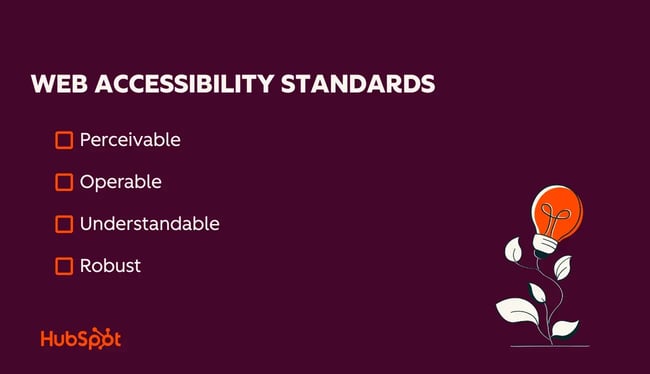
The WCAG states that there are four main principles you’ll need to follow to create an accessible website. Your site must be perceivable, operable, understandable, and robust. These are often referred to as the POUR principles. I will explain how you can dive deeper into specific guidelines and success criteria to apply to your site.
1. Perceivable
First, it’s imperative that all visitors can perceive or access the content you present on your website — regardless of how they consume it.
Keep in mind that “perceive” doesn’t always mean seeing with your eyes. Users who are blind or have low vision often use screen reader software, which converts text into synthesized speech or braille characters. Similarly, users who are deaf or hard of hearing need captions for audio content. Your job is to consider all the ways you can make your content perceivable through multiple senses when creating and updating your site.
Key requirements: Provide text alternatives for images (alt text), captions for videos, transcripts for audio content, and ensure sufficient color contrast so text is readable.
2. Operable
An operable website means all visitors can navigate and interact with it without barriers. Every visitor should be able to use each part of your site’s functionality — from navigating to the contact page to selecting a link from a menu to playing a video using whatever input method of their choice.
This is important because not everyone uses a mouse. Many users navigate entirely by keyboard, voice commands, or assistive technologies. Your site must work seamlessly for all of these input methods.
Key requirements: Ensure all functionality is keyboard accessible, provide enough time for users to complete tasks, avoid content that flashes rapidly (which can trigger seizures), and offer clear navigation paths.
3. Understandable
Your site content and functionality must make sense. This refers to both your written content, visual design, and how your site behaves.
Remember that people with cognitive disabilities, learning disabilities, or language barriers are visiting your site. If your content is too verbose, uses complex jargon, or has a confusing structure, you’re excluding valuable users. Keep your language clear, concise, and digestible.
This also applies to your site’s structure and behavior. Your pages must be intuitively organized, your navigation readily available, and your site must behave predictably, which means no unexpected pop-ups or automatic redirects that disorient users. I like to ask myself, is the flow of my website predictable? If not, I step back, identify what’s causing confusion, and simplify until the user journey feels intuitive.
Key requirements: Use plain language, organize content logically, provide clear instructions, ensure forms have helpful error messages, and make sure your site behaves consistently across all pages.
4. Robust
Lastly, your content should be robust enough to be reliably interpreted by a wide variety of user agents and assistive technologies, both now and in the future. This means your code needs to be clean, semantic, and standards-compliant.
To achieve this, write valid HTML that allows assistive technologies to parse your code accurately without relying on visual presentation. Use proper HTML elements (like <button> for buttons, not <div> styled to look like a button), ensure your code validates, and test with actual assistive technologies.
Key requirements: Use semantic HTML, ensure your code validates, avoid deprecated markup, and make sure your site works across different browsers and assistive technologies.
Pro tip: All four principles work together — your site isn’t truly accessible if it checks only some of these boxes. A website that’s operable but not robust will still fail users who rely on assistive technologies. Aim for comprehensive accessibility across all four POUR principles, and remember that these principles build on each other to create a truly inclusive experience.
How to Make Your Website Accessible
After reviewing the principles above and uncovering such a diverse range of disabilities and needs, you may have realized that your current site falls short of web accessibility standards. Or perhaps you ran an accessibility audit and the results weren’t great. You may wonder what “accessible” actually looks like in practice, or how to prioritize improvements without a complete website overhaul.
Don’t panic — the WCAG provides specific, actionable guidelines for each principle we’ve covered. I will go over exactly how you can implement these best practices to build a truly accessible website.
For an even more comprehensive deep dive, check out our complete web accessibility checklist. I highly recommend using it as your roadmap — it makes the process of implementing accessibility far less overwhelming.
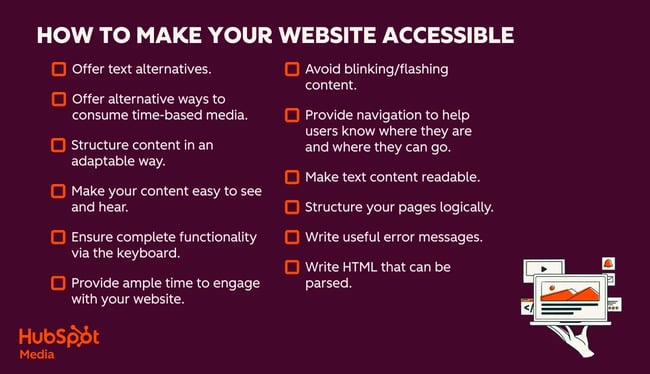
Perceivable Web Accessibility Guidelines
Ready to ensure your site is perceivable to all users? Here’s your action plan.
Offer text alternatives.
Every non-text element on your site — images, videos, audio files, icons — needs a text alternative so people using screen readers can understand what’s there. Image alt text is non-negotiable for meaningful images, providing essential context about what the image conveys.
For decorative images that don’t add informational value (like design flourishes or spacer images), include an empty alt attribute like this:
html
<img src=“decorative.png” alt=“” />
This signals to screen readers that an image exists but doesn’t require description, preventing unnecessary clutter in the audio experience.
Don’t stop at images. Complex visual content like charts, graphs, infographics, and data tables often need more detailed descriptions beyond basic alt text. Consider using longer text descriptions adjacent to these elements or using aria-describedby for more complex explanations.
Offer alternative ways to consume time-based media.
Time-based media includes any audio or video content on your site. For videos, captions must be accurate and synchronized with the audio — this helps users who are deaf or hard of hearing, but also benefits people watching in sound-sensitive environments or non-native speakers.
For audio-only content like podcasts or recordings, provide complete transcripts that capture all spoken content and relevant sound information.
Take a look at the videos on HubSpot’s YouTube channel as an example. Notice the synchronized captions that follow along with the speaker? There’s also descriptive text detailing visual elements for users who can’t see what’s happening on screen. This dual approach ensures nobody misses out on the content.
Structure content in an adaptable way.
Your HTML needs to be semantically sound — meaning the underlying code structure should convey information even if all visual styling disappeared. Proper heading hierarchy (<h1>, <h2>, <h3>), list elements (<ul>, <ol>), and text emphasis tags (<strong>, <em>) all communicate meaning beyond just appearance. Make sure you are using them correctly. Here is a great resource to be sure.
Use semantic HTML elements like <nav> for navigation, <main> for primary content, <article> for self-contained content, and <button> for interactive elements. Avoid the trap of using generic <div> tags styled to look like buttons or headings — assistive technologies can’t interpret visual styling alone.
Make your content easy to see and hear.
Color contrast is critical. The WCAG AA standard requires a minimum contrast ratio of 4.5:1 for normal text and 3:1 for large text. This ensures people with color blindness or low vision can read your content without strain. Use contrast checking tools to verify your color choices meet these thresholds.
For audio content, users must be able to control background sounds — either by adjusting volume independently or pausing playback entirely. Unexpected auto-playing audio can be disorienting for users with cognitive disabilities or those using screen readers.
Some websites, like HubSpot’s, feature a color contrast toggle that lets visitors customize their viewing experience. Giving users this level of control demonstrates a commitment to accessibility that goes beyond minimum compliance.
Website Accessibility Checklist
This checklist will help you make the following more accessible on your website:
- Web Pages
- Navigation
- Video & Media
- And More!
Download Free
All fields are required.
Operable Web Accessibility Guidelines
Now I want to discuss operability — making sure everyone can actually use your site.
Ensure complete functionality via the keyboard.
Not everyone navigates with a mouse. Many users rely entirely on keyboards, switch devices, or voice commands to interact with websites. Every single function on your site must be accessible via keyboard alone.
The tab key should move users logically through interactive elements (following a left-to-right, top-to-bottom flow), and the enter/return key should activate whatever element has focus. Users should always see a clear visual indicator showing where their keyboard focus is located, and they should never get trapped in a focus loop where they can’t escape a particular section.
Provide ample time to engage with your website.
Give users enough time to read, watch, and interact with your content without arbitrary pressure. If your site includes timed actions — like session timeouts or auto-advancing carousels — ensure users can extend, pause, or cancel these time limits.
This applies to interactive elements, too. For example, if someone moves their cursor away from a dropdown menu, don’t make it disappear instantly. Build in a slight delay so users with motor impairments have time to navigate back without the menu vanishing.
On the HubSpot website, dropdown menus stay visible for a moment after you move away, giving you time to correct the course if needed. Test it yourself and you’ll see the difference this small consideration makes.
Avoid blinking/flashing content.
According to W3C standards, content that blinks or flashes more than three times per second can trigger seizures in people with photosensitive epilepsy. The safest approach is to avoid this type of content entirely. If you absolutely must include it, provide a clear, prominent warning before users encounter it.
This also extends to animations and parallax scrolling effects, which can cause vestibular disorders and motion sickness. Consider offering a reduced motion option for users who need it.
Provide navigation to help users know where they are and where they can go.
Clear, descriptive page titles, meaningful link text (not “click here”), visible keyboard focus indicators, and logical heading structures all help users understand their location within your site and where they can navigate next.
Breadcrumb navigation, skip-to-content links, and consistent navigation placement across pages make orientation dramatically easier for everyone, especially users with cognitive disabilities or those using assistive technologies.
Understandable Web Accessibility Guidelines
Let’s ensure your site makes sense to everyone who visits.
Make text content readable.
Write for your entire audience, including people with cognitive disabilities, learning differences like dyslexia, and non-native speakers of your primary language. Use plain language, keep sentences concise, and break up dense paragraphs with white space and subheadings.
Skip the regional slang, industry jargon, and unnecessarily complex vocabulary. If you must use technical terms, define them on first use. Remember, accessible writing is good writing, period. It benefits everyone, not just users with disabilities.
Structure your pages logically.
Your site’s structure and navigation should feel intuitive, so users shouldn’t have to hunt for how to move around. Keep primary navigation visible and consistently placed, typically in the header and/or footer. Organize content in a logical hierarchy that makes sense even without visual design cues.
Group related information together, use clear section headings, and ensure your page layouts follow predictable patterns across your entire site.
Write useful error messages.
Error messages are frustrating enough without being cryptic. When something goes wrong, a form field is incomplete, a password doesn’t meet requirements, a page can’t be found — tell users exactly what happened and how to fix it.
Instead of “Error 403,” say “This field is required. Please enter your email address.” Instead of “Invalid input,” explain “Passwords must be at least eight characters and include one number.”
HubSpot’s error messages exemplify this approach — they’re specific, helpful, and action-oriented, turning a frustrating moment into a solvable problem.
Robust Web Accessibility Guidelines
Finally, let’s make sure your site works reliably with all assistive technologies.
Write HTML that can be parsed.
Assistive technologies depend on clean, valid HTML to translate your content into formats like braille or synthesized speech. Your code needs to be structurally sound. Use proper opening and closing tags, avoid duplicate IDs across elements, and never use duplicate attributes within the same element.
Validate your HTML regularly using tools like the W3C Markup Validation Service. While perfect validation isn’t always achievable (especially with third-party integrations), aiming for clean code significantly improves compatibility with assistive technologies.
Use ARIA (Accessible Rich Internet Applications) attributes sparingly and strategically, and only when semantic HTML can’t convey the necessary information. ARIA should enhance accessibility, not compensate for poor HTML structure. The first rule of ARIA is don’t use ARIA if you can use semantic HTML instead.
I’ve covered a lot of ground on web accessibility fundamentals! Now I’ll introduce you to some practical tools that can help you audit, implement, and maintain accessibility on your site.
Web Accessibility Tools
As a front-end developer, I’ve learned that accessibility testing needs to be integrated throughout your entire development workflow, not treated as an afterthought. I’ve used these three tools on everything from side projects to a Flutter-based platform connecting home improvement contractors with customers for scheduling, payments, and job management.
That project taught me that what looks perfect locally can have serious barriers you’ll never catch without proper testing.
1. Axe DevTools
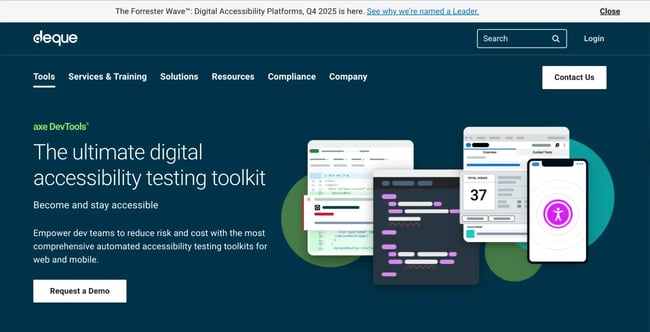
Axe DevTools has become my go-to browser extension for catching accessibility issues during development. It runs directly in Chrome DevTools, analyzes pages in seconds, and links each violation to the problematic code with clear remediation guidance.
When working on that contractor platform, Axe caught critical issues like improper ARIA labels on date pickers and payment forms that would’ve made core functionality unusable for screen reader users.
The Chrome extension is free, with paid enterprise tiers for CI/CD integration.
2. WAVE (Web Accessibility Evaluation Tool)
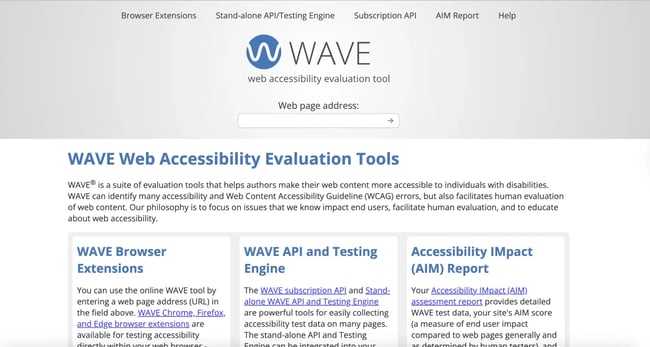
WAVE offers visual, in-page feedback by overlaying icons directly onto your web page to show exactly where accessibility issues exist. I use it primarily for initial audits and verifying content-heavy pages. The visual approach helps spot patterns that aren’t obvious in text-based reports.
It’s available as a free browser extension for Chrome and Firefox, or as a web-based tool. The only limitation I’d mention is that the overlay can get cluttered on complex layouts with absolute positioning.
3. Lighthouse
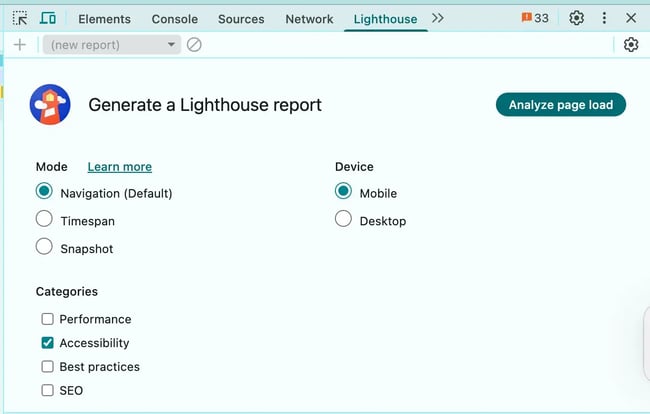
Lighthouse is built directly into Chrome DevTools with zero setup required, making it incredibly convenient for quick accessibility checks during development. It audits accessibility alongside performance, SEO, and best practices, using axe-core under the hood (though it runs fewer tests than the full Axe extension).
I run Lighthouse for baseline scores during initial development, then switch to Axe DevTools for thorough testing before deployment. This dual approach has allowed me to catch accessibility bugs quickly, which in turn saved the team on dev time.
If you are looking to explore other tools, W3C has compiled and shared a list of them on its website so you can peruse some top choices. We also have a list of our favorite tool recommendations.
Website Accessibility Checklist
This checklist will help you make the following more accessible on your website:
- Web Pages
- Navigation
- Video & Media
- And More!
Download Free
All fields are required.
Web Accessibility Examples
Want some inspiration to help you brainstorm how to bring your site to life with these web accessibility best practices front and center? I recommend these accessible websites you can reference when designing or recreating yours.
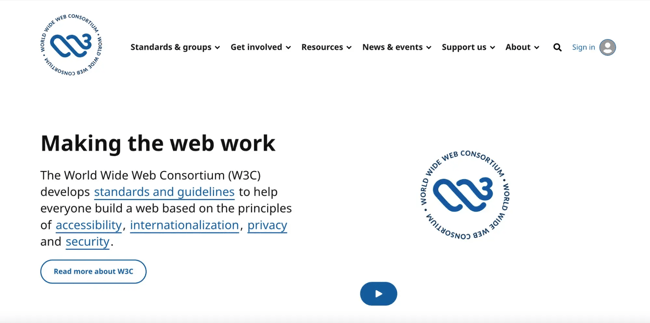
1. W3C
Unsurprisingly, W3C has everything an accessible website should, including well-structured HTML with clear tags to denote structure, color contrast, simple language, and a focus indicator for the currently selected page element. Peruse this site for an example of what excellence in website accessibility looks like.
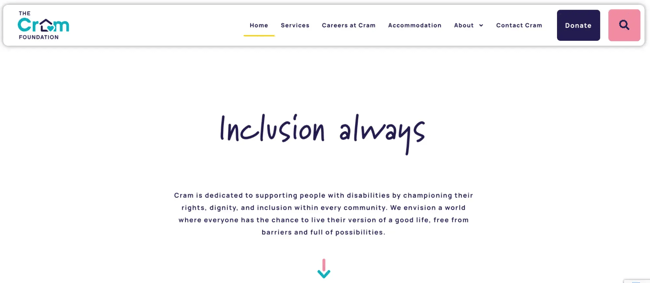
2. The Cram Foundation
The Cram Foundation focuses on supporting those with disabilities, so of course, it has a WCAG-compliant website. The site balances web accessibility with an aesthetically pleasing and branded design. The bright site meets all WCAG color and contrast standards, and its navigation is accessible in both structure and color, which stands out to me.
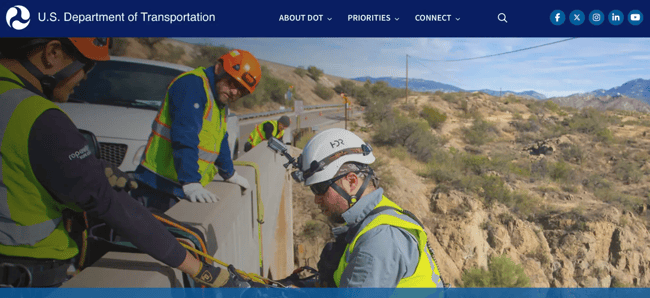
3. US Department of Transportation
The U.S. Department of Transportation’s (DOT) website (transportation.gov) is required to meet Section 508 accessibility standards as a federal agency, ensuring equal access to transportation information for all users. The site serves diverse audiences, from commuters checking transit schedules to businesses navigating federal regulations. DOT meets WCAG 2.0 Level AA standards with features like skip navigation links, proper table markup, and accessible email communications.
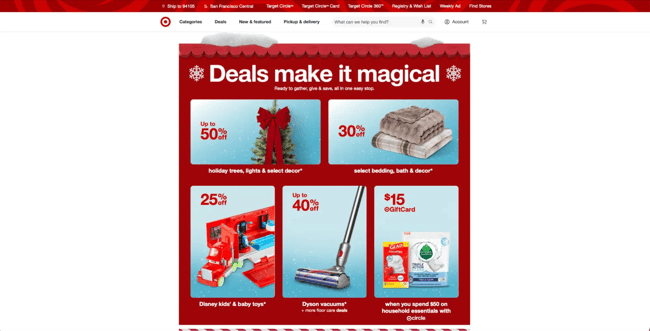
4. Target
Target brings accessibility to retail the same way it brings style to home décor by being thoughtful and consistent. And no, I’m not just praising them because their throw pillows are literally chef’s kiss.
Target’s ecommerce platform demonstrates a genuine commitment to WCAG 2.2 Level AA compliance, going beyond what’s legally required for private retailers. The site features intuitive keyboard navigation, proper heading structures for screen reader users, and sufficient color contrast ratios across its interface. What sets Target apart is its collaboration with advocacy groups and people with disabilities to continuously refine the user experience.
5. Starbucks
Starbucks serves over 75 million Rewards members globally and operates 38,000+ stores worldwide. With that kind of audience size, the coffee giant recognizes that accessibility is a must. And honestly? Starbucks has made meaningful investments in both digital and physical accessibility, transforming its stores with features like optimized acoustics, power-operated doors, lower counters, and improved visual aids.
It’s worth noting that they didn’t do this alone. Starbucks developed these initiatives in partnership with accessibility experts and stakeholders from the disability community. Their digital presence follows suit. The Starbucks website and mobile app are built with accessibility features that accommodate screen readers, keyboard navigation, and other assistive technologies, ensuring that ordering your favorite latte is seamless whether you’re in-store or online.
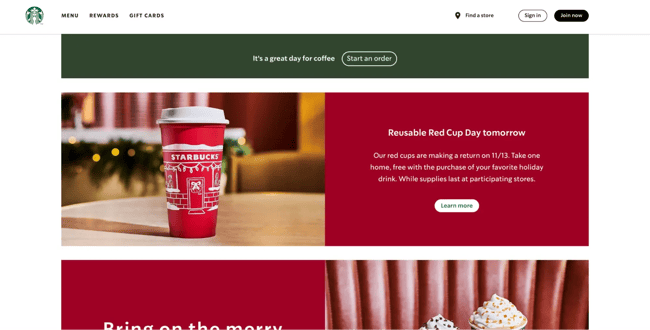
What I love the most is that they have a dedicated page titled Belonging at Starbucks that highlights all of their efforts. (Psst: Creating a statement outlining your commitment to accessibility is a great idea!)
6. The Financial Gym
The Financial Gym is a personal finance coaching service with an accessible website. It uses text and image colors to offer ample contrast while maintaining adherence to the company’s branding. Layout and navigation are intuitive enough to navigate with a screen reader and a keyboard. Also, videos on the homepage do not auto-play, so users have full control over the media playback.

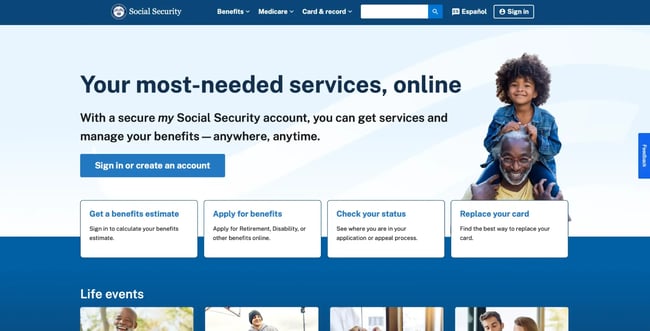
7. Social Security Administration
The Social Security Administration’s website (ssa.gov) serves millions of Americans accessing critical benefits information, making accessibility non-negotiable. The site includes clear text alternatives for images, logical heading structures for screen reader navigation, and consistent layouts that help users predict where to find information.
Like other federal websites, the SSA provides an accessibility statement outlining its commitment to Section 508 compliance and WCAG 2.0 Level AA standards. It’s a solid example of how government sites should prioritize usability from the moment a visitor lands on the homepage, ensuring the experience works for everyone.
Tips for Creating Equitable Web Experiences
Ready for actionable strategies to build equitable web experiences? I consulted with four HubSpotters for expert guidance on meeting web accessibility standards.
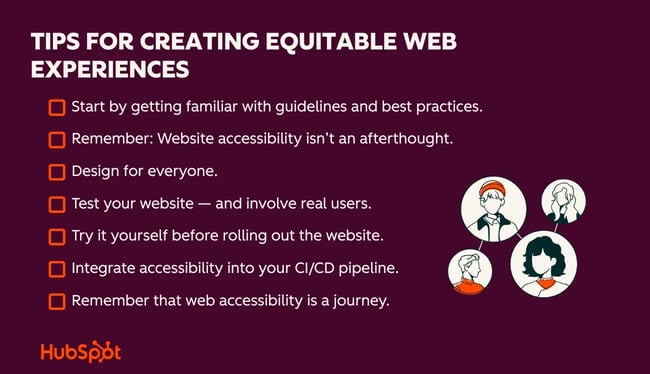
Start by getting familiar with guidelines and best practices.
You’ve read this post — that’s a solid foundation for your web accessibility journey. Next, dive deeper into WCAG standards and the legal landscape.
“It’s important to familiarize yourself with laws and standards related to disability and accessibility,” says Gallo. “These vary depending on where you live, but the Web Content Accessibility Guidelines (WCAG) is a set of standards that can help website owners achieve compliance with the Americans with Disabilities Act, Section 508, and other laws. Reading more about WCAG standards is a great starting point.”
Leverage every resource available. Forde recommends practical tips on the W3 Writing for Web Accessibility page.
Pro tip: Browse examples of accessible websites to gather inspiration as you build yours.
Remember: Website accessibility isn’t an afterthought.
The earlier you prioritize accessibility, the better your outcomes. “Prioritize accessibility as early as possible,” recommends Cameron. “This is called ‘shifting left.’ The idea is to keep accessibility in mind as early into your product lifecycle as possible.”
Cameron notes that this tends to lead to a better user experience for all users. It also hugely reduces the effort required to make a site accessible compared to trying to identify and fix issues after the fact.
Your users will notice if accessibility was tacked on at the end. “It’s easier to build something in an accessible way than it is to go back and fix accessibility issues after the fact, so considering accessibility as early in your project as possible is always a good idea,” says Gallo.
Pro tip: During your website build or redesign, designate someone as your accessibility advocate to flag issues throughout the project.
Design for everyone.
Consider the full spectrum of disabilities when creating your site. “Some people with disabilities rely on assistive technologies such as screen readers and keyboard navigation, and there are special considerations we must make when designing and developing a website to ensure assistive technologies work correctly on that site,” says Gallo.
However, Gallo says, making sure your website works with assistive technologies is just a starting point in creating an equitable experience. There are also best practices to make things more usable for people who are neurodivergent, people with dyslexia and dyscalculia, and people with anxiety, among many other considerations.
Don’t limit your thinking to just one type of disability. “The first persona that comes to mind when most people think of web accessibility is users with blindness, but there are many others,” says Fehskens.
For example, Fehskens shared that people with arthritis are often overlooked.
“Imagine having rheumatoid arthritis in your hand, which makes it difficult or impossible to use a mouse, but the only way to use a website is through a drag-and-drop interface. This user is incapable of using your website’s functionality because of that drag-and-drop,” says Fehskens.
Pro tip: Use an accessibility checklist to systematically work through the different disabilities you need to design for.
Test your website — and involve real users.
Automated testing helps identify problems early, but it’s not enough on its own.
Cameron cautions against overrelying on automated testing. While Axe DevTools and other solutions can help teams conduct an audit, these tools aren’t a replacement for manual usability testing.
“The best thing to do is to get hands-on — try navigating your website with a keyboard or with screen reader software. You’ll likely run into friction points you didn’t realize were there,” Cameron says.
Beyond tools, involve people who use assistive technologies daily — their lived experience uncovers issues automated scanners miss. Services like Level Access can connect you with users who provide genuine feedback on your site’s real-world accessibility.
Pro tip: Test your website across multiple tools to gather different perspectives and insights.
Try it yourself before rolling out the website.
Before launching publicly, navigate your site yourself to catch overlooked obstacles. “I especially think it’s important for everyone involved in producing a web product (designers, engineers, program managers, etc.) to use their website without a mouse,” says Fehskens.
Fehskens recommends using your keyboard to tab through to your content. The process makes it easy to spot hurdles for anyone who cannot use a mouse.
Pro tip: Don’t forget to test your mobile experience, too!
Integrate accessibility into your CI/CD pipeline.
Make accessibility checks part of your deployment process by integrating automated testing into your continuous integration pipeline. Tools like axe-core can run as part of your test suite, failing builds when critical accessibility issues are detected. This transforms accessibility from a manual audit into an automatic safeguard, catching regressions before they reach production.
Pro tip: Start with baseline accessibility tests in your pipeline and gradually expand coverage as your team’s knowledge grows.
Remember that web accessibility is a journey.
Your website will evolve, and so should your accessibility practices. Continuously refine your site to incorporate new best practices and emerging standards.
“Try to view building an accessible site as an ongoing process, not a one-off event,” suggests Cameron. “As your website grows and evolves, continuing to place emphasis on ensuring your site is inclusive and accessible will help to ensure everyone has equitable access to your content.”
Pro tip: If you need expert guidance, consider partnering with an accessibility consultant.
Designing Websites for Everyone
I’ve spent years working in web development, and I can tell you with certainty that accessibility isn’t just a nice-to-have feature or a compliance checkbox. It’s a fundamental part of building for the web that we all need to take seriously.
The truth is, when I prioritize accessibility from the start, I’m not just helping the 16% of the global population with disabilities — I’m creating better experiences for everyone. Cleaner code, more intuitive navigation, and thoughtful design choices benefit every single person who visits a site.
I know the WCAG guidelines can feel overwhelming at first. The legal landscape is complicated, and there’s always more to learn. But I’ve found that the best approach is to start where you are, use the tools available, and commit to making accessibility part of your everyday workflow rather than a one-time project.
Every inaccessible website is a missed opportunity — to reach more users, to demonstrate your values, and to make the Internet a more equitable space. I hope this guide gives you the foundation to start making meaningful changes. The web should be for everyone, and we’re the ones who get to build it that way.
Editor’s note: This post was originally published in February 2021 and has been updated for comprehensiveness.
Website Accessibility Checklist
This checklist will help you make the following more accessible on your website:
- Web Pages
- Navigation
- Video & Media
- And More!
Download Free
All fields are required.
Web Accessibility