.png?width=112&height=112&name=Image%20Hackathon%20%E2%80%93%20Square%20(8).png)
Choosing the right image format isn’t just a technical decision. It’s how you balance quality, performance, compatibility, and creativity all at once. Two identical-looking photos can behave completely differently online:
- One loads instantly, the other drags a page down.
- One fills your storage, the other keeps it free.
- One looks crisp on Retina, the other cracks on mobile.
The difference isn’t design or resolution — it’s the format. From classic JPEGs and PNGs to modern options like WebP, AVIF, and HEIC, each format changes how your images load, look, and perform. In this guide, I’ll share the most efficient image file extensions, explaining when to use each, and how the right choice keeps your visuals light, sharp, and fast.
Table of Contents
.png)
Free Stock Photos
Access the free stock photos you've been searching for.
- Office stock photos
- Computer stock photos
- Kitchen stock photos
- Miscellaneous stock photos
Download Free
All fields are required.
Form not available
Vector vs. Raster
First things first: What is the difference between vector and raster?
Raster Image Files
Raster images are made up of tiny colored pixels arranged in a grid.
Every photo you see online, from a hero banner to an Instagram post, is raster-based. Formats such as JPEG, PNG, GIF, WebP, and AVIF are all raster image formats.
Raster graphics excel at capturing detail, texture, and color gradients with one key limitation: They’re resolution-bound. When you enlarge a raster image beyond its original size, pixels stretch and blur.
I’ve seen this mistake countless times, taking a 200px thumbnail and trying to turn it into a banner. The result looks like digital sandpaper.
Export raster images at the largest size you’ll ever need. You can always scale down, but scaling up destroys clarity.
Raster formats dominate photography, web design, and social media, particularly modern options like WebP and AVIF, which offer lighter, faster-loading images with improved compression compared to JPEG or PNG.
Vector Image Files
Vector images are built differently. Instead of pixels, they use mathematical paths and curves to define shapes, colors, and outlines.
Common formats include SVG, AI, and PDF (when saved with vector data).
A vector image can scale infinitely. You can use one from a favicon to a billboard without losing sharpness. Thus, your logo, icon set, or product illustration should always come in a vector format.
If you see an image printed across 18-wheelers or in a stadium gallery, that’s probably a vector image that stays as crisp as it looked on a laptop screen.
Vectors are ideal for graphics that require flexibility, such as logos, icons, charts, and UI elements. They remain sharp, editable, and small in size.
High Resolution vs. Low Resolution
Have you heard your designer talk about DPI or PPI? DPI stands for “dots per inch,” and PPI translates to “pixels per inch.” These units of measure are essential for determining if the density of pixels in an image is appropriate for the application you are using.
The biggest thing to note when determining what DPI or PPI you require is whether you are using an image for print or web. Websites display images at 72dpi, which is low resolution. However, images at this resolution look really crisp on the web. This is not the case for print. Best practices for printing an image will require it to be no less than 300dpi.
Don’t try to trick the system. A lot of magic can happen in Photoshop, but creating pixels out of thin air isn’t one of them. Pulling an image off the web and trying to get it to fit the dimensions of your print project just won’t work. You will end up with a pixelated image that appears stretched and distorted.

Types of Image Files
- JPEG (or JPG) - Joint Photographic Experts Group
- PNG - Portable Network Graphics
- GIF - Graphics Interchange Format
- WebP - Web Picture Format
- TIFF - Tagged Image File
- HEIF - High Efficiency Image File Format
- SVG - Scalable Vector Graphics
- AVIF - AV1 Image File Format
- OpenEXR - Extended Dynamic Range Format
- RAW - Raw Image Formats
1. JPEG (or JPG) - Joint Photographic Experts Group
If you have a photo on your phone or an image in a MS Word document, there’s a good chance it’s a JPEG. It’s arguably the most common image format you’ll encounter.
As of 2025, about 78% of all websites use JPEG images. That makes JPEG one of the two dominant image types on the web, alongside PNG.
JPEG is the go-to format for web photos because it drastically reduces file size with minimal loss of visible quality. It uses a “lossy” compression method, meaning that reducing file sizes also results in a loss of quality.

The more you compress a JPEG, the more image data gets discarded. This creates smaller files, but excessive compression leads to noticeable quality loss. Despite that, JPEG maintains a balance between quality and file size, which is why it’s so popular for photographs.
For example, you can compress a JPEG to 1/10th or 1/20th of its original size, and it will still look nearly identical.
A detailed JPEG image might be 30MB, but you can reduce it to 3MB. This greatly improves web page load times.
When to Use JPEG
- Web graphics and photos. Use JPEG for photos and detailed images online. It loads fast, so it’s great for websites, blogs, emails, and social posts.
- Documents and slides. JPEGs work well in PowerPoint, Word, or PDFs. Make sure the resolution is good enough for print.
- Photo printing. JPEG is fine for printing if saved at high quality and the right resolution.
Saving at 100% quality creates a larger file but shows little improvement over 90% quality. If you need help with compressing JPEG images, I have written a detailed guideline on how to compress JPEG images without losing quality.
When Not to Use JPEG
JPEG isn’t ideal for exact image reproduction, such as in medical imaging or fine art archiving. I recommend using a lossless format instead.
Also, JPEGs don’t support transparent backgrounds. If you need part of your image to be transparent, JPEG won’t work. You’d use PNG or GIF for that.
Pro tip: Each time you save a JPEG, it loses quality. If you’re editing a photo, use PSD or TIFF first, then export to JPEG when you’re done. That way, the final JPEG image stays sharp.
JPG vs. JPEG
There’s no actual difference between a “.jpg” and “.jpeg” file extension. They are the exact same thing. The only reason we have both is historical. In the early days of computers, Windows required three-letter file extensions, so “.jpeg” (four letters) had to be shortened to “.jpg”.
Meanwhile, other systems like Mac OS didn’t have that limitation and could use “.jpeg”. Today, Windows and other operating systems handle both just fine. You can name your file “image.jpg” or “image.jpeg” and it will work the same way.
Rest assured, a JPEG is a JPEG, no matter what you call it.
2. PNG - Portable Network Graphics
PNG is a raster image format that uses lossless compression. It compresses images while maintaining quality and supports transparent backgrounds.
PNG is everywhere on the web. In fact, as of 2025, approximately 78.5% of websites use PNG images, slightly more than those using JPEG.
PNG comes in two main flavors:
- PNG-8. 256 colors, similar to GIF.
- PNG-24/32. Millions of colors, with an optional transparency channel.

Most of the time, we are actually using the PNG-24/32, the full-color version with transparency support. PNG-24 supports 16 million colors, and PNG-32 adds semi-transparent pixels. This creates smooth, blended edges on various backgrounds.
PNG is ideal for graphics, thus it’s the preferred image extension for web design assets.
For instance, a PNG of your logo can have a soft drop shadow that gradually fades out — something JPEG can’t do because JPEG doesn’t do transparency at all.
If you check a regular web page, you might find logos and icons as PNGs, photos as JPEGs, and maybe an SVG here or there. PNG basically dominates for any non-photographic images online.
When to Use PNG
- Web graphics. PNG is ideal for images with flat colors or transparency, such as logos, icons, and illustrations.
- Infographics. Use PNG for charts or text-heavy images. Unlike JPEG, it keeps text sharp.
- Screenshots. Save screenshots as PNG to maintain clear interface text and lines.
When Not to Use PNG
The downside of PNG is its large file size. They are much bigger than the same JPEGs. Thus, PNG isn’t the best option for large photographs or artwork on image-rich websites.
Pro tip: Use PNG for transparent images (like logos) and sharp graphics with text. Use JPEG for photos. PNG can contain flat colors and text clearer than JPEG.
Free Stock Photos
Access the free stock photos you've been searching for.
- Office stock photos
- Computer stock photos
- Kitchen stock photos
- Miscellaneous stock photos
Download Free
All fields are required.
Form not available
3. GIF - Graphics Interchange Format
The GIF format is an old raster format from the 1980s. It’s best known today for being used in animated images, like the short clips that loop on social media and messaging apps.
Although it’s older, about 16.3% of websites still use GIFs in 2025. A lot of that is probably for animations or small pictures that are just for fun.
GIFs are a major part of Internet culture, especially on social platforms. Giphy, a popular GIF database, serves over 10 billion GIFs per day to 1 billion users. That’s billions with a “B”!

A GIF can be either a static image or contain multiple frames that create an animation. Technically, a GIF is limited to 256 colors (8-bit color), which is a relatively small palette compared to the millions of colors available in JPEG or PNG.
GIFs are poor for photos but fine for simple graphics. The 256-color limit helps keep file sizes small.
When to Use GIF
- Social media. Ideal for social media uses such as memes, reactions, and short animated clips.
- Tutorials. Very useful for showing quick steps in blogs or guides.
When Not to Use GIF
GIFs are not ideal for use as regular photos or smooth gradients. GIFs are limited to 256 colors, so the images won’t look vibrant.
Pro tip: Keep GIFs short and small. Use them for simple animations, such as buttons or spinners, to avoid slowing down your page.
4. WebP - Web Picture Format
WebP is a raster image format developed by Google in 2010, combining both lossy and lossless compression. It’s a suitable image format that supports transparency, animation, and metadata.
I view WebP images as a quality combination of JPEG and PNG in a single, smaller file type.
I first found WebP around 2019, and I didn’t consider it a major image format due to its limited browser support and technical difficulties. However, WebP is gaining popularity as a highly efficient image file format.

The ShortPixel image compression plugin features a built-in WebP generator for compressing all major image file formats. While working there, I noticed that compressing JPEG images to WebP reduced the image weight by around 30–40% without any noticeable loss in image quality.
Today, WebP has overcome some major technical limitations, and most web browsers and devices support WebP images. Many websites I’m working with nowadays have WebP conversion activated in the background to save storage and improve page loading speed.
When to Use WebP
- Web images. Use WebP for images on your website, including product images, blog images, and featured images. It gives you lightweight image files without compromising clarity.
- Performance optimization. Use WebP if you need an important web page to load fast and perform better in terms of speed and better points in Core Web Vitals like LCP and CLS.
- CDNs. CDNs work best when you store and serve images in the WebP file format on the web. It both performs better and saves your CDN bandwidth usage and cost.
When Not to Use WebP
WebP is still not a good image format for everyday use on your device or apps, as many don’t support it. I often download WebP files but struggle to view them on my Windows computer.
Pro tip: If you use WordPress, plugins like ShortPixel or Imagify can automatically convert and serve WebP while keeping a JPEG fallback. You get performance without compatibility headaches.
5. TIFF - Tagged Image File
TIFF is a raster image format that is considered the gold standard for image quality in many professional contexts. It uses lossless compression or no compression at all. You can save and resave a TIFF file without ever compromising its image quality.
TIFF files can also handle a high color depth and various color modes, such as RGB, CMYK, and others, which makes them suitable for high-fidelity images.

TIFF prioritizes image quality over file size, which is why it’s widely used in printing and publishing. A TIFF image will be much larger in file size than a compressed JPEG of the same image.
For example, a RAW photo from a camera might be 25 MB, and when exported as a high-quality JPEG, it may be reduced to 5 MB. But as a TIFF, it could be 25–30 MB as it preserves all the data.
When to Use TIFF
- Printing purpose. TIFF is the best image file type for high-quality print works.
- Scanning images. Keeps all the details when scanning photos or documents.
- Editing. TIFF can include layers and multi-page layouts. It’s great for serious photo editing.
When Not to Use TIFF
TIFF is impractical for use on the web due to its larger size. So virtually no one uses TIFF online. Use JPEG for casual images or anything not being edited or printed.
Pro tip: For serious image editing, convert the image to TIFF to prevent quality loss. Do all your editing and then export to JPEG when you’re done.
6. HEIF - High Efficiency Image File Format
I first came across HEIF while transferring photos from my iPhone to my computer. The images looked great on the phone, but I couldn’t open them on my Windows computer.
HEIF images are identified by the .heic file extension. It’s the particular image type Apple uses instead of JPEG. It’s smaller, smarter, and built for the future.

HEIF is gaining popularity, and aside from Apple, most modern Android devices and cameras use the HEIF image file format. It’s becoming the future of smartphone images, replacing JPEG.
HEIF uses modern compression (H.265/HEVC) to store high-quality photos in much smaller file sizes. HEIF images use almost half the space of a JPEG, but have the same sharpness. It can also store multiple images within a single file, as well as support transparency. You can even do short animations using the special image file type.
If you shoot on iPhones or newer cameras, HEIF often works silently in the background. Your device does, because it saves space and maintains accurate colors.
Most modern systems convert HEIF images to JPEG before sending them out, so you can’t always tell the difference, but it saves storage space silently.
When to Use HEIF
- Mobile images. Efficient for modern mobile phones with high-resolution cameras.
- Efficient storage. Ideal when you need high-quality photos with very efficient storage.
- Master copies. Keep HEIF originals for storage and export JPEG or WebP versions for sharing.
When Not to Use HEIF
Not ideal for sending images to Windows, printing, or uploading to the web. Many systems still can’t open HEIF easily, and many devices don’t convert automatically before sending them out.
7. SVG - Scalable Vector Graphics
SVG is a very popular image file type that you can find in modern interfaces in the form of icons, logos, charts, and even animations. Currently, 64% of all websites use the SVG image format.
Unlike raster formats, SVG is a vector image type and written in XML code. That means it can take any resolution you want, you can edit the text, and it’s very small in size.

If you’ve ever zoomed into a logo and it stayed sharp no matter what, that’s a regular SVG thing.
Usually, when collaborating with designers on UI assets or logos for web projects, I request them to send SVG versions. They scale perfectly on Retina and consume almost no bandwidth.
Well, that’s a bit unconventional, but it works for me.
When to Use SVG
- Logos and icons. Use SVG for logos, brand icons, and interface elements that require perfect sharpness on every screen.
- Illustrations and infographics. Ideal for charts, clean shapes, and vector-based graphics that scale smoothly.
- Responsive web design. Ideal for websites where small, flexible assets keep pages fast.
- Animation. Perfect if you plan to restyle or animate visuals directly using CSS or JavaScript.
When Not to Use SVG
Avoid SVG for photographic content or complex raster details. Also, if your website accepts user uploads, sanitize SVGs before publishing, as they’re code and can contain scripts.
Pro tip: Use inline SVG in your HTML when you want full control with CSS or JavaScript. For static assets, link them as external files. It keeps your page both fast and secure.
Free Stock Photos
Access the free stock photos you've been searching for.
- Office stock photos
- Computer stock photos
- Kitchen stock photos
- Miscellaneous stock photos
Download Free
All fields are required.
Form not available
8. AVIF - AV1 Image File Format
AVIF is a unique image file type that uses AV1 video compression to store regular images. It delivers the same visual quality as WebP or JPEG but with 50% smaller file sizes.
AVIF isn’t a popular image format. A recent W3Techs research shows that only 1% of the total websites use AVIF images.

The first time I tested AVIF on an ecommerce website, I had to double-check the network tab to ensure the images had the same visual clarity and quality.
AVIF supports HDR, transparency, and 10-bit color depth, which makes it future-ready for high-end displays. Even complex gradients, shadows, and textures looked natural with no visible image distortions.
When to Use AVIF
- High-performance pages. Use AVIF file types for hero banners, full-width photography, or gallery sections where file size has the biggest impact and every kilobyte matters.
- Next-gen compression. Ideal for projects that require the smallest file size without compromising quality.
- HDR visuals. Great for displaying high-dynamic-range images or 10-bit color graphics on modern screens.
When Not to Use AVIF
While working with AVIF, I noticed that it may take a while to encode it, particularly with older tools or server pipelines. Also, not all browsers and image editors fully support it yet.
9. OpenEXR - Extended Dynamic Range Format
OpenEXR (.exr) is one of the image file types you won’t hear about unless you work in professional graphics, film, or 3D design. It’s the image format with the most dynamic range.
Industrial Light & Magic (ILM) developed OpenEXR to store extremely high bit depth, often 16-bit or 32-bit floating-point color, keeping every highlight and shadow intact.

If you are working on high-end visual effects, motion graphics, and cinematic rendering, where every detail must be preserved for compositing, EXR is the most suitable format.
JPEG or PNG formats are built for regular displays, but EXR is built for editing and light control.
If you want to tweak a VFX scene or adjust HDR maps in Blender, you are most likely using an EXR image file type, even if you’re not aware of it. OpenEXR is gaining popularity, particularly in a creator/influencer economy where millions of video creators produce content in high-definition quality.
When to Use OpenEXR
- VFX and 3D. Great for film, CGI, and rendering where full lighting and color detail are needed.
- HDR editing. Ideal for high dynamic range images, lighting layers, and tone mapping.
- Compositing. Stores layered images with transparency and depth.
- Pro tools. Best used with software like Blender, After Effects, Maya, or Nuke.
When Not to Use OpenEXR
EXR files are large and not supported by browsers or standard image viewers, making them overkill for casual photography. Also, their large size is a major storage concern for daily use.
10. RAW - Raw Image Formats
“RAW” isn’t a single format, but rather a family of file types that come directly from your camera’s sensor with minimal processing.
DSLRs, mirrorless cameras, and even smartphones in Pro Mode often let you save photos as RAW instead of JPEG.
If you remember the reel cameras from our childhood, a negative captured all the information. Then we would take the reel to the photo labs to develop the images.
Similarly, a raw digital image contains all the data the camera sensor recorded (light, color, etc.) without the camera making decisions like sharpening, white balance, or compression.
It’s up to you or your software to “develop” the RAW file on a computer afterward, adjusting exposure, color, etc., and then exporting to a standard format like JPEG or TIFF.
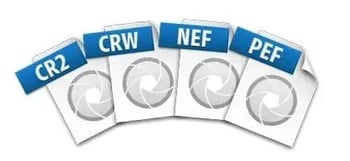
As mentioned, every camera maker has its own file format:
- CRW/CR2 (Canon RAW 2 / Canon RAW). These are Canon’s older RAW formats. CRW came first, and CR2 was used in most Canon cameras for many years. Both are based on TIFF/EP, which means they keep high image quality but have large file sizes.
- CR3 (Canon RAW 3). Canon also introduced CR3 around 2018 for their newer cameras. It uses HEIF/HEVC compression. So files are smaller than CR2 but still keep high quality and detail, including full metadata and bit depth.
- NEF (Nikon Electronic Format). If you shoot with Nikon, your files will be .nef. You can edit them using Nikon’s software or tools like Lightroom and Photoshop. As a Nikon user, I have noticed that NEF files can store different settings, such as picture styles, which you can adjust after the shot.
- ARW (Sony RAW). Sony’s proprietary RAW format is used across Alpha and Cyber-shot cameras. It’s supported by most major editors and is known for its excellent dynamic range and effective highlight recovery. Many pros like ARW for its flexibility in post-processing.
- PEF (Pentax Electronic Format). PEF is Pentax’s RAW format. It works like CR2 or NEF but is less common, mainly because Pentax has a smaller share of the camera market.
Each RAW file contains metadata, including camera settings, lens information, and other details. This metadata is useful. Lightroom can read it to show aperture and shutter speed, and even apply lens corrections automatically.
When to Use RAW
If you are a photographer (professional or hobbyist) aiming for the highest quality and maximum post-processing flexibility, you should shoot in RAW.
I shoot RAW whenever the situation allows me. RAW files allow greater flexibility than JPEGs when adjusting exposure or color temperature later. For instance, with a RAW file, I can brighten underexposed shots without banding or quality loss. A JPEG might not have that additional info and would show artifacts.
RAW is also invaluable for recovering highlights and shadows, as well as tweaking how the image is rendered, unlike other image formats.
When Not to Use Raw
RAW files are large, need editing, and aren’t great for quick, shareable photos. They can also slow down your camera and reduce battery life. For casual shots, social posts, or quick projects, a well-shot JPEG is a faster and simpler option.
When to Use Each Image File Format
Every image format serves a purpose. Some are ideal for high-quality photography, some are great for online use, some offer editing flexibility, and others are suitable for scalable design.
Understanding what each type does helps you choose the right file every time, whether you’re designing a logo, editing a brochure, or uploading content on a website.
Classic formats like JPEG, PNG, and GIF dominate the web, while TIFF and RAW are more commonly used in photography and design. Vector-based formats keep creative files editable and resolution-free.
Once you know which format suits your purpose, you can save, share, and publish with confidence, without sacrificing quality or performance.
Each file type is designed for a different stage of creative or publishing work. Once you align the right format with your workflow, every image you export will carry the clarity, speed, and flexibility it was meant to have.
Editor's note: This post was originally published in October 2018 and has been updated for comprehensiveness.
Free Stock Photos
Access the free stock photos you've been searching for.
- Office stock photos
- Computer stock photos
- Kitchen stock photos
- Miscellaneous stock photos
Download Free
All fields are required.
Form not available
Website Performance
![11 Website Page Load Time Statistics [+ How to Increase Conversion Rate]](https://53.fs1.hubspotusercontent-na1.net/hubfs/53/page-load-stats.webp)





![What Is a Browser Cache? [FAQs]](https://53.fs1.hubspotusercontent-na1.net/hubfs/53/browser-cache.webp)
![How to Reduce Page Weight on Your Website [Quick Guide]](https://53.fs1.hubspotusercontent-na1.net/hubfs/53/reduce-page-weight.jpg)