.png?width=112&height=112&name=Image%20Hackathon%20%E2%80%93%20Square%20(10).png)
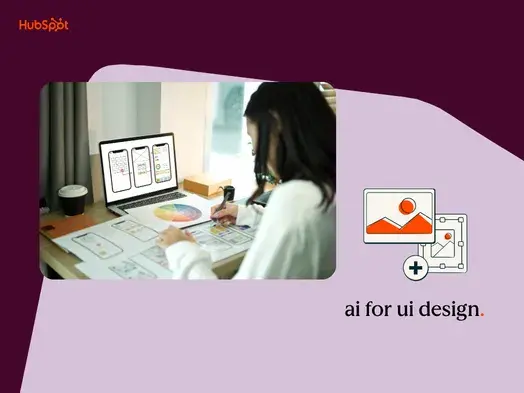
If you’re not using AI for UI design, it’s not too late, and there’s a lot to gain. Just ask Kayla Beistline, an award-winning UI designer for Deloitte, who shared how she leverages AI in her design process.
“In the corporate world, design projects often have tight timelines with little to no time for brainstorming and ideation,” Beistline explains. “Clients expect quick turnarounds, which are challenging when you’re starting from scratch. So instead of starting from a blank canvas, I use AI to give me a head start.”

The way I see it, AI is not a job replacement, but an extra tool in the toolbox for UI designers facing high expectations and heavy workloads. Let’s take a look at some of the reasons UI designers take advantage of AI tools — and some of the ways you can start using tools like AI UI generators yourself.
Table of Contents
- What is AI UI design, and why does it matter?
- Why use AI for UI design?
- How to Use AI for UI Design
- How to Use AI UI Generators Effectively
- Frequently Asked Questions About AI UI Design
- UI Design AI Takeaways

What is AI UI design, and why does it matter?
AI UI design refers to design professionals using artificial intelligence to assist in and expedite their projects — from generating an entire UI design to finding the perfect font pairing.
In 2026, AI UI design is more important than ever. Eighty-nine percent of designers say they’re working faster thanks to AI, and 91% say that AI improves their designs, according to Figma’s State of the Designer 2026 report.
To help you harness those gains, this guide will walk you through the benefits of using AI for UI design, eight different tool categories you can use (including my personal testing and reviews!), and best practices and tips from design experts.
Why use AI for UI design?
I think using AI for UI design has a two-fold purpose: improving efficiency for the designer and improving the experience for the user.
For a designer, AI increases efficiency by saving time, especially on the non-creative parts of a UI designer’s job. While the designer still initiates and edits the layout and visual elements, AI can create a mockup or incorporate specifications in a fraction of the time a designer could do by hand.
For the end user, AI models can draw upon research to help make designs both aesthetically pleasing and accessible. AI can pair fonts, identify colors, and provide edits on designs, while AI-powered analytics can see what elements are noticed and used by site visitors. The result could be better quality and more effective UI.
.png)
Free UX Research Kit + Templates
3 templates for conducting user tests, summarizing your UX research, and presenting your findings.
- User Testing Template
- UX Research Testing Report Template
- UX Research Presentation Template
Download Free
All fields are required.
Form not available
How to Use AI for UI Design
On top of efficiency and user experience gains, AI could improve how you feel about your work. Designers who are using AI tools are 25% more likely to report being satisfied at work compared to designers who aren’t using AI, according to Figma’s 2026 report. This technology is an exciting frontier for folks in the UI industry — so here are some of the best ways I found to take advantage of it.
1. AI UI Generation
An AI UI generator can relieve designers of tedious manual edits and, instead, respond to the click of a button or a quick chat. AI can also give UI designers starting points for their designs. Software can generate layouts and templates based on a specific request, which can keep a UI designer from staring at a blank screen for too long.
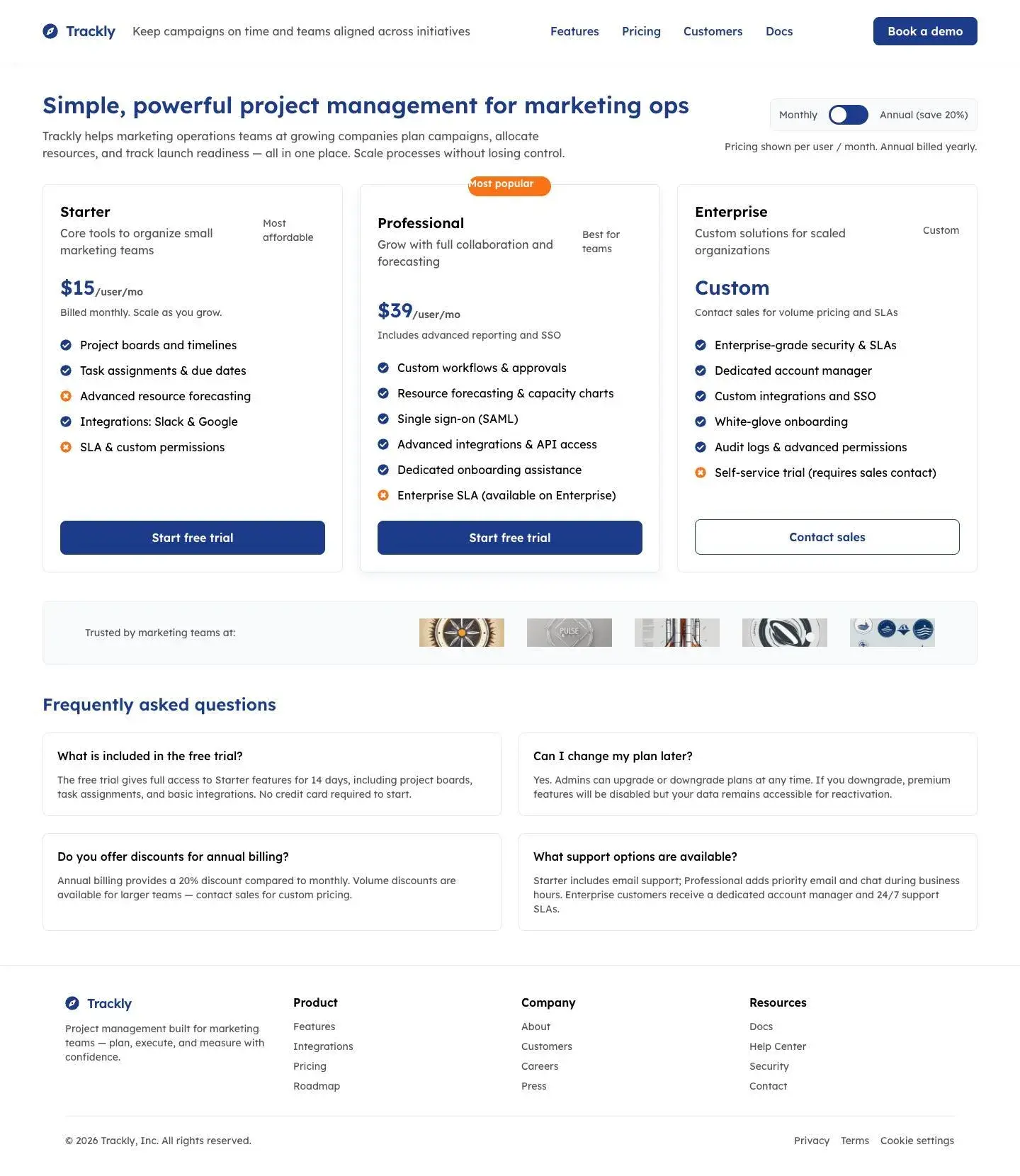
To test AI design generators, I asked Claude to create one standard prompt that I fed to all three tools so that I could compare the outputs side-by-side. Here is that prompt:
Design a desktop pricing page for a B2B SaaS project
management tool called “Trackly.”
Audience: Marketing operations managers at 100–500 person
companies comparing plans before booking a demo.
Include:
- Header with product name, one-sentence value prop, and
primary nav (Features, Pricing, Customers, Docs)
- Monthly/annual toggle above the pricing tiers
- Three tiers: Starter ($15/user/mo), Professional
($39/user/mo), Enterprise (custom). Mark Professional
as “Most popular.”
- Feature list under each tier with 5–6 items using
checkmarks and X marks
- Primary CTA “Start free trial” on Starter and Professional;
“Contact sales” on Enterprise
- Customer logo bar below tiers
- FAQ section with 4 questions
- Footer with standard links
Brand style: Modern, clean, slightly approachable. Primary
color deep navy (#1E3A8A), accent coral (#F97316). Sans-serif
typography. Generous spacing. Width: 1440px desktop.
How did these prompt-to-UI generators stack up? Let’s find out.
Stitch
Best overall: Free AI UI generator that creates professional-looking designs that are handoff-ready with lots of export options
Time from prompt to output: 1 minute, 45 seconds
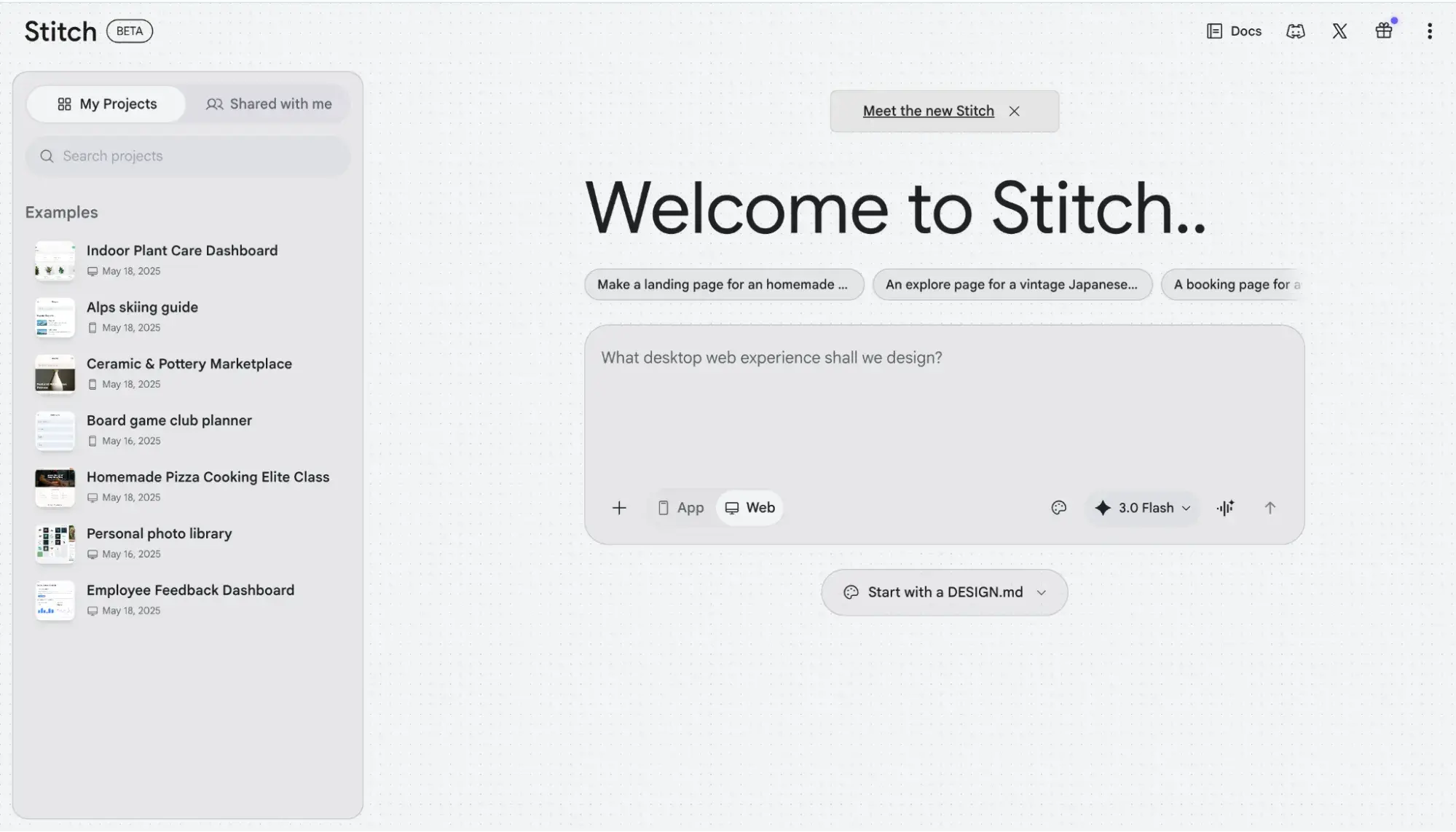
Google’s Stitch AI UI generator wowed me in unexpected ways. After I entered my prompt, like a true designer, Stitch started by building a strong foundation with a design system before creating the webpage I’d asked for. No other tool on this list did that. Even after that, Stitch made it easy for me to click the design system on the canvas to edit any aspect, from primary to tertiary colors to fonts, and even the DESIGN.md file.
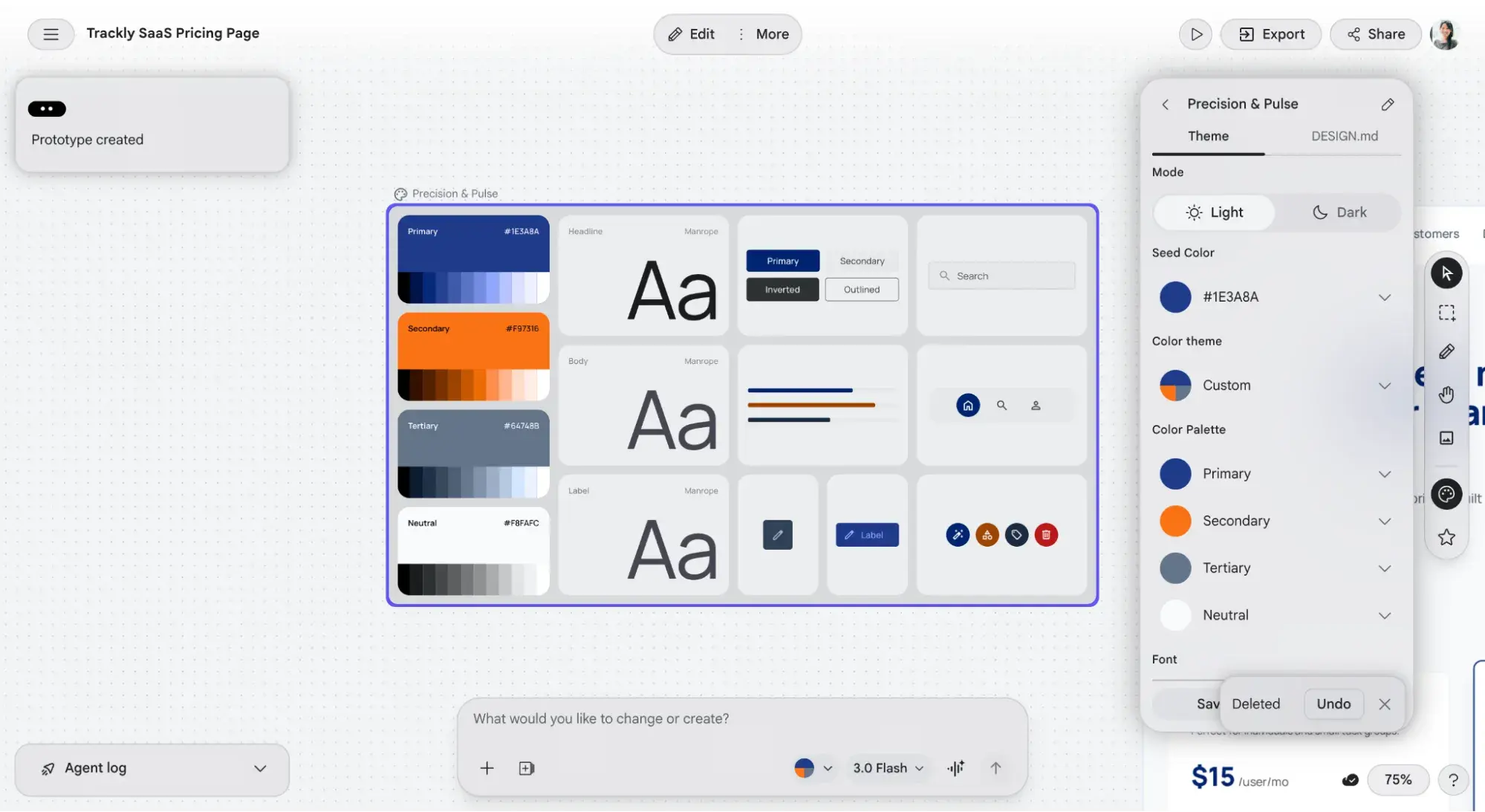
I could also share the project via a link. On top of that, it offered the most export options of any AI UI generator on this list, including exporting to Google AI Studio, Figma, MCP, .zip, or copying the code directly to my clipboard.
The fact that Stitch is completely free to use (no paid plans) is mindboggling. Designers would be hard-pressed to find a better AI UI generator for the price point.
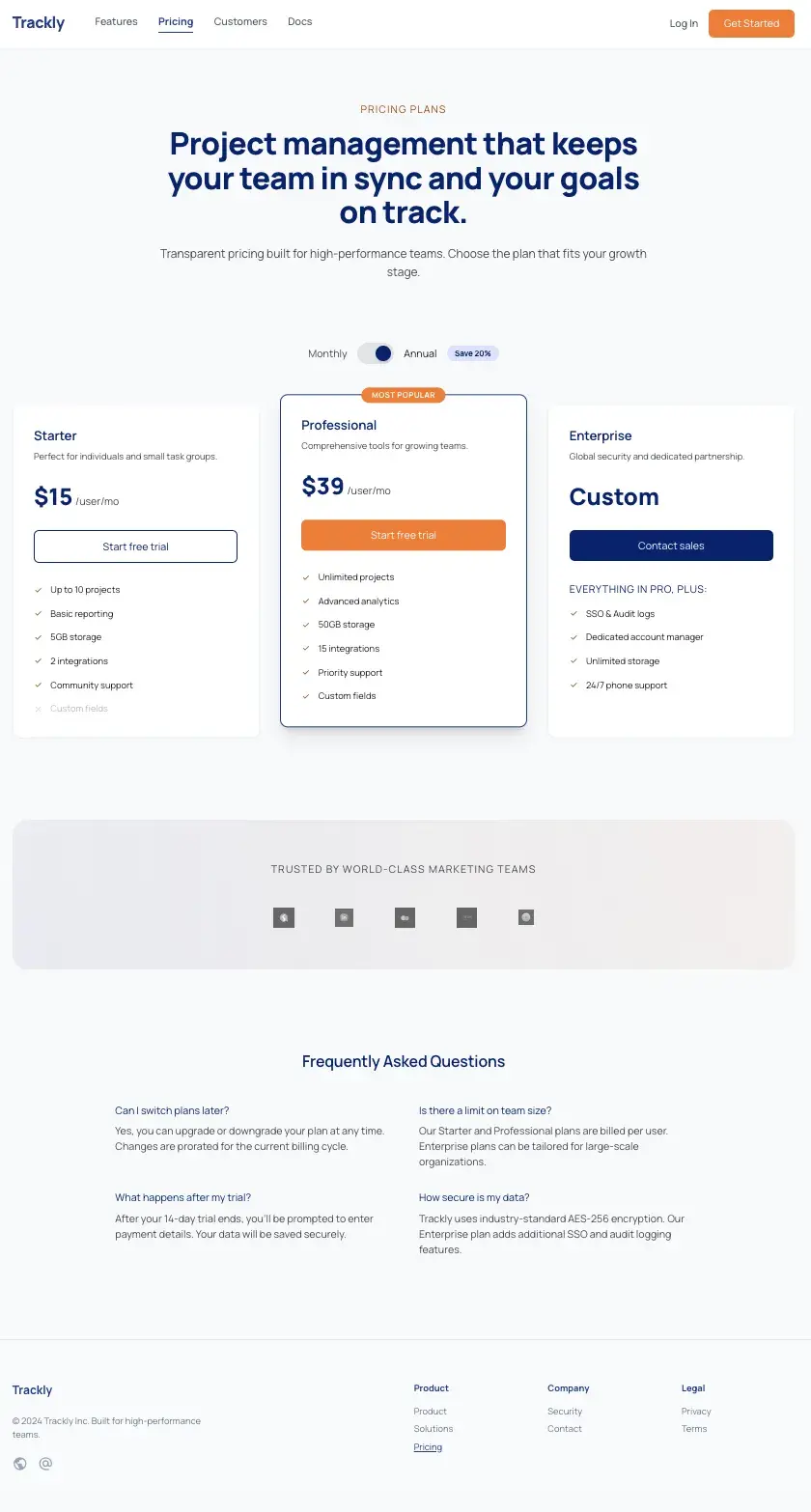
In my opinion, Stitch generated the best UI of all three tools I tested. It stayed true to the prompt, added dimension with a color background and gradient accents, and offered enough whitespace so it didn’t feel crowded.
Stitch’s AI-Generated UI Design
Figma Make
Best for: UI designers already in the Figma ecosystem or using a React codebase
Time from prompt to output: 1 minute, 30 seconds
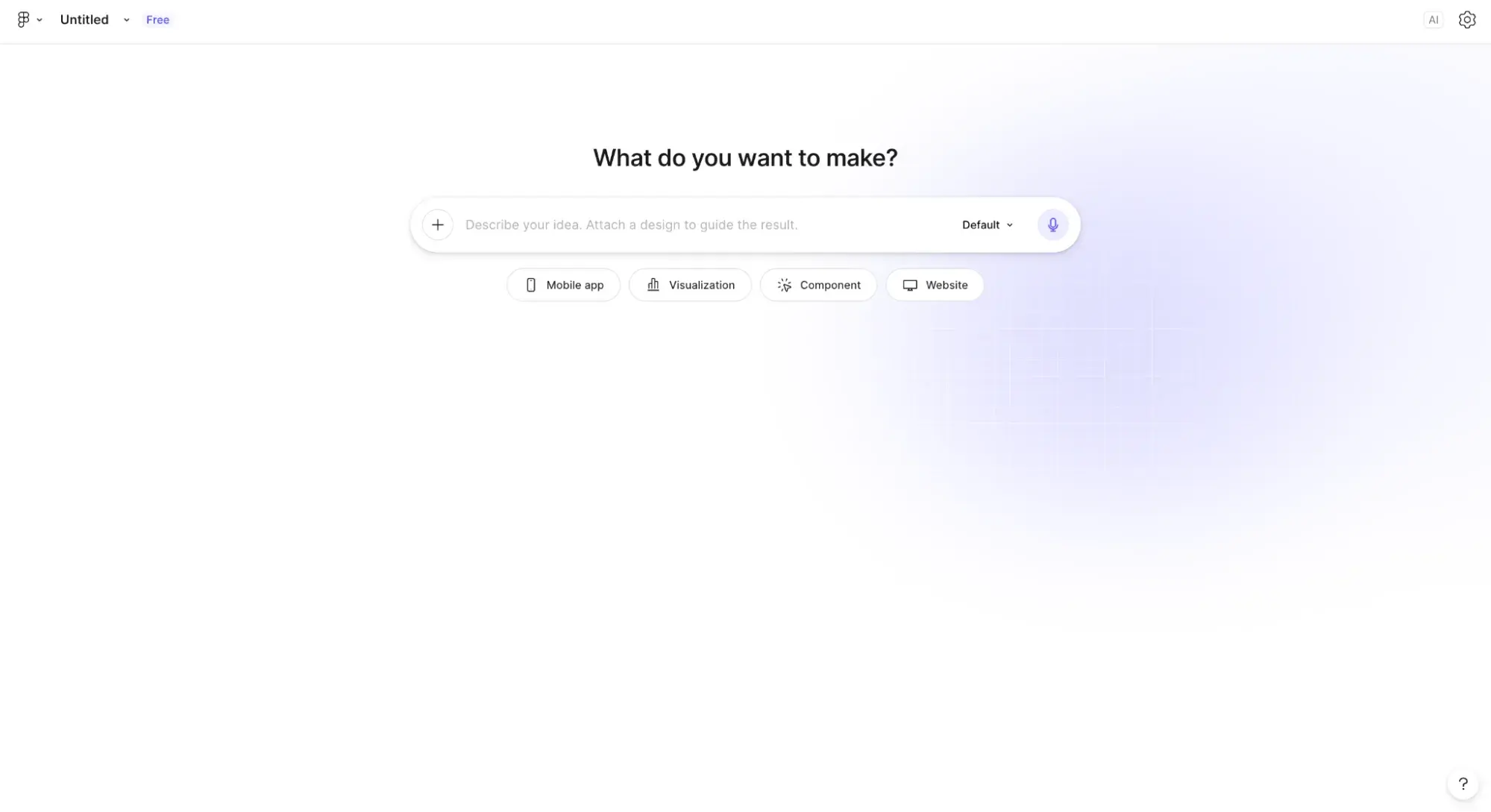
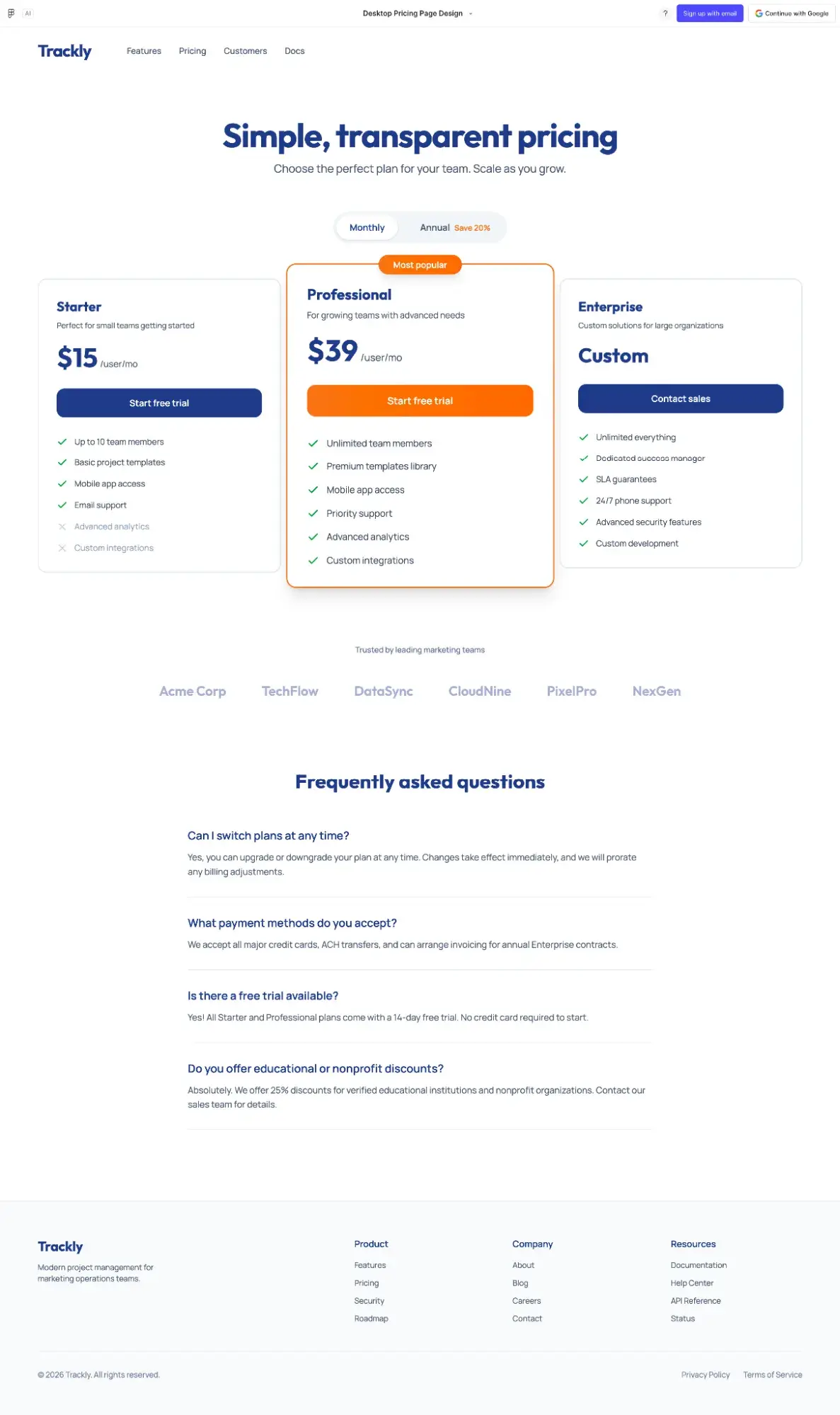
Figma Make will be a welcome addition to any designer already using Figma. This AI UI generator output a beautifully polished pricing page that stayed true to the prompt I gave it.
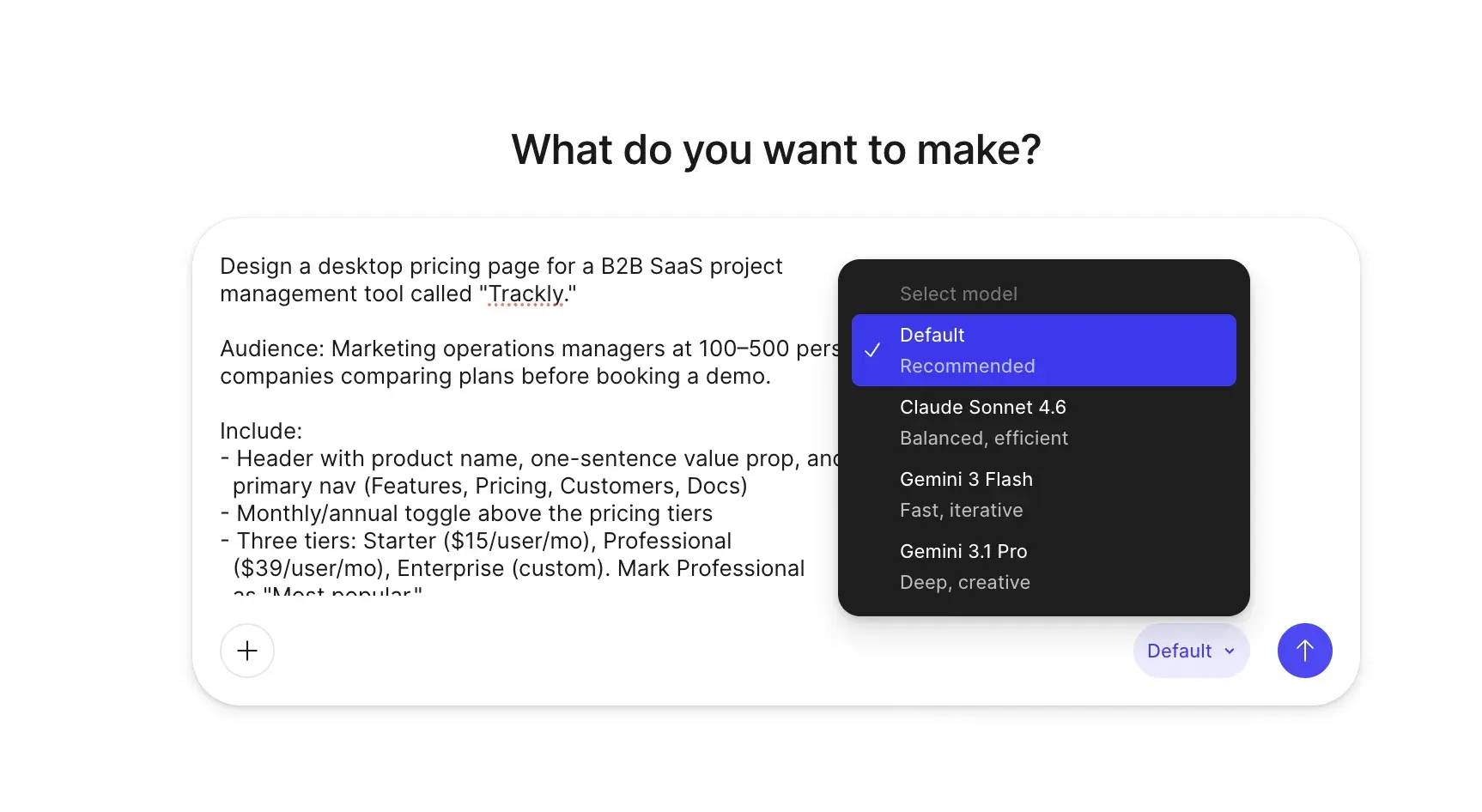
Within Figma, I could easily share the link for others to view, or I could publish it as a live webpage. Figma Make goes further than Stitch on interactivity — instead of just linking screens into a clickable flow, Figma Make produces a running web app with real logic. I could toggle between monthly and annual pricing on the page it generated, for example, because it’s actually running React under the hood.
Figma Make also gives immediate access to the underlying React code, while Stitch’s code export is HTML with Tailwind CSS (though it does offer MCP export options). Neither output is truly no-code, but Stitch’s HTML is easier to drop into a static page or existing prototype, while Figma Make’s React output fits teams already shipping to a React codebase.
Figma Make’s AI-Generated UI Design
Uizard
Best for: Non-designers (PMs, founders, and engineers) who need to turn a rough idea (or even a paper sketch) into a clickable mockup fast, without learning Figma first
Time from prompt to output: 1 min, 5 seconds
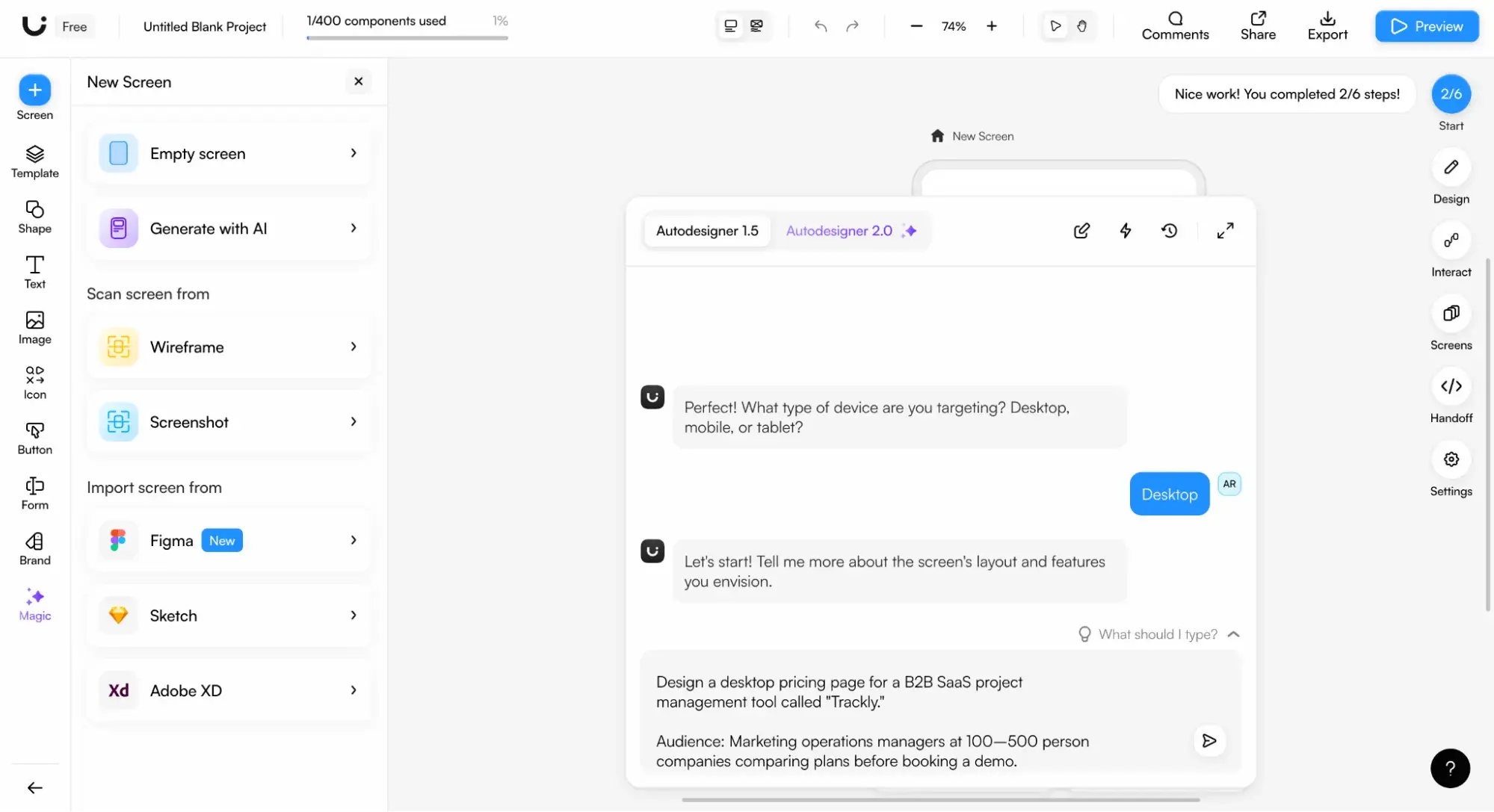
Uizard’s AI UI generator was the fastest on this list, clocking in at just over 60 seconds, but in my opinion, it produced the least aesthetically pleasing design. It was way too crowded, with the elements pushed too closely together. A skilled designer could certainly fix this, but it adds to the time it takes to make the layout.
Uizard’s free plan also felt more restrictive than others on this list. For example, the only export options were JPEG, PNG, SVG, and PDF. To inspect React and CSS code, you have to upgrade to a paid plan.
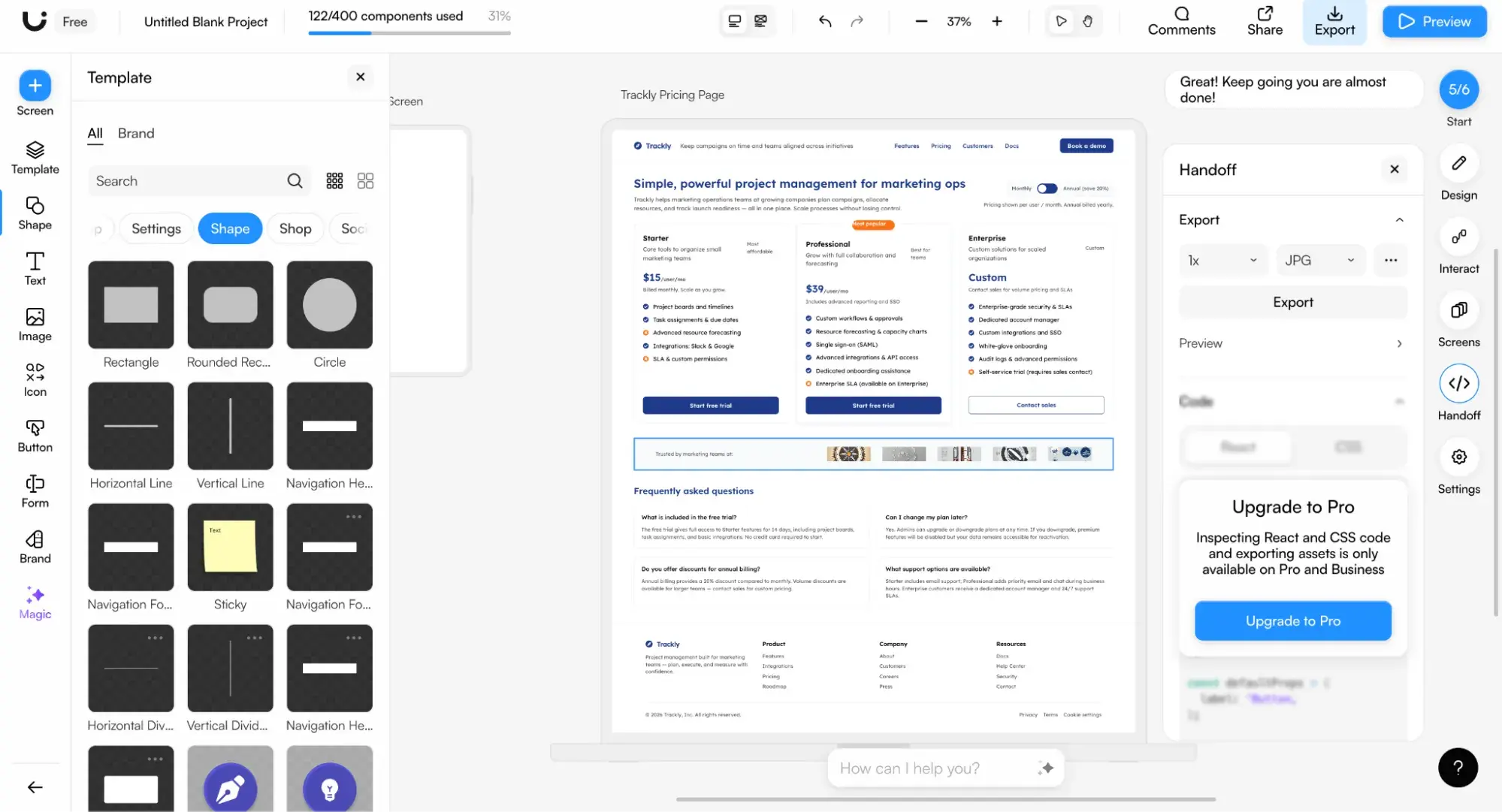
Having said that, though, Uizard’s UI is extremely intuitive and its AI chatbot experience was user-friendly. The AI generates a static UI design, but you can add interactions easily to make it a clickable prototype.
Uizard’s AI-Generated UI Design
Pro tip: If you want to skip straight to a working product, you can use HubSpot’s free AI website generator to launch a one-page website in minutes. Answer a few prompts about your business, and once the AI generates a draft, you can fine-tune it with the free drag-and-drop builder.
Free UX Research Kit + Templates
3 templates for conducting user tests, summarizing your UX research, and presenting your findings.
- User Testing Template
- UX Research Testing Report Template
- UX Research Presentation Template
Download Free
All fields are required.
Form not available
2. User Feedback
In any kind of user-facing design, getting feedback is important. But it’s not always cut-and-dry how you should use the data you’ve collected in your design. Making sense of raw data — especially if your company is collecting a lot of it — isn’t always a part of a UI designer’s skill set. But AI is making it easier to make data-driven design decisions.
User Feedback Tools
- Contentsquare. If you’re trying to collect user feedback on your design, you may not always know what to ask. Contentsquare’s AI suggests relevant questions to ask your users and can even analyze the results afterward and provide a summary of the trends you should pay attention to.
- Mixpanel’s Spark AI. Use data to learn how your designs are resonating with your audiences by asking the generative AI bot what you’d like to know.
3. Testing
While you can easily create two mockups for a page and send them out to be A/B tested, it’s not always so easy to make sense of the results. Use AI to clarify which design is resonating better with your audiences. You can also use AI to create more nuanced, custom user tests.
Tools
- Optimizely Web Experimentation. Run A/B tests on your UI variations and use AI-driven analysis to identify which design performs better — including AI-generated test ideas, automatic variation summaries, and automated traffic distribution to winning variants.
- VWO Testing. Run A/B tests on your UI designs and use VWO Copilot — its built-in AI assistant — to speed up every stage of the process. Describe what you want to test in plain language, and Copilot will scan your page, generate test ideas based on behavior, and build variations for you.
Pro tip: For a quick solution for your user testing, check out HubSpot’s free UX templates. This download includes a testing template, a reporting template, and a presentation template to get you started with user testing.
4. Improved Accessibility
Accessibility is an issue that straddles both the UI and UX domains. For a user interface to be pleasing, it has to be usable — and AI can help make that happen. From identifying usability issues to proposing color palettes with enough contrast, AI can create a more accessible design without any more work.
Tools
- Attention Insight. Trained on millions of fixations and gaze points from real eye-tracking studies, Attention Insight’s AI can predict eye-tracking behavior with up to 96% accuracy without any human participants.
- UserWay. Analyze your design for accessibility issues and get suggestions for improvements.
5. Image Manipulation
Some designers are more comfortable designing on pen-and-paper than they are digitally — at least for mockups. With AI, designers can transform sketches and drawings into images or have the AI generate images based on prompts.
Tools
- Content Hub. HubSpot Content Hub’s Breeze AI can generate and update images for you. Content Hub Professional or Enterprise subscribers can use the brand identity feature to keep those images true to your brand.
- Uizard. This tool has a few different image-related use cases, including turning a screenshot into an editable mockup and transforming hand-drawn sketches into digital designs.
- PromeAI. Turns sketches into photo-like images using an AI art generator. This is a great option for architecture and interior design firms, as well as ecommerce businesses.
Testing It Out
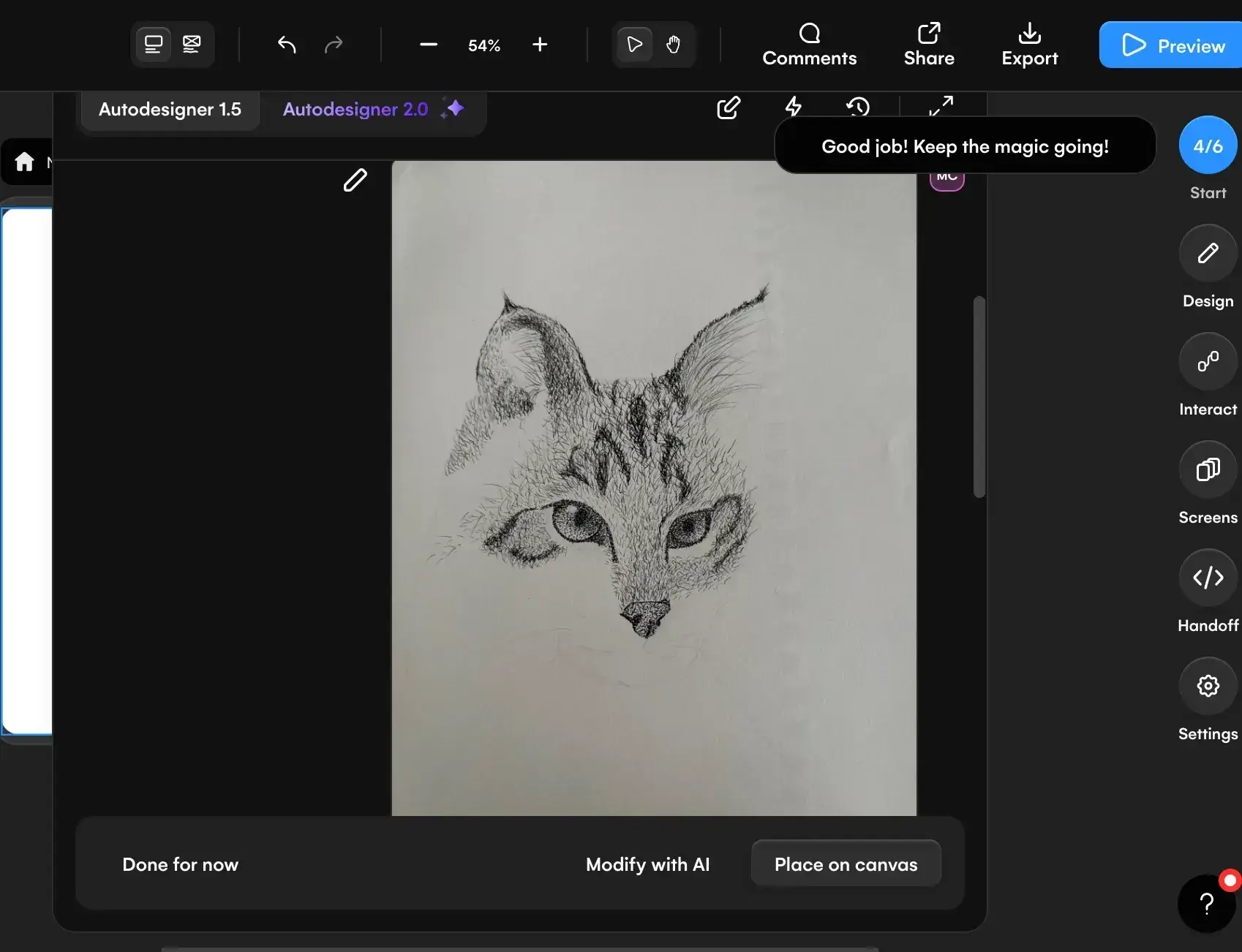
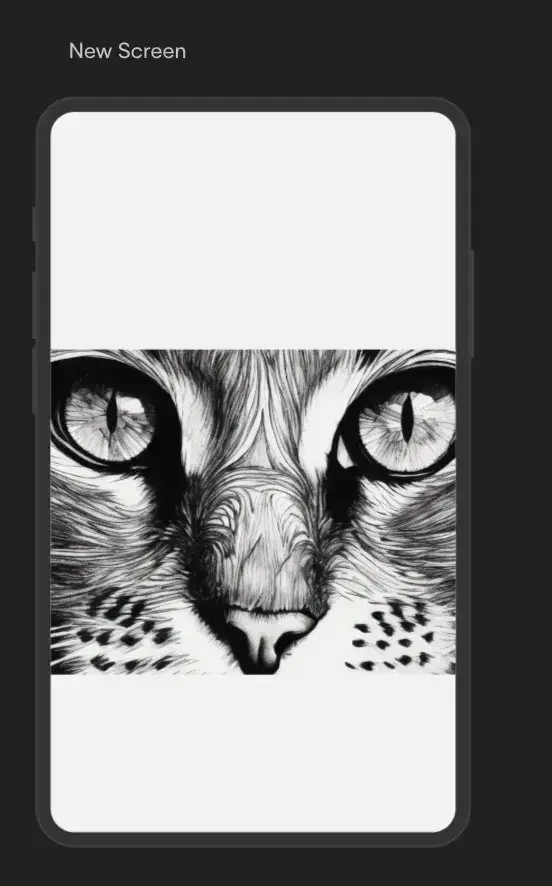
I was intrigued by the image manipulation capabilities of Uizard, so I uploaded a picture of a hand-sketched cat. Conveniently, I could take a photo of the image with my cell phone and upload it to Uizard on my laptop by using a QR code.
A few clicks and a few seconds later, Uizard produced the second image. I found this tool easy and fun to use, with so many interesting features at my fingertips!
6. Shortening Repetitive Tasks
Parts of the design process are repetitive and, when performed at scale, wind up taking a lot of time. But I found some AI tools with solutions for some of the more granular parts of designing.
Tools
- Figma AI. Figma AI eliminates a ton of tedious tasks; it can edit an image with a simple text prompt, isolate or erase an area of an image that you select, find inspiration for you in community files when you search keywords, and organize your files by renaming layers for you.
- Adobe Firefly. With Firefly, you can generate video and edit images (including removing objects). Something I think is really cool is that Adobe Firefly models are trained on licensed images and content in the public domain with expired copyright, so if you select these models to generate images, it can give you peace of mind that they’re commercially safe.
7. Font Pairing
If you’re not a typography expert, you can lean on AI to help you find aesthetically pleasing font combinations. Tools can suggest font pairings that complement each other, enhancing the readability and aesthetics of the design. Plus, I think it’s fun to play around with.
Tools
- Fontjoy. Similar to a spin-the-wheel game, Fontjoy lets you click “Generate” and then comes up with three fonts that should look good together. You can also lock certain fonts, say Montserrat, and keep generating two others that would look good with the locked font.
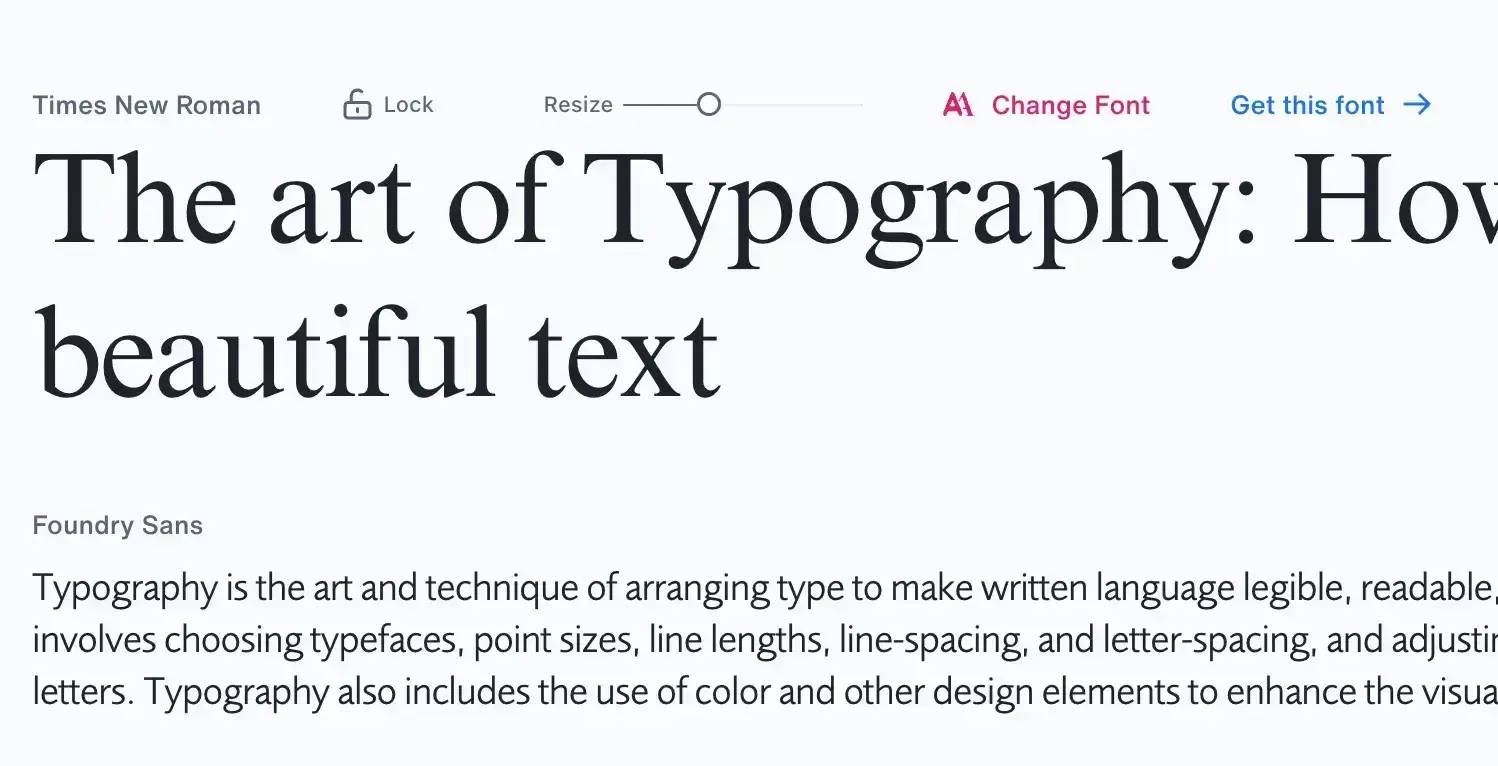
- Monotype. “Powered by the Monotype AI pairing engine,” this tool lets you edit and resize fonts and text and try out different complementary pairings.
Testing It Out
I tested the Monotype font generator. It was easy to use the tool and, in moments, I had a few beautiful font pairings. It’s easy to think of AI as just a thing to solve big problems — but little things like font pairs can be made better by AI, too.
8. Enhanced Prototyping
AI has elevated the way UI designers can prototype their designs. Rather than spending days creating static, rigid prototypes, UI designers can now leverage AI tools to quickly bring their designs to life in a testable, editable way.
Free UX Research Kit + Templates
3 templates for conducting user tests, summarizing your UX research, and presenting your findings.
- User Testing Template
- UX Research Testing Report Template
- UX Research Presentation Template
Download Free
All fields are required.
Form not available
Tools
- Axure RP. This is a desktop app where you can create a prototype rapidly using Axure RP’s AI capabilities. Axure RP lets you add interactions, conditional logic, and dynamic content to your prototypes.
- Uizard. Generate prototypes for multiple screens: mobile, tablet, and desktop. Regardless of the format, the prototype is editable and interactive.
How to Use AI UI Generators Effectively
The tools above can get you from prompt to mockup in minutes — but the gap between a mediocre output and a genuinely useful one almost always comes down to how you use them. Here’s what I’ve learned works, along with advice from two designers who use AI to enhance their work.
Choose the tool that best fits your use case.
Not every AI UI generator is built for every designer. Before committing to one — especially a paid plan — think through a few practical questions:
- Does the tool export to the format your team actually ships in (Figma, React, HTML)?
- Does it respect your existing design system, or does it force you to start from scratch every time?
- How much does the free tier actually let you do before credits, exports, or advanced features get gated?
As I found when testing Stitch, Figma Make, and Uizard earlier in this article, each AI UI generator solves a different problem. Stitch is remarkably generous for something completely free and works well for handoff-ready static designs. Figma Make makes more sense if your team is already shipping in a React codebase. Uizard is faster and more approachable for PMs or founders sketching out ideas without touching Figma. Match the tool to your use case rather than picking the one with the flashiest feature set.
Write prompts specific enough to actually matter.
The single biggest lever over output quality is how much context you feed the tool upfront. Here’s what to include in your prompt:
- Target user
- Goal of the screen
- Required components
- Layout constraints
- Brand style
The Trackly pricing page prompt I used earlier is a usable template. It specifies the audience (marketing ops managers at mid-market companies), the primary action (comparing plans before booking a demo), required sections (tiers, monthly/annual toggle, FAQ, footer), and the brand palette down to the hex codes.
Kayla Beistline, an award-winning UI designer at Deloitte, told me one of her favorite tools is a Figma plugin called UX Pilot, and her advice on prompting lines up:
“All you have to do is select whether you’re creating a high fidelity or a low fidelity wireframe, indicate the number of screens you want to generate, and then write a detailed prompt for your design,” Beistline shares. “I’ve found that the more detailed your description is, the higher the chance your output matches your version.”
Like all tools, using AI for UI design will take practice. So practice writing detailed prompts so that the AI tool can generate exactly what you need. You may realize you’re missing elements in the result because you missed them in your prompt.
Use the AI output as a jumping-off point.
Although Beistline uses AI to help in her design process, she recommends using the AI-generated output as a foundation, not as a final product. However, using AI for those foundations is a huge time-saver.
“I use these AI-generated screens as a foundation and build upon them by adding more screens to complete my user flows. It exponentially speeds up the design process and allows me to meet deadlines with ease!” says Beistline.
When you leverage AI to its fullest potential, you can do more with less time — and your designs will be just as strong because you can allocate your skills to the most creative and impactful parts of the design.
Lean on AI for the parts of design you find hardest.
I also spoke with William Wheeler, a senior graphic designer, to hear more about how he leverages AI in his workflow. He’s critical of AI’s use case in the design process, but he’s an advocate for using AI to help with areas in which he has less expertise.
“Almost all design software nowadays is trying to incorporate AI features, but few have been successful, in my opinion. For me, AI has been more helpful with writing,” he explained.
“Creative writing is not my strong suit, so ChatGPT has been a good replacement for Lorem Ipsum placeholder text. It’s far from perfect, so I always make adjustments, but it’s good for getting ideas on the page and expanding them more quickly.”
Likewise, I recommend you assess your strengths and weaknesses as a UI designer and see where AI can support you in areas where you’re not as strong. For example, content marketers who use Content Hub have access to Breeze, HubSpot’s AI, to assist with the tasks they’re not experts in. Breeze can generate images, repurpose content across multiple channels, and build a landing page based on prompts.
Frequently Asked Questions About AI UI Design
Will AI replace UI designers?
No, AI can’t replace the value that human UI designers bring: judgment, taste, and style are extremely important to the creative process and unique to each individual. These skill sets are shaped by real-life experiences, emotions, and perspectives — all things that artificial intelligence cannot replicate.
What AI can do is replace the manual tasks that take designers away from the most critical work. Using AI to expedite the drafting process, quickly edit images, or organize design files frees up designers to invest time and energy into refining designs.
What is the best AI tool for user interface design?
The best AI tool for user interface design depends on your goals and existing tools. If you’re already using Figma, Figma Make can use AI to generate a UI in under two minutes and grants you access to the React code. If you want something completely free, Google’s Stitch charges no fees to generate a UI and lets you export it in multiple different ways, including to Figma. And Uizard is an entire AI-powered design platform with an AI UI generator, prototyping tools, and a tool for digitizing hand-drawn wireframes.
What are the limitations of AI tools for UI design?
A major limitation of AI tools for UI design is that they can’t actually think for you, meaning they don’t have the required judgment or taste to determine whether a design is actually good. That’s why a human must step in, review the design, and make adjustments. Another limitation is that they’re resource-intensive. Every AI-powered task requires computing resources, so many AI design tools are token- or credit-based; every time you use the tool, you spend your credits, and that can get expensive for the user if they constantly deplete credits and need to buy more.
UI Design AI Takeaways
I hope this article debunked the myth that AI is here to take over the design world. It’s not — but it can revolutionize how you get things done. From speeding up small tasks like selecting fonts and naming layers to generating entire prototypes with high levels of interactivity, UI AI tools are here to elevate, not replace, designers.
Editor's note: This post was originally published in September 2024 and has been updated for comprehensiveness.
Free UX Research Kit + Templates
3 templates for conducting user tests, summarizing your UX research, and presenting your findings.
- User Testing Template
- UX Research Testing Report Template
- UX Research Presentation Template
Download Free
All fields are required.
Form not available
Artificial Intelligence