![The Social Media Content Calendar Template Every Marketer Needs [Free Template]-4 (1)](https://www.hubspot.com/hs-fs/hubfs/The%20Social%20Media%20Content%20Calendar%20Template%20Every%20Marketer%20Needs%20%5BFree%20Template%5D-4%20(1).webp?width=112&height=112&name=The%20Social%20Media%20Content%20Calendar%20Template%20Every%20Marketer%20Needs%20%5BFree%20Template%5D-4%20(1).webp)

Ever been on a time crunch to create social media content? Most of us have, especially when you're trying to hop on a trend before it passes. It’s a stressful position — but a social media calendar template can make it manageable.
→ Free Download: Social Media Calendar Template [Access Now]
Creating content last minute leads to overlooked opportunities and mistakes. Your content may have typos or fall short of the audience's needs — the horror!
Don't worry: you can minimize the risk by using an editorial content calendar. In this article, I’ll share the best social media calendar template options for marketers and lots of tips for getting the most out of them.
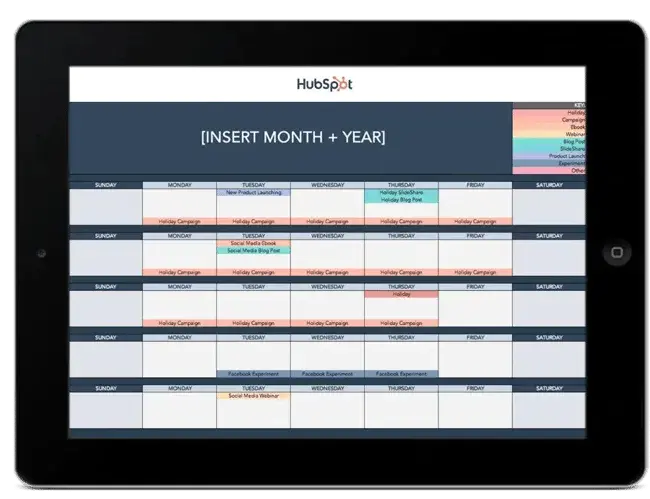
Use the Above Template to Plan Out Your Social Media Posts
What is a social media calendar template?
A social media calendar is a marketing planning document that organizes your social media posts by social platform, campaign, date, and more. This enables you to stay organized and see your social media publishing schedule across a wide variety of channels, campaigns, and formats. A social media calendar template is a pre-made document with all of these elements that marketers can simply fill in.
Why do I need a social media calendar template?
Without a calendar, marketers live on a content hamster wheel: wake up, come up with ideas, create, publish content, engage, then wake up tomorrow and do it all over again.
Following a social media planning calendar offers:
- Better organization.
- More mindful scalability.
- Higher quality content.
Creating a great social media content planner is more than just adding a few Instagram or LinkedIn post ideas to your Google calendar. Let's explore the benefits of having a social media calendar.
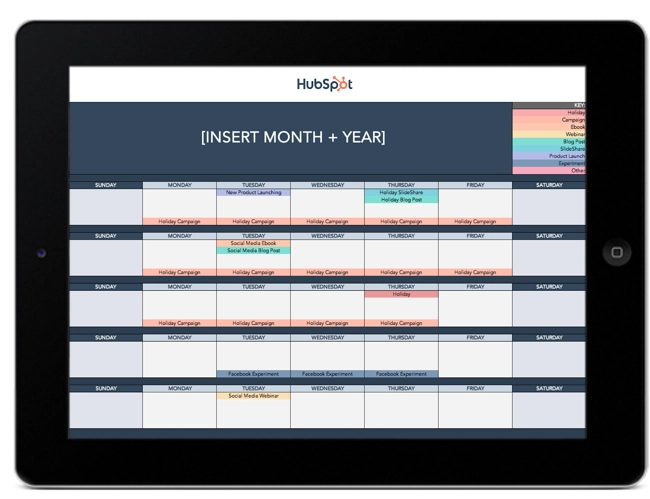
Free Social Media Content Calendar Template
Download the free template and user guide to manage your social media posts and strategy.
- Coordinate campaigns
- Increase your reach
- Measure engagement
- Plan your posts
Download Free
All fields are required.
1. Better Organization
Staying organized without a system is a herculean (dare I say impossible?) task. A calendar is essential when managing multiple social media channels.
Rather than coming up with content ideas on the fly, you can plan your content around your organization's needs. It can also provide more time for creating content about trending topics and upcoming holidays and events.
For instance, if your company has a big event coming up (like HubSpot’s INBOUND), a content calendar will help you strategize how to promote it in advance.
The #INBOUND24 agenda is LIVE and it's time to start planning! 📅
— INBOUND (@INBOUND) June 12, 2024
Explore the sessions and use the filters to find your perfect fit: https://t.co/1EfHK5aZE8
Then drop your must-see sessions below and find your #INBOUND24 crew.👇
See you in Boston! pic.twitter.com/xtJuPVgIcf
Best of all, a social media calendar keeps everyone on your team informed on when content will be published. When you’re transparent about what’s going live, it can help avoid miscommunications and confusion.
Pro tip: I know good content ideas can’t always come on command — even if you set time aside specifically for this task. But a topic generator might be just enough to kickstart your creative juices. After you create your social media content, reuse these topics to generate blog posts.
2. More Mindful Scalability
A social media calendar allows you to scale your content production without overwhelming your marketing team.
By planning content in advance, you can pace production around your team's bandwidth and other duties your department is responsible for.
Pro tip: As you scale, I recommend tracking post analytics to see how your content performs. Keeping an eye on your metrics will help you and your teams determine what content engages your audience the most.
3. Higher Quality Content
Quality social media content creation takes time! Using a social media calendar ensures your team has plenty of time to do their best work.
Planning your posts in advance allows you to check your work for typos or mistakes while ensuring everything is on-brand and optimized. A calendar creates a much more thoughtful, intentional process than a post-on-the-fly approach.
Parts of a Social Media Content Calendar Spreadsheet
- Key
- URLs and UTM Parameters
- Date and Time
- Message
- Campaign
- Image
Perfecting your social media content calendar shouldn’t feel like a chore.
Together let's walk you through the essential components of any social media content calendar. This will give you the foundation to organize your social media strategy at a tactical level.
1. Key
A key or legend is a section of a graphic that gives meaning to its symbols or colors. An easy-to-read key helps your stakeholders understand the information in your social media calendar and allows your marketing team to navigate the document with confidence.
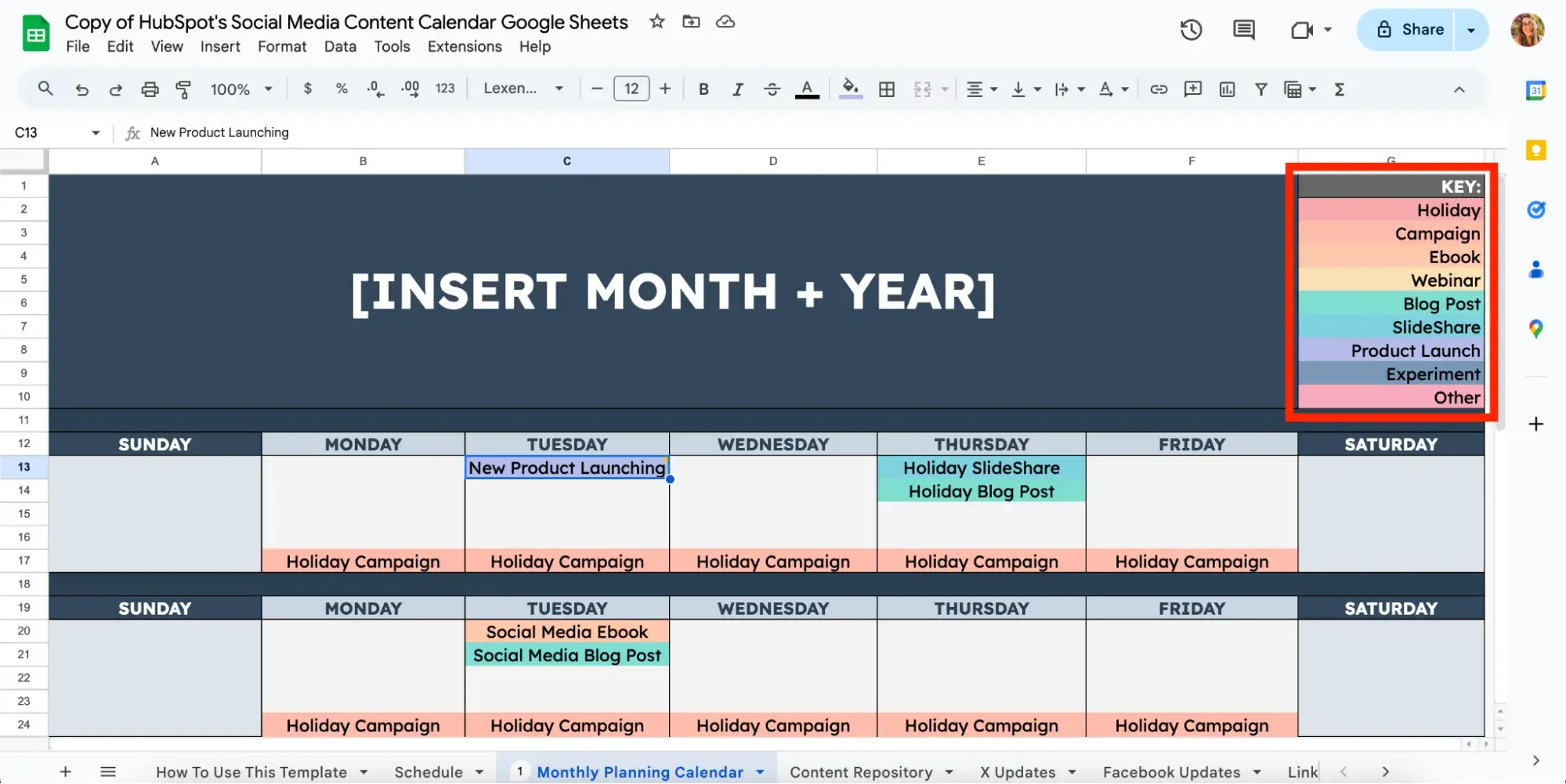
With a clear key, anyone in your organization can view your social media content calendar and understand what's happening across platforms.
2. URLs and UTM Parameters
URLs and UTM parameters are similar, but they're not the same. URLs are the links you want to share from your website (or another website if you are curating content) on your social media platforms.
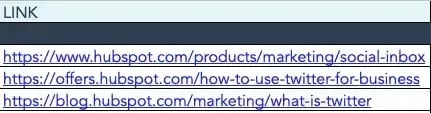
A UTM parameter is an extension of your URL that is needed for data purposes. It's a string of tracking code appended to the end of a URL, and it helps social media marketers track how well their posts drive traffic to their websites.
By tracking and analyzing UTM parameters, you'll see what content meets your conversion goals and what drives the most engagement on social media platforms. You can use a UTM generator to make this process easier.
3. Date and Time
No content calendar is complete without the date and time. This will help both the marketing team and stakeholders.
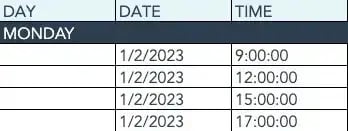
Your social team can easily see when they should schedule posts (and continue with their workflow), while those outside the team can know when to expect them.
4. Message
Transparency and context are essential ingredients for your content calendar.
Give a brief synopsis of the message, or even share the caption for a post. This will help everyone understand the intent of the post.
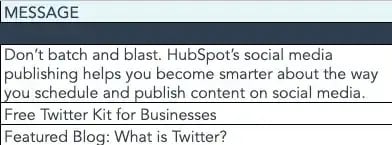
Pro tip: If you‘re adding content to your social media content calendar that isn’t finished, consider adding a short Loom video to give an overview of what the design will look like.
5. Campaign
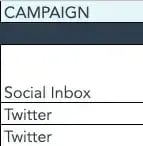
Start tracking your social media campaigns in your content calendar. It's too late to start tracking metrics once your campaign is over!
You can make this prescriptive by having a dropdown list of predetermined campaign names. Or, if your campaigns are few and far between, simply copy and paste the names next to the corresponding content.
Pro tip: Align your campaign name with the campaign section of your UTM parameter for seamless tracking.
6. Image
Without imagery, your social media content calendar will become just another spreadsheet. Add a thumbnail-sized version of each image you'll include in the published post.
This simple but comprehensive approach allows stakeholders to understand exactly what content is slotted for which day at a quick glance.
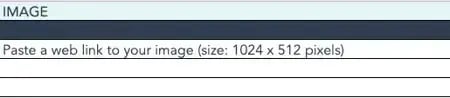
To make editing your images for each platform easier, check out this cheat sheet for ideal image dimensions on each platform.
How to Use a Social Media Calendar Template
- Complete a social media audit across all platforms.
- Pick the top 3-5 social media platforms you’ll use.
- Choose your social media content formats and post types.
- Create social media content templates, lazy hashtags, and lazy copy.
- Fill in your social media holidays, events, and campaigns.
- Determine a social media posting schedule.
- Set up UTM tracking.
- Schedule posts using a social media tool.
- Monitor your social media posts’ success metrics.
Regardless of which social media calendar template you go with, here are a few steps to follow when using one.
Free Social Media Content Calendar Template
Download the free template and user guide to manage your social media posts and strategy.
- Coordinate campaigns
- Increase your reach
- Measure engagement
- Plan your posts
Download Free
All fields are required.
1. Complete a social media audit across all platforms.
Before creating a social media content calendar, complete a social media audit. Auditing your social media presence will help you decide how to move forward as you create your social media content calendar.
Ask yourself questions like:
- Which social media platforms are you on?
- Which platforms are you not on, but your competitors are?
- Which platforms get the most versus least engagement?
- Which content formats do you use most often and least often?
- Which types of posts get the most versus least engagement?
For example, you may be on TikTok, but maybe it’s the platform with the lowest ROI. That may mean it’s time to de-prioritize TikTok from your lineup and invest more time in a platform that's getting better results.
Spend some time perusing your social media analytics to answer these questions. It’s essential to back your conclusions with data instead of a gut instinct.
Pro tip: Our social media report template is an excellent way to keep track of your findings. It contains a variety of charts that will make it easy to organize and, in turn, review and analyze the data.
Recommended Reads:
- How to Conduct A Social Media Audit
- How to Conduct an X Audit of Your Account
- The Ultimate Guide to Social Media Analytics
2. Pick the top 3-5 social media platforms you’ll use.
Don't worry — you don’t need to be on ALL social media platforms to get a high social media ROI. Focus on where your target audience is and the platforms with the highest ROI. This will save your team effort and time, resulting in a much more manageable social media content calendar.
Your task: Choose the top three to five platforms that, based on your social media audit, yield the highest ROI for your business. This may include:
- YouTube
- X (previously Twitter)
- TikTok
- Tumblr
As you choose your platforms, you should also pay attention to trends and growing channels. Even if you’re a marketer at a small B2B business, it won’t hurt to test out a platform before all your competitors do.
Not sure where to start? Our Social Media Trends Report shares insights and benchmarks you can start setting off.
Recommended Reads:
- The 5 Types of Social Media and Pros & Cons of Each
- Which Social Media Channels See the Most ROI?
- Social Media Platforms Marketers Should Watch
- The Fastest Growing Social Media Platforms
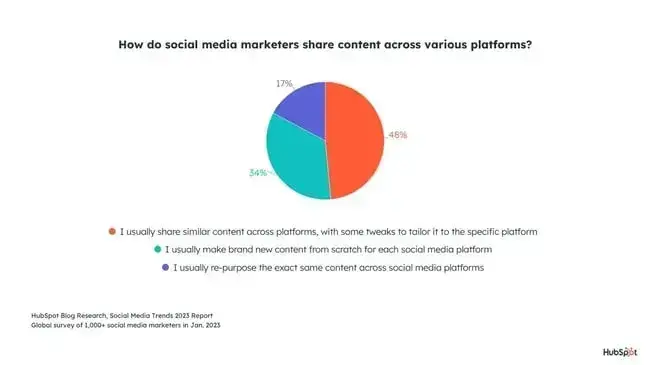
Pro tip: Remember that every social channel is different. The content you post on each one should appeal to the platform's unique layout and users. Cross-posting the same video everywhere may be easy, but it’s not necessarily effective.
3. Choose your social media content formats and post types.
You’re now armed with your social media platforms to pursue, but what social media content types will you post? Some content formats are:
- User-generated content
- Text-based updates
- Short-form videos
- Horizontal video
- Infographics
- Live videos
- Carousels
- Images
Once you have your content format in mind, you need to decide what type of content you'll share. Will you post informative, relatable, or funny content? Informative carousels perform really well on LinkedIn, but customer-centric content performs better on Instagram.
Variety gets the best results.
Try a mix of content types to maximize your ROI. It ensures that you’re serving content that serves different segments of your audience while increasing your reach.
For example, my mom is addicted to Instagram Reels. But the majority of her generation spends the most time engaging with images, photos, and infographics. Most businesses have outliers like my mom, so a diversified content marketing strategy helps you meet varied preferences.
Pro tip: Account for your team’s resources. If you have dedicated social media managers who can create content in-house, you have more leeway with your choices. If you only have a team of one, consider what is most realistic regarding content creation, or try asking for a budget to hire a freelance content creator.
Recommended Reads:
4. Create social media content templates, lazy hashtags, and lazy copy.
As you build out your content calendar (hopefully after downloading a free social media content calendar template!), remember that the purpose of your calendar is to make posting as easy as possible.
In pursuit of that, take some time to create:
- Content templates.
- A list of the hashtags you use most often.
- “Lazy” copy for you or your coworkers to edit.
I find it helpful to store templates in an online bank, such as Google Drive or a tool like Canva, where I can quickly edit a template and adjust it to create a new post. Ideally, you'll have several customizable image templates to provide variety to your audience.
Featured Resource: 150+ Content Creation Templates
As you draft your templates, always keep your brand voice in mind. Whether you’re serious and corporate(dare I say impossible?)(dare I say impossible?) or open and friendly, you want every post to embody your company’s branding.
Recommended Reads:
- 150+ Content Creation Templates
- Instagram Templates for Business
- YouTube Templates for Business
- Pinterest Templates for Business
Don't forget DEIB.
Pro tip: Consider diversity, equity, inclusion, and belonging (DEIB). Consumers care, more than ever, that brands support diversity and inclusion. Ensure your content reflects and respects the values and experiences of your audience.
The faces, voices, and stories you share on social networks should be representative of your audience and the larger community where your business operates. This isn‘t something that can happen by accident, so you’ll want to plan for diversity and inclusion as you develop your content calendar.
If you'd like some guidance on creating diverse and inclusive content, check out our original research on the topic.
Free Social Media Content Calendar Template
Download the free template and user guide to manage your social media posts and strategy.
- Coordinate campaigns
- Increase your reach
- Measure engagement
- Plan your posts
Download Free
All fields are required.
5. Fill in your social media holidays, events, and campaigns.
Identify the holidays and events you’ll be participating in. Note any future campaigns you may have planned around the big calendar events.
- Holidays: Consider both national holidays and fun holidays. Create a holiday post or a paid social campaign — the possibilities are endless.
- Events: Attending an event, conference, or webinar? Share it on your social media channels! Let your audience know that you were there and summarize what happened.
- Campaigns: Campaigns can apply to holidays or to launches of your products. For example, if you have a new product coming out in June, then you'll want to strategically promote that on social media for weeks.
You should plan for each upcoming event with at least a month’s advance notice.
Pro tip: You don’t need to create a campaign for every single holiday. Most marketers in the U.S. plan for three main seasons: Winter/end-of-year holidays, Black Friday, and Halloween.
Recommended Reads:
- Social Media Holidays for Your Content Calendar
- Top Marketing Holidays of the Year, According to Marketer Data
- The Ultimate Guide to Social Media Marketing Campaigns
- Social Media Campaign Ideas to Try
6. Determine a social media posting schedule.
It’s time to get into the most useful part of your content calendar: the posting schedule.
We recently surveyed 1000+ social media marketers to get their take on the best times to post on social media. Here’s a quick overview of the best times to post on each platform based on our findings:
- Pinterest: 12:00 p.m., 6:00 p.m., and 8:00 p.m.
- LinkedIn: 9:00 a.m. - 5:00 a.m.
- Facebook: 9:00 a.m. - 10:00 a.m.
- Instagram: 7:00 a.m. - 8:00 a.m.
- YouTube: 3:00 p.m. - 4:00 p.m.
- TikTok: 10:00 a.m. - 11:00 a.m.
- X: 9:00 am - 4:00 p.m.
My opinion? Find your best time.
Despite the ample amount of research on the best posting time, there's no one-size-fits-all solution for posting times. For example, Sprout Social says the best time to post on Instagram is between 9 a.m. and 1 p.m., and Hootsuite says 9 a.m. is the best time overall.
These differences don’t mean anyone is wrong; they just serve as a reminder that you must tailor the times you post content to your own business and audience.
Pro tip: To determine your schedule, take a look at our research for each social media platform. This will give you a good sense of the best practices for posting. Then, compare that to the bandwidth on your team and the goals you want to achieve to come up with a schedule you can test.
The goal of a social media calendar is to create and publish a sustainable stream of content for your audience. It's a marathon, not a race.
Recommended Reads:
- The Best Times to Post on Social Media
- How Often to Publish on Social Media for Business
- When Is the Best Time to Post on Instagram?
- Best Times to Post on YouTube
- Best Time to Post on LinkedIn
- When to Post on TikTok
7. Set up UTM tracking.
One of the most important parts of a social media calendar is actually the part you don't see — tracking. And the easiest way to track how your social media content is performing is to use UTM parameters.
Yes, this is the second time I’ve mentioned UTM parameters, but for good reason! Can you imagine the nightmare of manually sorting through your campaign traffic to determine where each viewer came from or who engaged with your content?!
I don’t want to do that, and I imagine you don’t either.
UTM codes are simple to set up and use. Once you've implemented them for each link on your social media posts, you can review your social media content metrics.
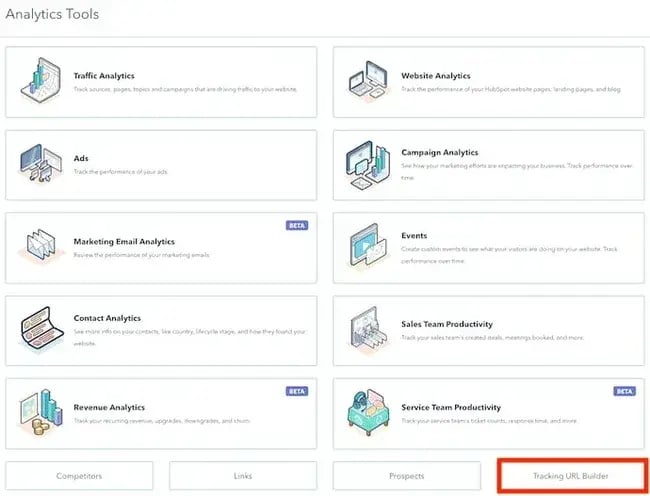
Pro tip: Are you a professional or enterprise user of HubSpot Marketing Hub or Content Hub? Take advantage of the UTM builder natively available on the platform.
8. Schedule posts using a social media tool.
Manually publishing all of your content would be overwhelming at best and impossible at worst. A scheduler will become your best friend.
I recommend integrating your social media calendar template with a social media management tool (we’ll go through a few options shortly.) This will help you schedule posts well before publication, limiting manual work.
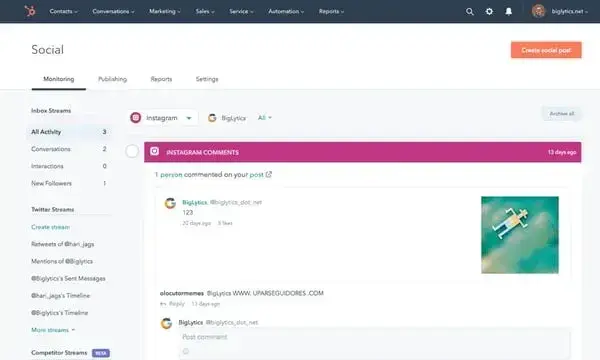
Pro tip: HubSpot’s social media management software allows you to schedule and publish posts to Facebook, X, LinkedIn, and Instagram and it’s free for everyone. Try it out!
Recommended Reads:
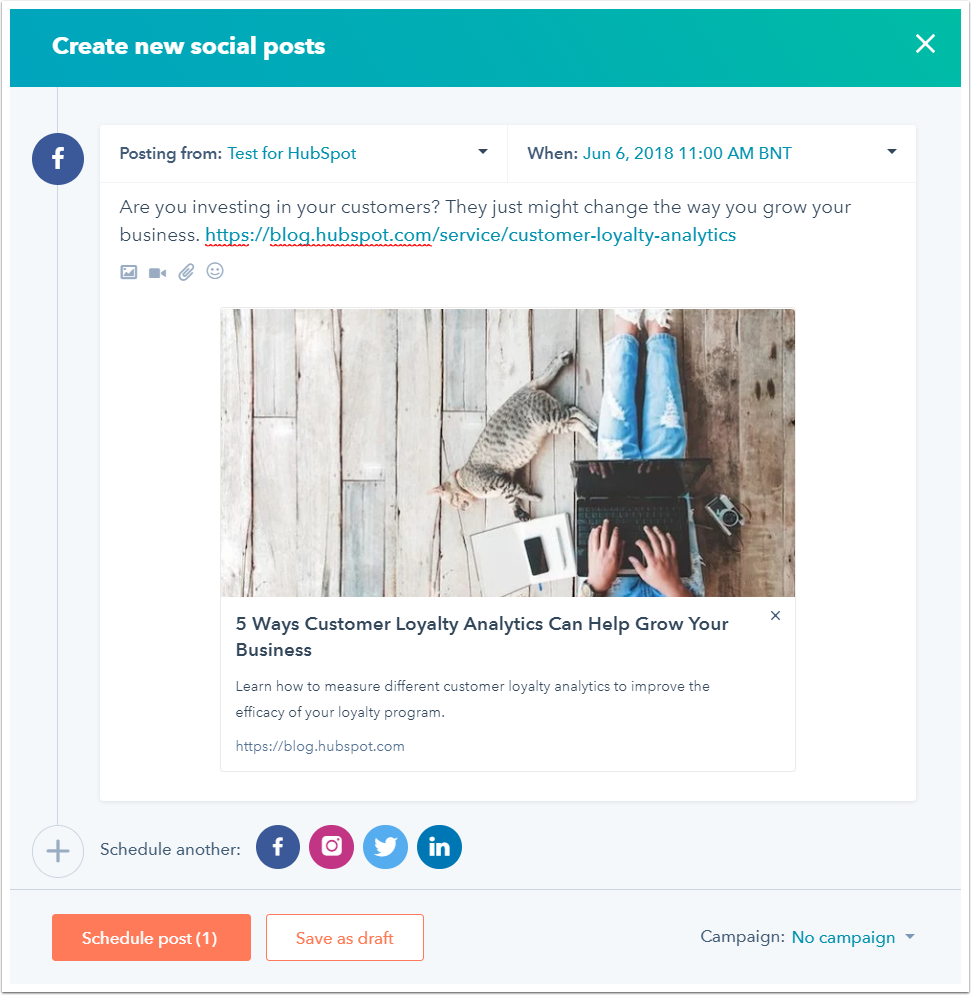
HubSpot's Social Media Management Software
Time-saving tools to help you prioritize your social interactions — so you can connect with the people who matter most.
- Manage campaigns.
- Monitor mentions.
- Attribute value.
- And more!
9. Monitor your social media posts’ success metrics.
Once your social media posting schedule has matured and you have a backlog of posts to analyze, it’s time to dive into your social media metrics. Learn what worked, what didn’t work, and what you should change moving forward.
Looking at individual platform analytics dashboards is a good place to start. As you scale your marketing efforts, consider investing in social media analytics software to compile all of your engagement data for you.
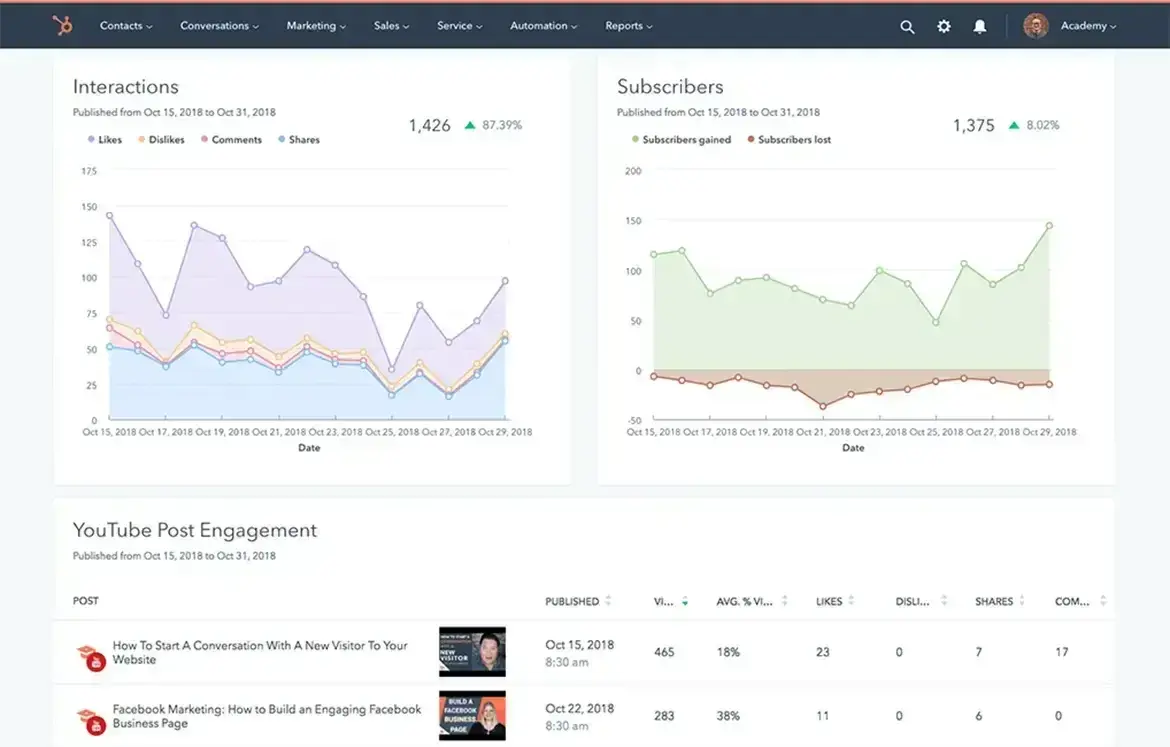
Try HubSpot’s social media analytics software for free.
As you analyze your bops and flops, link it to your company’s bottom line.
How many leads did you earn? How many of those leads turned into sales? How much money did you spend on paid social media versus how much revenue did you generate?
Here’s a guide on measuring social media marketing ROI to help you answer these questions.
The bottom line: align your content with your goals. If you're not sure where to start with setting up your social media goals, we cover that here.
Tracking your analytics.
Pro tip: Create an analysis tracker in your calendar for stakeholders who want to stay abreast of how well your social media content is performing.
Add a tab that shows clicks, views, engagements, and other metrics you plan to track to deem your content a success. Tracking analytics can be as simple or detailed as your team prefers.
For a full list of metrics to track and tools to do it, take a look at this year's Ultimate Guide to Social Media Analytics.
Recommended Reads:
- The Ultimate Guide to Social Media Analytics
- Best Social Media Analytics Tools for Marketers
- How to Create a Social Media Report
Now that you know how to use a social media calendar template, here are 10 of the best options for marketers.
Social Media Calendar Templates
1. HubSpot’s Free Social Media Content Calendar Template
If you don‘t have time to create your social media content calendar from scratch, start with HubSpot’s free social media content calendar template.
Featured Resource: Social Media Content Calendar Template
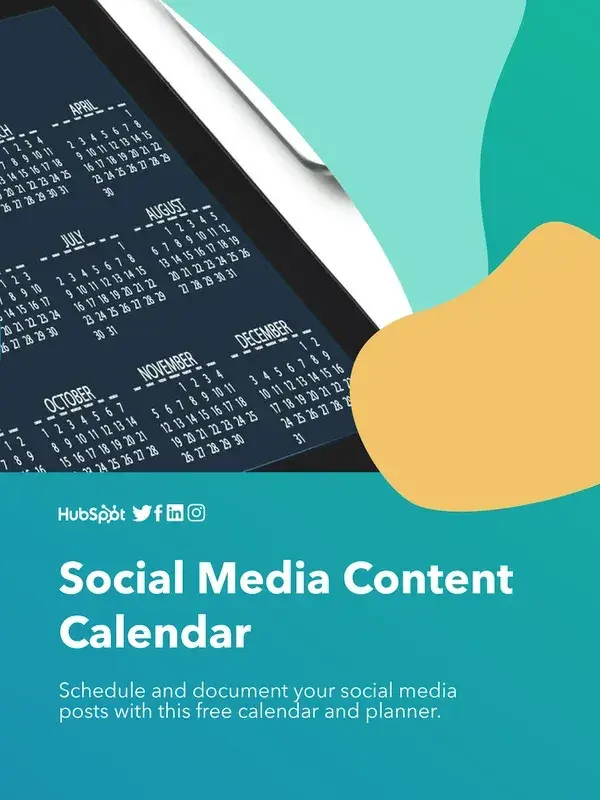
This calendar has everything you need to plan your social media content, coordinate campaigns, grow reach and engagement, scale posting schedule, and boost productivity.
Our template includes everything you need to scale your social media marketing efforts. You’ll gain access to:
- Social Media Content Schedule: See each of your individual posts and draft individual messages and images for each one.
- Monthly Planning Calendar: See your upcoming social posts for the month in a user-friendly, big-picture format.
- Content Repository: List out all of the content you’ll be sharing with your followers, from blog posts to offers to website pages.
- Platform-Specific Tabs: Plan out your updates for each specific platform, including X, Facebook, LinkedIn, and more.
Free Social Media Content Calendar Template
Download the free template and user guide to manage your social media posts and strategy.
- Coordinate campaigns
- Increase your reach
- Measure engagement
- Plan your posts
Download Free
All fields are required.
HubSpot Social Media Content Calendar Template Tutorial
In the following subsections, I'll show you how to fill out each of the tabs in this template — X, Facebook, LinkedIn, Instagram, and Pinterest.
Step 1: Review the “Monthly Planning Calendar” tab.
The “Monthly Planning Calendar” tab is a snapshot of your monthly social media campaigns. It‘ll help you coordinate with other stakeholders and keep all the moving parts in order. Here’s what it looks like:
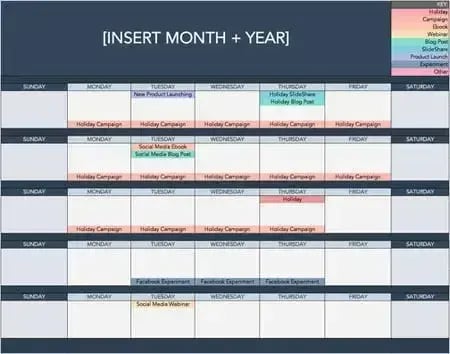
There are three sections to note when you edit this template.
First, the color-coding key. Each color represents a type of content or campaign you might coordinate, like ebooks, webinars, blog posts, or product launches.
Though only some of these might be relevant to you, they're just the beginning of what you may want to include here — so be sure to add and remove categories that align with your own types of content.
The other two sections to edit are the “Month” and “Year” at the top of the calendar and the cells below each day of the week.
In those cells, you should enter the type of content you‘ll be promoting that day and color-code it to align with the campaign it’s supporting.
Instead of deleting all the content in this spreadsheet each month, I recommend copying this worksheet twelve times over to have a separate sheet for each month.
If that gets too overwhelming, you can always save those tabs as a separate workbook.
Step 2: Populate your first social channel in the calendar.
Now, let‘s get to the social media content part of the calendar.
For the sake of this blog post, we’ll use X as an example, but these steps will work for each social channel tab in the template.
Let‘s say you want to add some tweets to your scheduling template.
Scroll over to the X Updates tab in the content calendar spreadsheet, where you’ll see this:
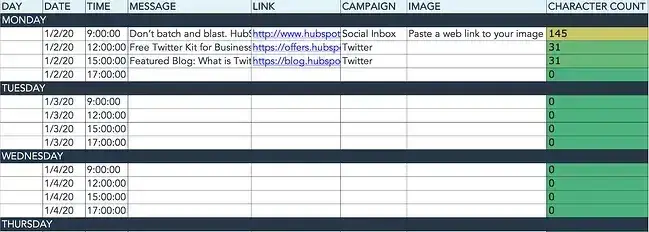
Day, Date, & Time
The first three columns, Day, Date, and Time, are there for your convenience.
If you choose to use a third-party app for pre-scheduling your tweets (like HubSpot's Social Media Management Software), then these columns will be useful.
Message
Now, let‘s move over to the “Message” column. Here, input the copy you’d like to appear in your tweet. Keep in mind that you should cap it at 217 characters to allow enough room for a link. (Read this blog post for a full character count guide.)
This spreadsheet will auto-calculate the number of characters you've entered to keep you on point, turning yellow and eventually red as you approach 240 characters.
I find this to be one of the most useful parts of the template because it helps you make edits in real-time. Plus,this ensures you’re being as clear and concise as possible in your captions (to the benefit of your audience).
Link
After you‘ve composed your tweet, paste the URL you’d like to include in your tweet in the Link column. Be sure to include UTM parameters, so you'll know whether these tweets are driving traffic and leads.
This is an important step to remember if you'd like to demonstrate ROI from social media. You can also use the Campaign column to add an associated campaign, which helps with more detailed tracking and reporting.
Image
Finally, in the Image column, attach the tweet's image (if you have one). For X, we recommend images that are 1200 x 670 pixels.
(Click here for a full cheat sheet of social media image sizes.)
If you're having trouble attaching your image to the spreadsheet, follow these steps:
Step 1: Click on the cell where you'd like to place your image.

Step 2: Click Insert in the top row, then click the Image button, and finally, click Image in cell to choose your image.

Step 3: In the Insert image window, choose the option your photo will come from. In this example, we uploaded an image from our computer.
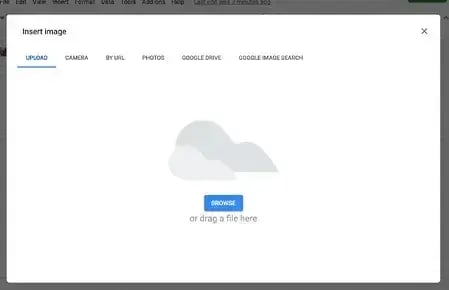
Step 4: You'll now see the image appear in the cell.
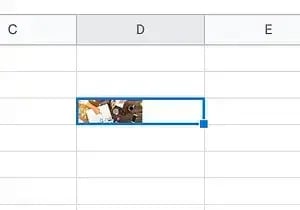
Pro tip: This process is just for organizational purposes. If you decide to upload the spreadsheet to your social media publishing software, it will not attach — you'll have to do that manually.
If you're a HubSpot customer, you can find details on how to bulk upload your X content to the HubSpot Social Publishing Tool in the downloaded template.
2. HootSuite’s Social Media Posting Schedule Template
Another option is the social media posting schedule template from HootSuite.
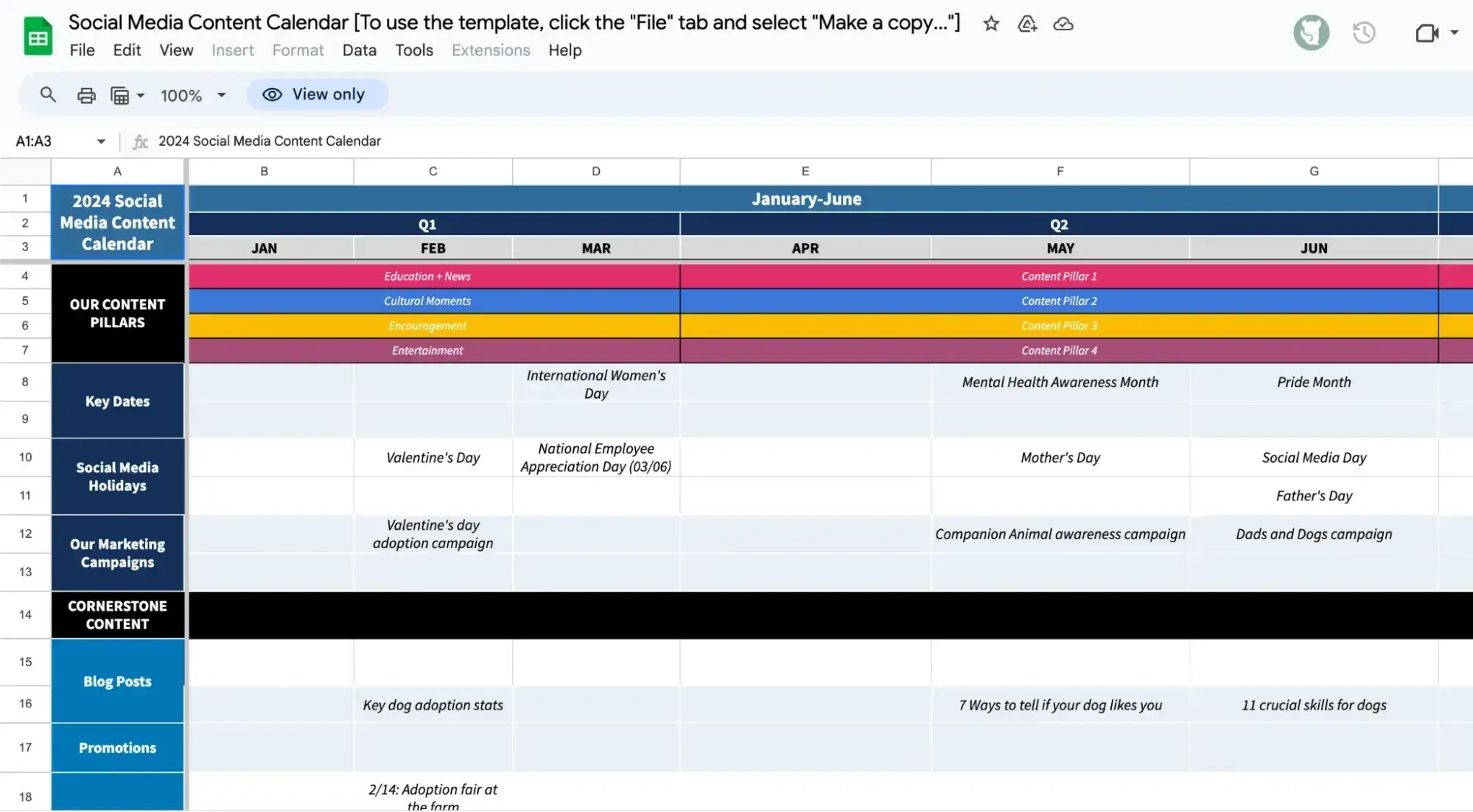
This free template incorporates five popular platforms:
- X
- TikTok
However, it can be easily edited to add or remove items as needed as a Google Doc.
What I like: Besides helping you plan your social media publishing, this template includes a helpful “strategy” tab. This makes your goals and content plan easy to refer to as you work through the rest of the document.
It also has a tab dedicated to “evergreen content,” where you can house timeless pieces you can plug into your calendar at any time.
3. Sprout Social’s Social Media Calendar Template
Sprout Social’s social media calendar template is broken down into four weekly tabs and designed to be used per month.
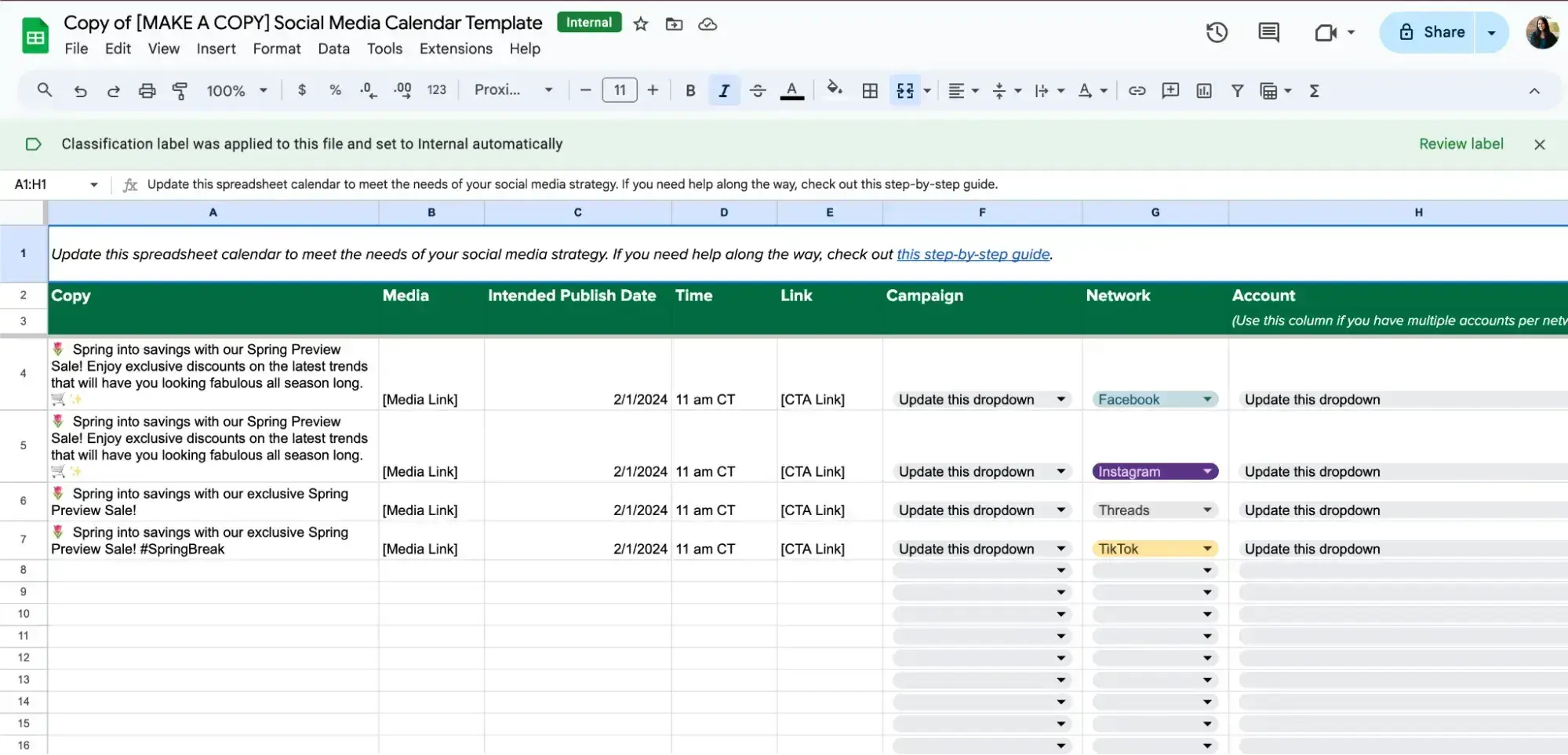
Each tab has columns for key information, including:
- Copy
- Media
- Publish Date
- Network (has a dropdown with Facebook, Instagram, Threads, LinkedIn, TikTik, YouTube, and Pinterest)
- KPIs
What I like: Sprout Social’s platform gets granular about details that others ignore, such as collaborators and KPIs. This goes the extra mile to ensure all social media content is well-planned and working toward a goal. As a Google Doc, the template is also fully customizable.
4. ClickUp’s Social Media Posts Template
If you use ClickUp for your project management, this template may be the one for you.
ClickUp's social post template lets you plan and organize your content and track its status throughout the creation process.
It includes fields for the assignee, due date, channel, and URL and can be viewed as a list, board, calendar, doc, or “embed.”
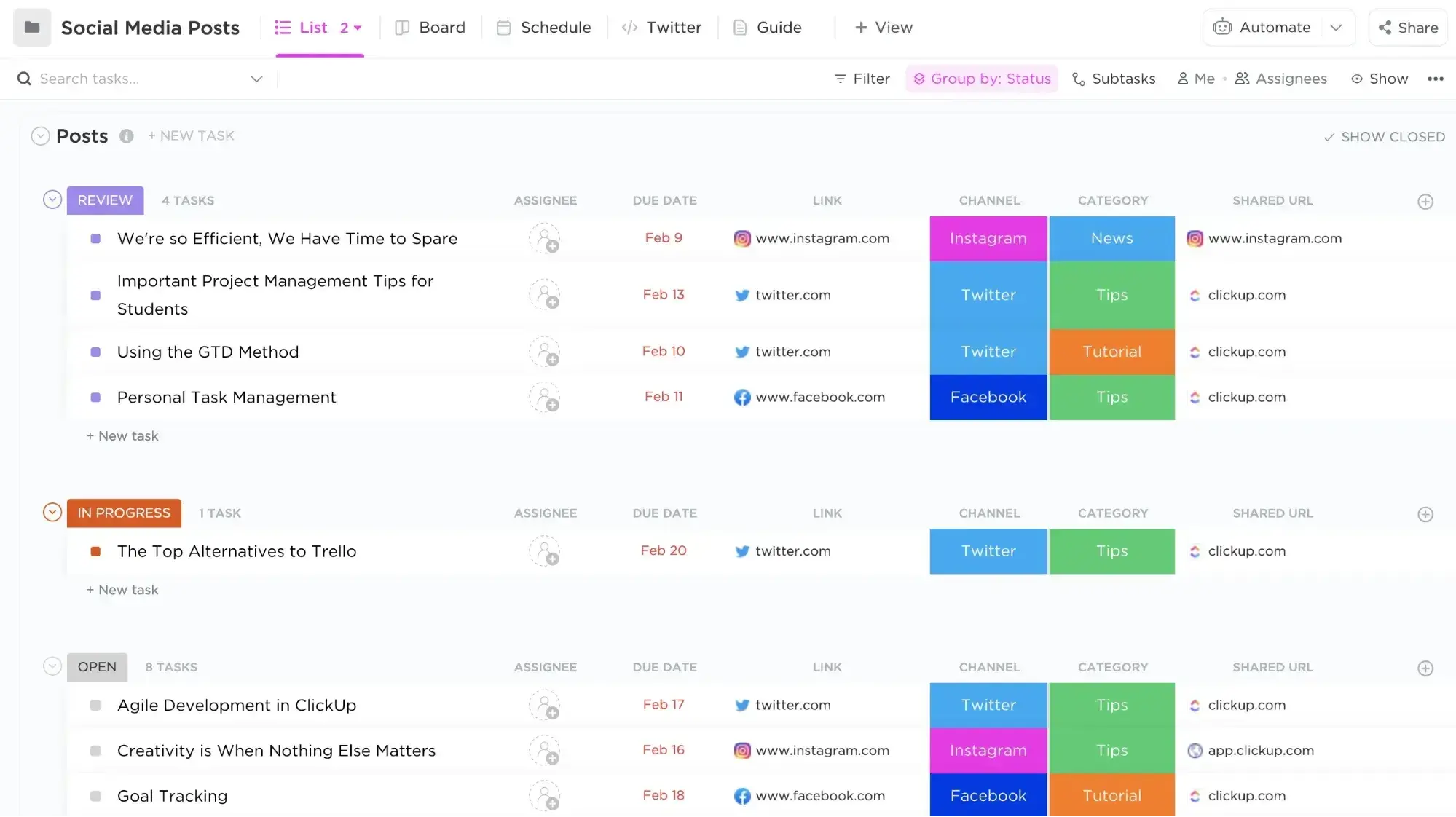
What I like: From idea to publishing, the “card” style of ClickUp makes it easy to host and see everything related to your social media posts.
You can make comments, attach files, and tag different users, so each card serves as a single source of truth for any questions related to that post.
5. SocialBee’s Social Media Content Calendar
SocialBee’s Social Media Content Calendar is another fully editable Google Doc on our list, but one of few that covers a full year.
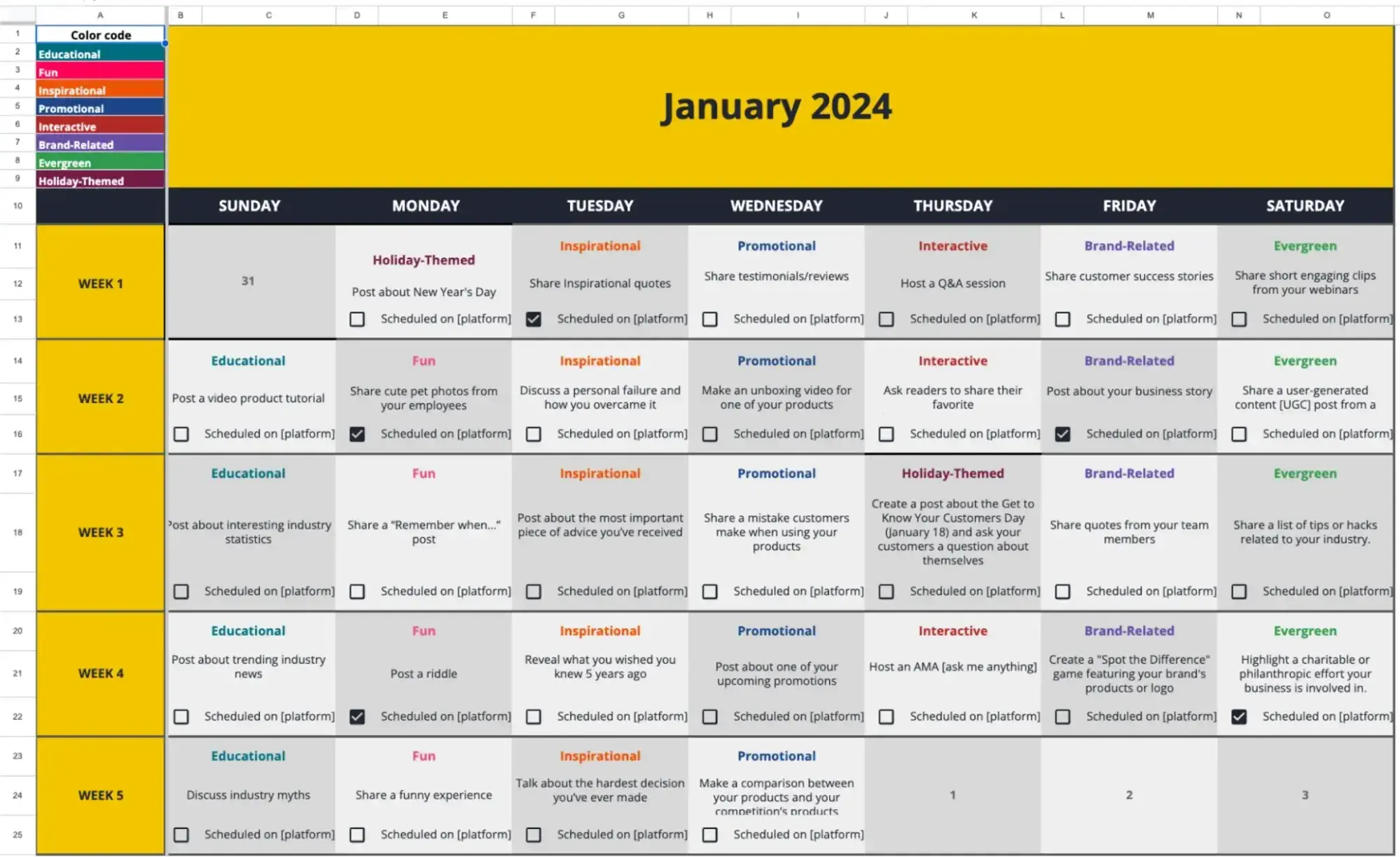
The calendar has a tab for every month and includes dozens of fun and unique post ideas.
What I like: SocialBee really goes above and beyond with making its social media calendar valuable. In addition to the post ideas in the monthly tabs, it also has a number of extra tabs full of post examples to help get marketers’ creative juices flowing.
The bonus post example tabs include: fun, educational, inspirational, promotional, and interactive — just to name a view.
6. Iconosquare’s Social Media Content Calendar
Social media analytics tool Iconosquare has created a social media content calendar that helps teams plan for an entire quarter.
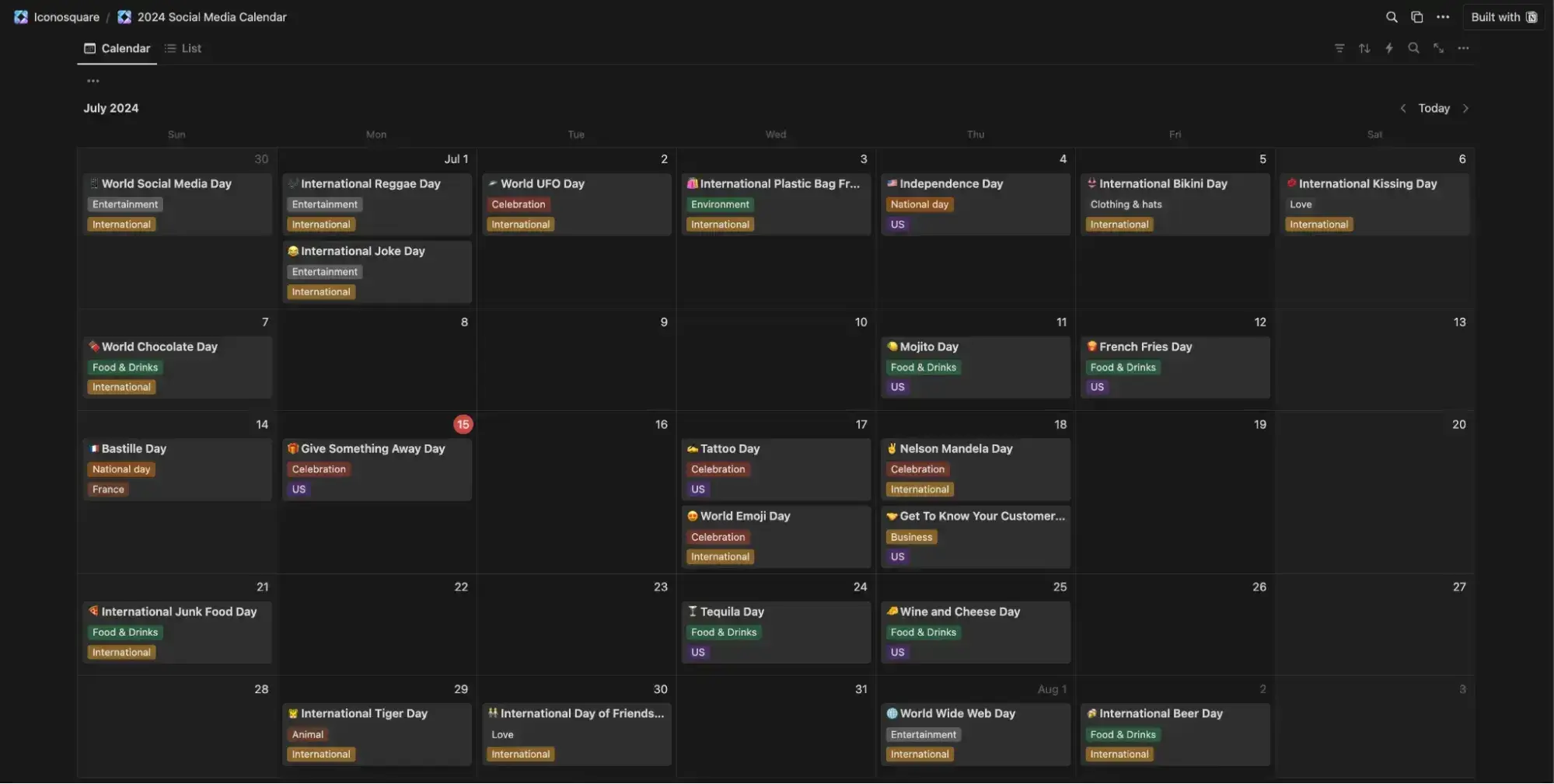
Unlike the other simple spreadsheets on our list, Iconosquare’s social media content calendar template comes as an actual calendar view. While handy, it can only be used in Notion or Google Calendar, limiting its audience.
What I like: Iconosquare’s calendar has many global celebrations and “fun” holidays (i.e. World Chocolate Day) pre-populated. This is a unique and effective way to spark and inspire ideas in users as they are planning their content.
7. Semrush’s Social Media Calendar
Semrush’s social media calendar is another built as an easy-to-edit spreadsheet.
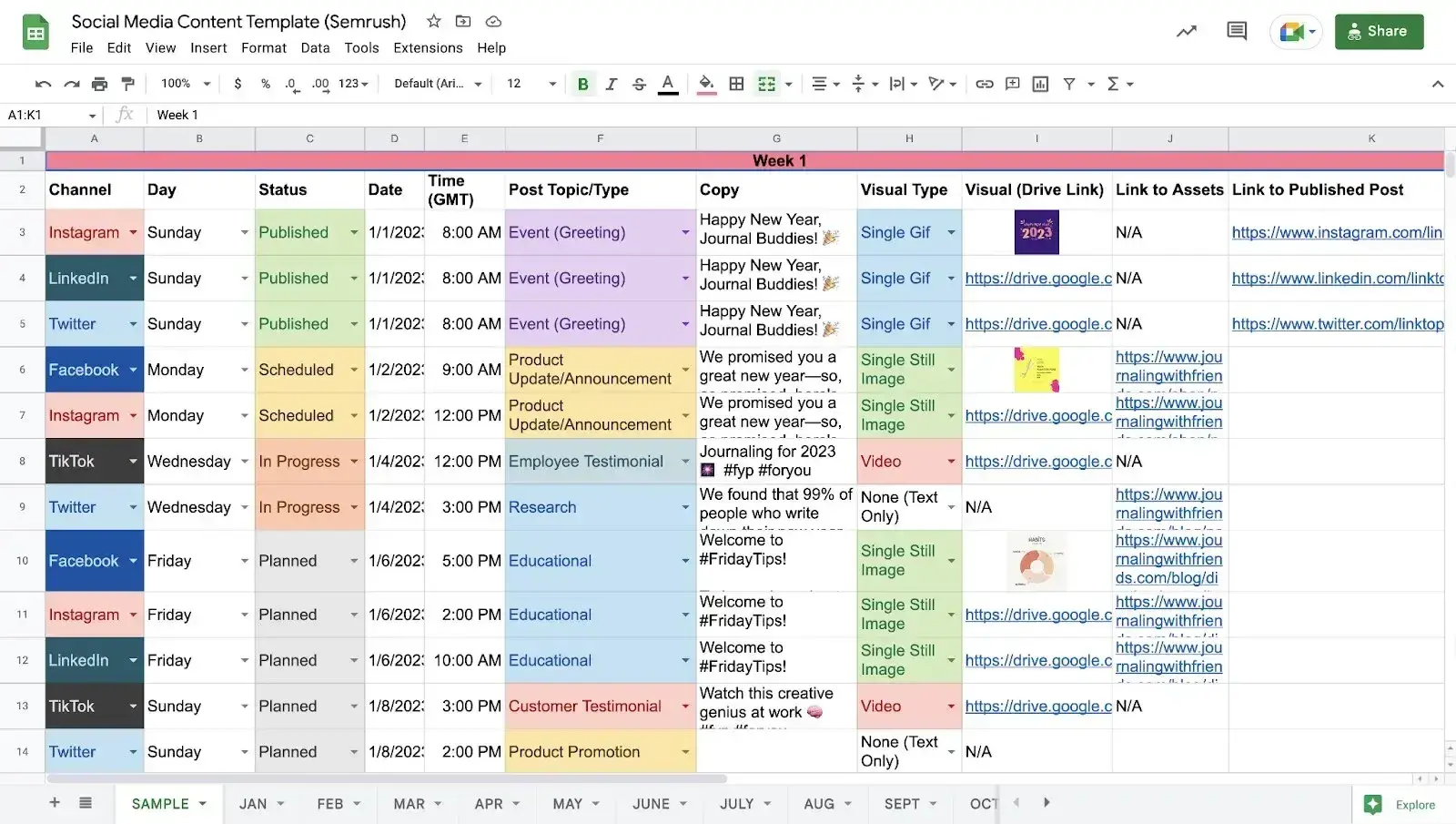
It provides all the information needed to schedule or publish a post:
- Channel
- Day, Date, and Time
- Post Topic/Type
- Copy
- Visual Type
- Visuals
- Link to Assets
- Status
It also includes color-coding that allows users to get an idea of what content is coming up at a glance.
What I like: I love that this covers a full calendar year, allowing marketers to jot down ideas or important dates as they come up. And that the first tab shows an example of a great social media content calendar which gives newer marketers something to aim for.
8. Later Free Social Media Content Calendar Template
Later’s free social media content calendar template is an editable spreadsheet that can be used to plan for a week.
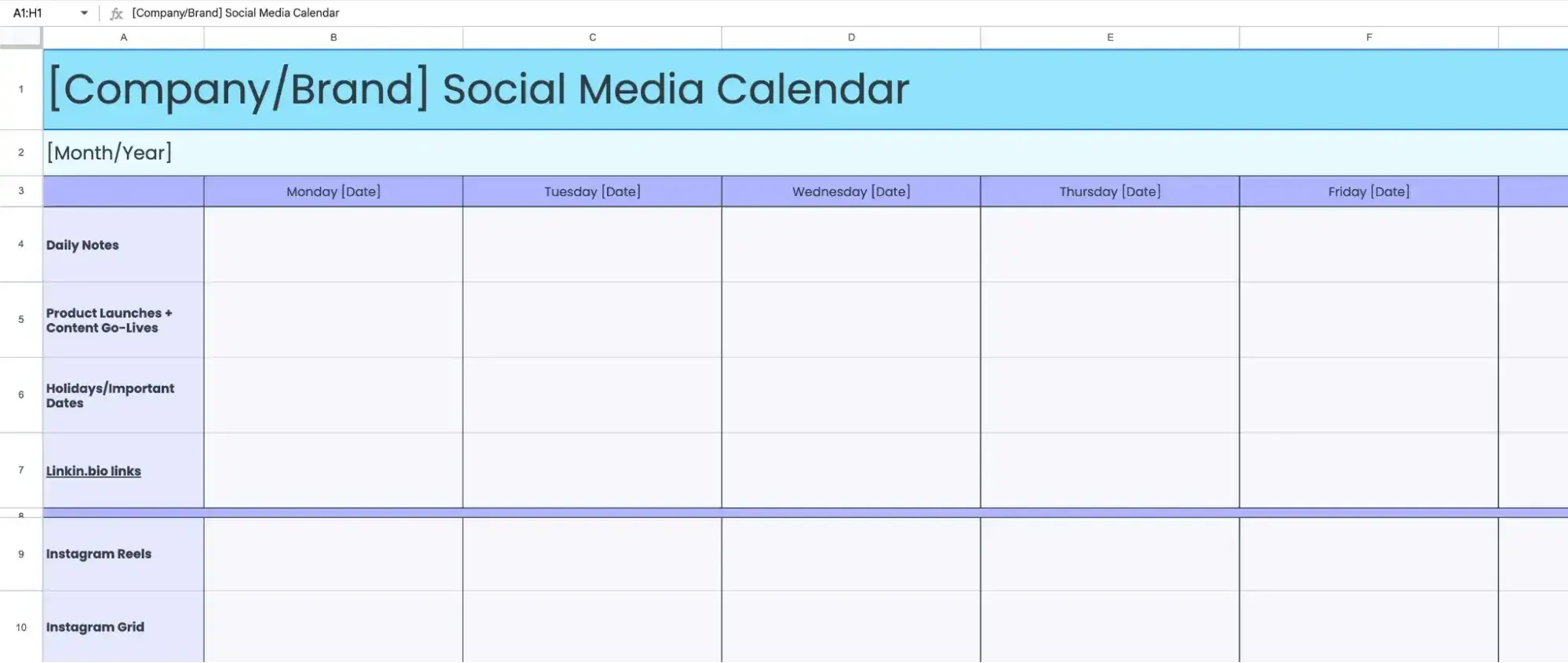
It includes a tab with instructions and resources to teach new users how to use the template successfully and also shares an example of a well-planned day.
What I like: While every brand on our list has education on social media marketing available on its website, Later makes its users’ lives easy by linking to those someone would need right in its template.
This is a small but smart move that dramatically improves the user experience.
9. Monday Social Media Content Template
Is Monday your digital planning tool of choice? If so, they’ve got a social media calendar template to add to your workflow.
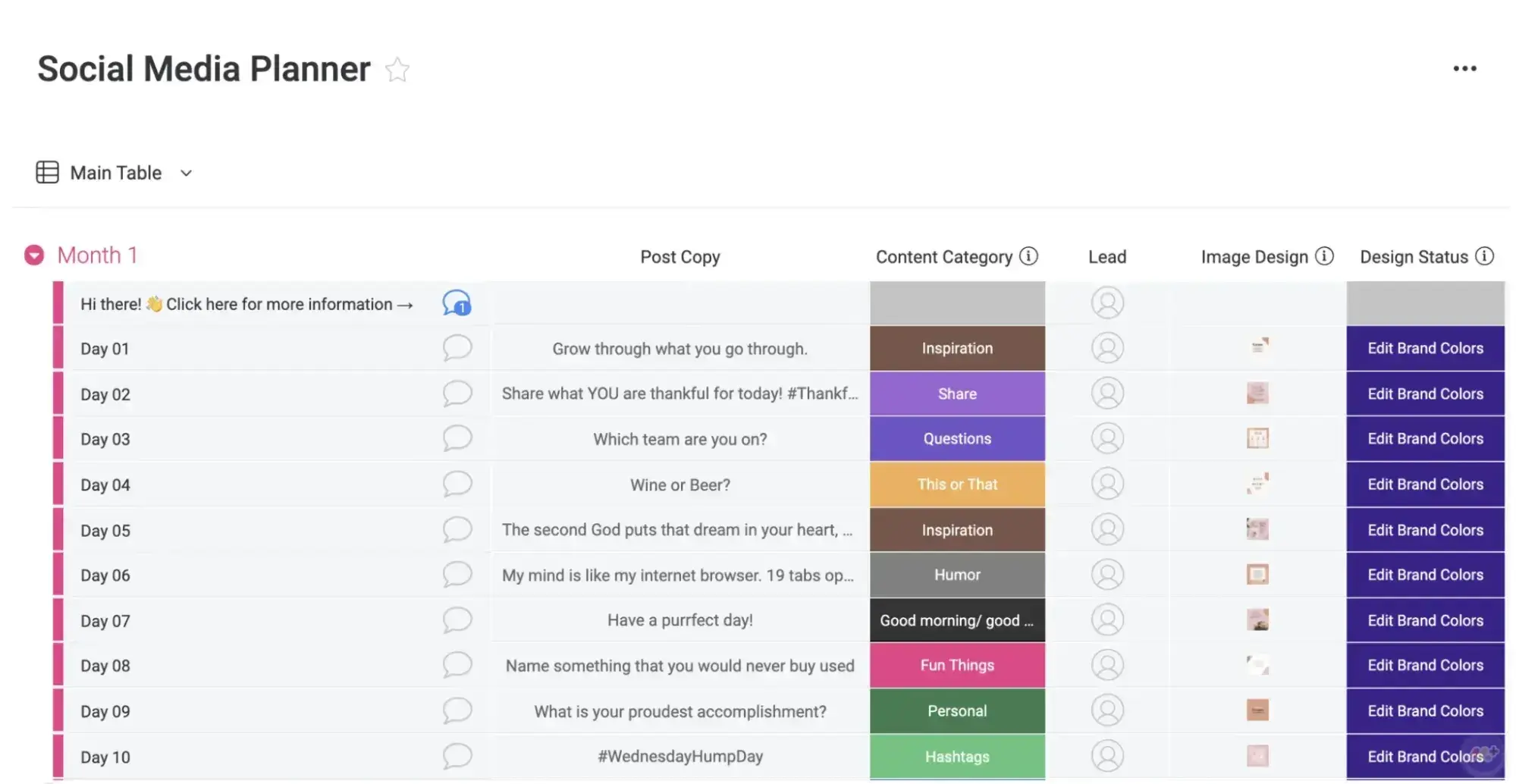
This template is built specifically for use in the Monday software and houses essential information like post copy, date and time of publication, and visual assets.
It also uses color coding to differentiate content categories, making it easier to see and audit your content mix.
What I like: I’m a big fan of any tool that lets you see all the conversation surrounding a project in one place. With comments, user tags, and file uploads, Monday makes that possible.
10. Canva Social Media Calendar Template
Last but not least, if you don’t like any of the templates we shared, Canva makes it free and easy to create your own.
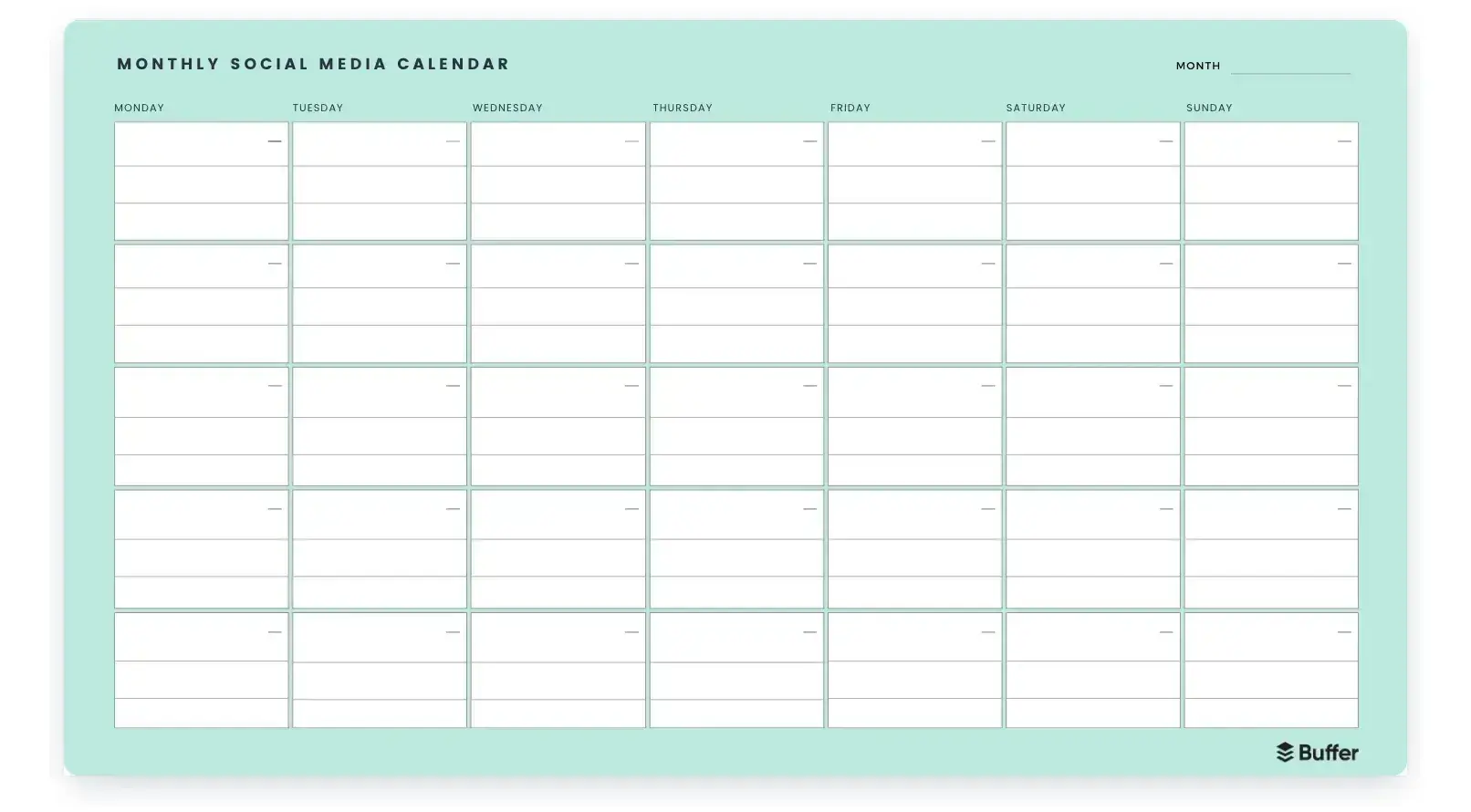
How do you get started? Try these weekly or monthly templates created by the team at Buffer, or navigate to Canva’s Calendar templates gallery and play around with making your own.
What I like: Canva is a Godsend when it comes to design and data presentation. I like this option because you get to customize the information included in your editorial calendar as you like and give the design a little extra flair.
Don't Forget to Interact With Your Followers
Whether you use this spreadsheet to plan your content or upload it to a third-party app, you'll still need to supplement these updates with on-the-fly content.
- Breaking news hits? Whip up a quick update to share it with your network.
- Did someone in your network post something interesting? Give it a reshare with some commentary.
- Got a fascinating comment on one of your updates? Respond with a “thank you” for their interaction.
Coming up with and scheduling your social media content in advance is a huge time-saver. But it never takes away the need to monitor and add to your social presence throughout the day.
Now that you've got the ins and outs of a social media content calendar, download the one below for free and start planning your content. Happy planning!
Editor's note: This post was originally published in January 2020 and has been updated for comprehensiveness.
Free Social Media Content Calendar Template
Download the free template and user guide to manage your social media posts and strategy.
- Coordinate campaigns
- Increase your reach
- Measure engagement
- Plan your posts
Download Free
All fields are required.



![The Best Times to Post on Social Media in 2024 [New Data]](https://lh7-us.googleusercontent.com/if40gtl1eUNNl92f1YN87mMwhXCYKPaRSiGVIdl3pQ-ptb-7V8kCRdJL4jwm49C1YyXRfhEYWFnrc5oQ4DYq4CnY6Gx_OfdbGCCWUVE3-BBWvGrdL7oV5k7btX7N1sIvYyKPVRm2OrDguiNhTqhGK9c)


![How to Post on Snapchat Spotlight [+ Tips for Creating Engaging Content]](https://www.hubspot.com/hubfs/how%20to%20post%20on%20snapchat%20spotlight.jpg)