.png?width=112&height=112&name=shortening-property-en%20(1).png)

Form builder software enables marketers to create and publish online forms without coding. The best form builder software comes with CRM synchronization, conditional logic, branding, lead attribution, and reporting.
HubSpot’s Free Online Form Builder covers much of that ground in one system. Marketers can create branded forms, capture submissions in HubSpot CRM, trigger follow-up actions, and analyze performance without stitching together separate tools.

I’ve reviewed the 13 best online form builders so you can find the best one that fits your needs, from animated, WordPress-friendly to enterprise forms.
Table of Contents
- How to Create Online Forms
- Form Builder Software Tools: What to Look For
- The 13 Best Online Form Builder Tools
- How to Pick the Right Form Builder for You
- Frequently Asked Questions About Form Builder Tools
- Finding the Right Form Builder
TL;DR: The Best Online Form Builders by Use Case
- HubSpot Free Online Form Builder: Best for CRM-native lead capture, branded forms, automation, and reporting.
- HubSpot WordPress Plugin: Best for WordPress sites that need forms, CRM contact management, live chat, email, and analytics in one plugin.
- ClickUp Forms: Best for internal requests, feedback, and submissions that should become tasks.
- Popupsmart: Best for targeted popups, banners, and conversion campaigns across websites.
- Forms.app: Best for flexible no-code forms, quizzes, surveys, payments, and signatures.
- Mailmodo: Best for interactive forms that recipients can complete inside supported email experiences.
- WPForms: Best for WordPress teams that want a dedicated form plugin with a large form template library.
- Visme: Best for visually distinctive and animated forms that support a broader content design workflow.
- Jotform: Best for broad form use cases, payment collection, workflow automation, and regulated data collection on qualifying plans.
- Google Forms: Best for basic surveys, quizzes, registrations, and internal data collection.
- Typeform: Best for conversational forms that present one question at a time.
- Formstack: Best for enterprise workflows, approvals, documents, signatures, and regulated processes.
- SurveyMonkey: Best for surveys, research programs, feedback analysis, and structured respondent data.

How to Create Online Forms
- Identify your form’s goal.
- Choose a form builder that fits your tech stack.
- Ask only for the information you need.
- Build in a clear follow-up.
An effective online form starts with a clear business goal, a compatible tech stack, a focused set of fields, and a defined next step. Form design alone cannot compensate for weak routing or slow follow-up.
Regardless of the form builder, a few key steps make the difference when creating a form for lead generation.

1. Identify your form’s goal.
A form’s goal determines what it asks, where it appears, and what happens after submission. Define the outcome before opening the builder.
Common form goals include:
- Capturing leads
- Registering event attendees
- Qualifying demo requests
- Collecting customer feedback
- Processing support requests
- Accepting applications or orders
Each extra goal usually adds fields and workflow complexity. Separate unrelated goals rather than forcing one form to handle every scenario.
If you need some high-converting form type ideas, check out HubSpot’s Ultimate Guide to Web Forms.
HubSpot's Free Online Form Builder
Generate leads from your website using a powerful online form builder.
- Customer Surveys
- Lead Capture
- Event Registration
- And More!
2. Choose a form builder that fits your tech stack.
A form builder should send data directly into the systems that act on it — a CRM, a CMS, a payment processor, or an email marketing platform. The integration should support the fields, objects, consent records, and routing logic the team needs.
For lead capture, a form builder with CRM integration is paramount. Manual exports introduce delays, duplicate records, and inconsistent field mapping. A native CRM connection keeps the form submission attached to the contact’s activity history.
HubSpot Form Builder integrates with HubSpot CRM. Each form submission can create or update a contact record, support segmentation, and feed sales or marketing workflows.
3. Ask only for the information you need.
Every required field creates work for the visitor. Each field should support the form’s goal and trigger the right next action. A newsletter signup needs little more than an email address. A demo request needs enough context for a rep to prepare.
The list below matches common form types to the information they typically need to collect.
- Newsletter signup: Email address, with first name as an optional field.
- Content download: Name, business email, company name, and job role.
- Demo request: Name, business email, company name, company size, role, and main challenge.
- Sales consultation: Contact details, budget range, timeline, service needed, and project scope.
- Event registration: Full name, email, company, role, attendance preferences, and accessibility needs.
- Support request: Contact details, account or order number, issue category, problem description, and file upload.
I’m always a little reluctant to hand over my information on a form, like many people. To avoid form abandonment, I recommend making non-essential contact fields optional and sharing how the contact details will be used.
Teams can use HubSpot’s form shortening feature that hides fields that enrichment data can complete. For example, the tool can automatically add headcount, industry, LinkedIn URL, or country.
The visitor sees a shorter form, while the CRM receives a more complete record.

4. Build in a clear follow-up email.
Decide what should happen immediately after someone submits the form. Show a clear confirmation and “thank you” message, email any promised resource, or set expectations for the next step.
Secondly, define the internal workflow. The submission may need to create a contact record, start a nurture sequence, or open a task for sales or support.
For a “Contact Us” form, I recommend a follow-up email confirming receipt of the form and providing an estimated response time. The more clarity provided, the better the user experience.
HubSpot forms can automatically send a follow-up email after a visitor completes a form and filter out spam submissions. Forms also enroll contacts in lead nurturing campaigns to convert visitors into qualified leads.

Form Builder Software Tools: What to Look For
Confused by all the options available? There’s a huge variation in the features, prices, and value you get from each one. Here are the criteria I look for to find the best online form maker.
1. Ease of Use
Every tool claims to be easy to use, but not all are intuitive. Ease of use measures how quickly users can create, test, publish, and update forms without developer support.
Look for things like drag-and-drop reordering, question banks, and robust documentation to help learn the platform.
I’ve discovered that some of the nuances don’t become clear until you use them, so don’t be afraid to demo different tools and see which you prefer.
2. Customization
Customization controls how closely a form aligns with the brand and the surrounding page experience. A disconnected form can reduce trust at the exact moment a prospect is asked to share personal information. The right form builder offers a range of field options, logo and image support, and custom domain settings.
HubSpot’s visual editor gives marketers full control over form design and layout, making it straightforward to build brand-aligned forms that improve completion rates.
3. Conditional Logic
Conditional logic is when a form shows specific questions to a respondent based on their previous responses, creating more relevant, concise forms for better engagement.
For instance, if I ask, “Which products are you interested in trying?” in a market research survey and the person selects “shirts” instead of “shoes,” my next question may ask for their shirt size, but not their shoe size.
4. Integrations
One major feature of the form builder tool is its integrations with a CMS, CRM, or other marketing automation platforms. These integrations determine how smoothly form data moves into an organization’s marketing and sales workflows.
For forms embedded on a website, I’d first confirm the builder works with the existing CMS without custom development. It’s also worth checking whether submissions can create or update CRM records automatically and map to the right fields.
5. Analytics and Reporting
Reporting capabilities vary widely across form builder tools. Some offer visual dashboards with detailed metrics. Others, like Google Forms, export data as a spreadsheet for manual analysis.
It’s worth reviewing what each builder offers before committing — the right reporting setup depends on how the team plans to use the data.
6. Mobile-Responsiveness
Desktop-friendly forms with long dropdowns and side-by-side fields often cause problems on mobile and tank completion rates. Mobile-responsive form builders ensure that labels, fields, buttons, and multi-step interactions remain usable on smaller screens.
My advice: Test forms on real mobile devices with different screens. A desktop preview cannot reveal every keyboard, spacing, or autofill issue.
7. Accessibility
Many forms aren’t accessible for individuals with low vision who use a screen reader. This doesn’t just exclude people — it can also mean running afoul of ADA regulations.
Forms should use high contrast in their design and follow the four accessibility design principles: perceivable, operable, understandable, and robust.
8. Data Security
Any form that collects sensitive personal information — medical details, financial data, or contact information — requires a builder that can be trusted to keep that data secure.
Healthcare providers need a form builder that ensures HIPAA compliance with patient data. Forms accessible to users in Europe must comply with GDPR regulations. California, the U.K., and Canada have similar requirements.
I recommend looking for form builders with a reCAPTCHA option and certifications like SOC 2 and ISO. The cost of a data breach far outweighs the cost of a secure, high-quality tool.
Creating a first form? There’s an exhaustive tutorial on how to create a web form.
The 13 Best Online Form Builder Tools
Researching tools can be intimidating, but I’ve made it easy for you by testing what I believe is the best web form software to help you pick the best fit. The following reviews compare each product’s use case, pricing, workflow fit, and strongest capability.
1. HubSpot’s Free Online Form Builder
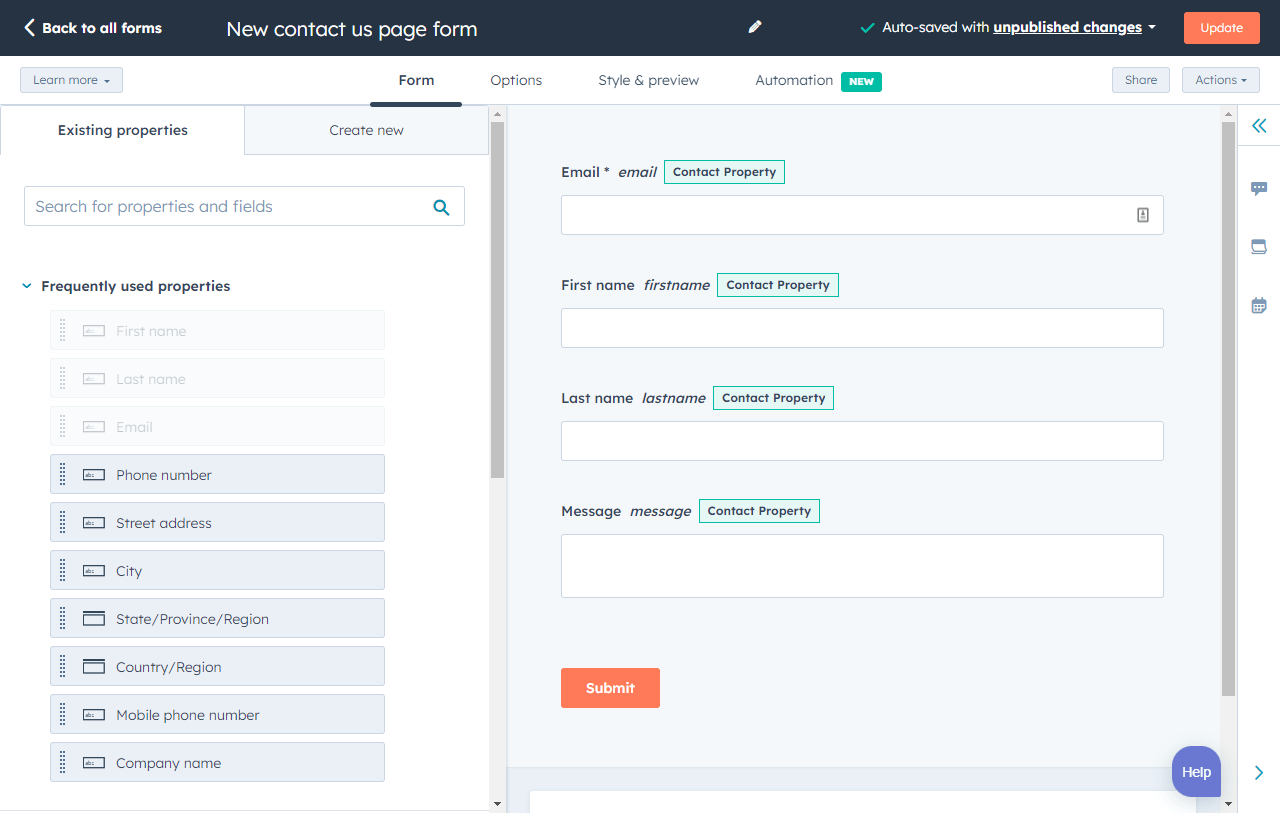
HubSpot’s online form builder is one of the most powerful form builder tools available. It combines no-code form creation with branding, advanced sales and marketing automation, personalization, and reporting. And it’s also free.
HubSpot Form Builder integrates directly with HubSpot CRM, which means a submission can create or update a contact record.
That record can include the submitted information and relevant activity history. Marketing, sales, and service teams can work from the same contact data rather than reconcile separate spreadsheets.
Key Features
- Easy drag-and-drop interface, no coding required
- Integration with HubSpot’s CRM and marketing tools for lead management
- Customizable forms to match your branding
- Analytics to track form performance
- Follow-up emails
- Conditional logic and redirects on qualifying plans
- Breeze-powered form shortening and enrichment
- Automatic email notifications for submissions
HubSpot's Free Online Form Builder
Generate leads from your website using a powerful online form builder.
- Customer Surveys
- Lead Capture
- Event Registration
- And More!
Best for: SMB, mid-market, and enterprise marketing teams that want forms, contact data, follow-up, and reporting inside one customer platform.
Pricing: HubSpot Form Builder is free to start. Advanced features are available on Starter Customer Platform at $10 a month.
What I like: HubSpot’s form builder includes a unique feature called form shortening, which pulls public data from the web and LLMs to auto-populate details like company size, industry, and website — only asking the contact to complete a few short fields. This decreases the chance a lead will abandon the form halfway through.
The form builder is also very intuitive. I was able to create a custom event registration form in about five minutes.
My personal favorite feature is the ability to enable a form pop-up in a highly targeted way. I can choose a customer segment, which page the form appears on, and how long before it triggers. Location, days since last visit, and engagement metrics can also be set as conditions.

That way, I can send a customized message, demo request, or relevant content at exactly the right time.
2. HubSpot’s WordPress Plugin
Have a WordPress site but still want to leverage HubSpot tools to generate leads? HubSpot’s WordPress Plugin connects a WordPress website with HubSpot’s CRM, forms, live chat, email marketing, analytics, and contact management tools.
With HubSpot’s WordPress plugin, marketers get a website builder with forms to generate landing page leads.
Key Features
- Seamless integration with WordPress and HubSpot for easy lead capture
- Tracks visitor behavior, including page views and form submissions
- Automatically syncs data with HubSpot CRM for better lead management
- Free to use with basic lead-tracking features
- Live chat
- No-code setup
Best for: WordPress teams that want forms and lead management connected to a CRM without assembling several unrelated plugins.
Pricing: Free plugin, though you may need a paid HubSpot plan or WordPress plan for certain features.
What I like: The tool makes the form creation process easy. Although it’s powered by HubSpot, you don’t need to leave your WordPress dashboard to get the same form-building experience that you can find in Marketing Hub.

3. ClickUp Forms

ClickUp is an all-in-one project management and collaboration tool built to help teams of all sizes manage all their work and centralize communication. ClickUp Forms collects submissions inside the ClickUp platform. Each answer can be turned into a task that a team can assign and track.
It comes with tons of configuration options to let teams easily create an ideal form for any use case.
Key Features
- Customizable forms that integrate with ClickUp tasks and workflows
- Automates task creation and team assignment from form submissions
- Offers unlimited form views in paid plans and rich reporting tools
- Collaboration features allow teams to work on form responses directly in ClickUp
Best for: Operations, project, product, and service teams that want form submissions to become actionable work.
Pricing: Free plan includes one form, with paid plans starting at $10/month.
What I like: Because ClickUP Forms are integrated with task management, teams can turn form submissions into a to-do item and even use the form tool as a simple ticket management system. For that reason, I believe this tool is best for internal data collection or user feedback instead of large-scale lead collection.
What I don’t like: The first thing I noticed about ClickUp is that it has a lot of options.
I think this is a strength, but it is also a drawback. The interface feels clunky and complex for beginners. You’ll definitely encounter a learning curve when setting everything up if you aren’t already a competent user.
4. Popupsmart

Popupsmart is a no-code popup builder for forms, banners, announcements, and website conversion campaigns. The product emphasizes audience targeting with popup forms rather than traditional standalone form creation.
Campaigns can respond to factors such as device, location, traffic source, page behavior, and exit intent.
Key Features
- No coding skills are needed, making it accessible to all users
- Highly adaptable with smart tags, custom fonts, CSS, and various input options
- A library of conversion-focused popup templates
- Seamless lead follow-up with built-in email automation feature
- Very responsive support powered by AI and real human expertise
Best for: Webinar signup forms, newsletter signups, contact forms, and registration forms. Create these within minutes without any coding or programming experience.
Pricing: Free plan, with paid options starting at $39/month
What I like: Popupsmart makes it easy to customize form fields, images, CSS, and fonts. Smart tags and persona-based display conditions add another layer of targeting.
5. Forms.app

Forms.app is a versatile no-code form generation software platform for forms, surveys, quizzes, applications, payments, and other structured data collection. It comes with an extensive form library and allows for interactive web form design.
I think one of the great things about forms.app is that many of its advanced features are available for free. This includes conditional logic, calculators, product baskets, file uploads, multiple question types, payment collection, signature collection, and advanced analytics.
Key Features
- Intuitive drag-and-drop form builder — no coding required
- Offers a wide range of templates and customization options
- Integrates with third-party apps like Google Sheets, Slack, and Mailchimp
- Provides conditional logic and payment collection features
- Offers an AI form generator
Best for: Small businesses, lifestyle media outlets, and teams that need a flexible general-purpose no-code form builder with advanced field types.
Pricing: Free plan, with paid options starting at $29/month.
What I like: Forms.app offers an AI form generator feature to create forms and surveys faster. Users describe what they want to create, and the AI will take care of the rest. It also suggests rewrites to questions to help users write the best survey questions possible.
While the tool offers payment forms and medical treatment forms, proceed with caution. Do your research first to make sure it meets your company’s data security and regulatory standards.
6. Mailmodo

Mailmodo is an all-in-one email marketing platform that allows users to create and send interactive forms within emails in minutes. These forms can be filled and submitted within the recipient’s inbox itself, boosting user engagement and streamlining campaigns.
Mailmodo also offers ready-made marketing form templates for various use cases, such as surveys, lead generation, registrations, booking, and feedback collection.
Key Features
- Interactive forms allow form submission within emails
- Allows you to create multi-step and conditional forms
- Drag-and-drop editor makes it easy to design emails and forms without coding
- Free email and marketing form templates for all use cases
- Integration with over 40+ platforms
- Robust email analytics dashboard to track email opens and clicks
- Sophisticated email automation features to schedule emails based on triggers
- Send time optimization feature to send email at optimal time for each recipient
Best for: Email marketing teams that want recipients to take action inside supported email clients.
Pricing: Free plan, with paid options starting at $99/month.
What I like: Mailmodo’s interactive email forms feature sets it apart from traditional form builders. By embedding forms directly within emails, it significantly improves engagement and boosts conversion rates. Another thing I like about Mailmodo is the multi-step forms capability that allows users to show different sets of questions in the next step based on the response received.
HubSpot's Free Online Form Builder
Generate leads from your website using a powerful online form builder.
- Customer Surveys
- Lead Capture
- Event Registration
- And More!
7. WPForms

WPForms is a beginner-friendly WordPress form builder that makes it easy to add beautiful forms to your website with just a few clicks. It’s used by over six million users who love it for its easy WordPress integration and wide variety of templates.
Key Features
- Easy-to-use drag-and-drop builder, suitable for beginners
- Wide range of pre-built templates for quick form creation
- Integrates with popular platforms like PayPal, Stripe, Mailchimp, and more
- Offers advanced features like conditional logic, multi-page forms, and file uploads
- AI-powered form building with instant translation
- AI-powered calculation formulas for fields like sales tax
Best for: WordPress users who want a feature-rich dedicated form plugin and do not need forms to be natively built into their CRM.
Pricing: WPForms Lite is free, with paid plans starting at $49.50 a year.
What I like: All plans include a GDPR agreement option, reCAPTCHA security, mobile-responsiveness, and secure payment options like Stripe and PayPal.
8. Visme

Visme Forms focuses on interactive, animated, and brand-led form experiences. While marketers may not think their form needs custom animations, Visme’s research found it can lead to 40% more conversions and 34% more form starts.
Like others I reviewed, Visme offers a drag-and-drop form builder that integrates with Zapier, Mailchimp, HubSpot, and others.
Key Features
- Design-focused, interactive forms with customizable design options
- Integrates with Visme’s other design tools, making it easy to create branded forms
- Provides real-time analytics and data collection
- Ideal for presentations and reports, with easy embedding options
Best for: Brand, design, and content teams that want forms to acquire distinctive, memorable traits.
Pricing: Free basic plan, with paid plans starting at $29/month.
What I like: Visme’s AI feature allows for designing interactive, professional forms with less hassle. Once created, Visme generates a link, QR code, and HTML code for embedding the form on a website.
Data from signups, leads, and registrations populates the platform automatically. From there, it can be viewed, filtered, or exported with ease. Visme’s integrations make it straightforward to set up a data flow between platforms.
9. JotForm

Jotform is an online form builder with an intuitive visual editor and a huge template library for any occasion, known for making form-building faster than ever. Jotform allows users to build forms for lead capture, registrations, payments, signatures, and regulated data collection.
With Jotform, marketers can test different templates and adjust their look-and-feel without creating an account.
Key Features
- Intuitive drag-and-drop form builder with a wide variety of templates
- Supports payment processing, conditional logic, and form automation
- Integrates with apps like Salesforce, Google Drive, PayPal, and Dropbox
- Extensive customization options and form analytics
- Option for HIPAA compliance on some plans
- Ability to create no-code mobile apps to collect and share information
Best for: Organizations that need a versatile form platform with payments, signatures, workflows, and regulated configurations.
Pricing: Free plan caps out at five forms, with up to 100 entries per month and 100 MB of file storage, with paid plans starting at $39/month.
What I like: Jotform offers HIPAA compliance, a valuable feature for any healthcare provider. Other useful security features include user access control, SSO integration, and local data residency to keep user data safe.
10. Google Forms

Google Forms’ unique selling point is that it’s fast, free, and easy to use, with unlimited forms and entries. It’s also built into Google Workspace, so it automatically pulls your data into a Google Sheet for you to analyze.
Users can build forms for surveys, quizzes, registrations, and basic data collection. They can choose question types, reorder fields through a drag-and-drop interface, customize a theme, share the form through a link, or embed it on a website.
Key Features
- Completely free, with no limits on form creation or responses
- Seamlessly integrates with other Google services like Google Sheets
- Simple, intuitive interface with real-time response tracking
- Supports collaborative form building and sharing
- Flexible customization options for branding
Best for: Simple surveys, classroom quizzes, internal forms, event registrations, and lightweight data collection.
Pricing: Free with a Google account.
What I like: I like how simple to use this tool is without limits on responses or number of forms. Yet, Google Forms isn’t the best option for lead capture since users are unable to customize the layout and embed it nicely on their website.
Avoid gathering medical or financial information via Google Forms, since it isn’t created to securely store personal and sensitive information.
11. Typeform

Typeform’s innovative approach of serving up one question at a time is widely recognized in the form builder space. The format is mobile-friendly, reduces cognitive load, and increases the chance of completion.
Typeform supports AI-assisted creation, logic, lead qualification, payments, scheduling, and workflow connections.
Key Features
- User-friendly forms with a conversational, one-question-at-a-time format
- Customizable design options
- Integrates with many apps like Google Sheets, Slack, HubSpot, and Zapier
- Supports conditional logic and payment collection
- AI-assisted form creation
Best for: Marketing, research, and customer experience teams that prioritize a conversational respondent experience.
Pricing: Free plan available, with paid plans starting at $39 per month.
What I like: Typeform has excellent logic and branching features that make it great for customer surveys and user research. If you want to create a form with an engaging and straightforward user experience, this tool is a solid option.
I’ve used Typeform to create simple surveys for my book club and found it easy and fast. It’s easy to outgrow the free version, though, which caps you at just 10 responses a month.
12. Formstack
Formstack is a Salesforce-native form builder, though available for non-Salesforce users. The tool’s best features include intelligent forms, built-in workflows, and seamless integrations with Amazon S3, Stripe, PayPal, Microsoft, and Salesforce.
Key Features
- Versatile form builder with advanced features like conditional logic and calculations
- Strong integrations with CRM, payment, and marketing platforms
- Robust data collection and analytics tools
- HIPAA-compliant forms for healthcare use
- Security features, including compliance with SOC 2, GDPR, and credit card fields
- Designed for accessibility, with Section 508 and WCAG compliance
Best for: Enterprise and regulated organizations that need forms to support approvals, signatures, documents, Salesforce processes, or complex workflows.
Pricing: Plans start at $99 per month.
What I like: Formstack’s A/B testing tool compares different versions of your form to see which performs better. The tool also offers electronic signatures and payments, and users can save their form drafts and return to finish them. While pricier than other alternatives, Formstack brings robust data security with a SOC 2 certification and HIPAA compliance.
13. SurveyMonkey

SurveyMonkey is a survey and form platform built for research, feedback, and structured data analysis. Its strengths sit in question design, survey logic, and response analysis — making it a solid fit for teams running repeatable feedback programs.
Key Features
- User-friendly interface with a wide variety of customizable templates
- Robust survey logic features, including skip logic and branching
- Strong analytics and reporting tools for data analysis
- Integrates with many apps, including CRMs and email marketing platforms
- Multilingual surveys
Best for: Small businesses, educational institutions, HR, and non-profits for gathering insights and improving decision-making.
Pricing: Free plan available; paid plans start at $99 per month for U.S. users.
What I like: SurveyMonkey provides a variety of templates and question types, including multiple-choice, open-ended, and rating-scale questions.
The platform integrates with many other tools, including CRMs, email marketing services, and productivity apps. A question bank and AI features help users create a survey quickly and confidently.
I was also impressed with SurveyMonkey’s analytics and reporting. Dashboards visualize data in real time, and the platform tells the average completion rate and time to completion.
HubSpot's Free Online Form Builder
Generate leads from your website using a powerful online form builder.
- Customer Surveys
- Lead Capture
- Event Registration
- And More!
How to Pick the Right Form Builder for You
The right form builder depends on team complexity, data flow, user experience, budget, reporting, and compliance requirements. The following framework helps narrow the choice.
- Match the tool to your team size and workflow. A small business may need a simple builder with predictable pricing. Growing teams often need CRM sync, automation, branding, and shared templates. Enterprise teams should also check permissions, single sign-on, auditability, approval workflows, and support.
- Calculate the full workflow cost. Subscription price is only one part of the decision. The correct comparison should include software, implementation, maintenance, reporting, and administrative work.
- Check integrations before comparing smaller features. Identify where form data needs to go and what should happen after submission. I would verify field mapping, duplicate handling, lead routing, attribution, and workflow triggers.
- Choose the right respondent experience. Short embedded forms work well for lead capture, whereas multi-step or conversational forms may suit longer applications and surveys. The format should match the task.
- Define what reporting needs to show. This can be as simple as submissions and completion rates or as complex as lifecycle stage and revenue context. CRM-native HubSpot Free Online Form Builder combines simple and advanced form analytics.
- Match security and compliance controls to the data collected. Sensitive or regulated forms require role-based access, audit logs, data residency, retention controls, and formal compliance agreements. Enterprise teams must verify those requirements before choosing a platform.
For lead capture tied directly to the CRM, HubSpot’s free form builder is hard to beat. Every submission can flow straight into HubSpot CRM, so marketers can skip manual exports and design automatic follow-ups.
Frequently Asked Questions About Form Builder Tools
What is a form builder?
A form builder is software that lets users create, publish, and manage online forms without coding. Most provide fields, templates, design controls, and response storage. More advanced tools connect submissions with CRM records, automation, payments, and approval workflows. HubSpot Form Builder combines no-code forms with HubSpot Smart CRM and marketing tools.
What is the best free online form builder?
The best option depends on the use case. Google Forms works well for simple surveys and internal data collection. HubSpot’s WordPress Form Plugin is the strongest choice for WordPress sites. Forms.app covers interactive surveys and quizzes. HubSpot Online Form Builder is the best fit for marketing teams that need CRM-native lead capture, with submissions flowing directly into HubSpot CRM without a separate connector.
Are no-code form builders secure?
Security depends on the vendor, plan, configuration, and type of data collected. A secure form builder typically supports encrypted forms, two-factor authentication, PCI DSS, GDPR, and HIPAA compliance. Enterprise options add SOC 2 controls, SSO, and data residency. Any evaluation should review encryption, access controls, audit logs, and compliance documentation before committing.
How many fields should a lead capture form have?
A lead capture form should include only the fields required for the next business action. A newsletter signup may need just an email address. A demo request typically needs full name, business email, role, and phone number. HubSpot’s form shortening can auto-populate enrichment fields in the background, reducing visible effort for respondents without losing useful CRM data.
Finding the Right Form Builder
The best form builder is the one that fits the team’s workflow, integrates cleanly with existing tools, and makes it easy to act on submissions. For most marketing teams, that means starting with CRM integration and working outward from there.
HubSpot’s Free Online Form Builder covers the core needs in one place. Branded forms, CRM-native lead capture, follow-up automation, and reporting are all built in. No additional tools required.
Editor’s Note: This post was originally published in April 2019 and has been updated for comprehensiveness.
HubSpot's Free Online Form Builder
Generate leads from your website using a powerful online form builder.
- Customer Surveys
- Lead Capture
- Event Registration
- And More!
Forms